
Product Overview
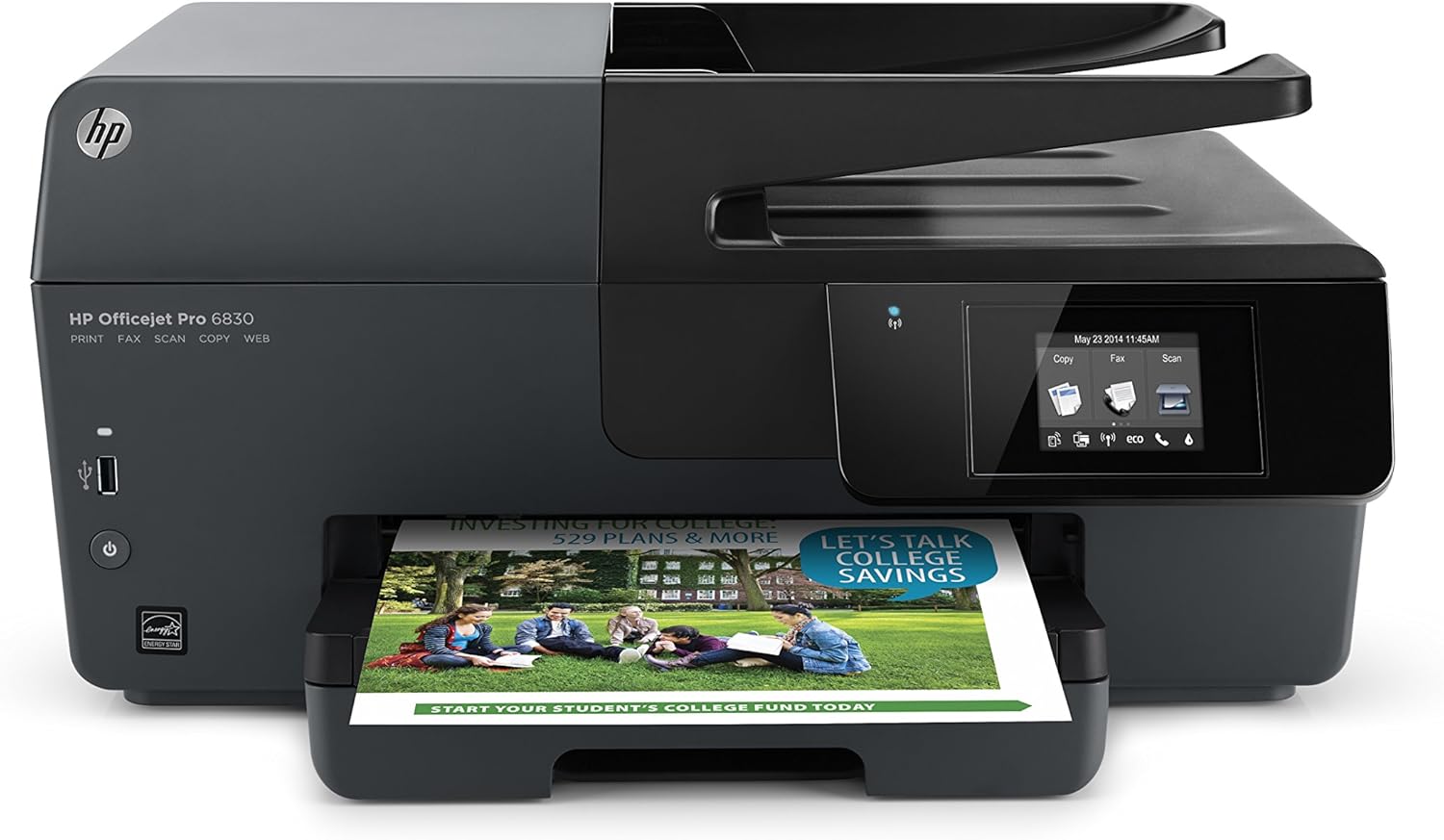
The HP OfficeJet Pro 6830 is a versatile All-in-One color inkjet photo printer designed for home and small office use. It offers multiple functionalities including printing, copying, scanning, and faxing. Key features include wireless printing capabilities, two-sided (duplex) printing, and an intuitive color touchscreen for easy navigation. This printer is also compatible with HP Instant Ink for convenient ink replenishment.
- Main functions: Copy, Scan, Fax, Wireless Printing, Two-sided Duplex Printing, Color Touchscreen.
- Mobile Printing: Print from smartphones or tablets using the free HP ePrint app, AirPrint (for iPhone/iPad), or Wireless Direct printing without a network.
- Cost-Effective Printing: Designed to produce professional color documents at a lower cost per page compared to lasers.
- Automatic Document Feeder (ADF): Allows for multi-page copying and scanning.
- Supported Paper Sizes: A4, A5, A6, 6x8 in, Executive, Index card (3.5x5 in, 4x6 in, 5x8 in, A4), Index card Letter, 3x5 in, 4x6 in, 5x7 in, 13x18 cm, 8x10 in, 10x15 cm, 8.5x13 in, Legal, Letter, Envelope (#10, A2, C5, C6, DL), Card Envelope 4.4x6 in.
Setup Guide
1. Unpacking and Contents
Before setting up your HP OfficeJet Pro 6830, ensure all components are present and packaging materials are removed.
The box should contain:
- HP OfficeJet Pro 6830 E-All-In-One Printer
- Setup Ink Cartridges (Black, Cyan, Magenta, Yellow)
- Power Cord
- Phone Cord (for fax functionality)
- Setup Poster
- Limited 1-Year Warranty documentation
2. Initial Power On and Network Connection
Connect the power cord to the printer and a wall outlet. Power on the printer using the power button. Follow the on-screen instructions on the color touchscreen to select your language, country/region, and set up the date and time. The printer will guide you through connecting to your wireless network or via Ethernet.
3. Loading Paper
The paper input tray is located at the bottom front of the printer. Pull out the tray and adjust the paper guides to fit your paper size. Insert the paper stack, ensuring it is flat and within the guides, then push the tray back into the printer. The printer supports various paper types and sizes, including standard plain paper, photo paper, and specialty media like shipping labels.
Video: Demonstrating paper loading into the HP OfficeJet Pro 6830.
4. Installing Ink Cartridges
To install or replace ink cartridges, locate the access door on the front right side of the printer. Open the door to reveal the cartridge slots. The HP OfficeJet Pro 6830 uses HP 934 (Black) and HP 935 (Cyan, Magenta, Yellow) ink cartridges. Gently push the old cartridge to release it, then insert the new cartridge into its corresponding color-coded slot until it clicks into place. Close the access door.
Video: Guide to installing and replacing ink cartridges.
Operating Your Printer
Printing Documents and Photos
The HP OfficeJet Pro 6830 allows for high-quality printing of various documents and photos. You can print directly from your computer, mobile devices, or via web services. The printer supports automatic two-sided (duplex) printing to save paper. Ensure the correct paper type is loaded for optimal print quality.
Video: Printing a document using the HP OfficeJet Pro 6830.
Copying and Scanning
The printer features both a flatbed scanner and an Automatic Document Feeder (ADF) for copying and scanning. For single pages or delicate items, use the flatbed. For multiple pages, place them in the ADF. Use the color touchscreen to select "Copy" or "Scan" and follow the prompts to adjust settings like color/black & white, resolution, and destination (e.g., computer, USB drive, email).
Video: Scanning documents using the flatbed and ADF.
Faxing
To send a fax, connect the phone cord to the printer's fax port and a telephone wall jack. Use the color touchscreen to select "Fax" and enter the recipient's fax number. You can place documents on the flatbed or in the ADF for faxing.
Mobile Printing
The HP OfficeJet Pro 6830 supports several mobile printing options:
- HP ePrint: Print from virtually anywhere by sending an email to your printer's unique email address.
- Apple AirPrint: For Apple iOS devices (iPhone, iPad), print directly from compatible apps without installing additional drivers.
- Wireless Direct Printing: Print directly from your mobile device to the printer without needing a network or router.
HP Instant Ink Service
The HP OfficeJet Pro 6830 is Instant Ink ready, offering a convenient ink replenishment service. Your printer automatically detects when you need ink and reorders it for you, delivering new cartridges directly to your door before you run out. This service can help save up to 50% on ink costs, and delivery is always included. You can upgrade, downgrade, or cancel your plan anytime.
Video: Overview of the HP Instant Ink subscription service.
Maintenance
Replacing Ink Cartridges
Refer to the "Installing Ink Cartridges" section under Setup Guide for detailed instructions on how to replace your HP 934 (Black) and HP 935 (Cyan, Magenta, Yellow) ink cartridges. Always use genuine HP ink cartridges for optimal performance and print quality.
Cleaning Your Printer
Regular cleaning helps maintain your printer's performance. Gently wipe the exterior with a soft, damp, lint-free cloth. For the scanner glass, use a glass cleaner applied to a cloth (not directly to the glass) to avoid streaks. Refer to the printer's internal software for printhead cleaning and alignment options if print quality issues arise.
Troubleshooting Common Issues
If you encounter issues with your HP OfficeJet Pro 6830, consider the following common troubleshooting steps:
- Printer Not Responding: Check power connections, ensure the printer is turned on, and verify network connectivity (Wi-Fi or Ethernet). Restart both the printer and your computer/device.
- Print Quality Issues: Perform a printhead cleaning and alignment from the printer's control panel. Check ink levels and replace any low or empty cartridges. Ensure you are using appropriate paper for your print job.
- Paper Jams: Carefully remove any jammed paper from all accessible areas of the printer, following the instructions on the printer's display or the setup poster.
- Scanning Problems: Ensure the document is correctly placed on the flatbed or in the ADF. Verify that the printer is connected to your computer and the scanning software is properly installed and configured.
- Printhead Problems: In rare cases, a printhead issue might occur. If basic troubleshooting doesn't resolve print quality problems, contact HP support for further assistance.
Technical Specifications
| Feature | Specification |
|---|---|
| Model Name | 6830 |
| Item Model Number | E3E02A#B1H |
| Product Dimensions | 15.26 x 18.18 x 8.82 inches |
| Item Weight | 17.6 pounds |
| Connectivity Technology | Wi-Fi, Ethernet, USB 2.0 |
| Printing Technology | Inkjet |
| Printer Output | Color |
| Max Print Speed (Monochrome) | 29 ppm |
| Max Print Speed (Color) | 24 ppm |
| Maximum Color Print Resolution | 4800 x 1200 dpi |
| Duplex Printing | Automatic |
| Scanner Type | Document (Flatbed & ADF) |
| Max Input Sheet Capacity | 225 Sheet Input (from description), 35 Sheet ADF |
| Memory Storage Capacity | 1024 MB |
| Power Consumption | 4.9 watts (On-mode) |
| Compatible Ink Cartridges | HP 934 (Black), HP 935 (CMY) |
Warranty and Support
The HP OfficeJet Pro 6830 comes with a one-year limited hardware warranty. For technical assistance, troubleshooting, or warranty claims, HP provides 24-hour, 7 days a week Web support.
For more information and support resources, please visit the official HP support website: support.hp.com