
Introduction
Welcome to your SoundPEATS S1 Bluetooth Stereo Headphone. This manual provides detailed instructions for setup, operation, and maintenance to ensure optimal performance and longevity of your device. Please read this manual thoroughly before using the product.
Product Overview
Package Contents
The SoundPEATS S1 Bluetooth Stereo Headphone package includes:
- SoundPEATS S1 Bluetooth Stereo Headphone
- USB Charging Cable (non-standard)
- Ear Cushions (pre-installed)
- Quick Start Guide
Headphone Components and Controls
Familiarize yourself with the main components and control buttons of your S1 headphone.
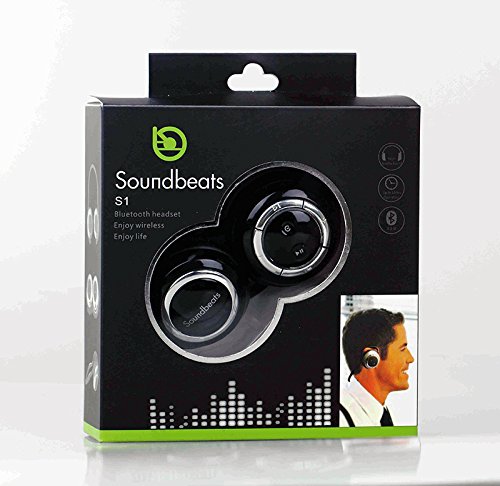
Image: SoundPEATS S1 Headphone (Folded View)
This image displays the SoundPEATS S1 Bluetooth Stereo Headphone in a folded configuration, viewed from the top. The black earcups feature silver-ringed control panels. The right earcup clearly shows the power/multi-function button, play/pause, and volume/track navigation controls. The 'Soundbeats' logo is visible on the left earcup.
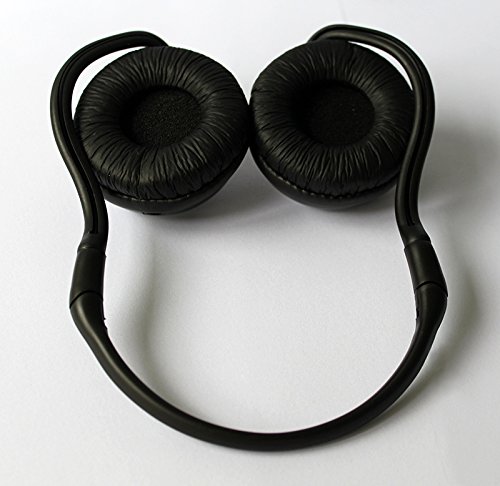
Image: SoundPEATS S1 Headphone (Earcup View)
This image shows the underside of the SoundPEATS S1 Bluetooth Stereo Headphone, highlighting the soft, black ear cushions. The flexible headband connecting the two earcups is also visible, designed for comfortable wear.
Initial Setup
Charging the Headphone
Before first use, fully charge your SoundPEATS S1 headphone. A full charge typically takes approximately 2 hours.
- Locate the charging port on the headphone.
- Connect the provided USB charging cable to the headphone's charging port.
- Connect the other end of the USB cable to a compatible USB power source (e.g., computer USB port, USB wall adapter).
- The LED indicator will illuminate red during charging.
- Once fully charged, the LED indicator will turn blue. Disconnect the cable.
Important: The S1 uses a non-standard USB charging cable. Please retain the original cable for future charging. Using an incompatible cable may damage the device.
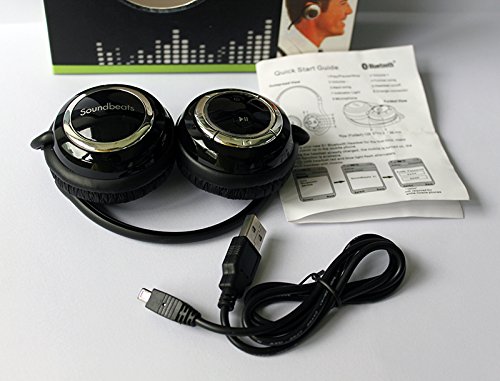
Image: SoundPEATS S1 Headphone with Accessories
This image shows the SoundPEATS S1 Bluetooth Stereo Headphone laid out with its accompanying accessories: the unique USB charging cable and a quick start guide. This illustrates the components included in the product package.
Powering On/Off
- Power On: Press and hold the Multi-function button (often marked with a power icon) for approximately 3-5 seconds until you hear an audible "Power On" prompt and the LED indicator flashes blue.
- Power Off: Press and hold the Multi-function button for approximately 4 seconds until you hear an audible "Power Off" prompt and the LED indicator turns off.
Bluetooth Pairing
To connect your SoundPEATS S1 headphone to a Bluetooth-enabled device for the first time:
- Ensure the headphone is powered off.
- Press and hold the Multi-function button for approximately 5-7 seconds. The LED indicator will flash red and blue alternately, indicating the headphone is in pairing mode.
- On your Bluetooth-enabled device (e.g., smartphone, tablet), go to the Bluetooth settings and enable Bluetooth.
- Search for available devices. "Soundbeats S1" should appear in the list.
- Select "Soundbeats S1" to connect. If prompted for a PIN, enter "0000".
- Once successfully paired, the LED indicator will flash blue slowly, and you will hear a "Connected" voice prompt.
Note: The headphone will automatically attempt to reconnect to the last paired device when powered on, if that device's Bluetooth is active and within range.
Operating Instructions
Music Playback Controls
- Play/Pause: Press the Multi-function button once.
- Next Track: Press and hold the "Volume Up" button.
- Previous Track: Press and hold the "Volume Down" button.
- Volume Up: Briefly press the "Volume Up" button.
- Volume Down: Briefly press the "Volume Down" button.
Caution: The headphone's system prompts (e.g., "Power On", "Connected") can be loud. Avoid having the headphones on your ears when powering on or connecting.
Call Management
- Answer Incoming Call: Press the Multi-function button once.
- End Call: Press the Multi-function button once during an active call.
- Reject Incoming Call: Press and hold the Multi-function button for approximately 2 seconds.
- Redial Last Number: Double-press the Multi-function button when not on a call.
Note: Call performance may vary based on your mobile device, network coverage, and environmental factors.
LED Indicator Status
- Solid Red: Charging
- Solid Blue: Fully Charged
- Alternating Red and Blue: Pairing Mode
- Slow Flashing Blue: Connected / Standby
- Rapid Flashing Blue: Incoming Call
Maintenance
Care and Storage
- Clean the headphones with a soft, dry, lint-free cloth. Do not use liquid cleaners, aerosols, or harsh chemicals.
- Store the headphones in a cool, dry place, away from direct sunlight, extreme temperatures, and excessive humidity.
- If not used for extended periods, charge the headset at least once a month to maintain battery health.
- Avoid dropping or subjecting the headphones to strong impacts.
- Protect the charging port and cable from damage.
Troubleshooting
Common Issues and Solutions
- Headphone does not power on:
Ensure the headphone is fully charged. Connect it to a power source and check the charging indicator. If the battery is completely depleted, it may take a few minutes for the indicator to appear.
- Cannot pair with device:
Make sure the headphone is in pairing mode (LED indicator flashing red and blue alternately). Ensure Bluetooth is enabled on your device and it is within the typical Bluetooth range (up to 10 meters). Try restarting both the headphone and your device. If you have many previously paired devices, try clearing some from your device's Bluetooth list.
- No sound or low volume:
Check the volume levels on both the headphone and your connected device. Ensure the headphone is properly paired and connected. Try playing different audio sources to rule out an issue with the media file.
- Call quality is poor:
Ensure you are in an area with good cellular signal strength for your phone. Reduce background noise if possible. Ensure the microphone on the headphone is not obstructed. Bluetooth connection can be affected by interference from other wireless devices.
- Battery life is shorter than expected:
Battery performance can naturally degrade over time with usage. Ensure the headphone is fully charged before each use. High volume usage significantly reduces battery life. Extreme temperatures can also affect battery performance.
Specifications
| Feature | Detail |
|---|---|
| Model | S1 |
| Connectivity Technology | Bluetooth |
| Bluetooth Profiles Supported | A2DP1.2, AVRCP1.0, HFP 1.5 |
| RF Frequency Range | 2.402-2.480GHZ, 2.4G ISM band |
| Music/Talk Time | Up to 10 hours (actual time may vary based on usage) |
| Form Factor | Over Ear |
| Control Type | Media Control |
| Item Weight | Approximately 10 g |
| Material | Plastic |
| Included Components | Ear Cushions, USB Charging Cable |
Warranty and Support
SoundPEATS products are manufactured with quality and reliability in mind. For specific warranty details regarding your S1 Bluetooth Stereo Headphone, please refer to the warranty information provided in your product packaging or visit the official SoundPEATS website.
For technical assistance, troubleshooting, or any other inquiries, please contact SoundPEATS customer support through their official channels. Contact information can typically be found on the SoundPEATS website or in your product documentation.
Disclaimer: Product specifications and features are subject to change without prior notice. Always refer to the latest information available from the manufacturer.