1. Introduction
This manual provides essential information for the proper installation, operation, and maintenance of your Lenovo ThinkPad 2.5-inch Solid State Drive (SSD), model 4XB0F86403. This internal storage device is designed to enhance the performance and storage capacity of compatible systems. Please read this manual thoroughly before proceeding with installation or use.
2. Safety Information
Observe the following safety precautions to prevent damage to the SSD or your system, and to ensure personal safety:
- Electrostatic Discharge (ESD) Precautions: Always wear an anti-static wrist strap or frequently touch a grounded metal object before handling the SSD to prevent ESD damage.
- Power Disconnection: Ensure your computer system is completely powered off and unplugged from the electrical outlet before installing or removing the SSD.
- Handle with Care: Avoid dropping or subjecting the SSD to physical shock.
- Environmental Conditions: Do not expose the SSD to extreme temperatures, humidity, or direct sunlight.
- Qualified Personnel: If you are unsure about any installation steps, consult a qualified technician or refer to your system's service manual.
3. Package Contents
Verify that your package contains the following items:
- Lenovo ThinkPad 2.5-inch Solid State Drive (Model: 4XB0F86403)
- Mounting Bracket
- Documentation (this user manual)
4. Setup and Installation
This section outlines the general steps for installing the Lenovo ThinkPad SSD. Specific steps may vary depending on your computer model. Always refer to your system's service manual for detailed instructions on accessing internal components.
4.1 Before You Begin
- Back up all important data from your existing storage drive.
- Gather necessary tools (e.g., screwdriver, anti-static wrist strap).
- Ensure your system is powered off and disconnected from all power sources.
4.2 Installation Steps
- Open the Computer Case: Carefully open your computer's case or access panel to expose the internal drive bays. Refer to your system's manual for specific instructions.
- Locate a Drive Bay: Identify an available 2.5-inch drive bay. If replacing an existing drive, carefully remove the old drive.
- Attach Mounting Bracket: Secure the provided mounting bracket to the Lenovo SSD, if necessary, to fit it into a larger 3.5-inch bay or for specific system mounting.
- Install the SSD: Slide the SSD into the drive bay and secure it with screws or the system's tool-less retention mechanism.
- Connect Cables: Connect a SATA data cable from the SSD to an available SATA port on your motherboard. Connect a SATA power cable from your power supply unit to the SSD.
- Close the Computer Case: Once the SSD is securely installed and connected, close the computer case or access panel.
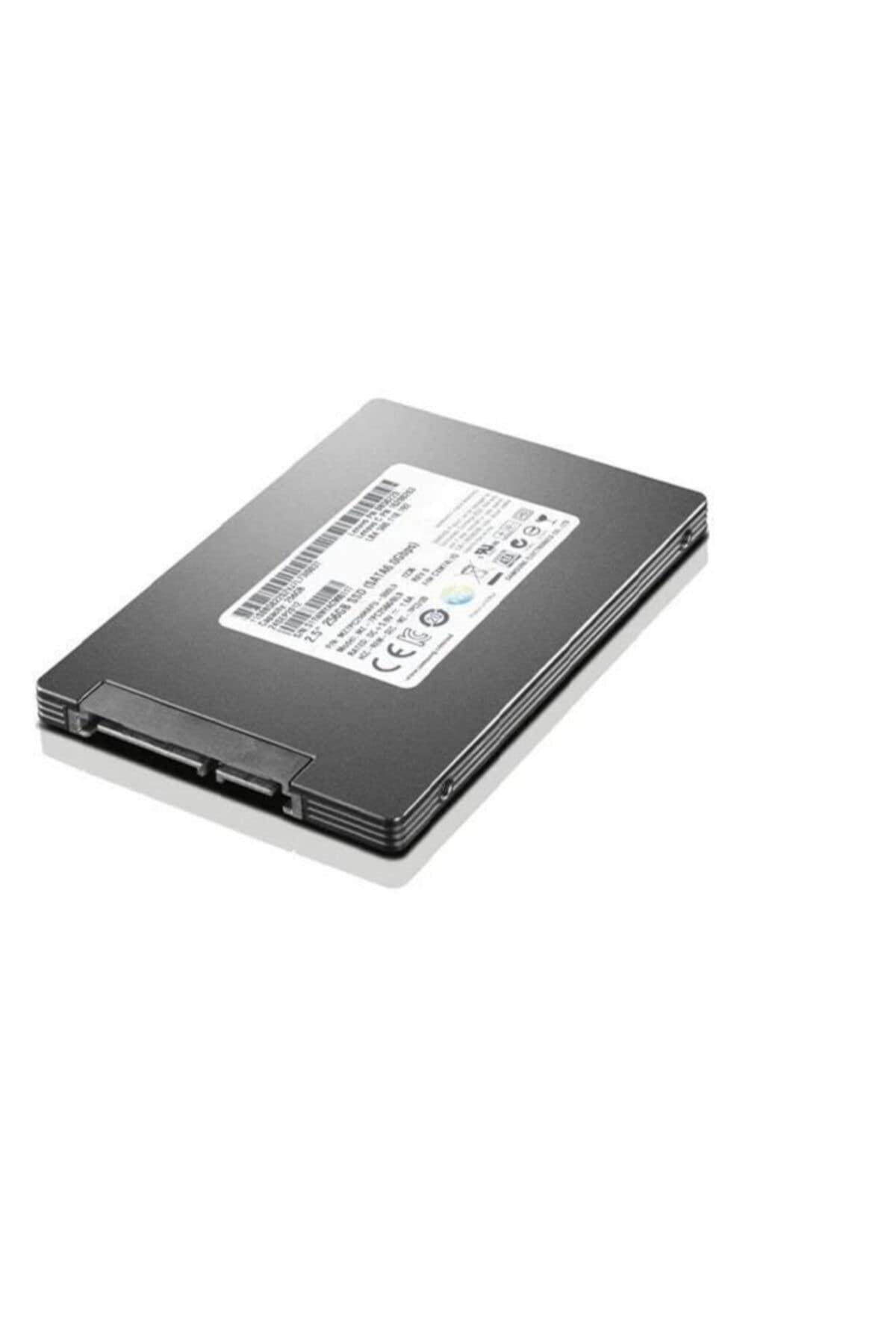
Image 1: Lenovo ThinkPad 2.5-inch Solid State Drive. This image shows the top view of the solid state drive, highlighting its compact 2.5-inch form factor and the label with product information.
4.3 Initializing and Formatting the SSD
After physical installation, you may need to initialize and format the SSD before it can be used by your operating system. This process typically involves:
- Booting your computer and accessing Disk Management (Windows) or Disk Utility (macOS).
- Initializing the new drive (e.g., MBR or GPT partition style).
- Creating a new volume and formatting it with a suitable file system (e.g., NTFS for Windows, APFS for macOS).
- Installing your operating system or migrating data to the new SSD.
5. Operating the SSD
Once installed, initialized, and formatted, your Lenovo ThinkPad SSD operates like any other internal storage device. It will be recognized by your operating system and applications for storing and retrieving data. SSDs offer faster boot times, quicker application loading, and improved overall system responsiveness compared to traditional hard disk drives.
- Data Storage: Use the SSD for storing your operating system, applications, and frequently accessed files for optimal performance.
- File Management: Manage files and folders as you would with any other drive through your operating system's file explorer.
- TRIM Support: Ensure your operating system has TRIM enabled (usually by default) to maintain the SSD's performance over time.
6. Maintenance
Solid State Drives generally require less maintenance than traditional hard drives. However, following these practices can help ensure optimal performance and longevity:
- Operating System Updates: Keep your operating system updated to ensure the latest drivers and SSD optimizations are applied.
- Firmware Updates: Periodically check the Lenovo support website for any available firmware updates for your SSD model. Firmware updates can improve performance, stability, and compatibility.
- Avoid Full Capacity: While SSDs perform well even when nearly full, leaving some free space (e.g., 10-15%) can help maintain performance and extend lifespan.
- Proper Shutdown: Always shut down your computer properly to prevent data corruption.
- No Defragmentation: Do not defragment an SSD. Defragmentation is unnecessary for SSDs and can reduce their lifespan.
7. Troubleshooting
If you encounter issues with your Lenovo ThinkPad SSD, consider the following troubleshooting steps:
- SSD Not Detected:
- Check all SATA data and power cable connections to ensure they are secure.
- Verify that the SATA port on the motherboard is enabled in the system's BIOS/UEFI settings.
- Try connecting the SSD to a different SATA port or with different cables.
- Ensure the SSD is properly initialized and formatted in Disk Management (Windows) or Disk Utility (macOS).
- Slow Performance:
- Ensure your operating system is configured to use AHCI mode for SATA controllers in BIOS/UEFI.
- Verify that TRIM is enabled for your SSD.
- Check for available SSD firmware updates from Lenovo.
- Ensure the SSD is not excessively full.
- Operating System Fails to Boot:
- Confirm that the SSD is set as the primary boot device in your system's BIOS/UEFI settings.
- If you migrated your OS, ensure the migration process was completed successfully.
If these steps do not resolve the issue, please contact Lenovo support for further assistance.
8. Specifications
| Model Number | 4XB0F86403 |
| Brand | Lenovo |
| Series | HDD_BO TP 2.5 512G SSD |
| Digital Storage Capacity | 512 GB |
| Hard Disk Interface | Serial ATA-600 (SATA III) |
| Connectivity Technology | SATA |
| Hard Disk Form Factor | 2.5 Inches |
| Installation Type | Internal Hard Drive |
| Compatible Devices | PC (Desktop, ThinkPad systems) |
| Item Weight | 6.1 ounces |
| Product Dimensions (LxWxH) | 6.25 x 0.75 x 4.5 inches |
| Voltage | 240 Volts (Note: This specification may refer to system power requirements, not direct SSD voltage. SSDs typically use 5V.) |
| Manufacturer | Lenovo (United States), Inc. |
9. Warranty Information
This Lenovo ThinkPad Solid State Drive is covered by Lenovo's standard limited warranty. The specific terms and duration of the warranty may vary by region and purchase date. Please retain your proof of purchase for warranty claims.
For detailed warranty information, including coverage, limitations, and the process for making a claim, please visit the official Lenovo support website or refer to the warranty documentation included with your original system or purchase.
10. Support
For technical assistance, driver downloads, firmware updates, or additional product information, please visit the official Lenovo Support website:
Lenovo Support Website: support.lenovo.com
When contacting support, please have your product model number (4XB0F86403) and serial number readily available.


