Introduction
This manual provides essential information for the safe and efficient operation, maintenance, and care of your KYOCERA Ryobi MTR-42 Trimmer. Please read this manual thoroughly before using the tool and keep it for future reference. Understanding and following these instructions will ensure optimal performance and extend the life of your trimmer.
Important Safety Information
Failure to follow these safety instructions may result in serious personal injury or property damage.
- Always wear eye protection and sturdy shoes when operating the trimmer.
- Keep bystanders and pets at a safe distance from the work area.
- Do not operate the tool on wet or slippery surfaces.
- Inspect the tool before each use for any damage or loose parts.
- Keep hands and feet away from the cutting area during operation.
- For battery-powered tools, always follow the manufacturer's guidelines for charging and handling batteries. (Note: This model is corded, but this is a general safety tip from the source data.)
- Ensure the power switch is in the "OFF" position before connecting to a power source or performing any adjustments.
- Use only accessories and attachments recommended by KYOCERA.
Product Overview
The KYOCERA Ryobi MTR-42 Trimmer is a versatile woodworking tool designed for precision tasks such as chamfering, grooving, and decorative routing on wood materials. It features a compact design, easy depth adjustment, and a convenient spindle lock for quick bit changes.
Key Features:
- Shaft Diameter: 0.2 inch (6 mm) for various routing bits.
- Slide Switch: Easy-to-operate ON/OFF slide switch for enhanced visibility and control.
- Micro Depth Adjustment: Simple screw-type adjustment ring for precise cutting depth settings.
- One-Touch Clamp Base: Quick and secure base fixation with a clamp lever.
- Spindle Lock: Facilitates convenient and safe bit replacement using a single wrench.
- Dust Collection Ready: Connects to a dust collector for cleaner operation (optional nozzle set and hose required).

Figure 1: The KYOCERA Ryobi MTR-42 Trimmer being used for chamfering wood, demonstrating its compact design and ease of handling. It includes a straight guide for precise cuts.
Setup
1. Attaching the Base
The trimmer base is designed for quick attachment and removal. Ensure the base is clean and free of debris before attaching it to the motor unit.
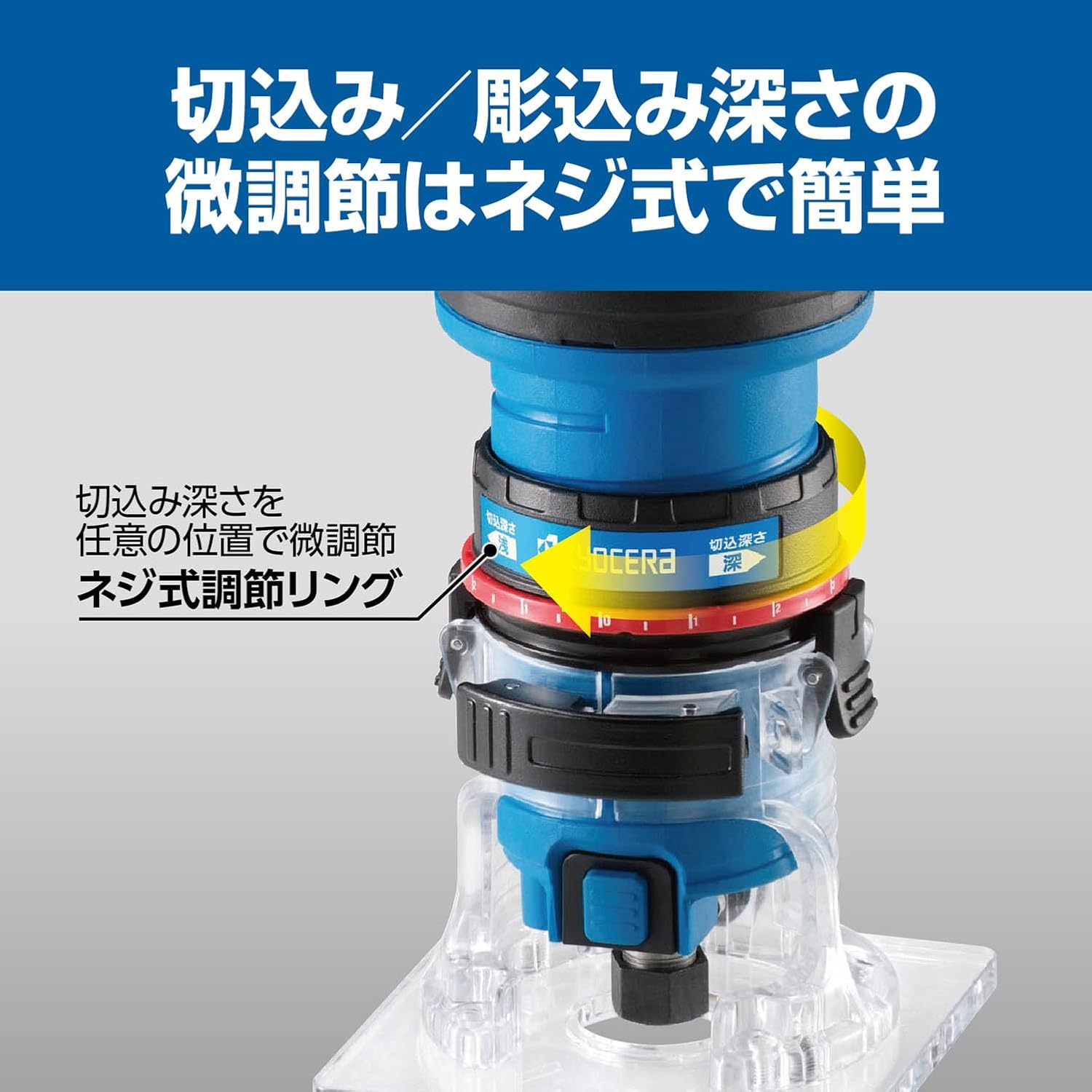
Figure 2: The clamp lever on the trimmer base allows for quick and secure fixation of the base to the motor unit. Push the lever down to lock and pull up to release.
2. Installing/Changing Routing Bits
Always ensure the trimmer is unplugged from the power source before changing bits.
- Press and hold the spindle lock button to prevent the spindle from rotating.
- Use the provided wrench to loosen the collet nut.
- Insert the desired routing bit into the collet, ensuring it is fully seated.
- Tighten the collet nut firmly with the wrench while holding the spindle lock. Do not overtighten.

Figure 3: The spindle lock feature allows for convenient bit changes using a single wrench, simplifying the process of attaching and detaching routing bits.
3. Adjusting Cutting Depth
The trimmer features a micro-adjustment ring for precise control over cutting depth.
- Loosen the base clamp lever.
- Rotate the screw-type adjustment ring to set the desired cutting depth. Turning the ring clockwise typically increases depth, while counter-clockwise decreases it.
- Once the desired depth is set, firmly secure the base clamp lever.
- Perform a test cut on a scrap piece of material to verify the depth setting before working on your main project.

Figure 4: The screw-type adjustment ring allows for precise, stepless micro-adjustment of the cutting depth, enabling fine-tuning for various applications.
Operating Instructions
1. Powering On/Off
The trimmer is equipped with a visible slide switch for easy power control.
- To turn ON: Slide the switch upwards.
- To turn OFF: Slide the switch downwards.
- For safety, when placing the tool down or during breaks, ensure the switch is in the "OFF" position.
Figure 5: The slide switch is clearly visible and easy to operate. Pushing it up turns the power ON, and pushing it down turns it OFF. The image shows the trimmer in operation.
2. General Operation Tips
- Always secure your workpiece firmly to prevent movement during operation.
- Maintain a firm grip on the trimmer with both hands.
- Start the trimmer before making contact with the workpiece.
- Move the trimmer smoothly and consistently across the material. Avoid forcing the tool, as this can lead to poor cuts and potential kickback.
- For deeper cuts, it is often better to make multiple shallow passes rather than one deep pass.
- Always route against the direction of bit rotation to maintain control.
Maintenance
Regular maintenance ensures the longevity and safe operation of your trimmer. Always unplug the tool before performing any maintenance.
1. Cleaning
- After each use, clean the trimmer body, base, and collet area with a dry cloth or soft brush to remove dust and debris.
- Do not use solvents or harsh chemicals, as they may damage plastic parts.
- Ensure ventilation openings are clear to prevent overheating.
2. Bit Care
- Keep routing bits sharp and clean. Dull bits can cause overheating, poor cuts, and increased strain on the motor.
- Store bits in a protective case to prevent damage.
3. Dust Collection (Optional)
For cleaner operation and to prolong tool life, consider using a dust collection system.

Figure 6: The trimmer can be connected to a dust collection system using an optional nozzle set and hose (sold separately) for a cleaner work environment.

Figure 7: Optional accessories include a dust collection adapter for connecting to a dust hose and a dovetail guide (10mm outer diameter / 8mm inner diameter) for precise template-based routing.
Troubleshooting
Before contacting customer service, review the following common issues and solutions:
| Problem | Possible Cause | Solution |
|---|---|---|
| Trimmer does not start. | No power supply; switch in OFF position; damaged power cord. | Check power connection; ensure switch is ON; inspect power cord for damage. |
| Poor cutting performance. | Dull or incorrect bit; incorrect depth setting; feeding too fast. | Replace or sharpen bit; adjust cutting depth; reduce feed rate. |
| Excessive vibration. | Loose bit; damaged bit; unbalanced bit. | Ensure bit is securely tightened; replace damaged or unbalanced bits. |
| Overheating. | Blocked ventilation; continuous heavy use; dull bit. | Clear ventilation openings; allow tool to cool; replace or sharpen bit. |
Specifications
| Feature | Detail |
|---|---|
| Model Number | MTR-42 |
| Brand | KYOCERA |
| Shaft Diameter | 0.2 inch (6 mm) |
| Power Source | Corded Electric (Battery Powered was listed in JSON, but product images show a cord. Assuming corded based on typical trimmers of this type and visual evidence.) |
| Item Weight | 2.42 pounds (1.1 Kilograms) |
| Package Dimensions | 8.62 x 7.52 x 4.92 inches |
| Color | Black (with blue accents) |
| Manufacturer | BrandName (as per JSON, likely a placeholder for KYOCERA) |
Warranty and Support
For warranty information, technical support, or service inquiries, please contact KYOCERA customer service. Keep your purchase receipt and product model number (MTR-42) handy when contacting support.
Visit the official KYOCERA website for the most up-to-date support information: KYOCERA Store on Amazon


