1. Product Overview
The ASUS T100 is a versatile 10-inch device designed to function as both a tablet and a laptop. It features a detachable keyboard dock, allowing for flexible use in various scenarios. This manual provides essential information for setting up, operating, maintaining, and troubleshooting your device.

Figure 1: ASUS T100 Tablet and Detachable Keyboard Dock
Key Features:
- Operating System: Full Version Windows 8.1 (upgradeable to Windows 10).
- Processor: Intel Quad-Core Z3775 1.46GHz Processor.
- Memory: 2GB RAM.
- Storage: 64GB SSD in the tablet.
- Connectivity: Dual-band 802.11N WiFi, Bluetooth 4.0.
- Ports: MicroSDXC card reader, MicroHDMI, microUSB ports, USB 3.0 port on the keyboard dock.
- Software: Includes 1 year of Microsoft Office 365 Personal.
2. Setup and First Use
2.1 Unboxing and Contents
Carefully unpack your ASUS T100. Ensure all components are present:
- ASUS T100 10-Inch Tablet
- Chiclet Keyboard Dock
- Power Adapter
- 1-Lithium Ion Battery (integrated)
2.2 Charging the Device
Before initial use, fully charge your ASUS T100. Connect the power adapter to the microUSB port on the tablet and plug it into a power outlet. The charging indicator light will illuminate.
2.3 Attaching the Keyboard Dock
To transform your tablet into a laptop, align the tablet with the docking connector on the keyboard dock and gently press down until it clicks securely into place. Ensure the connection is firm.
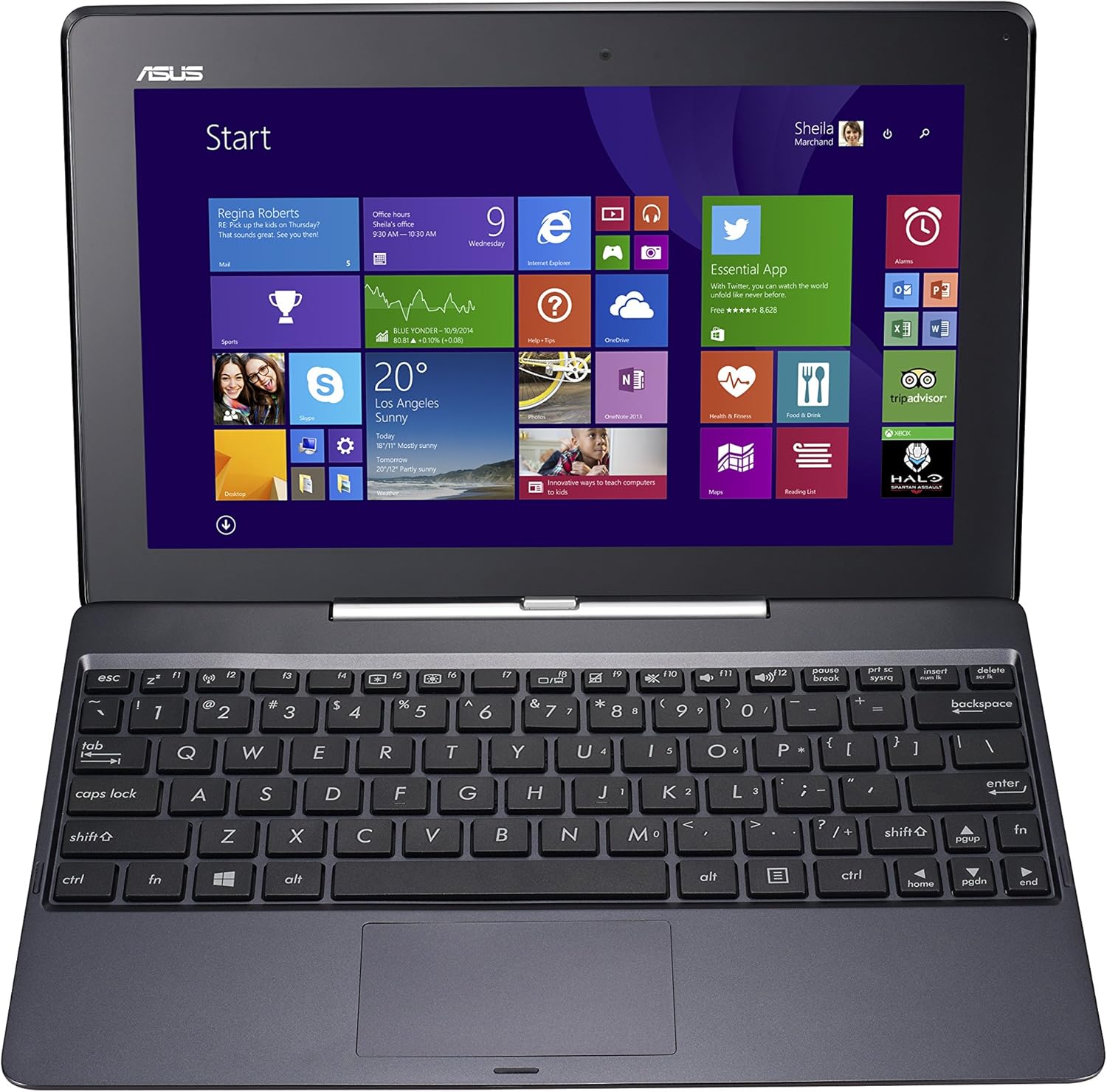
Figure 2: ASUS T100 Tablet Docked
2.4 Initial Power On and Windows Setup
Press and hold the power button located on the side of the tablet until the ASUS logo appears. Follow the on-screen instructions to complete the Windows 8.1 setup process, including language selection, network connection, and user account creation.
3. Operating Your ASUS T100
3.1 Tablet Mode
In tablet mode, interact with the device using the touchscreen. Swipe from the right edge to access charms, swipe from the left to switch between apps, and tap icons to open applications.
3.2 Laptop Mode
When docked, the keyboard and touchpad become active. Use the keyboard for typing and the touchpad for cursor control. The USB 3.0 port on the dock allows connection of external devices.

Figure 3: ASUS T100 Keyboard Dock
3.3 Connectivity
- Wi-Fi: Access network settings through the Windows operating system to connect to available Wi-Fi networks.
- Bluetooth: Pair Bluetooth devices like mice or headphones via the Windows Bluetooth settings.
- External Displays: Use the MicroHDMI port to connect to an external monitor or TV.
- Storage Expansion: Insert a MicroSDXC card into the card reader for additional storage.

Figure 4: Side View with USB 3.0 Port
4. Maintenance
4.1 Cleaning
Use a soft, lint-free cloth to clean the screen and exterior surfaces. For stubborn smudges, slightly dampen the cloth with water or a screen-cleaning solution. Avoid harsh chemicals.
4.2 Battery Care
To prolong battery life, avoid extreme temperatures. It is recommended to fully discharge and recharge the battery periodically. The device has an average battery life of 11 hours.
4.3 Software Updates
Regularly check for and install Windows updates to ensure optimal performance and security. Your device runs Windows 8.1 and is eligible for a free upgrade to Windows 10, which can improve performance and address some issues.
5. Troubleshooting
This section addresses common issues you might encounter with your ASUS T100.
5.1 Performance Issues
- Slow Performance: Ensure you have sufficient free storage space. Close unnecessary applications running in the background. Consider upgrading to Windows 10, as users have reported significant performance improvements.
- Lagging: If experiencing lag, especially during multitasking, check for system updates. A fresh installation of Windows 10 has been noted to resolve many performance-related issues.
5.2 Docking Problems
- Tablet not seating correctly: Ensure the tablet is properly aligned with the docking connector. Apply gentle, even pressure until it clicks into place. If it feels loose after extended use, try re-docking.
- Keyboard/Touchpad not responding: Detach and re-attach the tablet to the dock. Ensure the connectors are clean and free of debris.
5.3 Charging Issues
- Slow Charging: The device is known to charge slowly. Ensure you are using the provided 2.0 amp adapter. Charging overnight is typical for a full charge.
- Charging port difficulty: Some users find the charging port difficult to plug into. Try plugging the cable in at a very slight downward angle.
5.4 Touchscreen Inaccuracy
If the touchscreen is not always perfectly accurate for file operations or dragging items, consider using a Bluetooth mouse for more precise control, especially in laptop mode.
6. Specifications
| Feature | Specification |
|---|---|
| Standing Screen Display Size | 10.1 Inches |
| Max Screen Resolution | 1366 x 768 pixels |
| Processor | 1.46 GHz Intel Atom (Quad-Core Z3775) |
| RAM | 2 GB DDR3 |
| Hard Drive | 64 GB SSD (in Tablet) |
| Graphics Coprocessor | Intel GMA HD (Integrated) |
| Wireless Type | 802.11n |
| Number of USB 2.0 Ports | 1 |
| Number of USB 3.0 Ports | 1 (on Keyboard Dock) |
| Average Battery Life | 11 hours |
| Operating System | Windows 8.1 |
| Item Weight | 2.4 pounds |
| Product Dimensions | 6.7 x 10.4 x 0.93 inches |
| Color | Red |
| Rear Webcam Resolution | 1 MP |
7. Warranty and Support
For detailed warranty information and technical support, please refer to the official ASUS website or the documentation included with your purchase. Product registration may be required to activate your warranty.
Legal Disclaimer: Must be at least 18 & over to purchase.


