
1. Introduction
Thank you for choosing the Mebus 40291 Digital Weather Station Clock. This device provides accurate time, indoor temperature, and a weather forecast, helping you stay informed about your environment. This manual will guide you through the setup, operation, and maintenance of your new weather station clock.
2. Safety Information
- Use only the specified battery type and ensure correct polarity.
- Do not mix old and new batteries, or different types of batteries.
- Remove exhausted batteries promptly to prevent leakage and damage.
- Keep the device away from extreme temperatures, direct sunlight, and high humidity.
- Do not disassemble or attempt to repair the device yourself. Contact qualified personnel for service.
- Keep out of reach of children.
3. Product Overview
The Mebus 40291 features a clear digital display that shows essential information at a glance. Familiarize yourself with the display elements and controls.
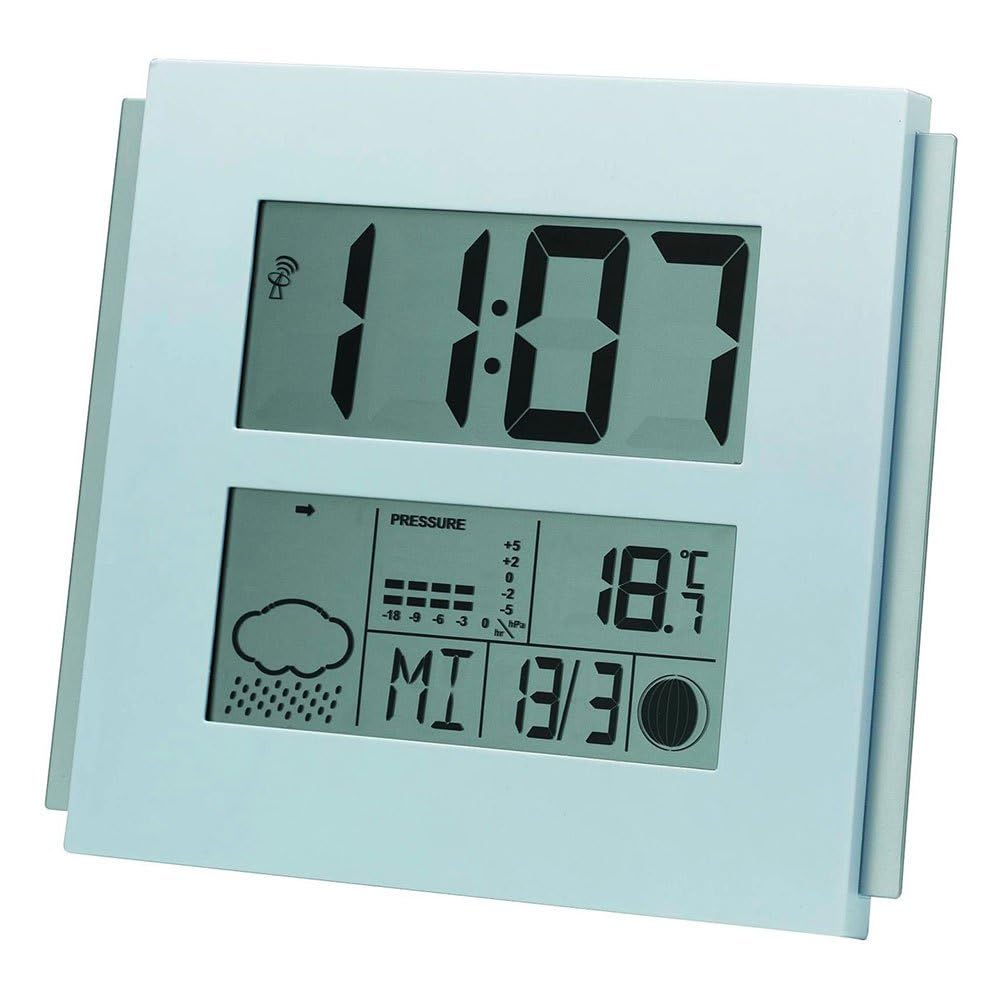
This image displays the Mebus 40291 digital weather station clock. The upper section shows the time as 11:07. The lower section features a weather forecast icon (cloud with rain), a barometric pressure trend indicator, current temperature (18.5°C), and the date (Wednesday, March 30th, indicated as MI 3/30). A radio signal icon is visible next to the time, indicating radio-controlled time synchronization.
Display Elements:
- Time Display: Large digits for current time.
- Radio Control Icon: Indicates successful reception of the radio time signal.
- Weather Forecast Icons: Displays predicted weather conditions (e.g., sunny, cloudy, rainy).
- Barometric Pressure Trend: Shows if pressure is rising, falling, or stable.
- Temperature Display: Current indoor temperature in Celsius or Fahrenheit.
- Date Display: Day of the week and date.
Controls:
Specific buttons for setting time, date, and other functions are typically located on the back or side of the device. Refer to the markings on your unit for exact button identification (e.g., SET, MODE, UP, DOWN).
4. Setup
4.1 Battery Installation
- Locate the battery compartment cover on the back of the unit.
- Remove the cover.
- Insert the required batteries (not included) according to the polarity markings (+ and -) inside the compartment.
- Replace the battery compartment cover securely.
4.2 Initial Power-On and Time Synchronization
Upon battery installation, the clock will power on and typically begin searching for the radio time signal (DCF77 in Europe). This process may take several minutes. During this time, the radio control icon may flash. Once the signal is received, the time will automatically set, and the icon will become steady.
Place the weather station in an area free from electronic interference and away from large metal objects for optimal signal reception.
5. Operating
5.1 Manual Time and Date Setting
If the radio signal is not available or you prefer to set the time manually:
- Press and hold the 'SET' or 'MODE' button (refer to your unit's specific buttons) until the time display starts flashing.
- Use the 'UP' or 'DOWN' buttons to adjust the hours, then press 'SET'/'MODE' to confirm.
- Repeat this process for minutes, year, month, and day.
- Press 'SET'/'MODE' one last time to exit the setting mode.
5.2 Understanding Weather Forecast
The weather station predicts weather conditions based on changes in barometric pressure. The icons displayed represent a forecast for the next 12-24 hours within a 30-50 km radius. Common icons include:
- Sun: Clear weather.
- Cloud: Cloudy weather.
- Cloud with Rain: Rain or showers.
- Cloud with Sun: Partly cloudy.
The barometric pressure trend indicator shows if the pressure is rising (arrow up), falling (arrow down), or stable (horizontal arrow).
5.3 Temperature Display
The device displays the current indoor temperature. Some models allow switching between Celsius (°C) and Fahrenheit (°F) using a dedicated button (often labeled 'C/F' or similar).
6. Maintenance
6.1 Cleaning
Wipe the device with a soft, damp cloth. Do not use abrasive cleaners or solvents, as these can damage the display or casing.
6.2 Battery Replacement
When the display becomes dim or functions become erratic, it is time to replace the batteries. Follow the battery installation steps outlined in Section 4.1.
7. Troubleshooting
- Display is blank: Check battery installation and ensure batteries are fresh.
- Incorrect time: Ensure the device is within range of the radio time signal. If not, set the time manually. Check for interference sources.
- Inaccurate weather forecast: Weather forecasts are predictions and may not always be 100% accurate. Ensure the device is not placed near heat sources or vents that could affect temperature readings.
- No radio signal reception: Try relocating the device to a different position, preferably near a window and away from electronic devices that may cause interference.
- Device unresponsive: Remove batteries, wait a few minutes, and reinsert them to perform a soft reset.
8. Specifications
| Brand | Mebus |
| Model Number | ES107832002 (40291) |
| Display Type | Digital |
| Power Source | Battery Powered (Batteries not included) |
| Movement Type | Quartz |
| Color | Silver |
| Item Weight | 2.2 pounds |
| ASIN | B00JPBT2LI |
9. Warranty and Support
Warranty information for the Mebus 40291 Digital Weather Station Clock is typically provided at the point of purchase or included with the product packaging. Please retain your proof of purchase for warranty claims.
For technical support, troubleshooting assistance beyond this manual, or inquiries regarding spare parts, please contact the manufacturer or your retailer. Contact details can usually be found on the product packaging or the manufacturer's official website.
