
1. Introduction
This manual provides essential instructions for the installation, operation, maintenance, and troubleshooting of your Antec TruePower Classic TP-750C 750W 80 PLUS GOLD Certified Power Supply. Please read this manual thoroughly before installation and retain it for future reference. This power supply is designed to provide stable and efficient power to your personal computer system.
2. Safety Information
- Ensure the power supply is disconnected from the AC power outlet before installation or handling.
- Do not open the power supply casing. High voltage components inside pose a risk of electric shock.
- Install the power supply in a well-ventilated area to prevent overheating.
- Use only the cables provided with the power supply.
- Avoid exposing the power supply to moisture or extreme temperatures.
- This product is intended for use in personal computer systems only.
3. Package Contents
Verify that all items are present in the package before proceeding with installation.
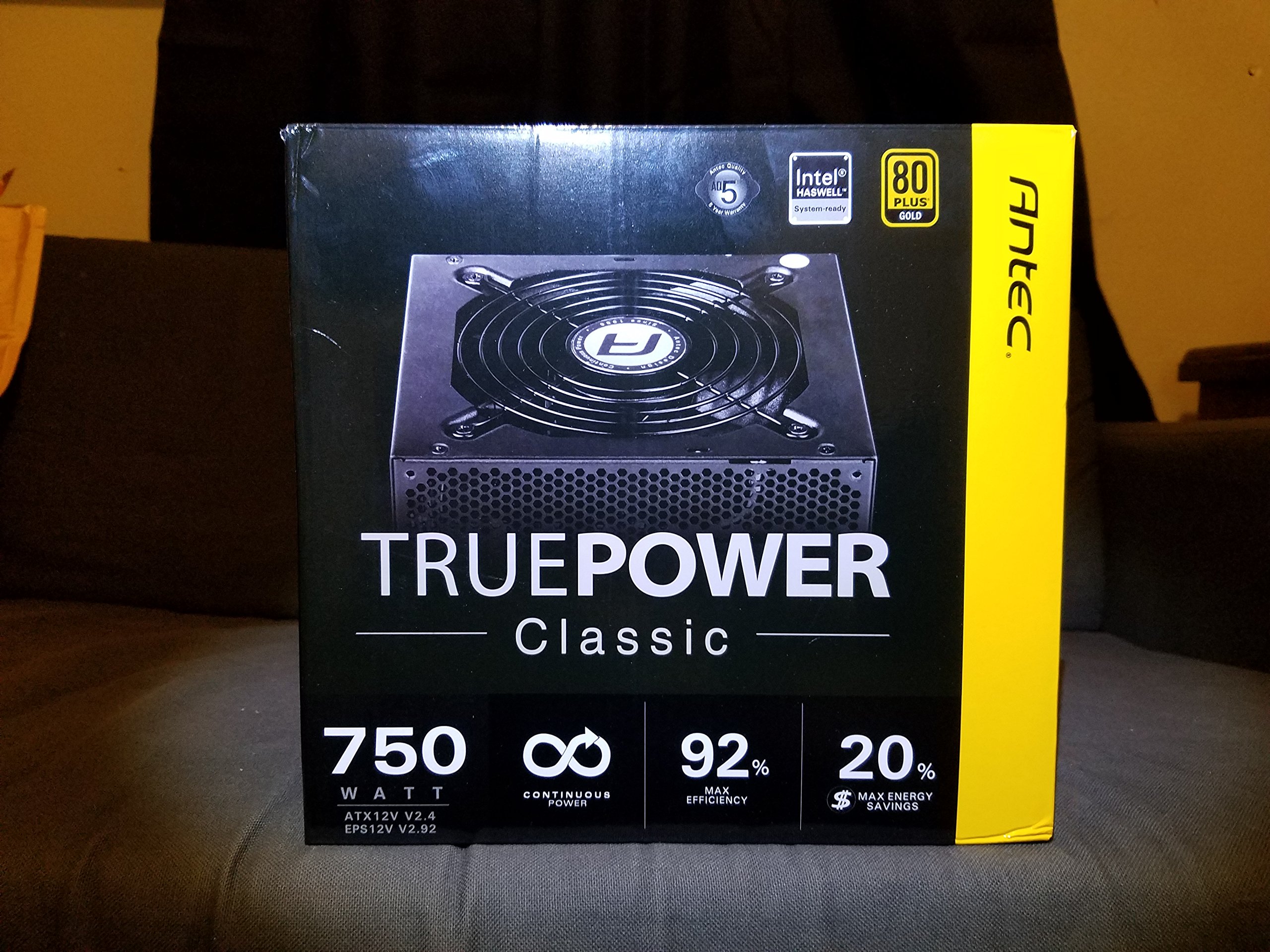
Image 1: Contents of the Antec TruePower Classic TP-750C package. The image displays the power supply unit, various power cables (including a main AC power cable), and user documentation neatly packed within a cardboard box.
- Antec TruePower Classic TP-750C Power Supply Unit
- Modular Cable Set (PCI-E, SATA, Molex, etc.)
- AC Power Cord
- Mounting Screws
- User Manual / Documentation
4. Setup and Installation
Follow these steps to properly install your power supply into your computer chassis.
- Prepare the Chassis: Ensure your computer chassis is powered off and disconnected from all power sources. Open the side panel of your computer case.
- Mount the Power Supply: Carefully slide the Antec TP-750C power supply into the designated power supply bay in your chassis. Align the screw holes on the power supply with those on the chassis. Secure the power supply using the provided mounting screws.
- Connect Motherboard Power: Connect the 24-pin ATX main power connector from the power supply to the corresponding port on your motherboard. Ensure it clicks into place.
- Connect CPU Power: Connect the 4+4-pin (or 8-pin) EPS12V CPU power connector to the CPU power socket on your motherboard.
- Connect Graphics Card Power (PCI-E): If your graphics card requires external power, connect the appropriate 6+2-pin PCI-E power cables from the power supply to your graphics card.
- Connect Peripheral Power (SATA/Molex): Connect SATA power cables to your storage drives (SSDs, HDDs) and optical drives. Use Molex connectors for other peripherals as needed.
- Cable Management: Route cables neatly to improve airflow and aesthetics within your chassis.
- Final Checks: Double-check all connections to ensure they are secure. Close the chassis side panel.
- Connect AC Power: Connect the AC power cord to the power supply and then to a wall outlet or surge protector.
5. Operating Instructions
The Antec TP-750C power supply operates automatically once correctly installed and connected to an AC power source. It provides stable DC power to all connected components.
- Power On: After connecting the AC power cord, flip the power switch on the back of the power supply to the "ON" (I) position.
- System Boot: Press the power button on your computer chassis to start your system.
- Power Off: Shut down your computer through the operating system. For complete power disconnection, flip the power switch on the power supply to the "OFF" (O) position and unplug the AC power cord.
6. Maintenance
Proper maintenance ensures the longevity and optimal performance of your power supply.
- Dust Cleaning: Periodically clean dust from the power supply's fan and ventilation grilles using compressed air. Ensure the power supply is disconnected from AC power before cleaning.
- Ventilation: Ensure adequate airflow around the power supply. Do not block the intake or exhaust vents.
- Cable Integrity: Regularly check power cables for any signs of damage or fraying. Replace damaged cables immediately.
- Operating Environment: Operate the power supply within recommended temperature and humidity ranges.
7. Troubleshooting
If you encounter issues with your power supply, refer to the following common problems and solutions.
| Problem | Possible Cause | Solution |
|---|---|---|
| System does not power on. | AC power cord not connected, power switch off, loose internal connections, faulty components. |
|
| System powers on but shuts down immediately. | Overload, overheating, short circuit, faulty component. |
|
| Unusual noise from the power supply. | Fan obstruction, faulty fan bearing, coil whine. |
|
If troubleshooting steps do not resolve the issue, contact Antec customer support for further assistance.
8. Specifications
| Model Name | TruePower Classic TP-750C |
| Brand | Antec |
| Wattage | 750 Watts |
| 80 PLUS Certification | Gold |
| Form Factor | ATX |
| Connector Type | ATX |
| Minimum Input Voltage | 100 Volts |
| Compatible Devices | Personal Computer |
| Item Weight | 6.24 pounds (2.83 kg) |
| Package Dimensions | 9.7 x 9 x 5.5 inches (24.6 x 22.9 x 14 cm) |
| ASIN | B00JOFALL0 |
| UPC | 132018316306 |
9. Warranty and Support
The Antec TruePower Classic TP-750C Power Supply comes with a 3-Year Manufacturer Warranty. This warranty covers defects in materials and workmanship under normal use.
For technical support, warranty claims, or further inquiries, please visit the official Antec website or contact their customer service department. Keep your proof of purchase for warranty validation.
Please note: Opening the power supply casing will void the warranty.


