
Introduction
This manual provides comprehensive instructions for the setup, operation, and maintenance of your BakkerElkhuizen BNES840DUK Computer Keyboard. Please read this manual thoroughly before using the product to ensure proper functionality and longevity.

Image: Top-down view of the BakkerElkhuizen BNES840DUK Computer Keyboard, showcasing its compact layout and silver-white keys.
Package Contents
Verify that all items are present in the package:
- BakkerElkhuizen BNES840DUK Computer Keyboard
Setup
Connecting the Keyboard
- Locate an available USB port on your computer.
- Insert the USB connector of the BakkerElkhuizen BNES840DUK keyboard into the USB port.
- Your operating system should automatically detect and install the necessary drivers. This process may take a few moments.
- Once installation is complete, the keyboard is ready for use.
Adjusting Keyboard Angle
The keyboard features adjustable feet on the underside to modify its typing angle for personal comfort.
- Gently flip the keyboard over.
- Locate the two foldable feet at the top corners of the keyboard.
- Flip them out to raise the back of the keyboard, or fold them in for a flatter profile.

Image: Side view of the BakkerElkhuizen BNES840DUK keyboard, showing the adjustable feet extended for an elevated typing angle.
Operating Instructions
Basic Typing
The BakkerElkhuizen BNES840DUK keyboard functions as a standard computer keyboard. Simply begin typing to input text into your applications.
Function Keys (F1-F12)
The keyboard includes a row of function keys (F1-F12) with primary and secondary functions. The secondary functions are typically accessed by holding down the Fn key (located near the left Ctrl key) and pressing the desired function key.
- F1: Open
- F2: Save
- F3: Print
- F4: Cut
- F5: Copy
- F6: Paste
- F7: (Unassigned)
- F8: (Unassigned)
- F9: Play/Pause
- F10: Stop
- F11: Mute
- F12: Home
- Prt Sc / SysRq: Print Screen / System Request
- Pause / Break: Pause / Break
- Ins: Insert
- Del: Delete
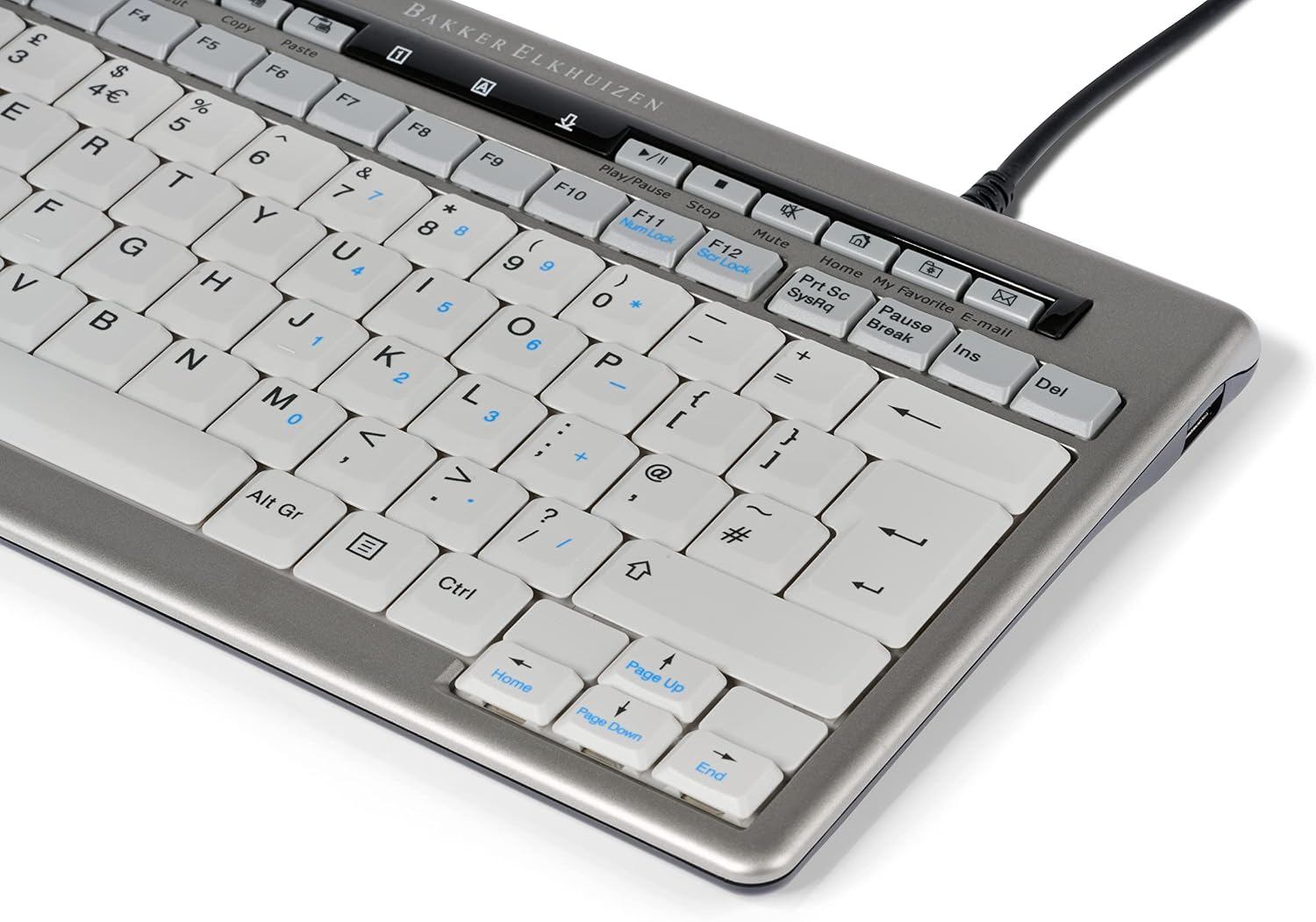
Image: Close-up of the top row of keys on the BakkerElkhuizen BNES840DUK keyboard, highlighting the function keys and integrated media controls.
Integrated USB 2.0 Ports
The keyboard is equipped with two USB 2.0 ports, allowing for convenient connection of other peripherals such as a mouse or USB flash drive.
- Locate the USB ports on the side of the keyboard.
- Insert your USB device into an available port.

Image: Side view of the BakkerElkhuizen BNES840DUK keyboard, illustrating the location of an integrated USB 2.0 port.
Maintenance
Cleaning the Keyboard
To maintain the cleanliness and functionality of your keyboard, follow these guidelines:
- Disconnect the keyboard from your computer before cleaning.
- Use a soft, lint-free cloth lightly dampened with water or a mild, non-abrasive cleaning solution.
- Wipe the keycaps and the keyboard surface gently.
- Avoid spraying liquids directly onto the keyboard or allowing moisture to seep into the gaps between keys.
- For dust and debris between keys, use compressed air or a small brush.
- Ensure the keyboard is completely dry before reconnecting it to your computer.
General Care
- Avoid exposing the keyboard to extreme temperatures, direct sunlight, or high humidity.
- Do not place heavy objects on the keyboard.
- Handle the USB cable with care to prevent damage.
Troubleshooting
If you encounter issues with your BakkerElkhuizen BNES840DUK keyboard, refer to the following common solutions:
- Keyboard not responding:
- Ensure the USB cable is securely connected to both the keyboard and the computer.
- Try connecting the keyboard to a different USB port on your computer.
- Restart your computer.
- Specific keys not working:
- Check for any physical obstructions or debris under the keycap.
- Ensure the keyboard is clean (refer to the Maintenance section).
- Incorrect character output:
- Verify that your operating system's keyboard layout settings match the physical layout of your keyboard (e.g., UK layout).
If the issue persists after attempting these steps, please contact customer support for further assistance.
Specifications
| Feature | Detail |
|---|---|
| Brand | BakkerElkhuizen |
| Model Number | BNES840DUK |
| Color | White (Keys), Silver/Grey (Body) |
| Dimensions | 16.5 x 30.5 x 2 cm |
| Weight | 520 grams |
| Connectivity | Wired USB |
| USB Ports | 2 x USB 2.0 |
| Compatible Devices | Laptop, Desktop Computers |
| Operating System Compatibility | Windows Vista and newer (general compatibility) |
| Special Feature | Lightweight, Compact Design |

Image: Underside of the BakkerElkhuizen BNES840DUK keyboard, displaying the model number (BNES840DUK) and regulatory certifications.
Warranty and Support
Warranty Information
BakkerElkhuizen products are manufactured to high-quality standards. For specific warranty terms and conditions applicable to your region, please refer to the warranty card included with your product or visit the official BakkerElkhuizen website.
Customer Support
If you require technical assistance, have questions about your product, or need to report a defect, please contact BakkerElkhuizen customer support. Contact details can typically be found on the product packaging, the official website, or through your point of purchase.
When contacting support, please have your product model number (BNES840DUK) and purchase information readily available.


