
Introduction
This manual provides detailed instructions for the setup, operation, maintenance, and troubleshooting of your ZTE MF823 4G LTE Unlocked USB Modem. Please read this guide thoroughly to ensure proper use and optimal performance of your device.
Product Overview
The ZTE MF823 is a compact 4G LTE USB modem designed for quick and easy internet access. It features driver-free technology, eliminating the need for manual driver installation. The modem includes a Micro-SD card slot, allowing it to function as a card reader. Control and configuration are managed through a web interface.
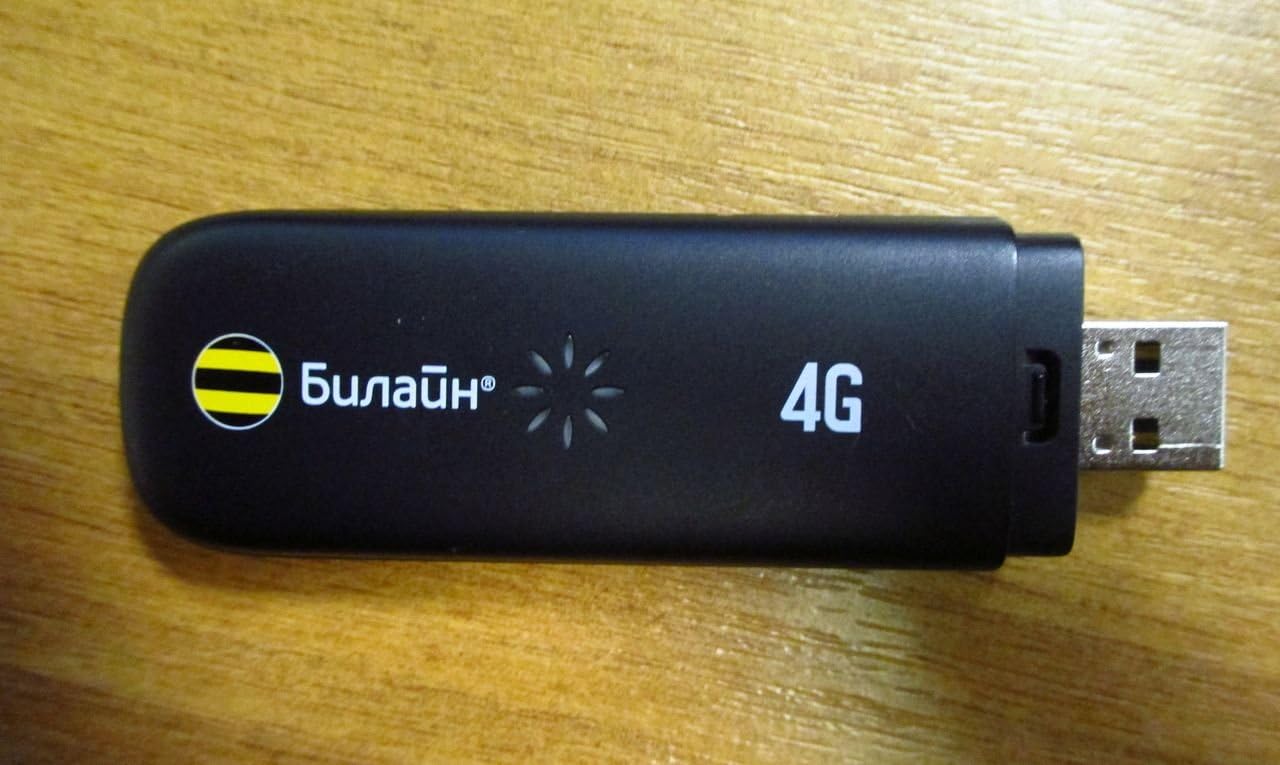
This image displays the ZTE MF823 4G LTE USB Modem. It is a compact, black device with a standard USB connector on one end. The device features '4G' branding and an indicator light pattern, along with the 'Билайн' (Beeline) logo, indicating carrier branding.
Key features include:
- Driver-free installation.
- Integrated Micro-SD card slot for data storage.
- Web interface for easy management.
- Compact design, approximately 13 mm thick.
- Support for IPv6.
Setup Instructions
- Insert SIM Card: Locate the SIM card slot on the modem. Carefully insert your activated 4G LTE SIM card into the slot until it clicks into place. Ensure the SIM card is correctly oriented according to the diagram on the device or in the packaging.
- Connect to Computer: Plug the ZTE MF823 USB modem into an available USB port on your personal computer.
- Automatic Driver Installation: The modem features driver-free technology. Upon first connection, your operating system (Windows 8/XP, Mac OS) should automatically detect the device and install necessary components. No manual driver installation is typically required.
- Access Web Interface: Once detected, open a web browser (e.g., Chrome, Firefox, Edge). The modem's web interface should automatically launch or be accessible by navigating to a default IP address (often 192.168.0.1 or 192.168.1.1). Refer to the device's packaging or a sticker on the modem for the exact address and default login credentials.
- Initial Configuration: Follow the on-screen prompts in the web interface to configure your network settings, including APN (Access Point Name) if required by your mobile network provider.
Operating Instructions
- Connecting to the Internet: After successful setup and configuration, the modem will automatically attempt to connect to the 4G LTE network. The indicator light on the modem will change to reflect connection status (e.g., solid blue for connected, blinking for searching). You can monitor and manage your connection status through the web interface.
- Using the Micro-SD Card Slot: The integrated Micro-SD card slot allows you to use the modem as a card reader. Insert a Micro-SD card into the designated slot. Once inserted, the card will appear as a removable drive on your computer, allowing you to transfer files.
- Supported Operating Systems: The ZTE MF823 is compatible with Windows 8, Windows XP, and Mac operating systems.
- IPv6 Support: The modem supports IPv6 for modern network compatibility.
Maintenance
- Cleaning: Use a soft, dry cloth to clean the exterior of the modem. Avoid using liquid cleaners or solvents.
- Storage: When not in use, store the modem in a cool, dry place away from direct sunlight and extreme temperatures.
- Handling: Handle the modem with care. Avoid dropping it or exposing it to excessive force, which could damage internal components or the USB connector.
- Software Updates: Periodically check the ZTE official website or the modem's web interface for any available firmware updates to ensure optimal performance and security.
Troubleshooting
If you encounter issues with your ZTE MF823 modem, refer to the following common troubleshooting steps:
- No Internet Connection:
- Ensure your SIM card is properly inserted and activated with a data plan.
- Verify that the modem is securely plugged into the USB port.
- Check the indicator light on the modem for connection status.
- Access the web interface to confirm network settings (e.g., APN) are correct.
- Try restarting your computer and reconnecting the modem.
- Modem Not Detected by Computer:
- Try a different USB port on your computer.
- Ensure your operating system is supported (Windows 8/XP, Mac OS).
- Restart your computer.
- Slow Connection Speed:
- Check your signal strength through the web interface. Move to an area with better network coverage if signal is weak.
- Confirm your data plan allows for 4G LTE speeds.
- Ensure no other applications are consuming excessive bandwidth.
Specifications
| Brand | ZTE |
| Model | MF823 |
| Modem Type | Digital |
| Connectivity Technology | USB |
| Connector Type | USB |
| Number of Ports | 1 |
| Compatible Devices | Personal Computer |
| LTE-FDD (DL/UL) | 100/50Mbps |
| UMTS-HSPA (DL/UL) | 42/5.76Mbps |
| GPRS/GSM Support | Yes |
| Supported OS | Windows 8/XP, Mac OS |
| IPv6 Support | Yes |
Warranty and Support
For warranty information, please refer to the documentation included with your purchase or visit the official ZTE website. For technical support or further assistance, please contact ZTE customer service through their official support channels.
You can visit the ZTE Store on Amazon for more product information.


