
Introduction
This manual provides essential instructions for the safe and efficient operation of your Pioneer VSX-1024 7.2-Channel Network A/V Receiver. Please read this manual thoroughly before using your receiver and keep it for future reference. This receiver is designed to deliver high-quality audio and video performance, supporting various connectivity options and network features.
Important Safety Information
Always follow these basic safety precautions to reduce the risk of fire, electric shock, and injury:
- Power Source: Connect the unit only to an AC outlet of the voltage indicated on the rear panel.
- Ventilation: Ensure adequate ventilation. Do not block ventilation openings. Maintain a minimum distance of 10 cm (4 inches) from the rear and sides, and 20 cm (8 inches) from the top.
- Water and Moisture: Do not expose the unit to rain or moisture. Do not place objects filled with liquids, such as vases, on the unit.
- Foreign Objects: Do not insert any foreign objects into the unit.
- Cleaning: Unplug the unit from the wall outlet before cleaning. Use a dry cloth only.
- Servicing: Do not attempt to service the unit yourself. Refer all servicing to qualified service personnel.
- Speaker Connections: Ensure all speaker wires are correctly connected to prevent short circuits.
Setup
1. Unpacking
Carefully remove the receiver and all accessories from the packaging. Verify that all items are present:
- Pioneer VSX-1024 A/V Receiver
- Remote Control and Batteries
- MCACC Setup Microphone
- FM/AM Antennas
- Power Cord
- Quick Start Guide (if included)
2. Connecting Your Components
Before making any connections, ensure the receiver and all components are turned off and unplugged from the power outlet.
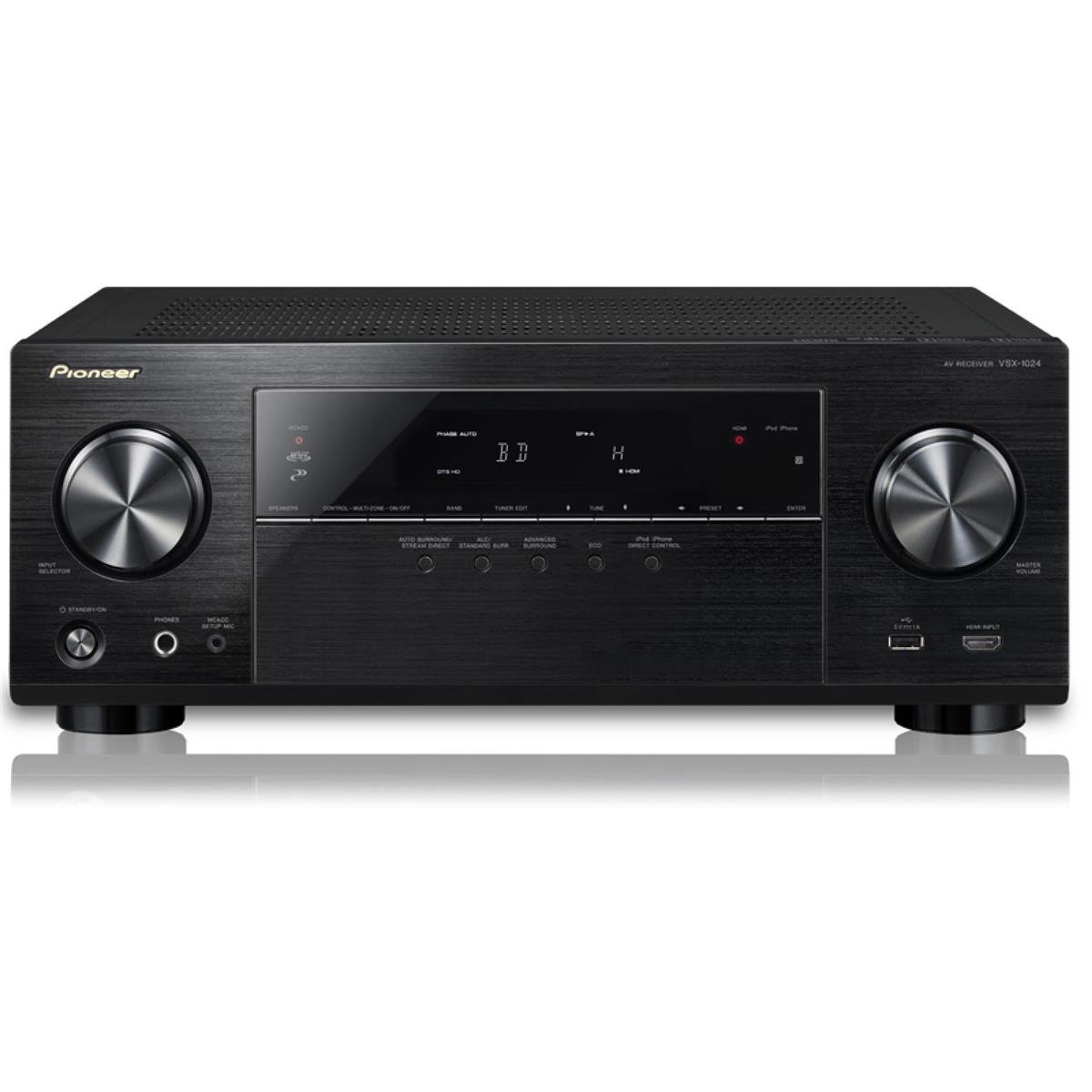
Image: Front view of the Pioneer VSX-1024 A/V Receiver, showing the display, control knobs, and front panel inputs. This image illustrates the general appearance of the receiver.
HDMI Connections
Use HDMI cables to connect your video sources (e.g., Blu-ray player, game console, cable box) to the HDMI IN jacks on the receiver. Connect the HDMI OUT (ARC) jack on the receiver to an HDMI input on your TV.
- Connect HDMI OUT (ARC) on receiver to HDMI IN (ARC) on TV.
- Connect HDMI OUT from source devices to HDMI IN 1-7 on receiver.
Speaker Connections
Connect your speakers to the corresponding speaker terminals on the rear panel. Ensure correct polarity (+ to + and - to -) for all speakers. This receiver supports a 7.2 channel configuration.
- Connect front left and right speakers.
- Connect center speaker.
- Connect surround left and right speakers.
- Connect surround back left and right speakers (or use for front height/width).
- Connect up to two powered subwoofers to the SUBWOOFER PRE OUT jacks.
Network Connection
For network features like AirPlay and Spotify, connect the receiver to your home network. Use an Ethernet cable to connect the receiver's LAN port to your router, or configure a wireless connection if a compatible wireless adapter is used.
3. Initial Setup (MCACC)
The Multi-Channel Acoustic Calibration System (MCACC) automatically optimizes your speaker settings for your listening environment.
- Connect the supplied MCACC setup microphone to the SETUP MIC jack on the front panel.
- Place the microphone at your primary listening position.
- Follow the on-screen instructions displayed on your TV to start the MCACC calibration process.
- The system will emit test tones and measure speaker size, level, distance, and equalization.
Operating Your Receiver
1. Basic Operation
- Power On/Off: Press the ON/STANDBY button on the front panel or remote control.
- Volume Control: Use the MASTER VOLUME knob on the front panel or the VOLUME +/- buttons on the remote.
2. Input Selection
To switch between connected devices, press the corresponding input selector buttons on the remote control (e.g., BD/DVD, GAME, SAT/CBL) or use the INPUT SELECTOR knob on the front panel.
3. Sound Modes
The receiver offers various sound modes to enhance your listening experience. Use the SURROUND or ADV. SURROUND buttons on the remote to cycle through modes like Dolby Digital, DTS, Stereo, and various Pioneer-specific sound fields.
4. Network Features
Leverage the receiver's network capabilities for streaming and connectivity:
- Apple AirPlay: Stream music wirelessly from your Apple devices (iPhone, iPad, iPod touch, Mac) to the receiver. Ensure both devices are on the same network.
- Spotify Connect: Access millions of songs from the Spotify digital music-streaming service. Control playback directly from the Spotify app on your smartphone or tablet.
- HTC Connect: Stream music from compatible HTC smartphones.
- Gapless Playback: Enjoy uninterrupted playback for supported audio formats including AIFF, Apple Lossless, WAV, FLAC, AAC, and MP3.
5. Remote Control
The supplied remote control provides full functionality for the receiver. Familiarize yourself with the button layout for convenient operation. Ensure batteries are inserted correctly.
Maintenance
1. Cleaning
To maintain the appearance and performance of your receiver:
- Unplug the power cord before cleaning.
- Wipe the exterior surfaces with a soft, dry cloth.
- Do not use abrasive cleaners, waxes, or solvents as they may damage the finish.
- Keep ventilation openings clear of dust.
2. Firmware Updates
Pioneer may release firmware updates to improve performance or add new features. It is recommended to periodically check the Pioneer website for available updates and follow the instructions provided for installation. Firmware updates can often resolve minor operational issues.
Troubleshooting
If you encounter problems with your receiver, refer to the following common issues and solutions:
| Problem | Possible Cause / Solution |
|---|---|
| No power | Ensure the power cord is securely plugged into the receiver and a working wall outlet. Check the power outlet with another device. |
| No sound from speakers | Check speaker connections for correct polarity and secure fit. Verify the correct input source is selected. Ensure volume is not muted or set too low. Run MCACC calibration again. |
| No picture on TV | Verify HDMI cables are securely connected between source, receiver, and TV. Ensure the correct HDMI input is selected on both the receiver and TV. Try bypassing the receiver by connecting the source directly to the TV to isolate the issue. |
| Subwoofer not working | Check the subwoofer's power and connection to the receiver's SUBWOOFER PRE OUT. Ensure subwoofer settings are enabled in the receiver's menu. Re-run MCACC calibration. |
| Network features not working | Ensure the receiver is properly connected to your home network (wired or wireless). Check network settings on the receiver and your router. Restart your router and receiver. |
| Remote control not working | Replace batteries with new ones. Ensure there are no obstructions between the remote and the receiver's IR sensor. |
If the problem persists after trying these solutions, contact Pioneer customer support or a qualified service technician.
Specifications
| Feature | Detail |
|---|---|
| Brand | Pioneer |
| Model Number | VSX-1024 |
| Surround Sound Channels | 7.2 channel |
| Output Power | 50 Watts (per channel, typical) / 980 Watts (total output) |
| Connectivity Technology | HDMI Input / Output, MHL input, Bluetooth, Component Video Input / Output, Composite A/V Input, USB, Ethernet input, Wireless Adapter Port, Analog Audio Inputs, Digital Inputs / Output, Pre-Amp Output, Headphone Output, Radio |
| Supported Internet Services | Spotify |
| Wireless Technology | AirPlay |
| Compatible Devices | Smartphone, Speaker |
| Item Weight | 20.3 Pounds |
| Color | Black |
Warranty and Support
For warranty information, please refer to the warranty card included with your product or visit the official Pioneer website. Pioneer provides customer support and service for its products. For technical assistance, troubleshooting, or service inquiries, please visit the Pioneer support website or contact their customer service department directly.
Note: Product specifications and features are subject to change without notice.