1. Introduction
Welcome to the KEYSCAN Aurora Software User Manual. This document provides comprehensive instructions for the installation, configuration, operation, and maintenance of your Aurora access control software. Aurora is designed to manage and monitor access points, ensuring robust security for your premises.
For optimal performance and security, please read this manual thoroughly before proceeding with installation or operation.
2. Setup and Installation
2.1 System Requirements
- Operating System: Windows Server 2012 R2 or newer, Windows 10 Pro or Enterprise (64-bit recommended)
- Processor: Intel Core i5 equivalent or higher
- RAM: 8 GB minimum, 16 GB recommended
- Storage: 100 GB free space (SSD recommended for database performance)
- Network: Ethernet connection (100 Mbps or higher)
2.2 Software Installation
Follow these steps to install the KEYSCAN Aurora Software:
- Insert the Aurora Software installation media or download the installer from the official KEYSCAN website.
- Run the installer as an administrator.
- Follow the on-screen prompts, accepting the license agreement.
- Select the installation directory.
- Choose components to install (e.g., Server, Client, Database).
- Complete the installation process and restart your computer if prompted.
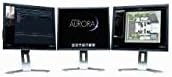
This image illustrates a typical multi-monitor setup displaying the Keyscan Aurora software interface. The left screen shows a detailed event log, the center screen displays the Aurora software logo, and the right screen presents a graphical floor plan with access point statuses.
2.3 Initial Configuration
After installation, perform the initial configuration:
- Launch the Aurora Server Configuration utility.
- Configure the database connection (SQL Server recommended).
- Set up the primary administrator account and password.
- Define network communication settings for controllers.
- Perform a system test to ensure all components are communicating correctly.
3. Operating the Software
3.1 User Interface Overview
The Aurora software features an intuitive graphical user interface (GUI). The main dashboard provides a real-time overview of system status, recent events, and active alarms. Navigation menus on the left or top allow access to various modules such as Access Points, Users, Schedules, and Reports.
3.2 Managing Access Points
To add or configure access points (doors, readers):
- Navigate to the 'Access Points' module.
- Click 'Add New' and follow the wizard to define controller, reader type, and door properties.
- Configure door modes (e.g., locked, unlocked, card only, card + PIN).
- Assign schedules and holiday exceptions to each access point.
3.3 User Management
To manage users and their access privileges:
- Go to the 'Users' module.
- Click 'Add New User' and enter personal details.
- Assign credentials (e.g., card numbers, biometrics).
- Create or assign existing access levels, which define which doors a user can access and during what times.
- Set expiration dates for temporary access.
3.4 Event Monitoring and Reporting
The Aurora software provides robust event monitoring and reporting capabilities:
- Real-time Events: View live access events, alarms, and system messages in the 'Event Log' module.
- Alarms: Configure alarm responses, including email notifications, pop-up alerts, and relay activations.
- Reports: Generate detailed reports on access history, user activity, system health, and more. Reports can be customized, saved, and exported in various formats.
4. Maintenance
4.1 Database Management
Regular database maintenance is crucial for system performance and data integrity:
- Backup: Schedule regular backups of your Aurora database. Store backups in a secure, off-site location.
- Optimization: Periodically perform database optimization and indexing as recommended by your database administrator or KEYSCAN support.
- Archiving: Consider archiving old event data to maintain optimal database size and performance.
4.2 Software Updates
Keep your Aurora software up-to-date to benefit from new features, security enhancements, and bug fixes:
- Check the official KEYSCAN website regularly for software updates and patches.
- Follow the provided instructions for applying updates, typically involving running an installer and potentially updating the database schema.
- Always back up your database before applying any major software update.
4.3 System Health Checks
Perform routine checks to ensure system stability:
- Verify that all controllers are online and communicating with the server.
- Monitor server resource usage (CPU, RAM, disk I/O).
- Review system logs for any recurring errors or warnings.
5. Troubleshooting
5.1 Common Issues and Solutions
- Software Not Starting:
Solution: Check Windows Event Viewer for errors. Ensure database service is running. Verify license validity. - Access Denied (Valid Card):
Solution: Verify user's access level and schedule. Check door mode. Ensure card is active and not expired. - Communication Errors with Controller:
Solution: Check network connectivity to the controller. Verify IP address and port settings in Aurora. Restart controller. - Slow Performance:
Solution: Optimize database. Ensure server meets system requirements. Check for network bottlenecks.
5.2 Contacting Support
If you encounter issues that cannot be resolved using this manual, please contact KEYSCAN Technical Support. Have your software version, system configuration, and a detailed description of the problem ready.
- Website: Visit the official KEYSCAN website for support resources and contact information.
- Email/Phone: Refer to your product documentation or the KEYSCAN website for specific support contact details.
6. Specifications
- Product Name: KEYSCAN Aurora Software
- Manufacturer: KEYSCAN
- ASIN: B00IPQXYQI
- Category: Access Control Software
- Compatibility: Designed for integration with KEYSCAN access control hardware.
7. Warranty and Support
7.1 Warranty Information
KEYSCAN provides standard warranty terms for its software products. Please refer to your purchase agreement or contact KEYSCAN support for specific warranty details regarding the Aurora Software. Warranty typically covers defects in software functionality under normal use.
7.2 Technical Support
For technical assistance, troubleshooting, or any questions regarding the KEYSCAN Aurora Software, please visit the official KEYSCAN website or contact their dedicated support team. Support resources often include FAQs, knowledge bases, and direct contact options.


