
Introduction
This manual provides comprehensive instructions for the setup, operation, and maintenance of your Sharp LC-32LE451U 32-Inch 720p 60Hz LED TV. The LC-32LE451U is an LED television designed to deliver clear picture quality with a 60Hz refresh rate. It features an AQUOS panel for detailed visuals and vibrant colors. Key features include:
- High-definition (720p) display with LED backlighting.
- Slim design with a narrow bezel.
- Support for HDMI 1.4a with HDCP (CEC & ARC) and MHL.
- Energy Star 6.0 compliance.
- Integrated audio system with 20W total speaker power output and Dolby/MTS decoders.

Figure 1: Front view of the Sharp LC-32LE451U LED TV. The screen displays a vibrant image of a dancer, highlighting the display quality.
What's in the Box
Please verify that all the following components are included in your package:
- Sharp LC-32LE451U Television Unit
- Remote Control (requires 2 AA batteries, included)
- TV Stand components
Setup
1. Assembling the TV Stand
Carefully place the TV screen-down on a soft, clean surface to prevent scratches. Attach the stand components to the bottom of the television using the provided screws. Ensure the stand is securely fastened before proceeding.
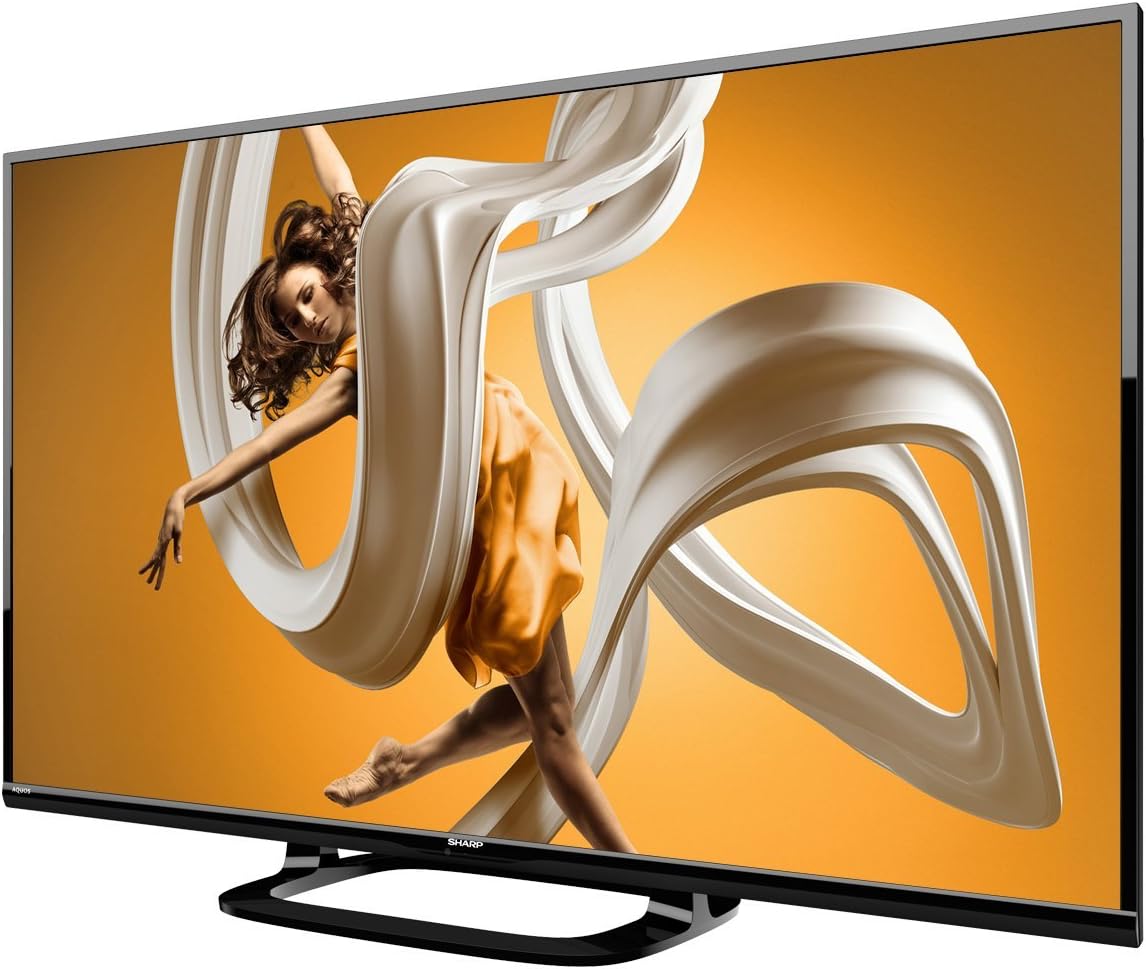
Figure 2: Angled view of the Sharp LC-32LE451U TV, illustrating the TV with its attached stand.
2. Connecting External Devices
Your Sharp LC-32LE451U TV offers multiple connectivity options. Locate the input ports on the back or side of the television.
- HDMI: Connect high-definition devices such as Blu-ray players, game consoles, or cable/satellite boxes using an HDMI cable. This TV supports HDMI 1.4a with HDCP, CEC, and ARC functionalities.
- MHL: For compatible mobile devices, use an MHL cable to connect and display content on the TV.
- Antenna/Cable: Connect your antenna or cable TV feed to the RF input.
- Other Inputs: Refer to the port labels on your TV for additional connections like component video or audio inputs.

Figure 3: Side profile of the Sharp LC-32LE451U TV, indicating the slim design and location of some input ports.
3. Power Connection
Once all devices are connected, plug the TV's power cord into a standard electrical outlet.
Operating Instructions
1. Power On/Off
Press the POWER button on the remote control or on the TV panel to turn the television on or off.
2. Input Selection
Press the INPUT or SOURCE button on the remote control to cycle through available input sources (e.g., HDMI 1, HDMI 2, TV, Component). Select the input corresponding to your connected device.
3. Volume Control
Use the VOL + and VOL - buttons on the remote to adjust the volume. Press the MUTE button to temporarily silence the audio.
4. Menu Navigation
Press the MENU button to access the TV's on-screen display (OSD) menu. Use the arrow buttons (UP, DOWN, LEFT, RIGHT) to navigate through menu options and the ENTER or OK button to confirm selections. Common menu options include Picture Settings, Sound Settings, Channel Setup, and System Settings.
Maintenance
Cleaning the Screen
To clean the TV screen, gently wipe it with a soft, dry, lint-free cloth. For stubborn marks, slightly dampen the cloth with water or a specialized screen cleaner. Avoid using harsh chemicals, abrasive materials, or spraying liquid directly onto the screen.
Cleaning the Cabinet
Wipe the TV cabinet and stand with a soft, dry cloth. Do not use liquid cleaners or polishes, as they may damage the finish.
Ventilation
Ensure that the ventilation openings on the back of the TV are not blocked. Proper airflow is essential to prevent overheating.
Troubleshooting
If you encounter issues with your TV, refer to the following common solutions:
| Problem | Possible Solution |
|---|---|
| No Power | Check if the power cord is securely plugged into both the TV and the electrical outlet. Ensure the outlet is functional. |
| No Picture, but Sound is Present | Verify the correct input source is selected. Check all video cable connections (HDMI, etc.) between the TV and the source device. |
| No Sound, but Picture is Present | Check the volume level and ensure the TV is not muted. Verify audio cable connections. If using external audio, ensure it is properly configured. |
| Remote Control Not Working | Replace the batteries in the remote control. Ensure there are no obstructions between the remote and the TV's IR sensor. |
| Poor Picture Quality | Adjust picture settings (brightness, contrast, sharpness) in the TV menu. Ensure the input source is providing a high-quality signal. Check antenna or cable connections for interference. |
Specifications
Detailed technical specifications for the Sharp LC-32LE451U TV:
- Brand: Sharp HE
- Model Number: LC-32LE451U
- Screen Size: 32 Inches (82 cm visible diagonal)
- Display Technology: LED
- Resolution: 720p (HD)
- Refresh Rate: 60 Hz
- Aspect Ratio: 16:9
- Product Dimensions (with stand): 28.42 x 6.55 x 18.49 inches (72.18 x 16.63 x 46.96 cm)
- Item Weight: 10.4 Pounds (4.72 kg)
- Color: Black
- Voltage: 120 Volts
- Wattage: 20 watts
- Special Features: Flat screen, Energy Star 6.0 compliant
- Connectivity Technology: HDMI 1.4a (with HDCP, CEC & ARC), MHL

Figure 4: Diagram illustrating the dimensions of the Sharp LC-32LE451U TV, showing width (28.4"), height (18.5"), and depth (5.5").
Warranty and Support
For information regarding the warranty coverage for your Sharp LC-32LE451U television, please refer to the warranty card included with your product or visit the official Sharp HE website. Warranty terms and conditions may vary by region and purchase date.
If you require technical assistance, have questions about your product, or need to arrange for service, please contact Sharp HE customer support. Contact details can typically be found on the manufacturer's website or in the documentation provided with your TV.