
1. Introduction
This manual provides detailed instructions for the installation, operation, and maintenance of your BOYO VTG50 5-Inch Rear View Mirror Monitor with Navigation. Please read this manual thoroughly before using the device to ensure proper functionality and safety.
1.1 Product Overview
The BOYO VTG50 is a versatile 5-inch rear view mirror monitor designed to enhance your driving experience with integrated navigation, Bluetooth hands-free calling, and media playback capabilities. It offers dual mounting options: clip-on or full replacement, and features an 800x480 pixel touch screen display.
1.2 Package Contents
Verify that all items are present in the package:
- BOYO VTG50 5-Inch Rear View Mirror Monitor
- Universal Fixed Mounting Bracket
- Power Cable
- GPS Antenna
- User Manual (this document)
- (Optional) Replacement Mount Accessories
2. Safety Information
WARNING: Failure to follow these safety instructions may result in fire, electric shock, injury, or damage to the product or vehicle.
- Do not attempt to disassemble or modify the device. This may cause damage and void the warranty.
- Ensure all wiring is correctly connected to prevent short circuits or electrical hazards.
- Install the device securely to prevent it from obstructing your view or becoming a projectile during sudden stops or accidents.
- Operate the device only when it is safe to do so. Avoid prolonged interaction with the touch screen while driving.
- Keep the device away from water and excessive moisture.
- This product contains chemicals known to the State of California to cause cancer and birth defects or other reproductive harm (Proposition 65 warning).
3. Setup and Installation
Proper installation is crucial for the performance and safety of your VTG50 monitor. If you are unsure about any steps, consult a professional installer.
3.1 Mounting Options
The VTG50 offers two primary mounting methods:
- Clip-on Installation: Attach the VTG50 directly over your existing rear view mirror using the integrated clips. This is the simplest method.
- Replacement Installation: Remove your vehicle's original rear view mirror and install the VTG50 using the universal fixed mounting bracket. This provides a more integrated look. Consult your vehicle's manual for mirror removal instructions.
3.2 Wiring Diagram
Connect the power cable and other accessories as follows:
- Power Connection: Connect the red wire to a switched 12V accessory power source (ACC). Connect the black wire to a vehicle ground.
- Reverse Trigger Wire: Connect the green wire (or designated reverse trigger wire) to your vehicle's reverse light circuit. This will automatically switch the display to a connected reverse camera when the vehicle is in reverse gear.
- GPS Antenna: Connect the GPS antenna to the designated port on the monitor. Mount the antenna in a location with a clear view of the sky, typically on the dashboard or under the windshield.
- Video Input (Optional): If connecting an external video source (e.g., reverse camera), connect it to the video input port.
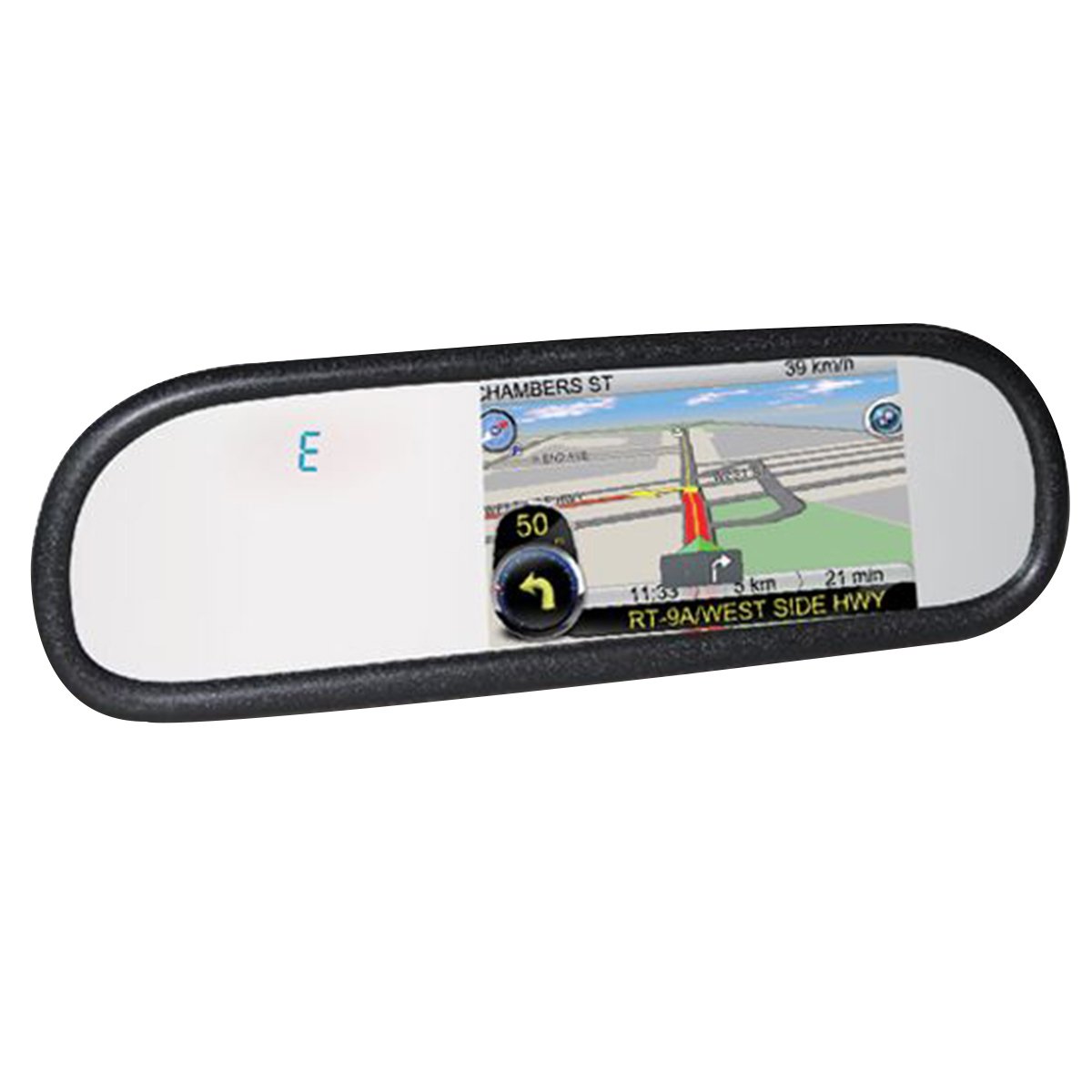 Image: BOYO VTG50 Rear View Mirror Monitor showing the device and its associated wiring harness for power, ground, and video inputs.
Ensure all connections are secure and insulated to prevent electrical issues.
4. Operation
The VTG50 features a touch screen panel for intuitive control.
4.1 Powering On/Off
The device will typically power on automatically when the vehicle's ignition is turned on (if connected to a switched power source). To manually power off, press and hold the power button (if available) or turn off the vehicle's ignition.
4.2 Main Menu Navigation
Upon startup, the main menu will display icons for various functions such as Navigation, Bluetooth, Media Player, Photo Viewer, E-Book, and Settings. Tap the desired icon to access the corresponding function.
4.3 Navigation
Tap the "Navigation" icon to launch the GPS navigation software. Ensure the GPS antenna is properly connected and positioned for optimal signal reception. Follow on-screen prompts to enter destinations and manage routes.
4.4 Bluetooth Connectivity
Pairing a Device:
- Go to the "Bluetooth" menu.
- Enable Bluetooth on your smartphone.
- Search for available devices on your phone and select "VTG50" (or similar name).
- Confirm the pairing code on both devices if prompted.
4.5 Media Player
The integrated media player supports various audio and video formats. Insert an SD card into the SD card slot containing your media files. Tap the "Media Player" icon to browse and play content. The device also functions as a photo viewer and e-book reader.
4.6 Settings
Access the "Settings" menu to adjust display brightness, volume, date/time, language, and other system preferences. You can also view system information and perform factory resets from this menu.
5. Key Features
- 5-Inch Touch Screen Display: 800x480 pixel resolution for clear visuals and intuitive control.
- Dual Mounting Solution: Clip-on over existing mirror or full replacement with universal bracket.
- Integrated Navigation: GPS functionality for turn-by-turn directions.
- Bluetooth Hands-Free & Streaming: Connect smartphones for calls and audio playback, including phonebook load.
- Media Player: Supports movie, photo, and e-book viewing via SD card.
- Reverse Trigger Wire: Automatic display switching for reverse camera input.
- Built-in Speaker: For audio output from navigation, calls, and media.
- Compass Display: Digital compass for directional awareness.
- Temperature Display: Shows ambient temperature.
- SD Card Slot: For media storage and navigation map data.
6. Maintenance
Regular maintenance ensures the longevity and optimal performance of your VTG50 monitor.
- Cleaning the Screen: Use a soft, lint-free cloth to gently wipe the touch screen. For stubborn smudges, slightly dampen the cloth with water or a screen-safe cleaner. Avoid abrasive materials or harsh chemicals.
- Software Updates: Periodically check the manufacturer's website for available software or navigation map updates. Follow the provided instructions carefully for any update procedures.
- Cable Inspection: Regularly inspect all connected cables for signs of wear, fraying, or damage. Replace any damaged cables immediately.
- Environmental Conditions: Avoid exposing the device to extreme temperatures, direct sunlight for extended periods, or high humidity, as these can affect performance and lifespan.
7. Troubleshooting
If you encounter issues with your VTG50, refer to the following common problems and solutions:
| Problem | Possible Cause | Solution |
|---|---|---|
| Device does not power on. | No power supply; loose connection; blown fuse. | Check power cable connections. Verify vehicle's fuse for the accessory circuit. |
| No GPS signal. | GPS antenna not connected; antenna obstructed; poor satellite reception. | Ensure GPS antenna is securely connected. Relocate antenna to a position with a clear view of the sky. Wait for signal acquisition. |
| Bluetooth pairing fails. | Bluetooth not enabled on phone/device; incorrect pairing mode; interference. | Ensure Bluetooth is active on both devices. Restart both devices. Try pairing in a different location to avoid interference. |
| Touch screen unresponsive. | Software glitch; screen calibration issue. | Restart the device. If issue persists, perform a factory reset (refer to Settings menu). |
| Reverse camera not displaying. | Reverse trigger wire not connected; camera not powered; incorrect video input. | Verify the reverse trigger wire connection. Ensure the camera is powered and connected to the correct video input. |
If the problem persists after attempting these solutions, contact BOYO VISION customer support.
8. Specifications
| Model Number | VTG50 |
| Display Size | 5-inch |
| Resolution | 800x480 pixels |
| Mounting Options | Clip-on, Replacement (Universal Fixed Mounting Bracket) |
| Connectivity | Bluetooth, GPS, Video Input |
| Storage | SD Card Slot |
| Dimensions (Product) | 13 x 7.5 x 3 inches |
| Weight (Item) | 2 pounds |
| Color | BLACK |
| Manufacturer | BOYO |
9. Warranty and Support
For warranty information and customer support, please refer to the warranty card included with your product or visit the official BOYO VISION website. Keep your proof of purchase for warranty claims.
BOYO VISION Official Website: www.boyovision.com
For technical assistance or service inquiries, please contact BOYO VISION customer service directly.