
1. Product Overview
The Jarvis Fully Standing Desk Frame (Model JRV1) is an electric adjustable height desk frame designed to convert any suitable desktop into a dynamic sit-stand workstation. This frame is built with sturdy alloy steel, offering stability and a robust lifting capacity. It features a dual-motor system for smooth and quiet height adjustments, controlled by a digital handset with programmable memory presets.
This manual provides essential information for the assembly, operation, and maintenance of your Jarvis desk frame. Please read it thoroughly before beginning assembly or operation to ensure safe and correct usage.
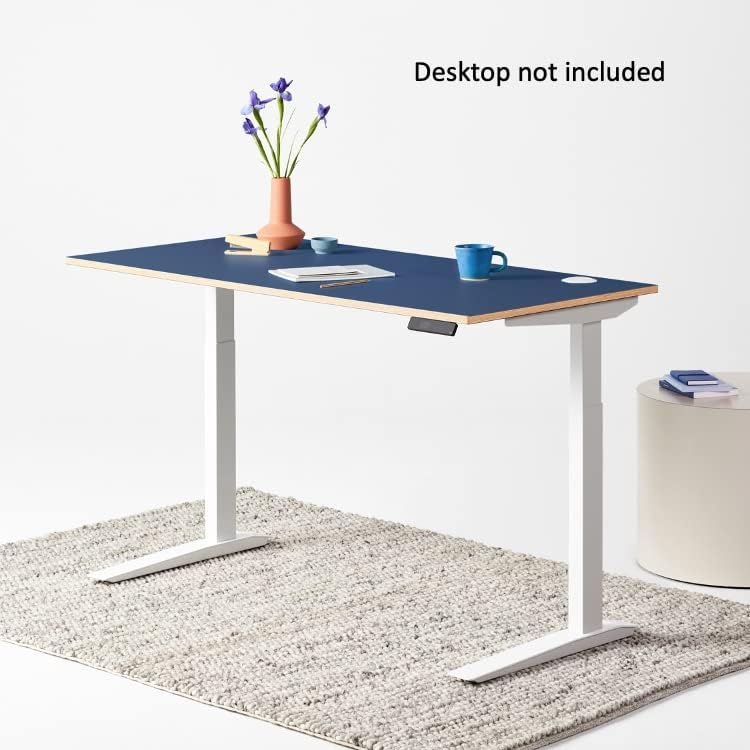
Figure 1: Jarvis Fully Standing Desk Frame with a blue desktop, shown at standing height.
2. Setup and Assembly
Careful assembly is crucial for the proper function and longevity of your Jarvis desk frame. Ensure all components are present before starting. A Phillips head screwdriver is required; all other necessary tools are included.
2.1 Unpacking and Component Identification
Unpack all components and lay them out on a clean, soft surface to prevent scratches. Refer to the parts list provided in your packaging to identify each component.
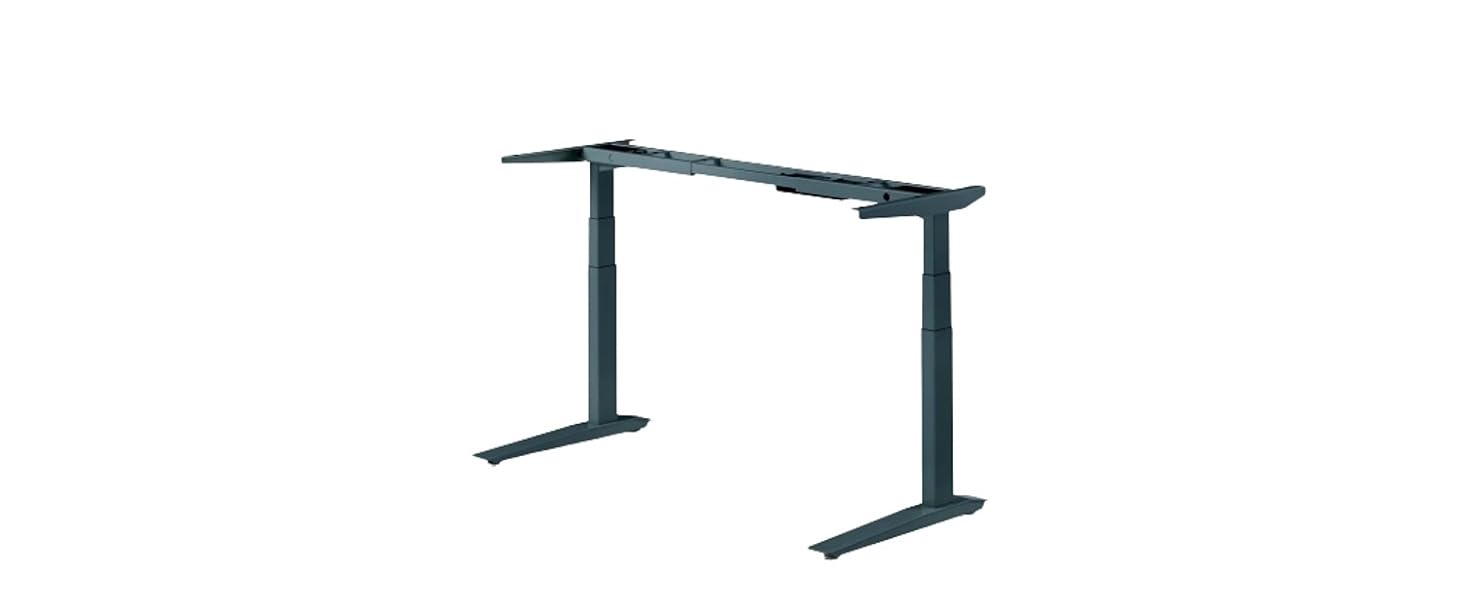
Figure 2: All components of the Jarvis desk frame laid out for assembly.
2.2 Assembly Steps
- Attach Lifting Columns to Frame Ends: Insert one lifting column into each frame end. Secure using the provided small machine screws. Ensure they are fully tightened.
- Attach Side Brackets: Select the appropriate left or right side bracket. Slide the two tabs on the side bracket into the frame end. Use two medium machine screws to secure the side bracket, but do not fully tighten until both screws are in place. Repeat for the other side.
- Attach Leg Assemblies to Desktop: Place the desktop upside down on a protected surface. Position the left leg assembly on the desktop to your right, with the frame end pointing towards the center of the top. Secure using the provided desktop machine screws. Repeat for the right leg assembly.
- Position Center Rails: Slide the center rails into the frame ends attached to the desktop. Ensure the midpoint mark on both center rails is centered between the two frame ends. Use the pre-installed set screws to lock the center rails down firmly.
- Attach Handset: Secure the digital handset to the underside of the desktop using the two provided wood screws.
- Plug in Cords: Slide the control box onto the frame end. Connect the cables from both legs to the control box via the sockets labeled M1 and M2. Connect the handset to the control box via the socket labeled HS. Finally, connect the power cable via the power socket.
- Cable Management: Use the provided cable clips to tidy up all cables, securing them neatly along the frame.
- Attach Feet to Lifting Columns: Loosely attach a foot to the bottom of each lifting column using four medium machine screws per foot. Insert all screws part way, then tighten them all completely.
- Final Screw Check: Double-check that all screws everywhere on the desk are tight. Then, triple-check.
- Flip Over the Desk: With the help of another person, carefully lift the desk and gently flip it onto its feet. Support both the top and the frame, being careful not to put weight on the handset.
- Adjust Leveling Glides: Adjust the pre-installed leveling glides on the feet as needed to ensure the desk is stable and level.
2.3 Assembly Video
Video 1: Detailed instructions for assembling the Jarvis Desk Frame. This video covers each step from unpacking to final setup.
3. Operating Instructions
The Jarvis desk frame features an intuitive digital handset for easy height adjustment and memory preset programming.
3.1 Basic Height Adjustment
- Use the Up (^) arrow button to raise the desk.
- Use the Down (v) arrow button to lower the desk.
- The digital display will show the current height in inches or centimeters.

Figure 3: Jarvis digital handset for height adjustment and memory presets.
3.2 Programming Memory Presets
The handset allows you to store up to four preferred height settings.
- Adjust the desk to your desired height using the Up/Down arrow buttons.
- Press the 'M' button. The display will show 'S-'.
- Within 3 seconds, press one of the number buttons (1, 2, 3, or 4) to save the current height to that preset. The display will show the number you selected, confirming the setting is saved.
To recall a saved height, simply press the corresponding number button (1, 2, 3, or 4). The desk will automatically move to that preset height.
3.3 Handset Functions Video
Video 2: Demonstrates how to use the programmable memory handset functions, including setting and recalling height presets.
4. Features and Specifications
4.1 Key Features
- Flexible Design: Compatible with various desktop surfaces (44" to 82" wide, 27" to 36" deep). Desktop not included.
- Dual Motor Electric Lift: Provides smooth, fast, and quiet height adjustments at 1.5" per second.
- Programmable Handset: Digital display with 4 customizable memory presets.
- Adjustable Height Range: From 24.5" to 48" (fits users 5'10" to 6'9").
- Stable Steel Base: Sturdy alloy steel legs ensure industry-leading 350 lb lifting capacity and stability at all heights.
4.2 Technical Specifications
| Specification | Value |
|---|---|
| Brand | Jarvis |
| Model Number | JRV1 |
| Material | Alloy Steel |
| Color | White Frame |
| Product Dimensions (D x W x H) | 26.5"D x 82"W x 49.25"H |
| Item Weight | 65 Pounds |
| Minimum Height | 24.5 Inches |
| Maximum Height | 48 Inches |
| Maximum Weight Recommendation | 350 Pounds |
| Required Assembly | Yes |
5. Maintenance
To ensure the longevity and optimal performance of your Jarvis desk frame, follow these maintenance guidelines:
- Cleaning: Wipe down the frame with a soft, damp cloth. Avoid abrasive cleaners or solvents that could damage the finish.
- Cable Management: Periodically check that all cables are securely fastened and not interfering with the desk's movement. Re-secure any loose cables using the provided clips or similar cable management solutions.
- Screw Tightness: Every few months, check all assembly screws and tighten them if necessary to maintain stability.
- Weight Capacity: Do not exceed the maximum weight recommendation of 350 pounds. Overloading can damage the motors and frame.
- Obstruction Check: Before adjusting the desk height, ensure there are no obstructions above or below the desktop that could impede movement.
6. Troubleshooting
If you encounter any issues with your Jarvis desk frame, refer to the following common troubleshooting tips:
- Desk Not Moving:
- Check all power connections to ensure they are securely plugged in.
- Verify that the power outlet is functional.
- Perform a reset/calibration (see Operating Instructions or consult the assembly video for calibration steps).
- Uneven Movement or Wobbling:
- Ensure the desk is on a flat, level surface.
- Adjust the leveling glides on the feet to stabilize the desk.
- Check all assembly screws for tightness and re-tighten if loose.
- Display Error Codes:
- Refer to the full user manual (available on the Jarvis website) for specific error code interpretations and solutions.
- Often, a simple power cycle (unplugging for 30 seconds and plugging back in) or a reset/calibration can resolve minor errors.
- Anti-Collision Feature Triggering:
- Ensure there are no physical obstructions in the desk's path during adjustment.
- The anti-collision sensitivity can be adjusted via the handset settings (refer to the "Programmable Memory Handset Functions" video for guidance).
If the issue persists after attempting these steps, please contact customer support.
7. Warranty and Support
The Jarvis Fully Standing Desk Frame comes with a 7-year warranty covering all frame, mechanical, and electrical components. This warranty ensures peace of mind regarding the quality and durability of your product.
For warranty claims, technical assistance, or any other inquiries, please contact Jarvis customer support:
- Phone: 888-508-3725
- Email: support@fully.com
- Online: Visit the Jarvis Store on Amazon for additional resources and product information.
When contacting support, please have your model number (JRV1) and purchase details ready.


