Introduction
The One For All OARUSB04G is a versatile four-device universal remote control designed to simplify your home entertainment experience. It allows you to control up to four different devices, such as your TV, DVD player, amplifier, and cable/satellite/streaming player, with a single remote. This manual provides detailed instructions for setup, operation, and maintenance.
Product Overview
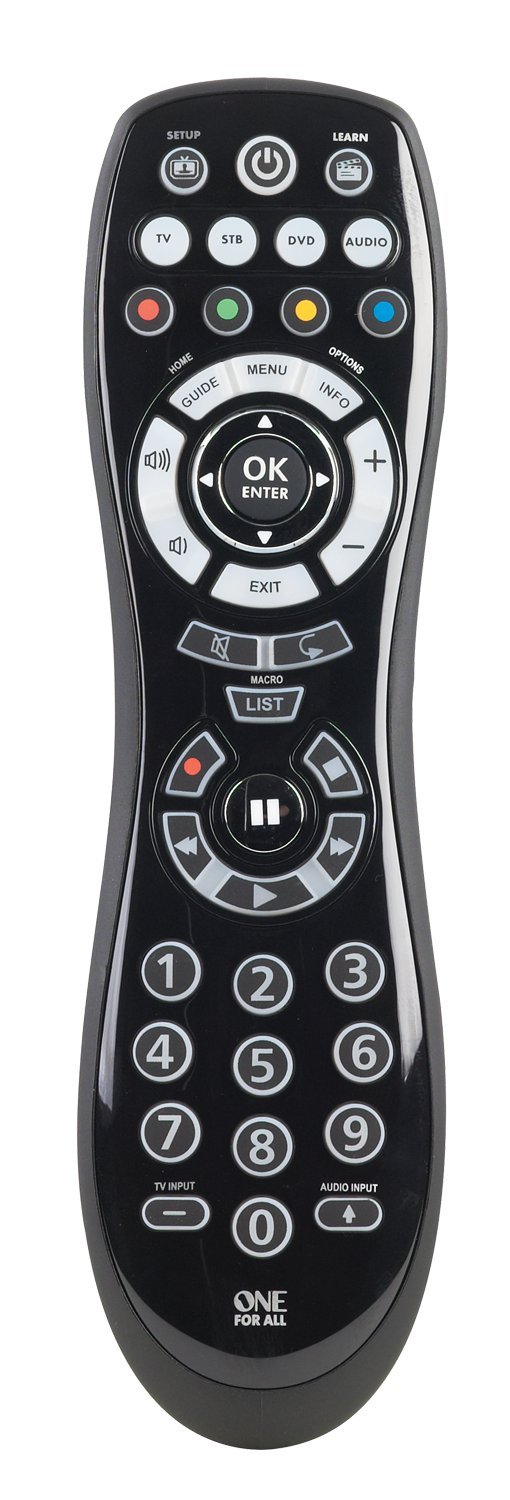
This image displays the front of the One For All OARUSB04G universal remote. It features a black ergonomic design with clearly labeled buttons for device selection (TV, STB, DVD, AUDIO), power, setup, learn, navigation, number pad, and media playback controls. The keypad is backlit for visibility in low light conditions.
Key Features:
- Controls up to four programmable devices: TV, DVD, Amplifier, and Cable/Satellite/Streaming player.
- Compatible with over 6000 brands.
- "Smart Control" feature allows one button press to power on all necessary devices.
- Simple setup via on-remote code library or the SimpleSet online tool.
- Backlit keypad for easy viewing.
- Includes a USB cable for computer-assisted programming.
Setup
Battery Installation
The remote requires 2 AA batteries. Open the battery compartment cover on the back of the remote. Insert the batteries, ensuring correct polarity (+/-). Close the battery compartment. Note that the USB port for programming is located within the battery compartment.
Programming Methods
The One For All OARUSB04G offers several methods for programming your devices:
- Using the SimpleSet Website:
- Connect the remote to your computer using the included USB cable. The USB port is located inside the battery compartment.
- Visit the SimpleSet website (simpleset.com).
- Upload the
settings.binfile from the remote's drive (which appears as a removable disk on your computer) to the website. - Select the devices you wish to control (TV, STB, DVD, Audio) and their respective brands on the website.
- Download the new
settings.binfile generated by the website. It is recommended to save it to your computer first, then copy it to the remote's drive, overwriting the existing file. - Safely eject the remote from your computer and disconnect the USB cable. Reinstall the battery compartment cover.
- Test the remote with your devices.
- Learning Function:
- Ensure you have the original, functioning remote for the device you want to program.
- Press and hold the LEARN button on the One For All remote for 3 seconds until the device button (e.g., TV) blinks twice.
- Select the device key (TV, STB, DVD, Audio) on the One For All remote that corresponds to the device you are programming.
- Press the key on the One For All remote that you wish to program. Do not hold it down for more than 3 seconds, as this will clear its programming.
- Point the original remote and the One For All remote at each other (ends facing) and press the corresponding button on the original remote. The device button on the One For All remote will blink twice to confirm successful learning.
- Repeat for other keys if needed.
- Press and hold the LEARN button for 3 seconds to exit learning mode and save the changes. The device button will blink twice.
- Direct Code Set:
- Locate the 4-digit code for your device brand from the included code list or online resources.
- Ensure the device you want to control is powered on.
- Press and hold the SETUP button for 3 seconds until a device button blinks twice.
- Select the device key (TV, STB, DVD, Audio) for the device you are programming.
- Enter the 4-digit code using the number pad. The device key will blink twice.
- Aim the remote at your device and press the POWER key. If the device turns off, the code is correct. If not, repeat steps 3-6 with the next code for your brand.
- Auto Search:
- Ensure the device you want to control is powered on.
- Press and hold the SETUP button for 3 seconds until a device button blinks twice.
- Select the device key (TV, STB, DVD, Audio) for the device you are programming.
- Press and release the OK key.
- Point the remote at your device. The remote will automatically send different power off signals every 3 seconds.
- As soon as your device turns off, immediately press and release the OK key to save the code.
- If some keys do not work correctly, repeat the auto search process, pressing OK at the next instance the device turns off, to try a different configuration.
Operating the Remote
To control a specific device, press the corresponding device key (TV, STB, DVD, AUDIO) at the top of the remote. The selected device key will illuminate.
- Use the POWER button to turn devices on or off.
- Adjust volume using the VOLUME UP/DOWN buttons.
- Change channels using the CHANNEL UP/DOWN buttons.
- Navigate menus using the directional pad and OK/ENTER button.
- The 'Smart Control' feature allows you to turn on all linked devices with a single press of the power button after initial setup.
- The backlit keypad activates when buttons are pressed, improving visibility in dark environments.
Maintenance
- Replace batteries when the remote's performance diminishes or the indicator light flashes. Always use 2 new AA batteries.
- Clean the remote with a soft, dry cloth. Avoid using liquid cleaners or abrasive materials.
- Keep the remote away from extreme temperatures and moisture.
Troubleshooting
Common Issues and Solutions:
- Remote not responding:
- Check battery levels and replace if necessary.
- Ensure the remote is pointed directly at the device.
- Verify that the correct device key (TV, STB, DVD, AUDIO) is selected.
- Device not turning off/on or responding to commands:
- Re-attempt the programming process (SimpleSet, Learning, Direct Code, or Auto Search) for the affected device.
- For Direct Code Set or Auto Search, try alternative codes or configurations for your device brand.
- Ensure the original remote is functioning correctly if using the Learning function.
- Specific keys not working after programming:
- Use the Learning function to program individual keys from your original remote.
- Ensure you press and hold the LEARN button for 3 seconds to save changes after programming individual keys.
Online Resources:
- For additional support, updated code lists, and advanced programming options, visit the official One For All website or simpleset.com.
- Community forums like hifi-remote.com may also offer user-contributed solutions and advanced tips for JP1 compatible remotes.
Resetting the Remote:
To reset the remote to its factory default settings, consult the One For All support website or the full manual available online, as this procedure may vary.
Specifications
- Product Dimensions: 8.23 x 2.14 x 1.33 inches
- Item Weight: 1 ounces
- Batteries: 2 AA batteries required
- Max Number of Supported Devices: 4
- Compatible Devices: Television, DVD, Amplifier, Cable/Satellite/Streaming Player
- Special Feature: Backlit, Universal
- Color: Black
Warranty and Support
For warranty information and customer support, please refer to the documentation included with your purchase or visit the official One For All website. Keep your proof of purchase for warranty claims.


