
Stellar Labs DMX-6
Stellar Labs DMX-6 Six Channel Basic DMX Controller
User Manual
Introduction
The Stellar Labs DMX-6 is a basic six-channel DMX controller designed for managing lighting and effects devices that utilize standard DMX-512 control. This controller allows for individual control of up to six DMX channels, making it suitable for LED PAR lamps and similar fixtures. It provides flexibility for color blending and intensity control through its faders.
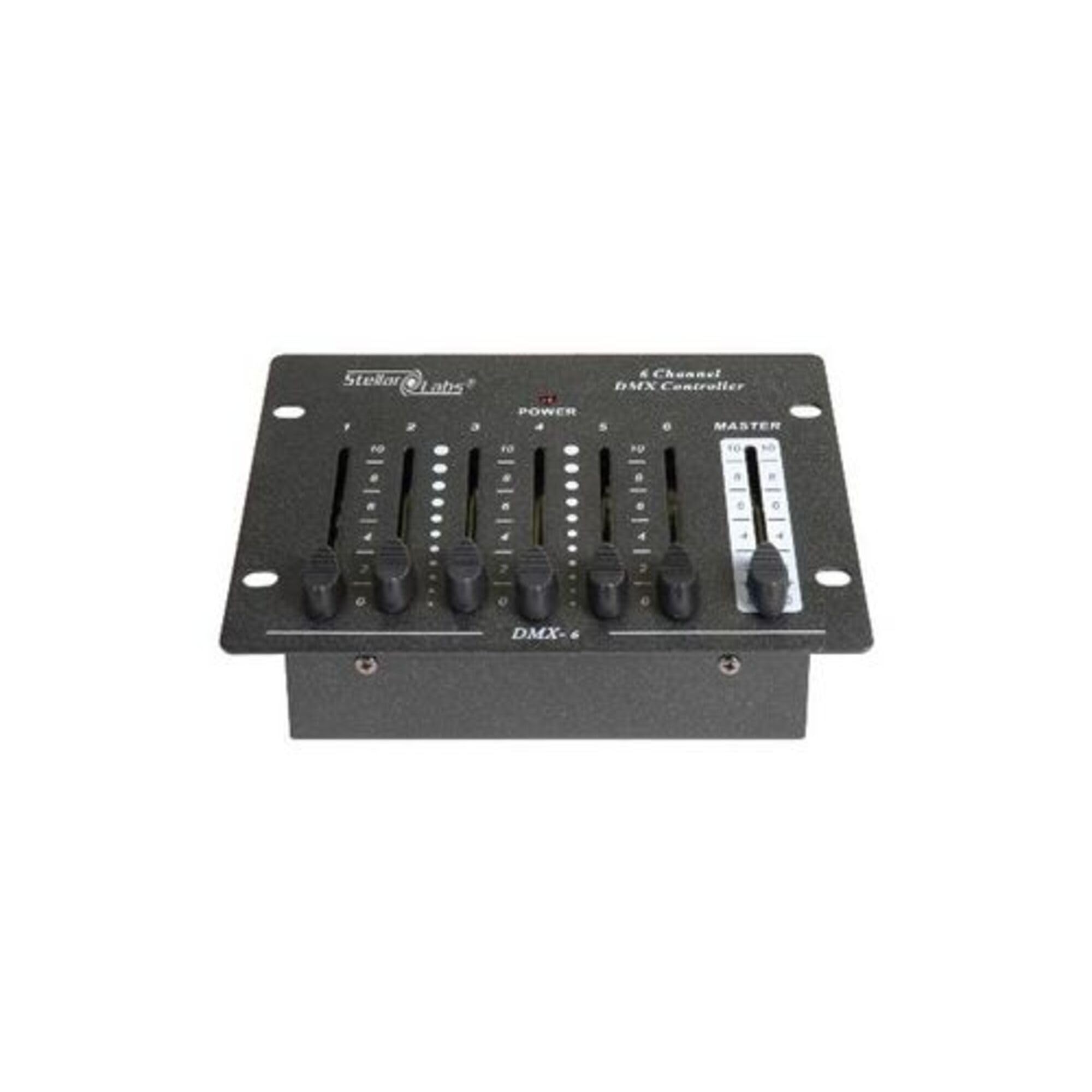
Image: Front view of the Stellar Labs DMX-6 Six Channel Basic DMX Controller, showing the faders and controls.
Setup
- Power Connection: The DMX-6 controller can be powered in two ways:
- Using a 9V battery (not included). Ensure the battery is correctly inserted into the battery compartment.
- Using the included 9VDC adapter. Connect the adapter to the power input jack on the controller and then to a standard electrical outlet.
- DMX Output Connection: Connect the DMX-6 controller to your DMX-compatible lighting fixtures using a 3-pin female XLR cable. The DMX output port is located on the controller. Ensure a secure connection to the first fixture in your DMX chain.
- Fixture Addressing: Configure your DMX lighting fixtures to the appropriate DMX addresses according to their individual manuals. The DMX-6 controls channels 1 through 6.
Operating Instructions
The DMX-6 controller features individual faders for precise control over your DMX lighting setup.
- Channel Faders (CH1-CH6): Each of the six individual slide faders corresponds to a DMX channel (1 through 6). Adjusting a fader will control the intensity or specific parameter assigned to that DMX channel on your connected fixtures. For example, with RGB LED PAR lamps, channels might be assigned to Red, Green, and Blue intensity.
- Master Fader: The master fader controls the overall intensity of all active DMX channels. Use this fader to dim or brighten the entire lighting scene without altering individual channel settings.
- Color Blending: When controlling RGB fixtures, use the individual channel faders (e.g., for Red, Green, Blue) to blend colors and create desired hues. The flexibility of individual slides allows for fine-tuning of color mixes.
Maintenance
- Cleaning: Use a soft, dry cloth to clean the exterior of the controller. Avoid using abrasive cleaners or solvents, as these can damage the finish and internal components.
- Battery Replacement: If using battery power, replace the 9V battery when the controller's performance diminishes or it fails to power on. Ensure proper polarity when inserting a new battery.
- Storage: When not in use for extended periods, store the controller in a cool, dry place. If using battery power, remove the battery to prevent leakage.
- Cable Inspection: Periodically inspect all connected cables (power and DMX) for any signs of wear, damage, or loose connections.
Troubleshooting
- No Power:
- Check if the 9VDC adapter is securely connected to both the controller and a working power outlet.
- If using battery power, ensure the 9V battery is new or fully charged and inserted with correct polarity.
- No DMX Output / Fixtures Not Responding:
- Verify that the DMX cable is securely connected between the controller and the first DMX fixture.
- Ensure all DMX fixtures are correctly addressed and set to DMX mode.
- Check the DMX cable for damage. Try a different DMX cable if available.
- Confirm that the DMX fixtures are powered on and functioning correctly.
- Inconsistent Light Output:
- Check for loose DMX cable connections.
- Ensure DMX termination is correctly applied if you have a long DMX chain (refer to your fixture manuals for termination requirements).
- Verify that the DMX channels on the controller correspond to the correct functions on your fixtures.
Specifications
| Feature | Detail |
|---|---|
| Model Number | DMX-6 |
| Brand | Stellar Labs |
| DMX Channels | 6 (CH1 - CH6) |
| Output Connector | 3-pin female XLR |
| Power Source | 9V battery or 9VDC adapter |
| Voltage | 9 Volts |
| Mounting Type | Rack Mount |
| Included Components | Controller |
Warranty Information
The manufacturer states that there is no warranty provided for this product.
Support
For further assistance or technical support regarding your Stellar Labs DMX-6 controller, please contact Stellar Labs customer service. Refer to the product packaging or the official Stellar Labs website for contact details.
Ask a question about this manual
Ask about setup, troubleshooting, compatibility, parts, safety, or missing instructions. Manuals+ will review the question and use this page’s manual context to help answer it.