
Introduction
The HP UltraSlim Docking Station is designed to quickly and easily expand your display, network, and device connectivity. It provides a convenient one-click, slide-in side dock solution for select ultraslim HP EliteBook Notebook PCs, transforming your laptop into a desktop computing experience.
This manual provides essential information for setting up, operating, maintaining, and troubleshooting your docking station.
Product Features
- Connectivity: 4x USB 3.0 ports (including 1 charging port), 2x DisplayPort, 1x VGA port, 1x LAN/Ethernet port, 1x Line-in audio port, 1x Line-out audio port.
- Security: Integrated lock slot for securing the docking station (lock not included).
- Compact Design: Ultra-slim form factor, designed to complement HP EliteBook Notebook PCs.
- Dimensions: Approximately 14.49 inches (L) x 4.21 inches (W) x 1.73 inches (H).
Setup Guide
Follow these steps to set up your HP UltraSlim Docking Station:
- Unpack the Docking Station: Carefully remove the docking station and any included accessories from its packaging.
- Connect Power: Connect the power adapter (not included with the docking station, typically uses your laptop's power adapter or a compatible HP Smart AC Adapter) to the docking station's power input port. Plug the power adapter into a wall outlet.
- Connect Peripherals:
- Connect your external monitors to the DisplayPort or VGA ports on the rear of the docking station.
- Connect your keyboard, mouse, and other USB devices to the USB 3.0 ports.
- Connect an Ethernet cable to the LAN port for wired network access.
- Connect external speakers or headphones to the Line-out port, and a microphone to the Line-in port if desired.
- Dock Your Laptop: Align your compatible HP EliteBook Notebook PC with the docking station's connector. Gently slide the laptop onto the dock until it clicks securely into place.
- Power On: Press the power button on the docking station or your laptop to power on the system. Your laptop should recognize the docking station and connected peripherals automatically.

Figure 1: Front view of the HP UltraSlim Docking Station, showcasing its sleek design and docking mechanism.

Figure 2: Rear view of the docking station, highlighting the connectivity ports including DisplayPort, VGA, USB, LAN, and audio jacks for peripheral connections.
Operating Instructions
Once set up, the HP UltraSlim Docking Station enhances your computing experience:
- Display Expansion: Utilize the DisplayPort and VGA outputs to connect up to two external monitors, extending or mirroring your laptop's display.
- USB Connectivity: Connect various USB devices such as external hard drives, printers, or webcams. The dedicated charging USB 3.0 port can provide power to charge compatible devices even when the laptop is off or undocked.
- Network Access: The integrated LAN/Ethernet port provides a stable and fast wired network connection, ideal for corporate environments or reliable internet access.
- Audio Integration: Connect external speakers, headphones, or a microphone for enhanced audio input and output.
- Undocking: To undock your laptop, ensure all applications are saved and closed. Press the release button on the docking station (if present, or simply slide the laptop off the dock after ensuring it's safe to remove).
- Security Lock: For physical security, insert a compatible cable lock into the lock slot on the docking station.
Maintenance
To ensure the longevity and optimal performance of your docking station, follow these maintenance guidelines:
- Cleaning: Use a soft, dry, lint-free cloth to clean the exterior surfaces of the docking station. Avoid using harsh chemicals, solvents, or abrasive cleaners.
- Ventilation: Ensure that the ventilation openings on the docking station are not blocked to prevent overheating.
- Storage: When not in use for extended periods, store the docking station in a cool, dry place away from direct sunlight and extreme temperatures.
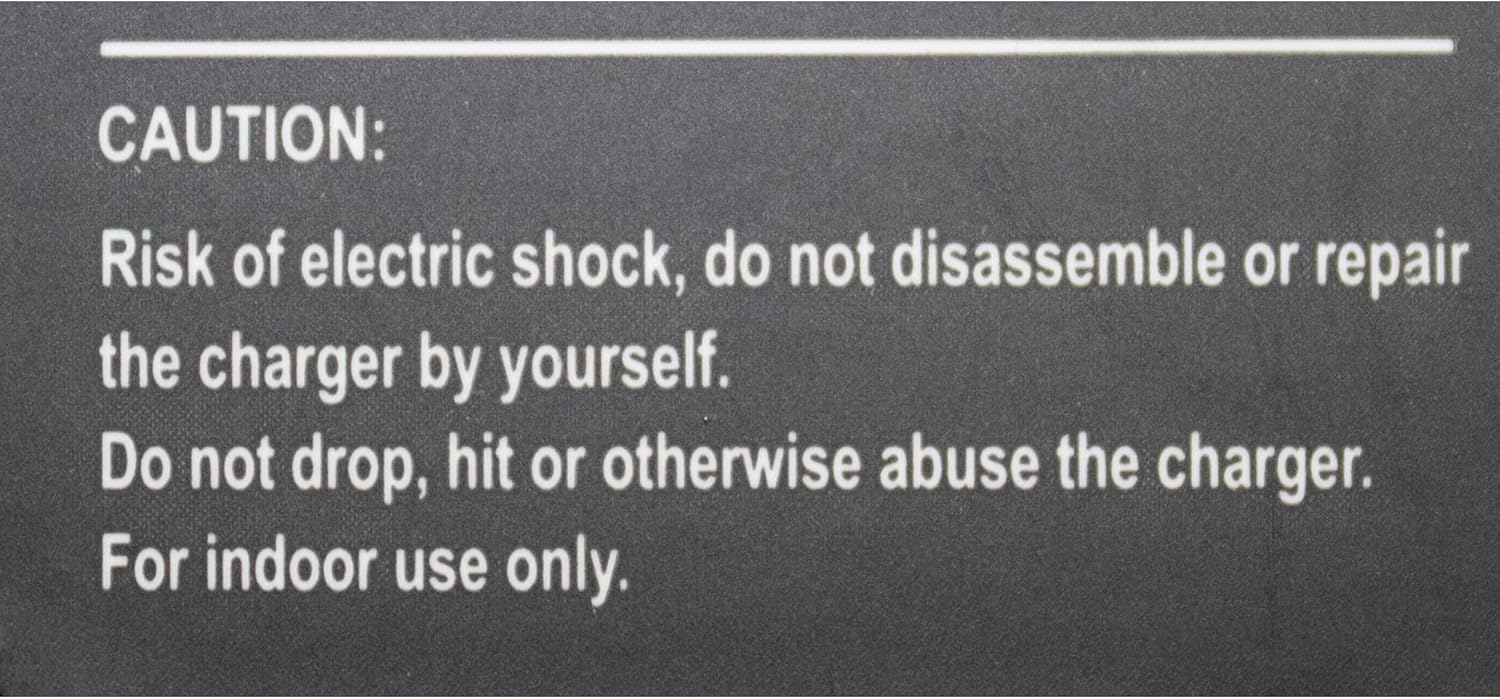
Figure 3: Important safety caution regarding electric shock, disassembly, physical handling, and indoor use of the device.
CAUTION:
- Risk of electric shock, do not disassemble or repair the charger by yourself.
- Do not drop, hit or otherwise abuse the charger.
- For indoor use only.
Troubleshooting
If you encounter issues with your HP UltraSlim Docking Station, try the following solutions:
- No Display Output:
- Ensure the docking station is properly powered and the laptop is securely docked.
- Verify that display cables are firmly connected to both the docking station and the monitors.
- Check your laptop's display settings to ensure external monitors are detected and configured correctly (e.g., Extend, Duplicate).
- Update your laptop's graphics drivers and docking station firmware from the official HP support website.
- USB Devices Not Working:
- Ensure the device is properly connected to a USB port on the docking station.
- Try connecting the device to a different USB port on the docking station or directly to the laptop to isolate the issue.
- Check device manager on your laptop for any driver issues related to USB controllers.
- Network Connectivity Issues:
- Verify the Ethernet cable is securely connected to both the docking station and your network router/switch.
- Check network settings on your laptop.
- Restart your router/modem and the laptop.
- Laptop Features Deactivated (e.g., internal speakers, some USB ports):
- This behavior can sometimes occur as the docking station takes over certain functions. Ensure external speakers/headphones are connected to the docking station's audio out port.
- For USB issues, consider using a USB hub if the docking station's ports are insufficient or if signal obstruction is an issue.
If problems persist, consult the HP support website or contact HP customer service for further assistance.
Specifications
| Attribute | Detail |
|---|---|
| Brand | HP |
| Model Number | D9Y32UT#ABA |
| Item Weight | 1.65 pounds (0.75 kg) |
| Product Dimensions (LxWxH) | 14.49" x 4.21" x 1.73" (36.8 cm x 10.7 cm x 4.4 cm) |
| Color | Charcoal Black |
| Hardware Interface | Ethernet, USB, USB 3.0 |
| Total USB Ports | 4 (3x USB 3.0, 1x Charging USB 3.0) |
| Video Output Ports | 2x DisplayPort, 1x VGA |
| Audio Ports | 1x Line-in, 1x Line-out |
| Network Port | 1x LAN/Ethernet |
| Security | Lock Slot |
| UPC | 887758647790 |
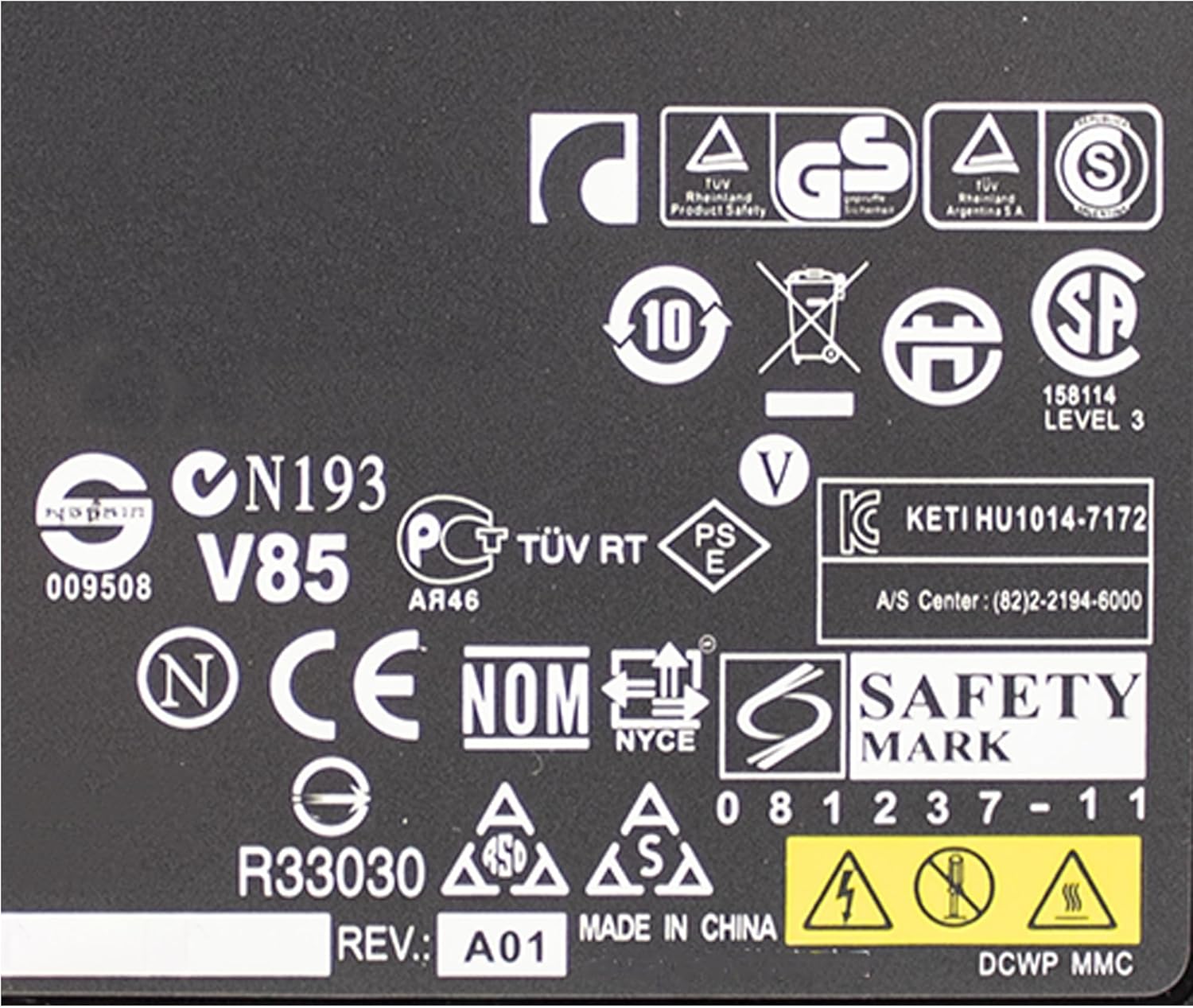
Figure 4: Product label displaying various certifications and manufacturing details.
Compatibility
The HP UltraSlim Docking Station is compatible with select ultraslim HP EliteBook Notebook PCs and other HP models. A partial list of compatible models includes:
- HP ProBook 650 G2, G3, G4
- HP ProBook 640, 650 G2, G3, G4
- HP ProBook 645 G2, G3, G4
- HP ProBook 655 G2, G3
- HP EliteBook Folio 9470m
- HP EliteBook Revolve 810 G1, G2, G3 Tablet
- HP EliteBook Folio 1020 G1
- HP EliteBook Folio 1040 G1, G3
- HP EliteBook 1040 G2
- HP EliteBook 820 G1, G2, G3, G4
- HP EliteBook 840 & 850 G1, G2, G3, G4, G5
- HP EliteBook 830 G5
- HP EliteBook 720, 740, 750 G1, G2
- HP EliteBook 725 G3, G4
- HP EliteBook 745, 755 G3, G4, G5
- HP EliteBook 735 G5
- HP ZBook 14u G4, G5
- HP ZBook 15u G3, G4, G5
For the most current and complete compatibility list, please refer to the official HP support documentation for your specific laptop model.
Warranty and Support
For information regarding the warranty of your HP UltraSlim Docking Station, please refer to the warranty documentation provided with your product or visit the official HP support website. Warranty terms and conditions may vary by region and purchase date.
If you require technical assistance or have questions not covered in this manual, please visit the HP Store on Amazon or the official HP support website for comprehensive support resources, drivers, and troubleshooting guides.
Note: If returning the item, please ensure it is in its original condition as per the legal disclaimer.
Shipping and Handling Information
Observe the following symbols for proper shipping and handling of the product:

Figure 5: Standard shipping and handling symbols, providing visual cues for safe transport and storage.
- UP: Indicates the correct upright orientation for the package.
- FRAGILE: Handle with care, as the contents are delicate.
- WATER PROOF: Protect from moisture and water.
- STACKING LAYER LIMIT: Do not stack more than the indicated number of layers (e.g., 5).
- PROHIBIT ROLLING: Do not roll the package.
- LIMIT DROP HEIGHT: Do not drop the package from a height exceeding the specified limit.