
1. Introduction
This manual provides essential instructions for the setup, operation, and maintenance of your Grundig Multimedia QWERTY Keyboard, Model 72845. Please read this manual thoroughly before using the product to ensure proper functionality and longevity.
2. Package Contents
Ensure all items are present in the package:
- Grundig Multimedia QWERTY Keyboard (Model 72845)
- Instruction Manual (this document)
3. Setup
Follow these steps to set up your keyboard:
- Unpack the Keyboard: Carefully remove the keyboard from its packaging.
- Connect to Computer: The Grundig Multimedia Keyboard is a wired device. Locate an available USB port on your PC. Insert the USB connector of the keyboard firmly into the USB port.
- Driver Installation: Your operating system (e.g., Windows, macOS, Linux) should automatically detect and install the necessary drivers. No additional software installation is typically required.
- Test Functionality: Open a text editor or web browser and type to confirm the keyboard is working correctly.

Figure 3.1: Left side view of the keyboard, illustrating the QWERTY layout and dedicated function keys. This view shows the standard alphanumeric keys, function keys (F1-F4), and several quick-access buttons along the left side, including keys for 'Esc', 'Tab', 'Caps Lock', 'Shift', and 'Ctrl'.
4. Operating Instructions
The Grundig Multimedia QWERTY Keyboard is designed for ease of use with an ergonomic layout and 13 dedicated hotkeys for quick access to multimedia and system functions.
4.1 Standard Keyboard Functions
The keyboard features a standard QWERTY layout, suitable for general typing and data entry. All standard alphanumeric keys, punctuation, and modifier keys (Shift, Ctrl, Alt) function as expected.
4.2 Multimedia and Hotkey Functions
This keyboard includes 13 quick-access hotkeys. These keys are pre-programmed to control various multimedia functions and system shortcuts, enhancing productivity.

Figure 4.1: Angled view of the keyboard's left side, showing the ergonomic curve and a set of dedicated hotkeys. These hotkeys are typically used for quick access to common computer functions like launching applications or navigating web pages.
Common hotkey functions may include:
- Multimedia Controls: Play/Pause, Stop, Previous Track, Next Track, Volume Up, Volume Down, Mute.
- Internet/Application Shortcuts: Home, Email, My Computer, Search.
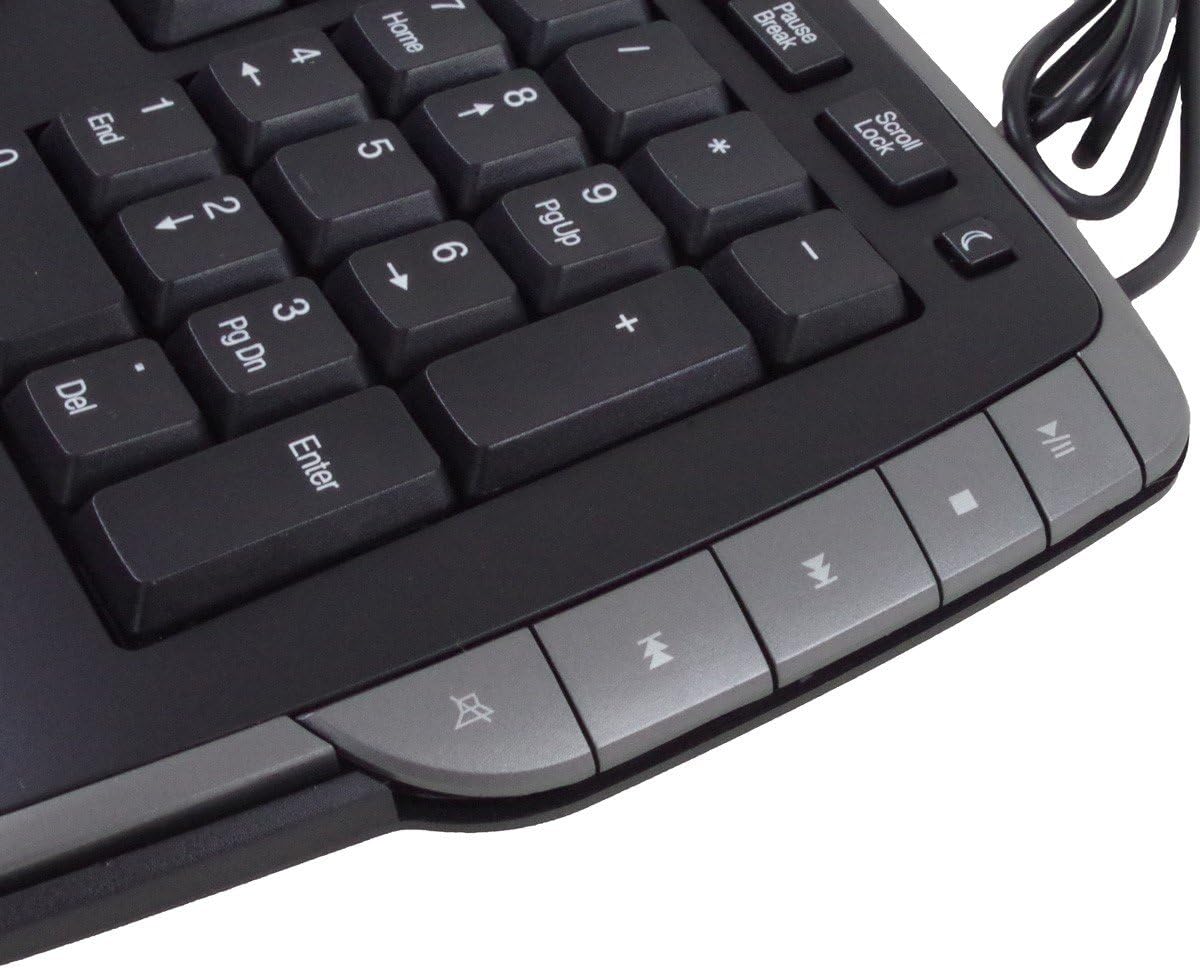
Figure 4.2: Right side view of the keyboard, featuring the numeric keypad and additional multimedia control hotkeys. These keys provide convenient access to media playback controls and other system functions.
Refer to the keycap legends for specific functions of each hotkey. No additional software is required for these keys to function on most operating systems.
5. Maintenance
Proper care and maintenance will extend the life of your keyboard.
- Cleaning: To clean the keyboard, disconnect it from your computer. Use a soft, lint-free cloth slightly dampened with water or a mild cleaning solution. Avoid excessive moisture. Do not spray cleaners directly onto the keyboard.
- Liquid Exposure: This keyboard is not waterproof. Avoid spilling liquids on it. If liquid spills occur, immediately disconnect the keyboard and allow it to dry completely before reconnecting.
- Dust and Debris: Use compressed air to remove dust and debris from between the keys.
- Storage: Store the keyboard in a clean, dry environment when not in use.
6. Troubleshooting
If you encounter issues with your keyboard, try the following troubleshooting steps:
- Keyboard Not Responding:
- Ensure the USB cable is securely connected to both the keyboard and the computer's USB port.
- Try connecting the keyboard to a different USB port on your computer.
- Restart your computer.
- Test the keyboard on another computer, if available, to determine if the issue is with the keyboard or the computer.
- Hotkeys Not Working:
- Ensure the keyboard is properly connected.
- Some hotkeys may require specific software or operating system settings to be enabled. Check your computer's control panel or system preferences for keyboard settings.
- Incorrect Character Output:
- Verify that your operating system's keyboard language settings match the QWERTY layout of your keyboard.
7. Specifications
| Brand: | Grundig |
| Model Number: | 72845 |
| Connectivity Technology: | Wired |
| Keyboard Layout: | QWERTY |
| Number of Keys: | Standard keys + 13 Hotkeys |
| Special Feature: | Ergonomic Design |
| Compatible Devices: | PC |
| Material: | Polybutylene Terephthalate |
| Color: | Silver (Note: Product images show a dark grey/black with silver accents) |
| Water Resistance Level: | Not Waterproof |
8. Warranty and Support
Information regarding specific warranty terms and availability of spare parts is not provided. For product support or warranty inquiries, please contact your retailer or the manufacturer directly. Keep your purchase receipt as proof of purchase.
9. Safety Information
- Do not attempt to disassemble or modify the keyboard.
- Keep the keyboard away from extreme temperatures, direct sunlight, and high humidity.
- Avoid dropping the keyboard or subjecting it to strong impacts.
- Dispose of the product responsibly according to local regulations at the end of its life cycle.