
ASUS RT-AC68U V4
ASUS AC1900 WiFi Router (RT-AC68U) User Manual
Model: RT-AC68U V4 | Brand: ASUS
1. Product Overview
The ASUS RT-AC68U AC1900 is a high-performance dual-band Wi-Fi router designed for home and small office environments. It features 802.11ac 3x3 technology for combined speeds up to 1900 Mbps, a 1 GHz dual-core CPU for efficient data handling, and advanced security features like AiProtection powered by Trend Micro. This router is also AiMesh compatible, allowing for seamless whole-home Wi-Fi coverage.

Figure 1.1: Angled front view of the ASUS RT-AC68U AC1900 WiFi Router, showcasing its three external antennas and LED indicators.
2. Setup Guide
Follow these steps for the initial setup of your ASUS RT-AC68U router to establish your home network.
- Unpack the Router: Carefully remove the router, power adapter, Ethernet cable, and antennas from the packaging.
- Attach Antennas: Screw the three external antennas onto the connectors at the back of the router. Ensure they are securely fastened.
- Connect to Modem: Connect one end of the provided Ethernet cable to the WAN port (blue) on the back of the router and the other end to your modem's Ethernet port.
- Power On: Connect the power adapter to the router's DC-in port and plug it into a power outlet. Wait for the power LED indicator on the front of the router to turn solid.
- Connect to a Device: You can connect to the router either wirelessly or via Ethernet.
- Wireless: Search for the default Wi-Fi network name (SSID) printed on the label on the bottom of the router and connect using the default password.
- Wired: Connect an Ethernet cable from one of the router's LAN ports (yellow) to your computer's Ethernet port.
- Access Setup Wizard: Open a web browser on your connected device. The ASUS Quick Internet Setup (QIS) page should automatically appear. If not, type router.asus.com or 192.168.1.1 into the address bar.
- Follow On-Screen Instructions: The QIS will guide you through setting up your internet connection, Wi-Fi network name (SSID), and password. It is recommended to change the default login credentials for security.
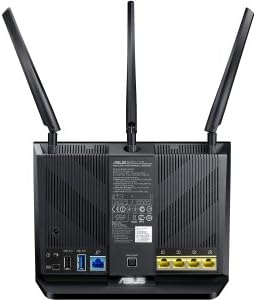
Figure 2.1: Rear view of the ASUS RT-AC68U router, highlighting the antenna connectors, USB ports, WAN port (blue), and LAN ports (yellow).
Video: How to setup ASUS WiFi Router via Quick Internet Setup
This video provides a step-by-step guide on how to set up your ASUS WiFi router using the Quick Internet Setup (QIS) wizard, covering initial connections and basic configuration.
3. Operating Your Router
The ASUS RT-AC68U offers a range of features to optimize your network performance and security.
3.1 Dual-Band Connectivity
The router operates on two frequency bands: 2.4 GHz and 5 GHz. The 2.4 GHz band offers wider coverage and better penetration through walls, suitable for general browsing and devices further away. The 5 GHz band provides faster speeds and lower interference, ideal for high-bandwidth activities like gaming and 4K video streaming, especially for devices closer to the router.
3.2 AiProtection
AiProtection, powered by Trend Micro, provides comprehensive network security. It includes features like malicious site blocking, two-way IPS (Intrusion Prevention System), and infected device prevention and blocking to protect your network from cyber threats.
3.3 Adaptive QoS (Quality of Service)
Adaptive QoS allows you to prioritize network traffic for specific applications or devices. For example, you can prioritize gaming or video streaming to ensure a smooth experience even when multiple devices are using the network.
3.4 Parental Controls
Manage internet access for family members with customizable parental controls. You can set time limits, block specific websites, and restrict access to certain applications.
3.5 AiMesh Compatibility
The RT-AC68U can be integrated into an AiMesh system, allowing you to create a seamless whole-home Wi-Fi network by combining multiple ASUS AiMesh-compatible routers. This eliminates Wi-Fi dead zones and provides a single, unified network name.
Video: ASUS AC1900 Wi Fi Dual-band 3x3 Gigabit Wireless Router with Ai Protection Network Security Power...
This video highlights the key features of the ASUS AC1900 router, including its dual-band capabilities, AiProtection for network security, and overall performance for various network demands.
Video: How to improve WiFi signal
Learn practical tips and techniques to enhance your WiFi signal strength and coverage throughout your home, ensuring a more stable and faster internet connection.
4. Maintenance
Regular maintenance ensures optimal performance and security for your router.
- Firmware Updates: Regularly check for and install the latest firmware updates. Firmware updates often include performance improvements, bug fixes, and security enhancements. You can usually find these in the router's web interface under Administration > Firmware Upgrade.
- Router Placement: Ensure your router is placed in a central location, away from obstructions and interference sources (like microwaves or cordless phones), to maximize Wi-Fi coverage.
- Cleaning: Keep the router clean and free from dust buildup, especially around ventilation areas, to prevent overheating.
- Rebooting: Periodically reboot your router (unplug from power for 10-15 seconds, then plug back in) to clear its memory and refresh network connections, which can resolve minor performance issues.
Video: How to update the firmware of ASUS WiFi Router
This tutorial demonstrates the process of updating the firmware on your ASUS WiFi router, a crucial step for maintaining security and performance.
5. Troubleshooting
If you encounter issues with your ASUS RT-AC68U router, refer to the common problems and solutions below.
- No Internet Connection:
- Check if the WAN LED on the router is lit. If not, ensure the Ethernet cable from your modem is securely connected to the router's blue WAN port.
- Reboot both your modem and router. Unplug them from power for 30 seconds, then plug the modem back in first, wait for it to fully boot, then plug in the router.
- Verify your internet service provider (ISP) connection is active.
- Slow Wi-Fi Speed:
- Ensure your devices are connected to the appropriate band (5 GHz for faster speeds, 2.4 GHz for better range).
- Move closer to the router or reposition the router to minimize obstructions.
- Check for interference from other electronic devices.
- Update your router's firmware and your device's wireless drivers.
- Cannot Access Router Settings Page:
- Ensure your device is connected to the router's network (either wired or wireless).
- Try typing router.asus.com or 192.168.1.1 into your browser.
- Clear your browser's cache and cookies, or try a different browser.
- If you forgot your login credentials, you may need to perform a factory reset (refer to the user manual for specific steps, usually involves pressing a reset button).
Video: [Troubleshooting] Fix Internet Connection on ASUS Router
This video guides you through common steps to diagnose and fix internet connection issues with your ASUS router, including checking physical connections and router settings.
6. Specifications
| Feature | Detail |
|---|---|
| Brand | ASUS |
| Model Name | RT-AC68U |
| Item Model Number | RT-AC68U V4 |
| Product Dimensions | 6.3 x 3.3 x 8.6 inches |
| Item Weight | 1.4 pounds |
| Wireless Communication Standard | 802.11ac |
| Frequency Band Class | Dual-Band |
| Frequency | 5 GHz |
| Special Features | QoS, WPS |
| Included Components | asus (router, power adapter, Ethernet cable, antennas) |
| First Available Date | September 23, 2013 |
7. Warranty and Support
Your ASUS RT-AC68U router comes with a standard return policy and options for extended protection plans.
- Return Policy: The product is eligible for a 30-day refund/replacement policy from the date of purchase.
- Protection Plans: Extended protection plans are available for purchase, including 3-Year and 4-Year options, as well as a monthly Complete Protect plan. These plans offer additional coverage beyond the standard warranty.
- Official User Manual: For detailed information and advanced configurations, please refer to the official User Manual PDF available here.
- Manufacturer Support: For technical assistance, driver downloads, and further support, please visit the official ASUS support website.
Ask a question about this manual
Ask about setup, troubleshooting, compatibility, parts, safety, or missing instructions. Manuals+ will review the question and use this page’s manual context to help answer it.