
1. Introduction
This manual provides essential information for the proper installation, operation, and maintenance of your Toshiba MQ01ABF050 500 GB 2.5" Internal Bare/OEM Hard Drive. This product is designed for use as an internal storage component in compatible computer systems, such as laptops, small form factor PCs, or external enclosures. Please read this manual thoroughly before proceeding with installation or use.

Figure 1.1: Top view of the Toshiba MQ01ABF050 hard drive, showing the label and SATA interface.
2. Safety Information
Observe the following safety precautions to prevent damage to the drive and ensure safe operation:
- Electrostatic Discharge (ESD) Protection: Always handle the hard drive by its edges. Wear an anti-static wrist strap and work on an anti-static mat to prevent ESD damage, which can render the drive inoperable.
- Physical Handling: Avoid dropping or subjecting the drive to sudden impacts. Hard drives are delicate precision instruments.
- Power Connection: Ensure the computer system is powered off and unplugged before connecting or disconnecting the hard drive.
- Environmental Conditions: Operate the drive within specified temperature and humidity ranges. Avoid exposure to extreme temperatures, moisture, or direct sunlight.
- Do Not Open: The hard drive enclosure should not be opened. Doing so will void the warranty and can damage the internal components.
3. Setup and Installation
This section outlines the steps for physically installing the Toshiba MQ01ABF050 hard drive into a compatible system.
3.1 Pre-installation Checklist
- Compatible computer system (laptop, desktop, or external enclosure) with a 2.5-inch drive bay.
- SATA data cable (if not already present in the system).
- Screwdriver (appropriate type for your system's drive bay screws).
- Anti-static wrist strap and mat.
3.2 Physical Installation Steps
- Power Off: Shut down your computer completely and disconnect it from the power outlet. If it's a laptop, remove the battery.
- Access Drive Bay: Open your computer case or laptop's drive bay cover according to its manufacturer's instructions.
- Mount the Drive: Carefully slide the Toshiba MQ01ABF050 into the 2.5-inch drive bay. Secure it with screws if required by your system's design.
- Connect Cables:
- Connect the SATA data cable to the smaller port on the hard drive and to an available SATA port on your motherboard.
- Connect the SATA power cable from your power supply unit to the larger port on the hard drive.
- Close System: Replace the computer case cover or laptop's drive bay cover and secure it. Reconnect the power cable and battery (for laptops).
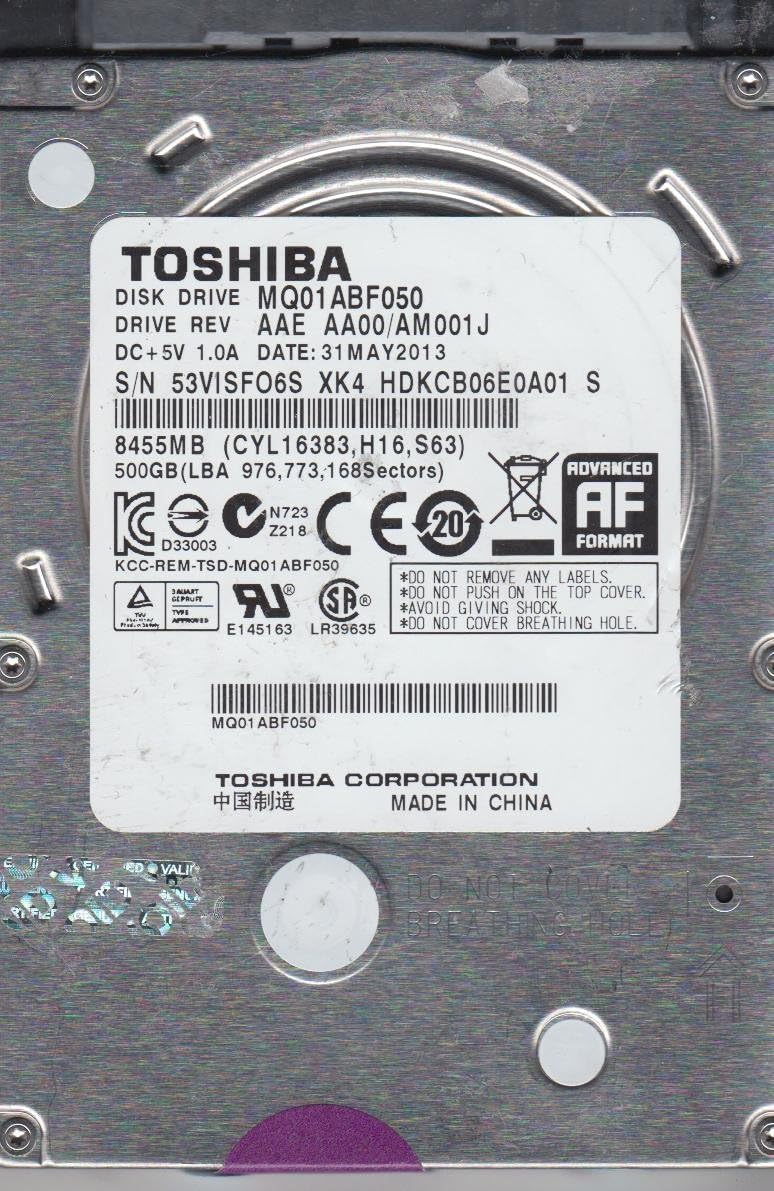
Figure 3.1: Label side of the Toshiba MQ01ABF050 hard drive, showing model number and serial number (e.g., 53VISFO6SXK4).
3.3 Initialisation and Partitioning (New Drives)
After physical installation, a new hard drive must be initialized and partitioned before it can be used by the operating system. This process typically involves:
- Boot System: Power on your computer.
- Access Disk Management: In Windows, right-click 'This PC' or 'My Computer', select 'Manage', then 'Disk Management'. In macOS, use 'Disk Utility'. In Linux, use tools like 'GParted' or 'fdisk'.
- Initialize Disk: The system will prompt you to initialize the new disk. Choose the appropriate partition style (MBR for older systems/smaller drives, GPT for newer systems/larger drives).
- Create Partition(s): Create one or more partitions on the initialized disk.
- Format Partition(s): Format the partitions with a suitable file system (e.g., NTFS for Windows, HFS+ or APFS for macOS, Ext4 for Linux).
Refer to your operating system's documentation for detailed instructions on disk initialization and partitioning.
4. Operating the Hard Drive
Once installed and formatted, the Toshiba MQ01ABF050 functions as a standard internal storage device. It can be used for:
- Operating System Drive: Installing your operating system for primary system storage.
- Data Storage: Storing documents, media files, applications, and other data.
- Backup Drive: As a secondary drive for local backups.
The drive operates at 5400 RPM and utilizes a SATA 6GB/s interface, providing a balance of performance and power efficiency suitable for various computing tasks.
5. Maintenance
Proper maintenance helps ensure the longevity and reliability of your hard drive.
- Data Backup: Regularly back up important data to another storage device or cloud service. Hard drives can fail, and backups are crucial for data recovery.
- Disk Health Monitoring: Utilize S.M.A.R.T. (Self-Monitoring, Analysis and Reporting Technology) tools available in your operating system or third-party software to monitor the drive's health status.
- Defragmentation (for HDDs): For traditional hard drives, periodic defragmentation can improve performance, especially on Windows systems. Solid State Drives (SSDs) do not require defragmentation.
- Keep System Cool: Ensure adequate airflow within your computer case to prevent the drive from overheating.
6. Troubleshooting
If you encounter issues with your Toshiba MQ01ABF050 hard drive, consider the following troubleshooting steps:
6.1 Drive Not Detected
- Check Connections: Ensure both the SATA data and power cables are securely connected to the drive and the motherboard/power supply.
- BIOS/UEFI Settings: Verify that the SATA port to which the drive is connected is enabled in your system's BIOS/UEFI settings.
- Power Supply: Confirm your power supply unit (PSU) has sufficient wattage and that the SATA power connector is functional.
- Initialization: For new drives, ensure it has been initialized and partitioned as described in Section 3.3.
- Try Another Port/Cable: Test the drive with a different SATA data cable, power cable, or motherboard SATA port.
6.2 Slow Performance
- Check Disk Usage: High background processes or applications can cause slow performance. Check Task Manager (Windows) or Activity Monitor (macOS).
- Defragmentation: If applicable, perform disk defragmentation.
- S.M.A.R.T. Status: Check the drive's S.M.A.R.T. status for any warnings indicating potential failure.
- Driver Updates: Ensure your motherboard's SATA controller drivers are up to date.
6.3 Unusual Noises
Clicking, grinding, or repetitive scraping noises often indicate a mechanical failure. Immediately back up any accessible data and consider replacing the drive.
7. Specifications
Key technical specifications for the Toshiba MQ01ABF050 hard drive:
| Feature | Specification |
|---|---|
| Model Number | MQ01ABF050 |
| Capacity | 500 GB |
| Form Factor | 2.5 Inches |
| Interface | Serial ATA-600 (SATA 6Gb/s) |
| Rotational Speed | 5400 RPM |
| Cache | 8 MB |
| Height | 7.0 mm |
| Item Weight | 3.25 ounces |
| Product Dimensions (LxWxH) | 4 x 2.7 x 0.3 inches |
| Hardware Platform | PC |
| Operating System Compatibility | OS independent |
8. Warranty and Support
8.1 Product Warranty
For detailed warranty information regarding your Toshiba MQ01ABF050 hard drive, please refer to the official Toshiba website or the warranty documentation provided with your purchase. Warranty terms and conditions may vary by region and retailer.
Separate data recovery plans, such as 2-year or 3-year options, may be available for purchase. These plans are distinct from the standard product warranty and cover data recovery services in case of drive failure.
8.2 Technical Support
If you require further assistance or encounter issues not covered in this manual, please contact Toshiba customer support or visit the official Toshiba support website for resources, FAQs, and contact information.
Toshiba Support Website: www.toshiba.com (Please navigate to the support section for storage products.)


