
Roku 2720R
Roku 2 Streaming Player User Manual
Comprehensive guide for setting up, operating, and maintaining your Roku 2 Streaming Player with Headphone Jack.
Introduction
The Roku 2 Streaming Player offers access to over 1,800 channels of movies, TV shows, sports, and more in stunning 1080p HD. It features an enhanced remote with a built-in headphone jack for private listening, extended-range wireless connectivity, and channel shortcut buttons for popular services like Netflix and Amazon Instant Video. This manual provides detailed instructions to help you get the most out of your device.
Setup Guide
1. What's Included
- Enhanced remote with headphone jack
- Headphones
- Two AA batteries
- A/V cable (red/white/yellow)
- Power adapter
- Get Started guide (this manual)
2. What You Need
- High-speed Internet (DSL or cable recommended)
- Wireless router
- HDMI cable (for high-definition video, not included)
- Internet browser (for initial setup)
For optimal viewing, a minimum of 1.5 Mbps is recommended for standard definition and 3.0 Mbps for HD content. You can test your network speed at speakeasy.net/speedtest/ or www.speedtest.net.
3. Connecting Your Roku 2
- Connect to TV: Use the included A/V cable for standard definition or an HDMI cable (sold separately) for high-definition video. Connect the appropriate cable from the Roku 2 to your TV's input ports.
- Connect Power: Plug the power adapter into the Roku 2 and then into a wall outlet.
- Power On: The Roku 2 will power on automatically.
- Initial Setup: Follow the on-screen guided setup instructions to connect to your wireless network and link your Roku to your Roku account.
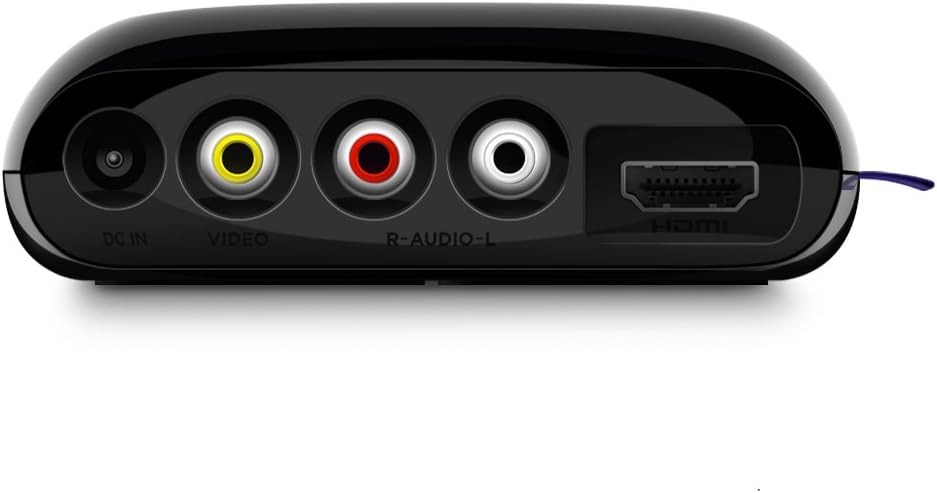
Figure 1: Rear ports of the Roku 2, including DC In, Video, R-Audio-L, and HDMI.
4. Setting up Amazon Instant Video
To access Amazon Instant Video, you will need to add the channel and sign in with your Amazon account. If you do not have an Amazon account, you can create one at www.amazon.com/account.
Video 1: Instructions for setting up Amazon Instant Video on your Roku device.
Operating Instructions
1. Navigating the Roku Interface
Use the directional pad on your remote to navigate through menus and select options. The "OK" button confirms selections, and the "Back" button returns to the previous screen. The "Home" button takes you to the main Roku home screen.

Figure 2: The Roku 2 enhanced remote control.
2. Accessing Channels
From the home screen, you can access your installed channels. Use the channel shortcut buttons on the remote for direct access to services like Netflix and Amazon Instant Video. To add new channels, navigate to the "Channel Store" from the main menu.
3. Private Listening
The enhanced remote includes a built-in headphone jack. Plug the included headphones into the remote to enjoy audio privately without disturbing others. The audio will automatically switch from your TV to the headphones when plugged in.

Figure 3: Roku 2 Streaming Player, remote, and headphones demonstrating private listening feature.
4. Using the Mobile App
Download the free Roku app for iOS and Android devices. This app transforms your mobile device into a Roku remote, allows you to browse and add new channels, and even send your music, photos, and personal videos to your HDTV.
Maintenance
1. Cleaning
To clean your Roku 2, gently wipe the exterior with a soft, dry cloth. Do not use liquid cleaners or abrasive materials, as they may damage the device.
2. Storage
When not in use for extended periods, store the Roku 2 in a cool, dry place away from direct sunlight and extreme temperatures. Disconnect the power adapter before storing.
3. Battery Replacement
The remote control requires two AA batteries. Replace them when the remote's performance diminishes. Ensure correct polarity when inserting new batteries.
Troubleshooting
| Problem | Possible Cause / Solution |
|---|---|
| No power to Roku 2 | Ensure the power adapter is securely connected to the Roku 2 and a working electrical outlet. |
| No picture or sound | Check all cable connections (HDMI or A/V) between the Roku 2 and your TV. Ensure your TV input is set to the correct source. |
| Cannot connect to Wi-Fi | Verify your Wi-Fi password. Ensure your wireless router is on and within range. Try restarting your router and the Roku 2. |
| Remote not responding | Replace the AA batteries in the remote. Ensure there are no obstructions between the remote and the Roku 2. |
| Streaming quality is poor | Check your internet speed (refer to "What You Need" section). Move the Roku 2 closer to your wireless router or reduce network congestion. |
Specifications
- Brand: Roku
- Model Name: Roku 2
- Item Model Number: 2720R
- Color: Black
- Item Weight: 3.46 ounces
- Product Dimensions: 3.74 x 3.74 x 1.23 inches
- Connectivity Technology: Wi-Fi (802.11 a/b/g/n compatible with WEP, WPA, and WPA2 support)
- Connector Type: HDMI, A/V (RCA)
- Resolution: 1080p, 720p, 480p (over HDMI)
- Audio Output: Digital over HDMI (7.1/5.1 channel surround sound pass-through and stereo), Analog stereo (left/right/composite video RCA)
- Power Input: 12V -- 1A (Less than 4.5W typical when streaming HD video)
- Special Features: Remote with headphone jack, Channel shortcut buttons, IR receiver (compatible with various universal remotes)
- Included Batteries: 2 AA batteries
- First Available Date: September 25, 2013
Warranty Information
The Roku 2 Streaming Player comes with a 90-day manufacturer warranty. Please retain your proof of purchase for warranty claims. For detailed warranty terms and conditions, refer to the official Roku website or contact customer support.
Support and Contact
For further assistance, frequently asked questions, or to access additional resources, please visit the official Roku support website. You can also explore the Roku Store on Amazon for more information and related products.
Related documents2720R


Ask a question about this manual
Ask about setup, troubleshooting, compatibility, parts, safety, or missing instructions. Manuals+ will review the question and use this page’s manual context to help answer it.