Introduction
The Seiko Smart Label Printer 650SE is designed for efficient label printing. This direct thermal printer offers 300 dpi resolution and features both serial and USB connectivity. It is compatible with Windows, Mac OS, and Linux operating systems. The printer utilizes smart label software to facilitate the creation, formatting, printing, and saving of various label types, including address labels, shipping labels, file folder labels, and name tags. Its direct thermal printing technology eliminates the need for ink, toner, or ribbons, providing a straightforward and reliable labeling solution.
Package Contents
Upon unpacking, please verify that all items listed below are present:
- Seiko Smart Label Printer 650SE (Model RC2087)
- Power Adapter
- USB Cable
- Serial Cable
- Quick Start Guide
- Sample Label Roll
Product Overview
The Seiko Smart Label Printer 650SE is a compact and efficient desktop label printer. Its design allows for easy loading of label rolls and features intuitive controls for operation.

Figure 1: Front view of the Seiko Smart Label Printer 650SE, showing the label output slot and control buttons.

Figure 2: Rear view of the printer, highlighting the power input, serial port, and USB port for connectivity.
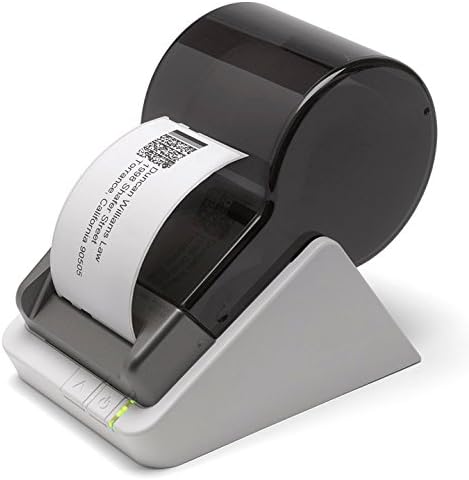
Figure 3: Side view of the printer in operation, demonstrating a label being dispensed.

Figure 4: Top-down perspective of the printer, showing the label roll mechanism and a printed label.
Setup
- Unpack the Printer: Carefully remove the printer and all accessories from the packaging.
- Connect Power: Plug the power adapter into the printer's power port and then into a wall outlet.
- Connect to Computer:
- For USB connection: Connect one end of the USB cable to the printer and the other end to an available USB port on your computer.
- For Serial connection: Connect one end of the serial cable to the printer and the other end to an available serial port on your computer.
- Install Software: Install the Smart Label software from the provided CD or download the latest version from the Seiko Instruments official website. Follow the on-screen instructions for installation.
- Load Label Roll: Open the printer cover. Place a label roll onto the spindle, ensuring the labels feed correctly into the printer mechanism. Adjust the label guides to fit the width of your labels. Close the printer cover.
- Power On: Press the power button on the printer. The status indicator light should illuminate.
Operating Instructions
Once the printer is set up and software is installed, you can begin printing labels:
- Launch Smart Label Software: Open the Smart Label software on your computer.
- Select Label Type: Choose the desired label format or create a custom design within the software.
- Enter/Import Data: Input the text, graphics, or barcodes for your labels. The software supports importing data from applications like Microsoft Excel, Outlook, Access, and Word.
- Preview Label: Use the software's preview function to ensure the label appears as intended before printing.
- Print: Click the "Print" button in the software. The printer will automatically feed and print the labels.
- Retrieve Labels: Collect the printed labels from the output slot. The printer will automatically cut labels as needed.
Maintenance
Regular maintenance helps ensure optimal performance and longevity of your printer:
- Cleaning: Periodically clean the print head and platen roller with a soft, lint-free cloth moistened with isopropyl alcohol. Ensure the printer is powered off and unplugged before cleaning.
- Label Storage: Store label rolls in a cool, dry place away from direct sunlight to prevent degradation.
- Software Updates: Check the Seiko Instruments website for any available software or driver updates to ensure compatibility and access to the latest features.
Troubleshooting
If you encounter issues with your Seiko Smart Label Printer, consider the following common solutions:
- Printer Not Responding:
- Ensure the printer is powered on and properly connected to your computer.
- Check the power adapter and USB/serial cable connections.
- Restart both the printer and your computer.
- Poor Print Quality:
- Clean the print head as described in the Maintenance section.
- Ensure you are using genuine Seiko Smart Labels.
- Check software settings for print density or darkness.
- Labels Not Feeding Correctly:
- Verify that the label roll is loaded correctly and the label guides are adjusted to the label width.
- Ensure there are no obstructions in the label path.
- Software Issues:
- Reinstall the Smart Label software and drivers.
- Check for software updates.
For further assistance, refer to the full user manual or contact Seiko Instruments customer support.
Specifications
| Feature | Detail |
|---|---|
| Model Number | RC2087 |
| Printing Technology | Direct Thermal |
| Print Resolution | 300 dpi (Monochrome) |
| Print Speed | Up to 3.94 inches per second |
| Maximum Media Size | Paper Roll (Max 2.28 inches width) |
| Connectivity | USB, Serial |
| Compatible Operating Systems | Windows, Mac OS, Linux |
| Item Dimensions (LxWxH) | 4.5 x 6.8 x 5.8 inches |
| Item Weight | 1.08 pounds |
Warranty and Support
The Seiko Smart Label Printer 650SE (Model RC2087) comes with a limited warranty. For specific details regarding warranty coverage, duration, and terms, please refer to the warranty card included in your product packaging or visit the official Seiko Instruments website.
For technical support, troubleshooting assistance, or to inquire about replacement parts and accessories, please contact Seiko Instruments customer service through their official channels. Contact information can typically be found on the manufacturer's website or in the product documentation.