
Product Overview
The TP-Link N300 Wi-Fi Range Extender (TL-WA850RE) is designed to conveniently extend the coverage and improve the signal strength of an existing wireless network to eliminate Wi-Fi dead zones. With 300Mbps N wireless speeds, Range Extender button, miniature size and wall-mounted design, extending a wireless network has never been easier.
Key Features:
- Range Extender mode boosts wireless signal to previously unreachable or hard-to-wire areas flawlessly.
- Miniature size and wall-mounted design make it easy to deploy and move flexibly.
- Easily expand wireless coverage at a push of Range Extender button.
- Ethernet port allows the Extender to function as a wireless adapter to connect wired devices, Compatible with other 802.11n/g/b products.
- Tether App allows easy access and management using any mobile device, LED Control function includes a Night Mode for peaceful sleep.
Package Contents
The following items are included in your TP-Link N300 Wi-Fi Range Extender package:
- 300Mbps Universal Wi-Fi Range Extender (TL-WA850RE)
- RJ-45 Ethernet Cable
- Resource CD
- Quick Installation Guide
Setup and Installation
The TL-WA850RE is designed for easy setup. You can set it up using the WPS button or via a web browser/Tether App.
Method 1: Using the WPS Button (Recommended)
- Power On: Plug the TL-WA850RE into an electrical outlet near your main router.
- Press WPS on Router: Press the WPS/QSS button on your main wireless router.
- Press RE Button: Within 2 minutes, press the large circular "RE" button on the front of the TL-WA850RE. The "RE" light will flash and then turn solid blue, indicating a successful connection.
- Relocate: Once connected, you can unplug the extender and move it to a location between your router and the Wi-Fi dead zone. Ensure the signal indicator lights on the extender show a strong connection (at least 3 bars) to your main router for optimal performance.

Image: Easy setup process showing the WPS button on a router and the RE button on the extender.

Image: Visual guide for one-touch connection and how to interpret the signal indicator lights for optimal placement.
Method 2: Using the Tether App or Web Browser
For more advanced setup or if your router does not have a WPS button, you can use the TP-Link Tether app or a web browser.
- Download Tether App: Download the TP-Link Tether app from the App Store or Google Play.
- Connect to Extender's Wi-Fi: Plug in the extender. Connect your mobile device to the extender's default Wi-Fi network (e.g., "TP-Link_Extender").
- Follow App Instructions: Open the Tether app and follow the on-screen instructions to select your main Wi-Fi network and enter its password.
- Alternatively, open a web browser on a computer connected to the extender's Wi-Fi and navigate to
http://tplinkrepeater.netorhttp://192.168.0.254to complete the setup.
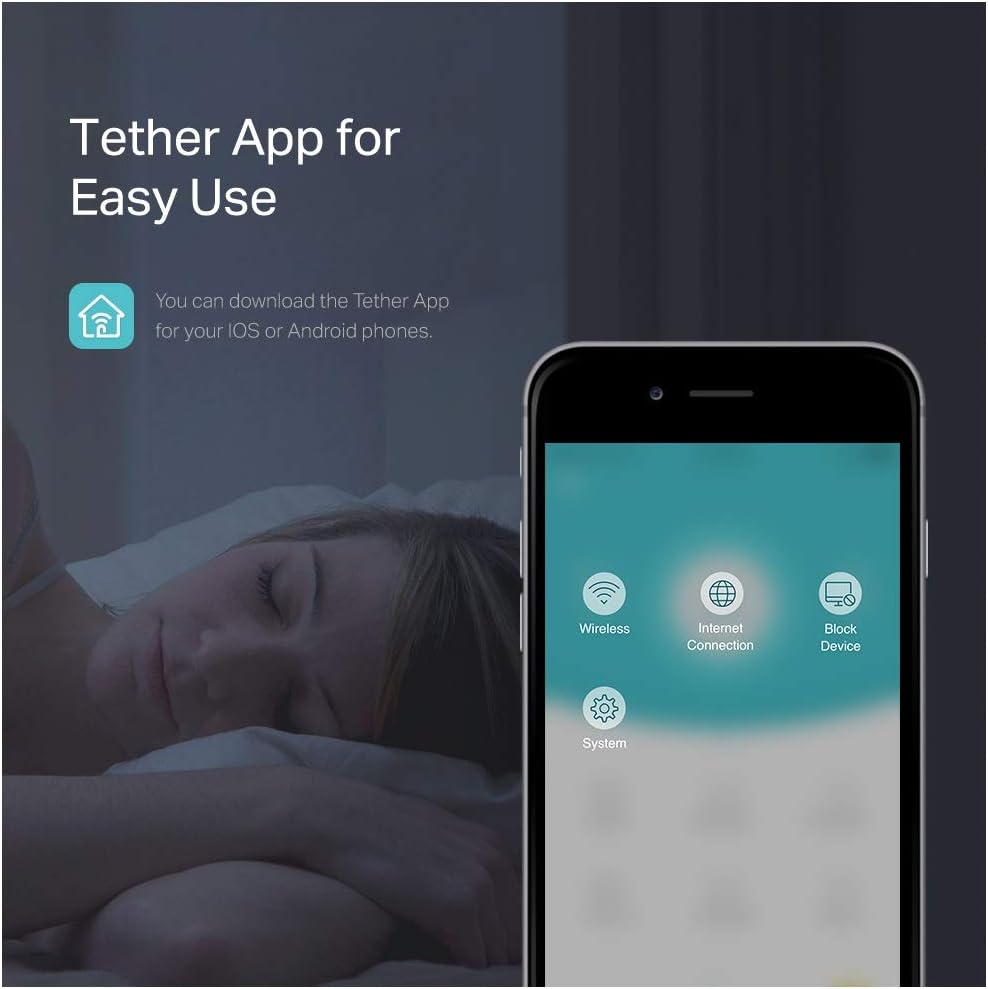
Image: Screenshot of the TP-Link Tether app interface, showing options for wireless, internet connection, and device management.

Image: Overview of Tether app features including easy setup, network monitoring, and management of routers and extenders.
Video: Official product video demonstrating the features and setup of the TP-Link N300 Wi-Fi Range Extender (TL-WA850RE).
Operating the Range Extender
Once successfully set up, the TL-WA850RE will automatically extend your Wi-Fi network. Devices connected to the extended network will seamlessly roam between your main router and the extender.
Understanding the Signal Indicator

Image: Close-up of the Smart Signal Indicator Light, showing different light patterns for signal strength (Best, Good, Bad).
The signal indicator lights on the front of the extender provide real-time feedback on the strength of the signal it receives from your main router. Aim for a "Best" or "Good" indication for optimal performance. If the signal is "Bad", consider relocating the extender closer to your main router.
Using the Ethernet Port (AP Mode)
The TL-WA850RE features an Ethernet port at the bottom. This port allows the extender to function as a wireless adapter, enabling you to connect a wired device (such as a smart TV, gaming console, or desktop computer) to your Wi-Fi network.

Image: The extender showing its Ethernet port and examples of wired devices that can be connected, such as laptops, tablets, smartphones, smart TVs, gaming consoles, and desktops.

Image: Diagram illustrating how the Ethernet port connects wired devices like game consoles, desktops, and TVs to the Wi-Fi network via the extender.
Maintenance
To ensure optimal performance and longevity of your TP-Link N300 Wi-Fi Range Extender, consider the following maintenance tips:
- Firmware Updates: Periodically check the TP-Link official website for firmware updates. Updating the firmware can improve performance, add new features, and fix bugs.
- Placement: Ensure the extender is placed in a well-ventilated area, away from direct sunlight, heat sources, and large metallic objects that could interfere with the signal.
- Cleaning: Gently wipe the exterior of the device with a soft, dry cloth. Do not use liquid cleaners or aerosols.
- Rebooting: If you experience connectivity issues, try unplugging the extender from the power outlet for 10 seconds and then plugging it back in. This can often resolve minor glitches.
Troubleshooting
If you encounter issues with your TP-Link N300 Wi-Fi Range Extender, refer to the following common troubleshooting steps:
- No Signal/Weak Signal:
- Ensure the extender is within range of your main router.
- Check the signal indicator lights on the extender. If they show a weak signal, move the extender closer to your router.
- Avoid placing the extender near large metal objects, concrete walls, or other electronic devices that might cause interference.
- Cannot Connect to Extended Network:
- Verify that the extender is properly connected to your main router (solid blue RE light).
- Ensure you are using the correct Wi-Fi password for the extended network. The extended network typically uses the same password as your main network.
- Try restarting both your main router and the range extender.
- Slow Speed on Extended Network:
- The extender's performance depends on the signal strength it receives from your main router. Optimize the extender's placement for a stronger signal.
- Ensure your main router is providing adequate speed.
- Minimize interference from other electronic devices.
- Resetting the Extender: If all else fails, you can perform a factory reset. With the extender powered on, use a pin to press and hold the Reset button (usually a small hole) for about 5-10 seconds until the lights flash. This will restore the extender to its factory default settings, and you will need to set it up again.
Specifications
| Feature | Detail |
|---|---|
| Brand | TP-Link |
| Model Number | TL-WA850RE |
| Wireless Type | 802.11n, 802.11b, 802.11g |
| Data Transfer Rate | 300 Megabits Per Second |
| Frequency Band Class | Tri-Band |
| Special Feature | Smart Signal Indicator |
| Item Weight | 3.53 ounces |
| Product Dimensions (LxWxH) | 3 x 2.6 x 4.3 inches |
| Color | White |
| Operating System Compatibility | Microsoft Windows 98SE, NT, 2000, XP, Vista or Windows 7, 8, Mac OS, NetWare, UNIX or Linux. |

Image: The compact design of the TL-WA850RE, highlighting its dimensions (110mm height, 65.8mm width).
Warranty and Support
For warranty information, technical support, and additional resources, please visit the official TP-Link website or refer to the documentation included in your product package.
You can also find frequently asked questions and community forums on the TP-Link support pages.
Online Resources:
- Official TP-Link Website: www.tp-link.com
- Product Support Page (TL-WA850RE): TP-Link Support