
1. Introduction
The Cooler Master JetFlo 120 is a high-performance, long-lasting computer case cooling fan designed for optimal airflow and quiet operation. This manual provides essential information for the installation, operation, maintenance, and troubleshooting of your JetFlo 120 fan. It is engineered to provide efficient cooling for computer cases, CPU coolers, and radiators, emphasizing durability and low noise output.

Figure 1: Front view of the Cooler Master JetFlo 120 fan, showcasing its black frame and fan blades.
2. Key Features
- High Airflow Blades: Ultra-thin yet strong fan blades designed for minimal resistance, delivering up to 95 CFM of airflow.
- Wide RPM Range: Operates between 800 to 2,000 RPM (PWM supported) for flexible performance control.
- Durable POM Bearing: Features Cooler Master's self-lubricating polyoxymethylene (POM) bearing, ensuring a lifespan of up to 160,000 hours and enhanced dust resistance.
- Quiet Operation: Maximum noise level of approximately 36 dBA, achieved through vibration and sound-absorbing rubber pads and steel threads.
- Smart Fan Engine: Incorporates a high-efficiency motor, low starting voltage, dust and water resistance, and polarity proofing.
- Smart Jam Protection: Automatically resumes operation after blade obstructions are cleared.
- Silent Mode Adapters: Includes two adapters to fix fan speeds at 1,600 RPM (28 dBA) or 1,200 RPM (19 dBA) for reduced noise.
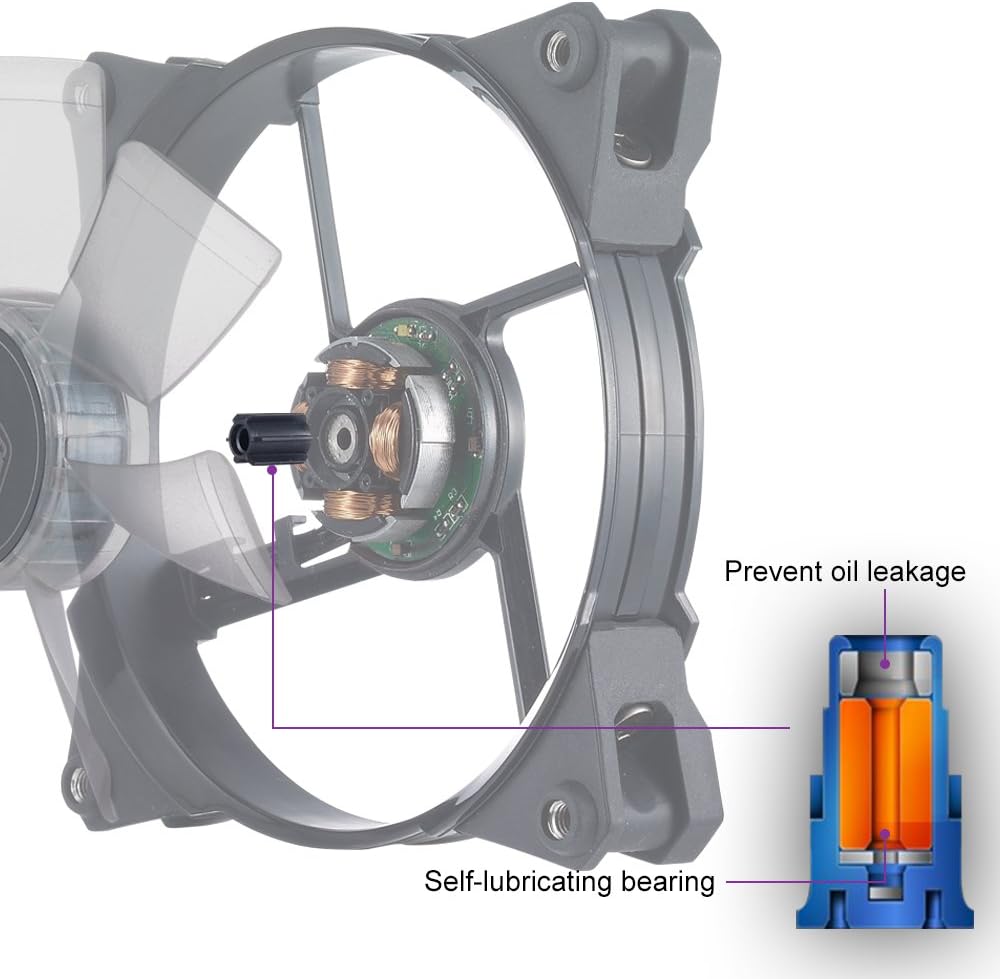
Figure 2: Detailed diagram illustrating the self-lubricating bearing technology, designed to prevent oil leakage and extend fan lifespan.
3. Setup and Installation
Before beginning installation, ensure your computer system is powered off and unplugged from the wall outlet.
- Prepare Mounting Location: Identify the desired mounting location within your computer case, CPU cooler, or radiator. Ensure there is sufficient clearance for the fan.
- Position the Fan: Place the JetFlo 120 fan in the chosen location, ensuring the airflow direction (indicated by arrows on the fan frame) is correct for your cooling needs (e.g., intake or exhaust).
- Secure the Fan: Use the provided mounting screws to secure the fan to the chassis or heatsink. Tighten screws evenly to prevent warping. The rubber mounting corners help absorb vibrations.
- Connect Power: Connect the fan's 4-pin PWM connector to an available 4-pin fan header on your motherboard. Ensure the connector is fully seated.
- Optional Silent Mode Adapters: If quieter operation is desired, you can install one of the included silent mode adapters between the fan's 4-pin connector and the motherboard header.
- 1,600 RPM adapter (28 dBA)
- 1,200 RPM adapter (19 dBA)
- Cable Management: Route the fan cable neatly to avoid interference with other components or airflow.
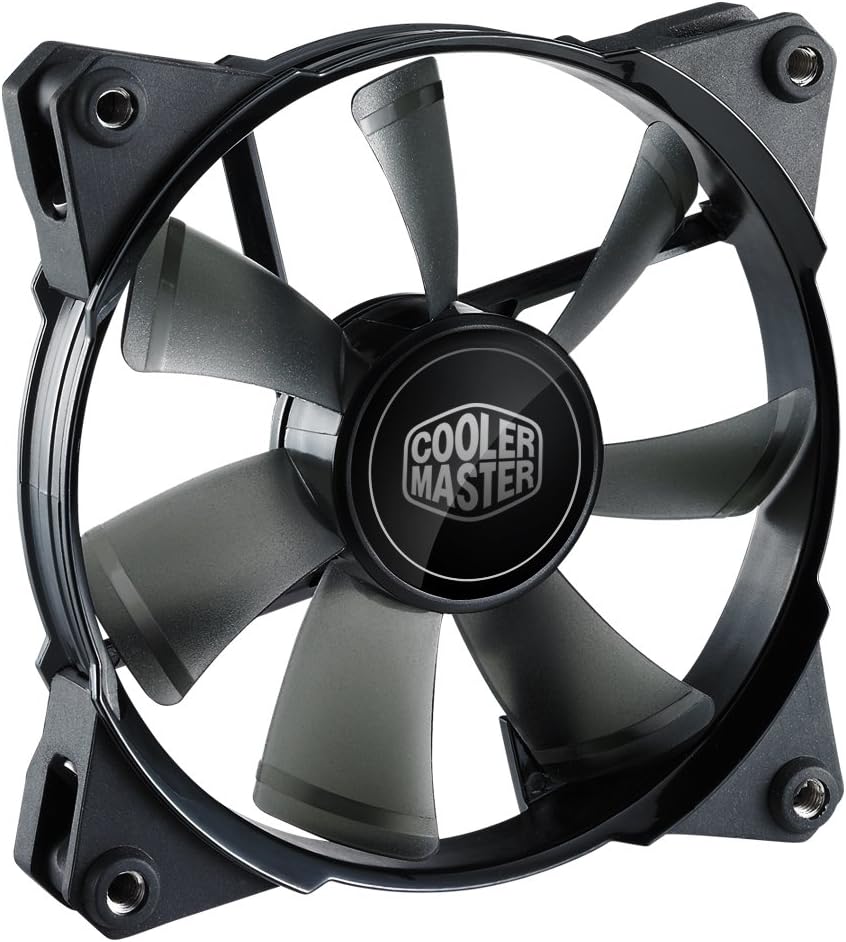
Figure 3: Angled view of the JetFlo 120 fan, highlighting the robust frame and blade design for secure mounting.

Figure 4: The included silent mode adapters, which can be used to reduce fan speed and noise levels.
4. Operating Instructions
Once installed and connected, the JetFlo 120 fan will begin operating when your computer system is powered on.
- Automatic Speed Control (PWM): If connected to a 4-pin PWM header, the fan speed will automatically adjust based on your system's temperature, as controlled by the motherboard BIOS or operating system software.
- Manual Speed Control: You can often adjust fan curves and speeds through your motherboard's BIOS settings or dedicated fan control software provided by your motherboard manufacturer.
- Silent Mode Adapters: If a silent mode adapter is used, the fan will operate at the fixed RPM specified by the adapter (1,600 RPM or 1,200 RPM), overriding PWM control.
- Airflow Direction: Ensure the fan is oriented to provide optimal airflow for your system's cooling configuration. Typically, fans are used to draw cool air into the case (intake) or expel hot air out (exhaust).

Figure 5: An exploded view of the fan, revealing the motor and internal structure responsible for its high performance and durability.
5. Maintenance
Regular maintenance helps ensure optimal performance and extends the lifespan of your JetFlo 120 fan.
- Dust Removal: Periodically inspect the fan blades and frame for dust accumulation. Use compressed air or a soft brush to gently remove dust. Avoid using excessive force or liquids.
- Check Connections: Ensure the 4-pin power connector remains securely attached to the motherboard header.
- Inspect for Obstructions: Verify that no cables or other components are obstructing the fan blades' rotation. The Smart Jam Protection feature will attempt to clear minor obstructions, but physical removal is recommended for larger items.
- Bearing Longevity: The POM bearing is self-lubricating and designed for long-term operation without additional lubrication. Do not attempt to lubricate the bearing manually.

Figure 6: Close-up of the fan blades, which should be kept clean for maximum airflow efficiency.
6. Troubleshooting
| Problem | Possible Cause | Solution |
|---|---|---|
| Fan not spinning |
|
|
| Excessive noise |
|
|
| Low airflow |
|
|
7. Specifications
| Feature | Detail |
|---|---|
| Brand | Cooler Master |
| Model Number | R4-JFNP-20PK-R1 |
| Dimensions (L x W x H) | 11.94 x 11.94 x 2.54 cm (4.7 x 4.7 x 1 inches) |
| Weight | 136 g (0.3 lbs) |
| Color | Non-LED (Black) |
| Voltage | 12 Volts |
| Wattage | 4.8 watts |
| Power Connector | 4-Pin PWM |
| Compatible Devices | Desktop Computers (Cases, CPU Coolers, Radiators) |
| Noise Level | Max. 36 dBA |
| Material | Alloy Steel (Frame), Plastic (Blades) |
| Rotational Speed | 800 - 2000 RPM (PWM) ± 10% |
| Air Flow Capacity | Max. 95 CFM ± 10% |
| Bearing Type | Polyoxymethylene (POM) Bearing |
| Lifespan | Up to 160,000 hours |
8. Warranty and Support
For detailed warranty information and technical support, please refer to the official Cooler Master website or contact their customer service. Keep your proof of purchase for warranty claims.
Cooler Master Official Website: www.coolermaster.com


