
Introduction
This manual provides instructions for the proper setup, operation, and maintenance of your Black Box USB to Serial Cable, model IC199A-R3. This cable is designed to facilitate communication between devices with a DB9 serial port and computers equipped with a USB Type-A port. Please read this manual thoroughly before using the product to ensure optimal performance and longevity.
Product Overview
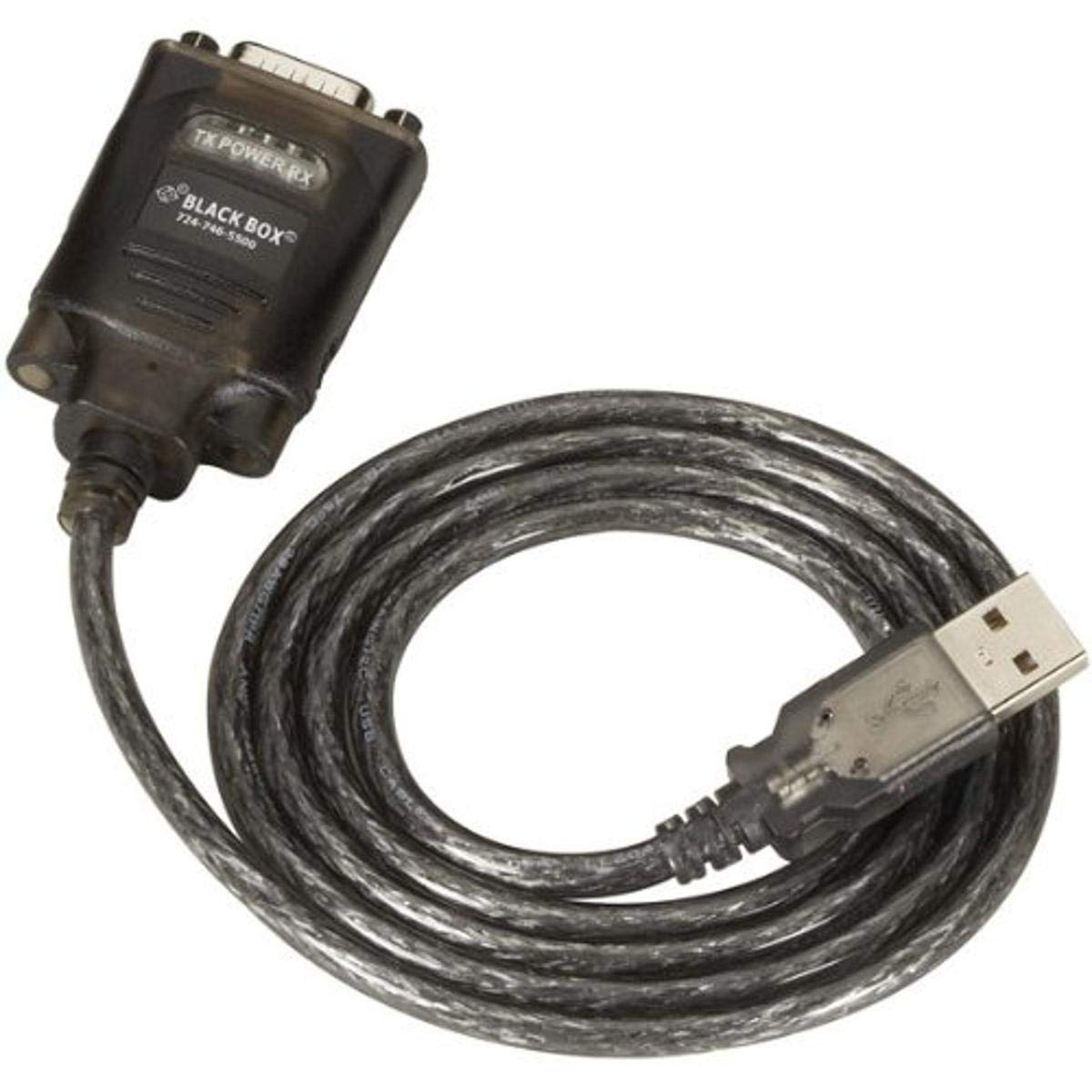
Figure 1: Black Box USB to DB9 Serial Cable (IC199A-R3)
This image displays the Black Box USB to DB9 Serial Cable, featuring a USB Type-A male connector on one end and a DB9 male serial connector on the other. The cable is black and designed for connecting serial devices to a computer's USB port.
The Black Box IC199A-R3 is a reliable solution for connecting legacy serial devices, such as modems, to modern computers that typically lack dedicated serial ports. Its robust design ensures stable data transmission.
Setup Instructions
- Identify Connectors: Locate the USB Type-A male connector and the DB9 male serial connector on the cable.
- Connect to Computer: Insert the USB Type-A male connector into an available USB port on your computer.
- Connect to Serial Device: Connect the DB9 male serial connector to the DB9 female port on your serial device (e.g., modem). Ensure a secure connection.
- Driver Installation: In most modern operating systems (Windows 10/11, macOS, Linux), the necessary drivers should install automatically upon connection. If the device is not recognized, you may need to manually install drivers. Refer to your operating system's documentation or the Black Box support website for driver downloads if required.
- Verify Connection: After connecting, check your computer's Device Manager (Windows) or System Information (macOS/Linux) to confirm that the USB to Serial adapter is recognized and functioning correctly. It typically appears as a "USB Serial Port" or similar entry.
Operating Instructions
Once the Black Box IC199A-R3 cable is properly installed and recognized by your computer, it functions as a standard serial port.
- Software Configuration: Open the serial communication software or application you intend to use (e.g., HyperTerminal, PuTTY, minicom, or specific device configuration software).
- Select COM Port: Within your software, select the virtual COM port assigned to the USB to Serial adapter. This port number can usually be found in your computer's Device Manager (under "Ports (COM & LPT)").
- Configure Serial Settings: Set the appropriate serial communication parameters (baud rate, data bits, parity, stop bits, flow control) to match the requirements of your connected serial device. Refer to the documentation of your serial device for these settings.
- Initiate Communication: Once configured, you can initiate data transfer or communication with your serial device through the software.
Maintenance
To ensure the longevity and reliable performance of your Black Box USB to Serial Cable, follow these simple maintenance guidelines:
- Storage: Store the cable in a cool, dry place away from direct sunlight and extreme temperatures when not in use.
- Handling: Avoid bending or kinking the cable sharply, especially near the connectors, as this can damage internal wires.
- Cleaning: If necessary, gently wipe the cable and connectors with a soft, dry, lint-free cloth. Do not use liquid cleaners or solvents.
- Connection/Disconnection: Always grasp the connector housing when plugging or unplugging the cable, rather than pulling on the cable itself.
Troubleshooting
If you encounter issues with your Black Box USB to Serial Cable, consider the following troubleshooting steps:
- Cable Not Recognized:
- Ensure the USB connector is fully inserted into the computer's USB port.
- Try a different USB port on your computer.
- Restart your computer.
- Check Device Manager (Windows) or System Information (macOS/Linux) for any error messages or unrecognized devices. Reinstall drivers if necessary.
- No Communication with Serial Device:
- Verify that the DB9 connector is securely attached to your serial device.
- Confirm that the correct COM port is selected in your serial communication software.
- Double-check that the serial communication parameters (baud rate, data bits, parity, stop bits, flow control) in your software match those of your serial device.
- Ensure the serial device itself is powered on and functioning correctly.
- Try using a different serial communication software to rule out software-specific issues.
- Intermittent Connection:
- Inspect the cable for any visible damage or frayed wires.
- Ensure all connections are firm and not loose.
- Avoid placing the cable near sources of strong electromagnetic interference.
Specifications
| Brand | Black Box |
| Model Number | IC199A-R3 |
| Connector Type (Computer) | USB Type A Male |
| Connector Type (Device) | DB9 Male Serial |
| Cable Type | USB to Serial |
| Compatible Devices | Modem |
| Special Feature | Tangle Free |
| Color | Black |
| Number of Pins | 9 (on DB9 connector) |
| Item Weight | 0.24 Pounds (approx. 3.84 ounces) |
| Product Dimensions (Packaging) | 6.75 x 1.5 x 4 inches |
| Manufacturer | BLACK BOX CORPORATION |
Warranty and Support
For information regarding warranty coverage, technical support, or to download the latest drivers, please visit the official Black Box website or contact their customer service. Keep your purchase receipt for warranty claims.


