
Schneider Electric SR3B261FU
Schneider Electric Zelio SR3B261FU Logic Controller User Manual
Model: SR3B261FU
1. Introduction
This user manual provides essential information for the safe and efficient installation, operation, and maintenance of the Schneider Electric Zelio SR3B261FU Logic Controller. Please read this manual thoroughly before attempting to install or operate the device. Keep this manual for future reference.
2. Safety Information
WARNING: Risk of electric shock. This device operates with high voltage. Installation, maintenance, and troubleshooting should only be performed by qualified personnel.
- Always disconnect power before installing, wiring, or servicing the device.
- Ensure proper grounding to prevent electric shock.
- Do not operate the device if it is damaged or if any components are missing.
- Adhere to all local and national electrical codes and regulations.
- Use appropriate personal protective equipment (PPE) when working with electrical equipment.
3. Product Overview
The Schneider Electric Zelio SR3B261FU is a compact, programmable logic controller (PLC) designed for simple automation systems. It features 26 input/output (I/O) points and operates on a 100-240 VAC power supply, making it suitable for a wide range of industrial and commercial applications. Its compact design allows for easy integration into control panels.
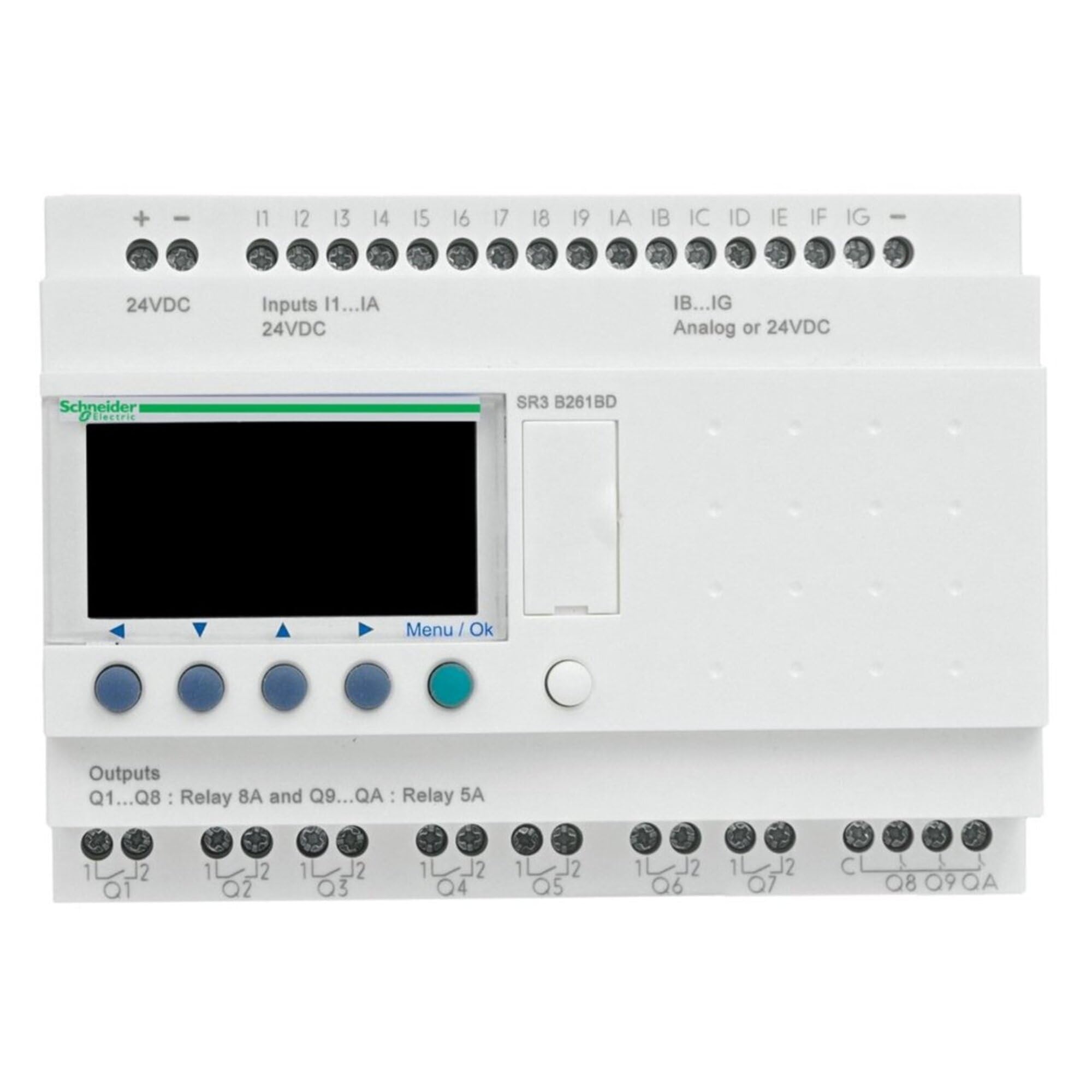
Figure 1: Front view of the Schneider Electric Zelio SR3B261FU Logic Controller. This image shows the compact design, input/output terminals, and display interface of the device.
4. Setup and Installation
4.1. Mounting
The Zelio SR3B261FU is designed for DIN rail mounting. Ensure the mounting surface is stable and free from excessive vibration. Allow adequate space around the device for ventilation and wiring access.
- Attach the device to a standard 35mm DIN rail by hooking the top edge onto the rail and pressing down until it clicks into place.
- Verify that the device is securely fastened to the DIN rail.
4.2. Wiring
Refer to the wiring diagram provided with the product for specific connection details. Ensure all connections are secure and correctly polarized.
- Power Supply: Connect the 100-240 VAC power supply to the designated terminals. Observe correct line and neutral connections.
- Inputs: Connect sensors, switches, and other input devices to the input terminals.
- Outputs: Connect actuators, relays, and other output devices to the output terminals. Ensure the load current does not exceed the specified limits for each output.
- Grounding: Connect the protective earth (PE) terminal to a reliable ground point.
5. Operating Instructions
5.1. Powering On
After completing all wiring, apply power to the Zelio SR3B261FU. The device will perform a self-test, and the display (if present) will show the current status or program information.
5.2. Programming
The Zelio SR3B261FU is programmed using Schneider Electric's Zelio Soft software. Connect the logic controller to a computer via the appropriate programming cable (sold separately). Refer to the Zelio Soft software manual for detailed programming instructions.
- Create your control logic using ladder diagram (LD) or function block diagram (FBD).
- Transfer the program to the Zelio SR3B261FU.
- Monitor the program execution and I/O status through the software or the device's display.
5.3. Manual Control (if applicable)
Some Zelio models may feature buttons for manual control or parameter adjustment directly on the device. Consult the specific product documentation for your model to understand these functions.
6. Maintenance
The Zelio SR3B261FU is designed for minimal maintenance. Regular inspection and cleaning are recommended to ensure optimal performance and longevity.
- Cleaning: Disconnect power before cleaning. Use a soft, dry cloth to wipe the exterior of the device. Do not use abrasive cleaners or solvents.
- Inspection: Periodically check all wiring connections for tightness and signs of corrosion. Inspect the device for any physical damage or discoloration.
- Ventilation: Ensure that ventilation openings are not obstructed to prevent overheating.
7. Troubleshooting
This section provides solutions to common issues. For more complex problems, contact Schneider Electric technical support.
| Problem | Possible Cause | Solution |
|---|---|---|
| Device does not power on. | No power supply; incorrect wiring; blown fuse. | Check power connections; verify voltage; inspect fuses. |
| Inputs not responding. | Incorrect input wiring; faulty sensor; program error. | Verify input wiring; test sensor functionality; check program logic. |
| Outputs not activating. | Incorrect output wiring; overloaded output; program error. | Verify output wiring; check load current; review program logic. |
| Communication error with software. | Incorrect cable; driver issue; software settings. | Ensure correct programming cable; install drivers; check software communication settings. |
8. Technical Specifications
| Feature | Detail |
|---|---|
| Manufacturer | SCHNEIDER ELECTRIC |
| Part Number | SR3B261FU |
| Item Weight | 13.6 ounces |
| Product Dimensions | 3.9 x 5.3 x 2.7 inches |
| Item Model Number | SR3B261FU |
| Color | Multicolor |
| Style | Compact |
| Finish | Polished |
| Material | Copper |
| Item Package Quantity | 1 |
| Included Components | SR3B261FU |
| Batteries Required? | No |
| ASIN | B00CONKRTK |
| Date First Available | May 7, 2013 |
9. Warranty and Support
9.1. Warranty Information
According to the product specifications, this device is provided with No Warranty. Please refer to your purchase agreement or contact your distributor for any specific warranty terms that may apply.
9.2. Technical Support
For technical assistance, product inquiries, or to report issues, please contact Schneider Electric customer support. You can find contact information on the official Schneider Electric website:
Schneider Electric Customer Care
When contacting support, please have your product model number (SR3B261FU) and any relevant purchase details ready.
Ask a question about this manual
Ask about setup, troubleshooting, compatibility, parts, safety, or missing instructions. Manuals+ will review the question and use this page’s manual context to help answer it.