
1. Introduction
This manual provides essential information for the installation, operation, and maintenance of your LSI Nytro Warpdrive WLP4-200 PCIe SSD. The LSI Nytro Warpdrive WLP4-200 is a high-performance solid-state drive designed to accelerate data-intensive applications by leveraging the PCI Express interface for superior speed and efficiency. This device offers 200GB of storage capacity and is intended for use in compatible computer systems.
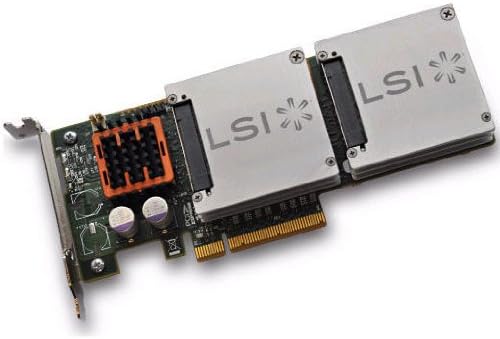
Figure 1: LSI Nytro Warpdrive WLP4-200 PCIe SSD. This image displays the physical card, highlighting its PCIe connector, heatsink, and the two LSI-branded SSD modules.
2. Setup and Installation
Before proceeding with installation, ensure your computer system is powered off and disconnected from the main power supply. It is recommended to wear an anti-static wrist strap to prevent electrostatic discharge (ESD) damage to components.
2.1 System Requirements
- Available PCI Express (PCIe) 2.0 x4 or higher slot.
- Compatible operating system (e.g., Windows, Linux, VMware) with appropriate driver support.
- Sufficient power supply capacity.
2.2 Hardware Installation
- Open your computer case.
- Locate an available PCIe slot on your motherboard.
- Carefully align the LSI Nytro Warpdrive WLP4-200 with the PCIe slot.
- Apply even pressure to firmly seat the card into the slot until it clicks into place.
- Secure the card with the retention mechanism or screw provided by your computer case.
- Close your computer case.
- Reconnect the power supply and power on your computer.
2.3 Driver Installation
Upon first boot, your operating system may automatically detect and install generic drivers. For optimal performance, it is recommended to download and install the latest drivers from the LSI Logic official support website. Refer to your operating system's documentation for specific driver installation procedures.
3. Operating the SSD
Once installed and drivers are loaded, the LSI Nytro Warpdrive WLP4-200 functions as a high-speed storage device. It will appear as a new drive in your operating system's disk management utility. You may need to initialize, partition, and format the drive before it can be used for data storage.
3.1 Initializing and Formatting
- Windows: Open Disk Management (right-click Start, select Disk Management). Locate the new SSD, right-click, and select "Initialize Disk." Follow the prompts to create a new simple volume and format it with your desired file system (e.g., NTFS).
- Linux: Use utilities like fdisk or gparted to partition and mkfs to format the drive.
The SSD is now ready for use. You can install operating systems, applications, or store data on it to benefit from its high-speed performance.
4. Maintenance
Solid-state drives generally require less maintenance than traditional hard disk drives. However, some practices can help ensure optimal performance and longevity.
- Firmware Updates: Periodically check the LSI Logic support website for firmware updates. Firmware updates can improve performance, stability, and compatibility.
- TRIM Command: Ensure your operating system supports and enables the TRIM command. TRIM helps the SSD manage data more efficiently, preventing performance degradation over time.
- Avoid Defragmentation: Do not defragment an SSD. Defragmentation is unnecessary for SSDs and can reduce their lifespan by increasing write cycles.
- Monitor Health: Use S.M.A.R.T. (Self-Monitoring, Analysis, and Reporting Technology) tools to monitor the health and lifespan of your SSD.
5. Troubleshooting
This section addresses common issues you might encounter with your LSI Nytro Warpdrive WLP4-200.
5.1 SSD Not Detected
- Check Physical Connection: Ensure the card is fully seated in the PCIe slot.
- Check BIOS/UEFI: Verify that the PCIe slot is enabled in your system's BIOS/UEFI settings.
- Driver Installation: Confirm that the correct drivers are installed.
- Try Another Slot: If available, try installing the SSD in a different PCIe slot.
- Power Supply: Ensure your power supply provides adequate power to all components.
5.2 Performance Issues
- Latest Drivers: Ensure you have the latest drivers installed from the manufacturer's website.
- TRIM Enabled: Verify that the TRIM command is enabled in your operating system.
- PCIe Slot Speed: Confirm the SSD is installed in a PCIe 2.0 x4 or higher slot and operating at its full speed. Check your motherboard manual for slot specifications.
- System Resources: Ensure your system has sufficient RAM and CPU resources.
6. Specifications
Key technical specifications for the LSI Nytro Warpdrive WLP4-200 PCIe SSD:
| Feature | Detail |
|---|---|
| Model | WLP4-200 |
| Brand | LSI Logic |
| Hard Disk Size | 200 GB |
| Hardware Interface | Solid State Drive (PCIe 2.0) |
| Installation Type | Internal (PCIe Card) |
| Item Weight | 2 Pounds (approximately 0.91 kg) |
| Manufacturer | LSI |
| Date First Available | December 30, 2013 |
Note: Connectivity Technology is listed as USB and Hard Disk Form Factor as 2.5 Inches in some specifications, which may be generic or incorrect for a PCIe card. The primary interface for this product is PCIe.
7. Warranty and Support
For warranty information and technical support, please refer to the official LSI Logic website or contact their customer service department. Keep your proof of purchase for warranty claims.
LSI Logic Support: Visit Broadcom (formerly LSI Logic) Support