
1. Introduction
This manual provides instructions for the installation, operation, and maintenance of the Hayward Goldline AQL2-TB-RF-PS-8 ProLogic Wireless Table Top Display. This device is designed to provide convenient wireless control and programming capabilities for Hayward Pro Logic PS-8 pool and spa automation systems.
The wireless display allows users to manage various pool equipment functions from within the home or around the pool area, offering flexibility and ease of use. It operates effectively at distances up to 500 feet and can communicate through walls up to 200 feet.
2. Important Safety Information
READ AND FOLLOW ALL INSTRUCTIONS.
- Always disconnect power to the pool control system before performing any service or maintenance.
- This device is designed for indoor or outdoor use but must be protected from direct rain contact.
- Ensure proper pairing with a compatible Hayward Pro Logic PS-8 system and a wireless base (required, sold separately).
- Do not attempt to service the unit beyond what is described in this manual. Refer all other servicing to qualified service personnel.
- Keep the unit away from extreme temperatures and direct sunlight for prolonged periods.
3. Package Contents
Verify that all components are present upon unpacking:
- Hayward Goldline AQL2-TB-RF-PS-8 Wireless Table Top Display
- Rechargeable Batteries (pre-installed or separate)
- Plug-in Transformer for Battery Charging
- User Manual (this document)
If any parts are missing or damaged, contact Hayward customer support immediately.
4. Setup and Installation
4.1. Charging the Display
Before initial use, fully charge the wireless display's rechargeable batteries using the provided plug-in transformer. Connect the transformer to the charging port on the display and plug it into a standard electrical outlet. An LED indicator will typically show charging status.
4.2. Pairing with Pro Logic PS-8 System
The wireless display requires a compatible wireless base (sold separately) to communicate with your Hayward Pro Logic PS-8 system. Refer to the wireless base installation guide for specific pairing instructions. Generally, the process involves:
- Ensure the Pro Logic PS-8 system and wireless base are powered on.
- Place the wireless display within range of the wireless base.
- Follow the pairing procedure outlined in the wireless base manual to establish a connection.
- A successful connection will be indicated on the display screen.
Note: A compatible antenna for the wireless base is essential for proper synchronization and operation.
4.3. Placement Guidelines
For optimal performance, place the wireless display in a location that minimizes interference. While it can operate through walls, dense construction materials or other electronic devices may reduce range. Ensure the unit is protected from direct rain contact if used outdoors.
5. Operating Instructions
The Hayward Goldline AQL2-TB-RF-PS-8 display features a clear LCD screen and intuitive buttons for controlling your pool system. Refer to the image below for button identification.
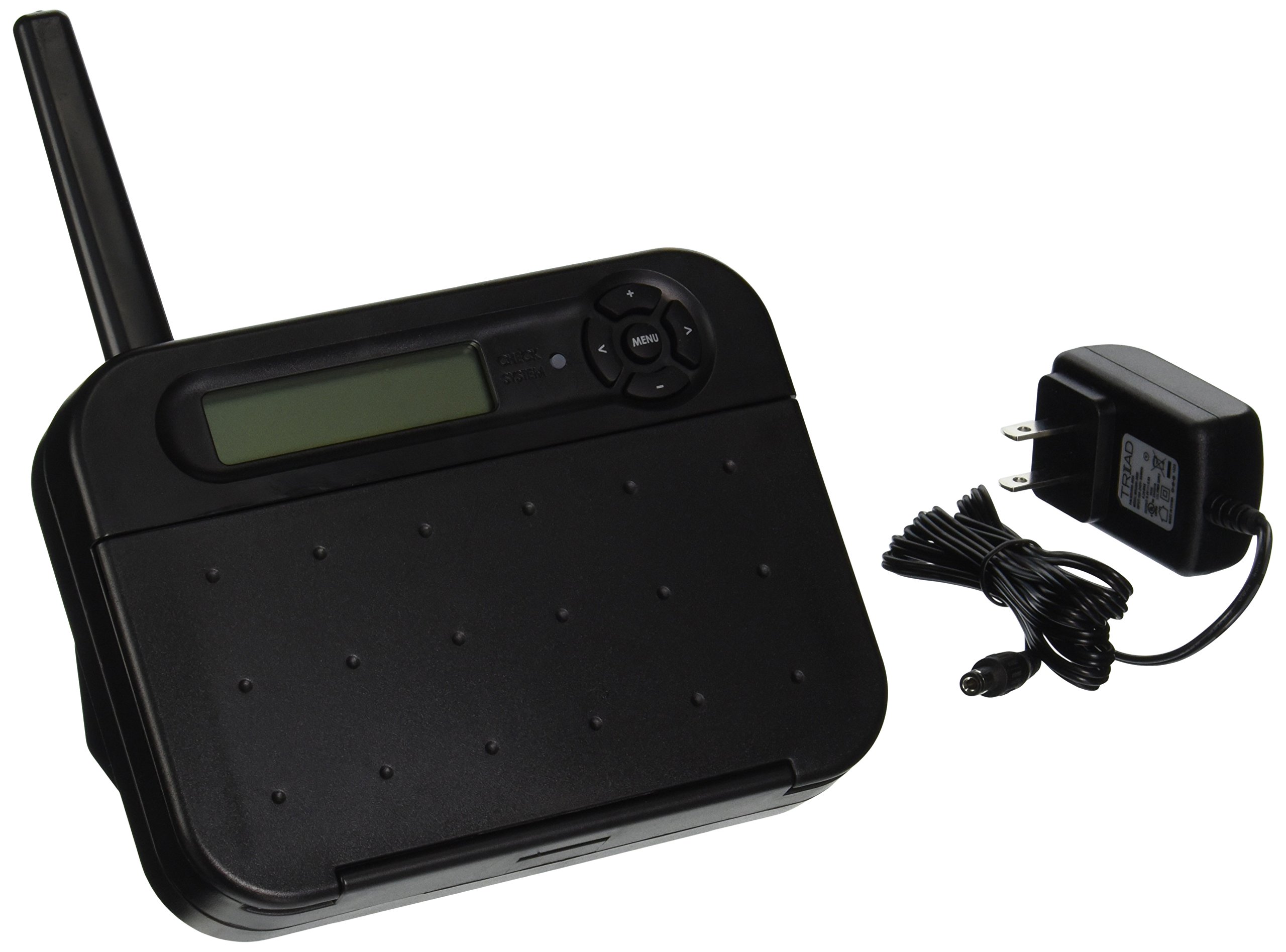
Figure 1: Hayward Goldline AQL2-TB-RF-PS-8 Wireless Table Top Display. The main display shows the LCD screen and navigation buttons. The lower flap, when opened, reveals dedicated buttons for various pool functions and additional instructions.
5.1. Display and Navigation
The top section of the display features an LCD screen and navigation buttons:
- MENU Button: Accesses the main menu for programming and settings.
- Arrow Buttons (<, >, +, -): Used to scroll through menu items, adjust values, or navigate options.
- CHECK SYSTEM: Indicates system status.
5.2. Turning Pool Equipment ON/OFF
The lower flap of the display provides direct control buttons for various pool equipment. To turn equipment ON or OFF:
- Locate the desired equipment button (e.g., POOL, SPA, FILTER, LIGHTS, HEATER 1, AUX 1-6).
- Push the button corresponding to the equipment.
- An LED indicator next to each button will display the ON/OFF status of the equipment.
- SYSTEM OFF button: Turns all equipment off with a single press.
5.3. Programming and Settings Adjustments
To adjust programming and settings:
- Press the MENU button until the desired menu is displayed on the LCD screen.
- Use the arrow buttons to scroll through the available menu items.
- Select an item to change settings.
- Press MENU again or use specific arrow buttons to save the settings.
5.4. Changing Chlorinator Settings (if enabled)
If your system includes a chlorinator and it is enabled:
- Press the MENU button until the chlorinator settings menu is displayed.
- Scroll until the desired chlorinator setting is displayed.
- Adjust the settings as needed.
- Press MENU to save the changes.
5.5. Changing Heater Settings
To adjust heater settings:
- Press the MENU button until the heater settings menu is displayed.
- Scroll until the desired heater setting is displayed.
- Adjust the settings as needed.
- Press MENU to save the changes.
5.6. Toggling OFF/AUTO Operation
To switch between OFF and AUTO operation for certain functions (e.g., Heater):
- Locate the specific equipment button (e.g., HEATER).
- Push the button to toggle between OFF and AUTO modes.
6. Maintenance
6.1. Battery Care
The wireless display uses rechargeable batteries. To prolong battery life:
- Charge the unit regularly, especially when the low battery indicator appears.
- Avoid completely draining the battery frequently.
- If the battery no longer holds a charge, it may need replacement. Contact Hayward support for authorized battery replacement options.
6.2. Cleaning
Clean the display and casing with a soft, damp cloth. Do not use abrasive cleaners, solvents, or harsh chemicals, as these can damage the unit's finish and electronics. Ensure the unit is dry before charging or prolonged use.
7. Troubleshooting
| Problem | Possible Cause | Solution |
|---|---|---|
| Display not turning on. | Dead battery. | Connect the display to the charger and allow it to charge for several hours. |
| Display not responding or syncing. | Out of range; Interference; Not properly paired; Incompatible wireless base/antenna. | Move closer to the wireless base. Check for sources of interference. Re-attempt pairing procedure. Ensure a compatible wireless base and antenna are installed. |
| Battery not charging. | Faulty charger; Damaged charging port; Worn-out battery. | Check the charger and charging cable. Try a different outlet. If the issue persists, the battery may need replacement. Contact Hayward support. |
| Equipment not responding to commands. | Display not synced; Pro Logic system issue; Equipment fault. | Verify the display is synced with the Pro Logic system. Check the Pro Logic system for error messages. Ensure the equipment itself is operational. |
8. Specifications
- Model: AQL2-TB-RF-PS-8
- Compatibility: Hayward Pro Logic PS-8 Systems
- Wireless Range: Up to 500 feet (open air), up to 200 feet (through walls)
- Power: Rechargeable Batteries (with plug-in transformer)
- Color: Black
- Item Weight: 1 Pound
- GTIN/UPC: 761418007820
9. Warranty Information
The Hayward Goldline AQL2-TB-RF-PS-8 ProLogic Wireless Table Top Display comes with a 3-year manufacturer's warranty. This warranty covers defects in materials and workmanship under normal use. For full warranty terms and conditions, please refer to the official Hayward warranty documentation or contact customer support.
10. Customer Support
For technical assistance, troubleshooting, or warranty inquiries, please contact Hayward customer support:
- Phone: 1-800-921-POOL (7665)
- Website: www.hayward.com
When contacting support, please have your product model number (AQL2-TB-RF-PS-8) and purchase information available.