
Introduction
This manual provides detailed instructions for the setup, operation, and maintenance of your Audiopipe Nippon America Universal Remote Control RCN-506. This universal remote is designed to control various electronic devices, simplifying your home entertainment experience. Please read this manual thoroughly before use to ensure proper functionality and to maximize the remote's capabilities.
Product Overview
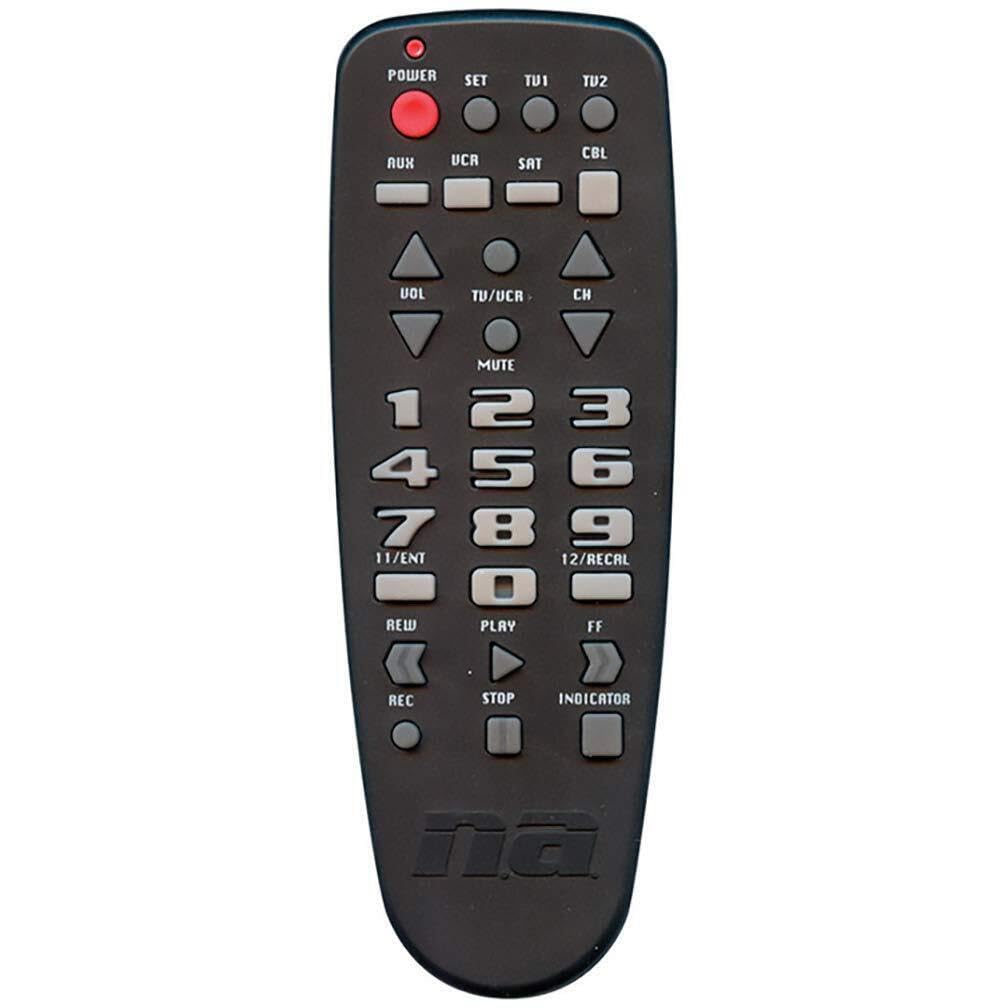
Image: The Audiopipe Nippon America Universal Remote Control RCN-506, showing its ergonomic design and button layout.
The RCN-506 is a versatile remote control capable of operating multiple devices. Its intuitive button layout allows for easy navigation and control of your television, DVD player, VCR, and other compatible electronics. The remote features dedicated buttons for power, volume, channel selection, and input switching, among others.
Setup
1. Battery Installation
- Locate the battery compartment cover on the back of the remote control.
- Slide the cover downwards or press the latch to open it.
- Insert two new AAA batteries (not included), ensuring the positive (+) and negative (-) terminals match the diagrams inside the compartment.
- Replace the battery compartment cover, ensuring it clicks securely into place.
2. Programming the Remote Control
The RCN-506 can be programmed using either direct code entry or automatic code search. Refer to the code list provided with your remote (if applicable) for specific device codes.
Direct Code Entry:
- Turn on the device you wish to control (e.g., TV, DVD player).
- Press and hold the SET button (or equivalent programming button) on the remote. While holding, press the device button you want to program (e.g., TV, DVD). Release both buttons. The indicator light should remain lit.
- Enter the 3-digit or 4-digit code for your device brand from the code list.
- If the code is valid, the indicator light will turn off. Test the remote by pressing the POWER button. If the device turns off, the programming was successful.
- If the device does not respond, repeat the process with the next code listed for your brand.
Automatic Code Search:
- Turn on the device you wish to control.
- Press and hold the SET button (or equivalent programming button) on the remote. While holding, press the device button you want to program (e.g., TV, DVD). Release both buttons. The indicator light should remain lit.
- Press the POWER button once. The indicator light will flash, indicating it is searching for a code.
- Point the remote at the device and wait. The remote will send power signals. When your device turns off, immediately press the SET button (or equivalent) to save the code.
- Test the remote's functions. If some functions do not work, you may need to repeat the automatic search or try direct code entry with other codes.
Operating the Remote Control
Once programmed, your RCN-506 remote can control your devices. Select the desired device by pressing its corresponding device button (e.g., TV, DVD). The indicator light will briefly illuminate to confirm the selection.
- POWER: Turns the selected device on or off.
- VOL +/-: Adjusts the volume of the selected device.
- CH +/-: Changes channels on the selected device.
- MUTE: Mutes or unmutes the audio.
- INPUT/SOURCE: Cycles through input sources on your TV.
- NUMBER BUTTONS (0-9): For direct channel entry.
- PLAY, PAUSE, STOP, FF, REW: Control playback functions for DVD/VCR devices.
Maintenance
Cleaning the Remote
To clean your remote control, use a soft, dry cloth. For stubborn dirt, slightly dampen the cloth with water or a mild cleaning solution. Avoid using abrasive cleaners, solvents, or excessive moisture, as these can damage the remote's surface or internal components.
Battery Replacement
Replace batteries when the remote's performance degrades or the indicator light fails to illuminate. Always replace both batteries at the same time with new AAA batteries. Do not mix old and new batteries, or different types of batteries, as this can lead to leakage or malfunction. Dispose of used batteries according to local regulations.
Troubleshooting
- Remote not working after programming:
- Ensure the remote is pointed directly at the device and there are no obstructions.
- Check if the batteries are inserted correctly and have sufficient charge. Replace if necessary.
- Verify that the correct device button (e.g., TV, DVD) is selected.
- Try programming the remote again using a different code from the code list for your device brand.
- Perform an automatic code search again.
- Some functions not working:
- The current code may not fully support all functions of your device. Try programming with another code for your device brand.
- Some advanced functions may not be supported by a universal remote.
- Indicator light does not illuminate:
- Check battery installation.
- Replace batteries with new ones.
Specifications
| Feature | Detail |
|---|---|
| Model Number | RCN-506 |
| Product Dimensions | 11 x 1.5 x 4.5 inches |
| Item Weight | 3.56 ounces |
| Brand | Audiopipe |
| Manufacturer | NIPPON |
| Special Feature | Universal |
| Connectivity Technology | Radio Frequency |
| Controller Type | Button Control |
Warranty and Support
For warranty information and technical support, please refer to the documentation included with your purchase or visit the official Audiopipe website. Keep your purchase receipt as proof of purchase for any warranty claims.
For further assistance, you may contact Audiopipe customer service. Contact details are typically available on the manufacturer's website or product packaging.