
1. Introduction
This manual provides essential information for the proper setup, operation, and maintenance of your Honeywell 7580G Genesis USB Kit Barcode Scanner. Please read this guide thoroughly before using the device to ensure optimal performance and longevity.
2. Setup
2.1 Unpacking
Carefully remove all components from the packaging. Ensure the following items are present:
- Honeywell 7580G Genesis Barcode Scanner
- USB Type A 3M Cable (CBL-500-300-S00)
- Documentation
2.2 Connecting the Scanner
The Honeywell 7580G Genesis scanner connects to your host device (desktop or laptop) via a standard USB cable. No external power adapter is typically required as the scanner draws power directly from the USB port.
- Connect the smaller end of the USB cable to the USB port located at the base of the Honeywell 7580G Genesis scanner.
- Connect the larger USB Type A end of the cable to an available USB port on your computer.
- Upon successful connection, the scanner will typically emit a power-on beep and its indicator lights will activate, signaling it is ready for use. Most operating systems will automatically detect and install the necessary drivers for the scanner to function as a keyboard wedge (HID-POS).
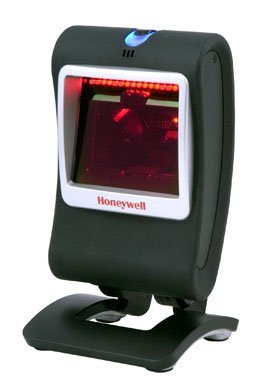
Image: The Honeywell 7580G Genesis barcode scanner shown with its USB cable connected, ready for integration with a computer system.
3. Operating Instructions
3.1 Basic Scanning
The 7580G Genesis is designed for intuitive, hands-free scanning. It can also be picked up for handheld operation.
- Positioning: Place the item with the barcode facing the scanner's window. For optimal performance, ensure the barcode is within the scanner's field of view.
- Scanning: The scanner will automatically detect and read the barcode. A successful scan is typically indicated by an audible beep and/or a visual confirmation light.
- Data Transmission: The decoded barcode data will be transmitted to your computer as if it were typed on a keyboard, appearing in any active text field.
3.2 Supported Symbologies
The Honeywell 7580G Genesis scanner supports a wide range of 1D, PDF417, and 2D barcode symbologies, including but not limited to:
- 1D Barcodes: UPC/EAN, Code 39, Code 128, Interleaved 2 of 5, etc.
- PDF417: Standard PDF417 codes.
- 2D Barcodes: Data Matrix, QR Code, Aztec, etc.
3.3 Scanning Feedback
The scanner provides feedback to indicate its status and successful scans:
- Audible Beep: A short beep typically indicates a successful barcode read.
- Visual Indicator: The scanner may have LED indicators that change color or flash to confirm a successful scan or indicate an error. Refer to the full product documentation for specific indicator patterns.
4. Maintenance
4.1 Cleaning the Scanner
Regular cleaning helps maintain optimal scanning performance.
- Exterior: Use a soft, clean cloth dampened with water or a mild cleaning solution to wipe the exterior of the scanner. Avoid abrasive cleaners or solvents.
- Scan Window: Gently wipe the scan window with a soft, lint-free cloth. Do not use harsh chemicals or scratch the window, as this can impair scanning accuracy.
4.2 Storage
When not in use, store the scanner in a clean, dry environment away from extreme temperatures and direct sunlight.
5. Troubleshooting
If you encounter issues with your Honeywell 7580G Genesis scanner, refer to the following common problems and solutions:
| Problem | Possible Cause | Solution |
|---|---|---|
| Scanner does not power on. | USB cable not properly connected or faulty USB port. | Ensure the USB cable is securely connected to both the scanner and the computer. Try a different USB port on your computer. |
| Scanner does not read barcodes. | Barcode damaged, incorrect symbology enabled, or scanner window dirty. | Ensure the barcode is not damaged. Verify the barcode type is supported. Clean the scanner window as described in Section 4.1. |
| Scanned data appears incorrectly. | Incorrect keyboard layout setting on the computer. | Ensure your computer's keyboard layout matches the region settings for the scanner (if applicable). |
| Scanner beeps but no data is transmitted. | Application not in focus or not accepting input. | Ensure the cursor is in the desired text field of your application. Test with a simple text editor like Notepad. |
6. Specifications
Key technical specifications for the Honeywell 7580G Genesis Barcode Scanner:
| Feature | Detail |
|---|---|
| Model Number | 7580G-2 |
| Manufacturer Part Number | MK7580-30B38-12-A |
| Brand | Honeywell |
| Connectivity Technology | USB Cable |
| Power Source | Corded Electric (USB Powered) |
| Compatible Devices | Desktop, Laptop |
| Item Weight | 16 ounces |
| Supported Barcodes | 1D, PDF417, 2D |
7. Warranty Information
Honeywell products are manufactured to high-quality standards and are covered by a manufacturer's warranty. For specific warranty terms and conditions, please refer to the warranty card included with your product or visit the official Honeywell website. Keep your proof of purchase for warranty claims.
8. Support
For technical assistance, product inquiries, or service, please contact Honeywell customer support. Support contact information can typically be found on the Honeywell website or in the documentation provided with your scanner.