1. Introduction
This manual provides essential information for the proper installation, operation, and maintenance of your HL Data Storage GCA-4166B DVD/CD-RW Drive. Please read this manual thoroughly before using the device to ensure optimal performance and longevity.
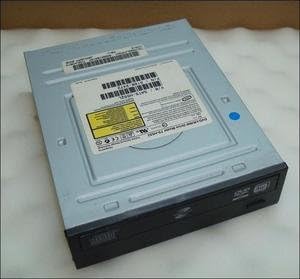
An overhead view of the HL Data Storage GCA-4166B internal DVD/CD-RW drive. The drive is black with a silver top casing, featuring a label with model and serial information.
2. Setup and Installation
The GCA-4166B is an internal optical drive designed for desktop computers. Proper installation is crucial for its functionality.
2.1 Physical Installation
- Power Off: Ensure your computer is completely powered off and unplugged from the wall outlet before beginning installation.
- Open Case: Open your computer's case according to its manufacturer's instructions.
- Mount Drive: Slide the GCA-4166B drive into an available 5.25-inch drive bay from the front of the computer case. Secure it with screws on both sides.
- Connect Cables:
- Connect a compatible data cable (e.g., IDE/PATA cable) from the drive to an available port on your motherboard.
- Connect a power cable from your power supply unit to the drive's power connector.
- Close Case: Carefully close your computer case and reconnect all peripherals.
2.2 Driver Installation
Most modern operating systems (Windows XP/Vista/7/8/10, Linux) include generic drivers that support optical drives. Typically, no manual driver installation is required. Upon first boot after installation, the operating system should detect and configure the drive automatically. If the drive is not recognized, check your operating system's device manager for any unknown devices or driver issues.
3. Operating Instructions
The GCA-4166B drive supports reading and writing of various CD and DVD formats.
3.1 Inserting and Ejecting Discs
- To Insert: Press the eject button on the front panel of the drive. The disc tray will open. Place the disc gently onto the tray with the label side facing up. Push the tray back into the drive until it clicks shut.
- To Eject: Press the eject button on the front panel of the drive, or right-click the drive icon in 'My Computer'/'This PC' and select 'Eject'.
3.2 Reading Discs
Once a disc is inserted, your operating system should automatically detect it. For data discs, the contents will typically appear in 'My Computer'/'This PC'. For movie DVDs or audio CDs, media player software will usually launch automatically or prompt you to choose an action.
3.3 Writing Discs (Burning)
To write data to a blank CD-R/RW or DVD-R/RW disc, you will need disc burning software (e.g., Windows Media Player, Nero, ImgBurn). Follow the instructions provided by your chosen software to create data discs, audio CDs, or video DVDs.
- Ensure you use compatible blank media (CD-R, CD-RW, DVD-R, DVD-RW).
- Avoid interrupting the burning process, as this can corrupt the disc.
- Verify the disc after burning if your software offers the option.
4. Maintenance and Care
Proper care can extend the life of your optical drive.
- Cleaning: Periodically clean the exterior of the drive with a soft, dry cloth. Do not use liquid cleaners directly on the drive. For internal cleaning of the lens, use a specialized optical drive cleaning disc.
- Disc Handling: Always handle discs by their edges. Avoid touching the data surface. Store discs in cases to prevent scratches and dust accumulation.
- Environment: Operate the drive in a clean, dust-free environment with adequate ventilation to prevent overheating.
5. Troubleshooting
If you encounter issues with your GCA-4166B drive, try the following common solutions:
- Drive Not Detected:
- Check all cable connections (data and power) to ensure they are secure.
- Verify the drive is enabled in your computer's BIOS/UEFI settings.
- Check Device Manager in your operating system for any errors or unknown devices. Reinstall drivers if necessary (though usually automatic).
- Disc Read Errors:
- Ensure the disc is clean and free of scratches or smudges. Clean with a soft, lint-free cloth from the center outwards.
- Try a different disc to determine if the issue is with the drive or the disc.
- Use an optical drive cleaning disc to clean the drive's lens.
- Disc Burning Failures:
- Ensure you are using compatible blank media (e.g., DVD-R for DVD burning).
- Try burning at a slower speed.
- Ensure there is enough free space on your hard drive for temporary files during the burning process.
- Update your burning software to the latest version.
- Tray Not Opening/Closing:
- Check for any physical obstructions.
- If the tray is stuck, locate the small emergency eject hole on the front panel (often near the eject button) and gently insert a straightened paperclip to manually open the tray.
6. Technical Specifications
| Feature | Specification |
|---|---|
| Model | GCA-4166B |
| Part Number | 5188-2472 |
| Brand | HL Data Storage |
| Manufacturer | H-L Data Storage |
| Hardware Interface | IDE/PATA (CD-RW compatible) |
| Item Weight | 1.75 pounds (approx. 0.79 kg) |
| Package Dimensions | 7.6 x 6.7 x 2.7 inches (approx. 19.3 x 17.0 x 6.9 cm) |
| Color | Black |
| Cache Size | 2 MB |
| Date First Available | January 31, 2013 |
7. Warranty and Support Information
As this product is often sold as a used or refurbished item, specific warranty terms may vary significantly. Please refer to the warranty information provided by your seller at the time of purchase. For technical support or further inquiries, it is recommended to contact the seller from whom you purchased the drive or the manufacturer, HL Data Storage, if direct support channels are available.
Note: Any returns are subject to the seller's verification of security marks and the product's condition as shipped.


