
1. Introduction
This manual provides essential instructions for the proper use and maintenance of your Clarke Tech original remote control. Please read this manual thoroughly before using the device to ensure optimal performance and longevity. This remote control is designed for specific Clarke Tech TV decoder models, including 3100 HD, 4100 HD, 5000, 5100, 6600 HD, 5100-C Plus, and 6600 SST Plus.
2. Safety Information
- Do not expose the remote control to direct sunlight, high temperatures, or humidity.
- Avoid dropping the remote control or subjecting it to strong impacts.
- Do not attempt to disassemble or modify the remote control. This may void the warranty and cause damage.
- Keep batteries out of reach of children. If swallowed, seek immediate medical attention.
- Dispose of used batteries according to local regulations. Do not incinerate.
- Use only AAA batteries of the specified type. Mixing old and new batteries or different types of batteries is not recommended.
3. Package Contents
The package should contain the following item:
- 1 x Clarke Tech Original Remote Control (Black)
Note: Batteries (2 x AAA) are not included and must be purchased separately.
4. Product Overview
The Clarke Tech remote control features a standard layout for easy navigation and control of your compatible TV decoder. It operates using infrared (IR) technology.
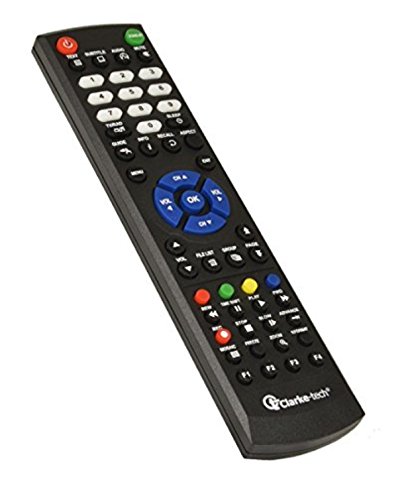
Image 1: Front view of the Clarke Tech Original Remote Control. This image displays the black remote control with various buttons for channel selection, volume control, menu navigation, and power.
Button Functions (General)
- Power Button: Turns the TV decoder on or off.
- Numeric Keypad (0-9): For direct channel input.
- Channel Up/Down: Changes channels sequentially.
- Volume Up/Down: Adjusts the audio volume.
- Mute: Silences the audio output.
- Menu/Exit: Accesses or exits the main menu.
- Navigation Buttons (Up, Down, Left, Right, OK): For navigating menus and confirming selections.
- Info: Displays program information.
- EPG (Electronic Program Guide): Accesses the program guide.
- Record/Play/Pause/Stop/Rewind/Fast Forward: Control media playback functions (if supported by the decoder).
5. Battery Installation
The remote control requires two AAA batteries (not included).
- Locate the battery compartment cover on the back of the remote control.
- Slide the cover downwards or press the latch and lift to open the compartment.
- Insert two AAA batteries, ensuring the positive (+) and negative (-) terminals match the diagrams inside the compartment.
- Replace the battery compartment cover by sliding it back into place until it clicks securely.
Note: If the remote control does not respond, check the battery orientation and ensure the batteries are fresh.
6. Setup
This Clarke Tech remote control is an original replacement and typically requires no programming for compatible Clarke Tech TV decoders. Once batteries are installed, it should function directly with the following models:
- Clarke Tech 3100 HD
- Clarke Tech 4100 HD
- Clarke Tech 5000
- Clarke Tech 5100
- Clarke Tech 6600 HD
- Clarke Tech 5100-C Plus
- Clarke Tech 6600 SST Plus
Ensure there is a clear line of sight between the remote control's infrared emitter (at the front) and the TV decoder's IR receiver.
7. Operating Instructions
To operate your Clarke Tech TV decoder using this remote control:
- Power On/Off: Point the remote at the decoder and press the Power button.
- Channel Selection: Use the Channel Up/Down buttons to browse channels, or enter the channel number directly using the Numeric Keypad.
- Volume Control: Press the Volume Up/Down buttons to adjust the sound level. Press Mute to temporarily silence the audio.
- Menu Navigation: Press the Menu button to access the decoder's main menu. Use the Navigation (Up, Down, Left, Right) buttons to move through options and OK to confirm. Press Exit to leave the menu.
- Information Display: Press the Info button to view current program details.
- Electronic Program Guide (EPG): Press the EPG button to access the program schedule.
Specific button functions may vary slightly depending on your decoder model and its firmware. Refer to your decoder's manual for detailed functionality.
8. Maintenance
- Cleaning: Wipe the remote control with a soft, dry cloth. Do not use liquid cleaners, abrasive pads, or chemical solvents.
- Battery Replacement: Replace batteries when the remote control's response becomes sluggish or stops working. Always replace both batteries at the same time.
- Storage: If the remote control will not be used for an extended period, remove the batteries to prevent leakage and potential damage.
9. Troubleshooting
| Problem | Possible Cause | Solution |
|---|---|---|
| Remote control not responding. | Dead or incorrectly inserted batteries. Obstruction between remote and decoder. Remote out of range. | Replace batteries with new AAA batteries, ensuring correct polarity. Remove any obstructions. Move closer to the TV decoder (within 10 meters). |
| Buttons are sticky or unresponsive. | Dirt or debris under buttons. | Gently clean around the buttons with a dry, soft cloth. Do not use liquids. |
| Remote works intermittently. | Low battery power. Weak IR signal due to interference or distance. | Replace batteries. Ensure clear line of sight and reduce distance to the decoder. |
10. Specifications
- Brand: Clarke Tech
- Model Compatibility: 3100 HD, 4100 HD, 5000, 5100, 6600 HD, 5100-C Plus, 6600 SST Plus
- Connectivity Technology: Infrared (IR)
- Compatible Devices: TV Decoder
- Color: Black
- Number of Buttons: 9 (general function buttons, specific count may vary by layout)
- Maximum Range: 10 Meters (approx.)
- Power Source: 2 x AAA Batteries (Alkaline recommended, not rechargeable, not included)
11. Warranty Information
Specific warranty information for this product was not provided. Please refer to your point of purchase or the official Clarke Tech website for details regarding warranty terms and conditions.
12. Customer Support
For technical assistance or further inquiries, please contact your retailer or visit the official Clarke Tech support channels. Contact information was not provided with this product data.