1. Introduction
This manual provides essential information for the proper use and maintenance of your Toshiba Satellite U925T-S2120 Convertible Ultrabook. This device combines the functionality of a traditional laptop with the versatility of a tablet, featuring a 12.5-inch touchscreen display and running on Windows 8. Please read this manual thoroughly to ensure optimal performance and longevity of your device.
2. What's in the Box
Upon unpacking your Toshiba Satellite U925T-S2120, verify that all the following items are included:
- Toshiba Satellite U925T-S2120 Ultrabook
- Rechargeable Lithium-Ion Battery (pre-installed or separate)
- AC Adapter and Power Cord
3. Product Overview
The Toshiba Satellite U925T-S2120 features a unique sliding hinge design, allowing it to transition between a traditional laptop and a tablet.

Figure 3.1: The Toshiba Satellite U925T-S2120 in its laptop configuration, displaying the Windows 8 Start screen interface.
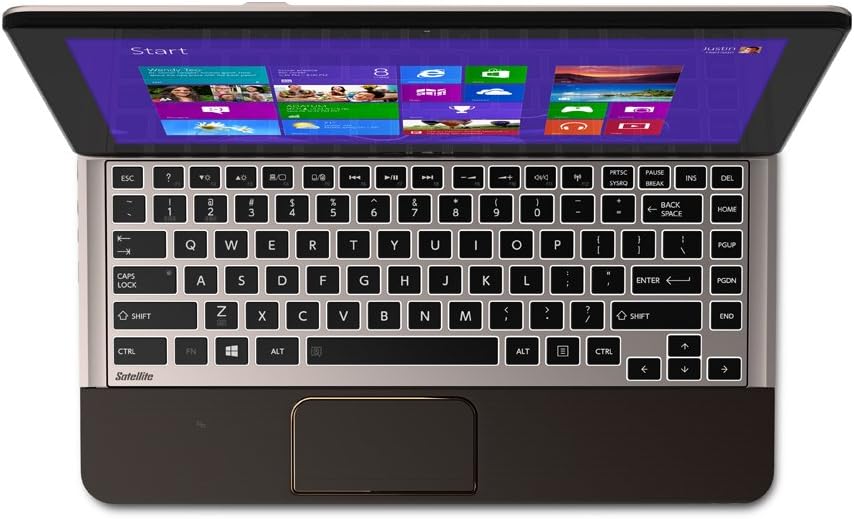
Figure 3.2: A top-down perspective of the Ultrabook in laptop mode, highlighting the full-size keyboard and integrated touchpad.

Figure 3.3: The Toshiba Satellite U925T-S2120 transformed into tablet mode, showcasing its touch-enabled display.

Figure 3.4: An illustration demonstrating the convertible mechanism, transitioning the device from laptop to tablet form factor.
3.1. Components and Ports
Familiarize yourself with the various ports and components of your Ultrabook.
- Display: 12.5-inch HD Touch Screen.
- Keyboard: Full-size QWERTY keyboard.
- Touchpad: Integrated multi-touch touchpad.
- USB 3.0 Ports: Two ports for high-speed data transfer.
- Power Button: Located on the side for easy access in both modes.
- Volume Controls: Buttons on the side for audio adjustment.
- Audio Jack: For headphones or external speakers.
- AC Adapter Port: For connecting the power supply.
4. Initial Setup
4.1. Charging the Battery
- Connect the AC adapter to the power port on your Ultrabook.
- Plug the power cord into a wall outlet.
- Allow the battery to charge fully before initial use. The charging indicator light will change color or turn off when charging is complete.
4.2. Powering On
- Press and hold the Power button located on the side of the device until the Toshiba logo appears on the screen.
- Follow the on-screen instructions to complete the Windows 8 initial setup, including language selection, network connection, and user account creation.
5. Operating Your Ultrabook
5.1. Switching Between Laptop and Tablet Modes
The Satellite U925T-S2120 features a sliding hinge mechanism for mode conversion.
- Laptop Mode to Tablet Mode: Gently slide the display forward over the keyboard until it covers the keyboard completely. Ensure the screen is facing upwards.
- Tablet Mode to Laptop Mode: Slide the display back to reveal the keyboard, then tilt the screen to your desired viewing angle.
Important: Always handle the display carefully when converting modes to prevent damage to the hinge mechanism.
5.2. Using the Touchscreen
The 12.5-inch display is touch-enabled, allowing for intuitive interaction with Windows 8.
- Tap: Equivalent to a mouse click.
- Tap and Hold: Equivalent to a right-click.
- Swipe: Used for scrolling, navigating through menus, and accessing charms bar (swipe from right edge).
- Pinch-to-Zoom: Use two fingers to zoom in or out on images and web pages.
5.3. Using the Keyboard and Touchpad
In laptop mode, the physical keyboard and touchpad provide traditional input methods.
- Keyboard: Standard QWERTY layout for typing. Function keys (Fn) combined with F-keys provide additional controls (e.g., brightness, volume, wireless).
- Touchpad: Supports multi-touch gestures. Tap to click, two-finger scroll, and pinch-to-zoom are commonly supported. Adjust touchpad settings in Windows Control Panel if needed.
5.4. Windows 8 Basics
Your Ultrabook runs on Windows 8, featuring a tile-based Start screen and a traditional desktop environment.
- Start Screen: Access applications, live tiles, and search by pressing the Windows key or swiping from the right edge of the screen to open the Charms bar.
- Desktop: Switch to the traditional desktop for familiar Windows applications and file management.
- Charms Bar: Swipe from the right edge of the screen (or press Windows key + C) to access Search, Share, Start, Devices, and Settings.
6. Care and Maintenance
6.1. Cleaning the Device
- Screen: Use a soft, lint-free cloth specifically designed for electronics. Lightly dampen the cloth with water or a screen cleaner if necessary. Avoid harsh chemicals.
- Casing: Wipe with a soft, slightly damp cloth. Do not use abrasive cleaners or solvents.
- Keyboard: Use compressed air to remove dust and debris from between keys.
6.2. Battery Care
- Avoid fully discharging the battery frequently.
- Store the device in a cool, dry place if not used for extended periods.
- Use only the original Toshiba AC adapter.
6.3. General Handling
- Avoid exposing the device to extreme temperatures, direct sunlight, or high humidity.
- Do not place heavy objects on the Ultrabook.
- Protect the device from drops and impacts.
7. Troubleshooting
This section addresses common issues you might encounter with your Toshiba Satellite U925T-S2120.
7.1. Device Does Not Power On
- Ensure the AC adapter is securely connected to both the Ultrabook and a working power outlet.
- Verify the battery is charged. If completely drained, it may take a few minutes of charging before the device can power on.
- Try holding the power button for 10-15 seconds to perform a hard reset.
7.2. Touchscreen Not Responding
- Restart the Ultrabook.
- Ensure the screen is clean and free of debris or moisture.
- Check for any available Windows updates or driver updates for the touchscreen in Device Manager.
- If the issue persists, it may indicate a hardware problem.
7.3. Wi-Fi Connectivity Issues
- Ensure Wi-Fi is enabled (check the function key or Windows settings).
- Restart your router and modem.
- Forget the network and reconnect, entering the password again.
- Update wireless adapter drivers.
7.4. Slow Performance
- Close unnecessary applications running in the background.
- Run a disk cleanup and defragmentation (for HDD, not SSD).
- Check for malware or viruses.
- Ensure Windows updates are installed.
8. Technical Specifications
| Feature | Specification |
|---|---|
| Model Name | Toshiba Satellite U925T-S2120 |
| Item Model Number | PSUL1U-01H008 |
| Processor | Intel Core i5-3337U (1.8GHz up to 2.70 GHz, 3M Cache) |
| RAM | 4 GB DIMM (1600 MHz) |
| Storage | 128 GB Solid-State Drive (SSD) |
| Display | 12.5-Inch Touch Screen (1280 x 720 pixels, Max 1366x768) |
| Graphics | Mobile Intel HD graphics (Integrated) |
| Operating System | Windows 8 |
| Wireless Connectivity | 802.11bgn |
| USB Ports | 2 x USB 3.0 |
| Weight | 3.35 pounds (approx. 1.52 kg) |
| Dimensions (LxWxH) | 8.4 x 12.9 x 0.78 inches (approx. 21.3 x 32.8 x 1.98 cm) |
| Color | Midnight Brown in Soft Touch Body |
| Batteries | 1 Lithium Ion battery (included) |
9. Warranty and Support
For detailed warranty information, please refer to the warranty card included with your product or visit the official Toshiba support website.
If you require technical assistance or have questions not covered in this manual, please contact Toshiba customer support. You can typically find contact information on the Toshiba website or in your product's documentation.
- Online Support: Visit the official Toshiba support website for drivers, FAQs, and troubleshooting guides.
- Phone Support: Refer to your product's documentation for regional support numbers.


