
1. Introduction
This manual provides instructions for the proper setup, operation, and maintenance of your Garmin Oregon 650 handheld GPS device. Please read this manual thoroughly to ensure optimal performance and longevity of your device.
2. Device Overview
The Garmin Oregon 650 is a rugged handheld GPS unit designed for outdoor navigation. It features a 3-inch sunlight-readable touchscreen, GPS and GLONASS satellite tracking, an 8MP digital camera, and a dual battery system.
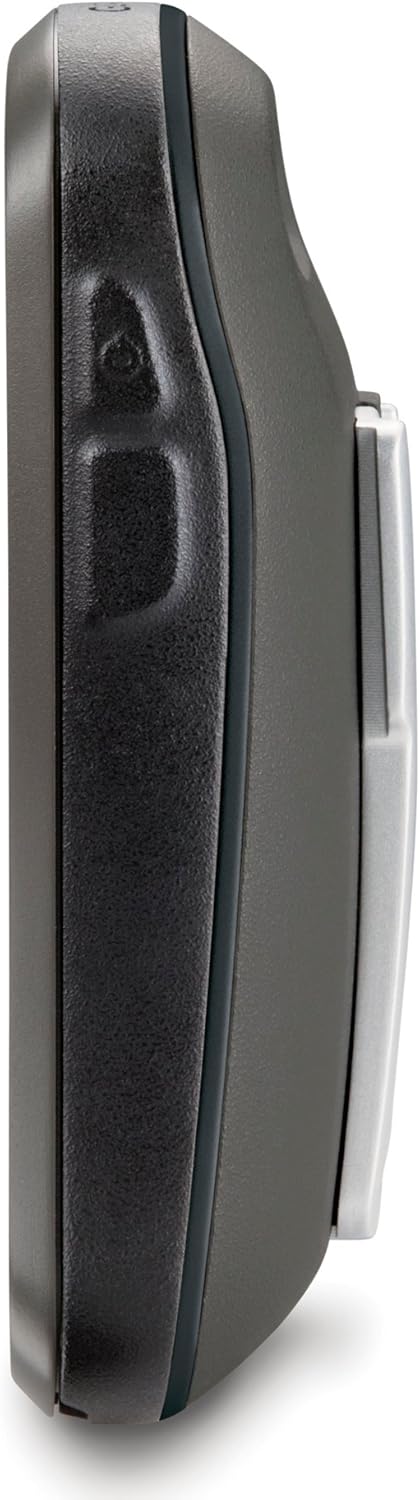
Figure 2.1: Side view of the Oregon 650, highlighting its durable design.

Figure 2.2: Rear view of the Oregon 650, showing the battery compartment and carabiner clip.
3. Setup
3.1 Unpacking and Included Components
Verify that all components are present:
- Garmin Oregon 650 device
- Worldwide basemap (preloaded)
- NiMH battery pack
- USB/charging cable
- AC adapter
- Carabiner clip
- Documentation (this manual)
3.2 Battery Installation
The Oregon 650 supports a dual battery system, allowing the use of either the included NiMH battery pack or two AA batteries (alkaline or rechargeable). The NiMH pack can be charged directly within the device.
- Locate the battery compartment on the rear of the device.
- Twist the D-ring counter-clockwise and remove the battery cover.
- Insert the NiMH battery pack or two AA batteries, observing polarity markings.
- Replace the battery cover and twist the D-ring clockwise to secure it. Ensure the cover is properly sealed to maintain water resistance.
3.3 Initial Power On and Satellite Acquisition
- Press and hold the power button on the side of the device until the screen turns on.
- Follow the on-screen prompts to select your language and initial settings.
- For initial satellite acquisition, take the device outdoors with a clear view of the sky. The device will automatically begin searching for GPS and GLONASS satellites. This process may take several minutes for the first time.
3.4 Software Updates
It is recommended to keep your device's software updated for optimal performance and access to the latest features. Connect your Oregon 650 to a computer using the USB cable and use Garmin Express or WebUpdater software to check for and install updates.
4. Operating Instructions
4.1 Touchscreen Interface
The Oregon 650 features a responsive multi-touch touchscreen. Use gestures such as tapping, swiping, pinching, and spreading to navigate menus, zoom maps, and interact with features.
4.2 Main Menu Navigation
From the home screen, tap icons to access various functions. The main menu provides access to maps, compass, geocaching, camera, trip computer, and more. You can customize the order of icons for quick access to frequently used features.
4.3 Navigation and Mapping
The device utilizes both GPS and GLONASS satellite systems for accurate positioning. The preloaded worldwide basemap provides general geographical information.
- Viewing the Map: Tap the 'Map' icon. Use pinch-to-zoom and drag gestures to pan across the map.
- Finding Locations: Use the 'Where To?' option to search for waypoints, geocaches, addresses, or points of interest.
- Creating Routes: Plan custom routes by selecting multiple waypoints or points on the map.
- Compass: The 3-axis electronic compass provides accurate heading information even when stationary. Tap the 'Compass' icon to view.

Figure 4.1: Map display on the Oregon 650, showing a marked location and navigation option.

Figure 4.2: Turn-by-turn navigation view on the Oregon 650.
4.4 Camera Functionality
The Oregon 650 includes an 8-megapixel autofocus camera with an LED flash/torch. Photos are automatically geotagged with location data.
- Tap the 'Camera' icon to activate the camera.
- Frame your shot using the touchscreen.
- Tap the camera icon on the screen to take a photo.
- The LED flash can also be used as a flashlight by accessing it through the quick menu or a customizable action button.

Figure 4.3: Camera interface on the Oregon 650.
4.5 Sensors and Data Display
The device integrates several sensors for enhanced data collection:
- 3-Axis Compass: Provides accurate heading regardless of device orientation.
- Accelerometer: Used for automatic screen orientation (portrait/landscape) and other motion-based features.
- Barometric Altimeter: Provides precise elevation data and can be used to plot ascent/descent profiles.

Figure 4.4: Altitude profile display on the Oregon 650.

Figure 4.5: Detailed ascent profile on the Oregon 650.
4.6 Wireless Connectivity
The Oregon 650 supports ANT+ and Bluetooth technology for wireless data transfer.
- Sharing Data: Wirelessly share routes, tracks, waypoints, geocaches, custom maps, and photos with other compatible Garmin devices.
- External Sensors: Connect to compatible ANT+ sensors (e.g., heart rate monitors, temperature sensors).
5. Maintenance
5.1 Cleaning the Device
- Screen: Use a soft, lint-free cloth to clean the touchscreen. For stubborn smudges, dampen the cloth with water or a screen cleaner designed for electronics. Avoid abrasive materials or harsh chemicals.
- Casing: Wipe the device casing with a damp cloth. Do not use strong detergents or solvents.
5.2 Battery Care
- NiMH Battery Pack: Charge the NiMH battery pack using the provided USB cable and AC adapter. Avoid overcharging or completely draining the battery for extended periods to prolong its lifespan.
- AA Batteries: If using AA batteries, replace them when the low battery indicator appears. Always use fresh batteries of the same type and brand.
5.3 Water Resistance
The Oregon 650 is rated IPX7, meaning it can withstand accidental immersion in 1 meter of water for up to 30 minutes. Ensure all port covers and the battery compartment are securely closed before exposing the device to water.
5.4 Storage
When storing the device for an extended period, remove the batteries to prevent leakage. Store the device in a cool, dry place away from direct sunlight and extreme temperatures.
6. Troubleshooting
6.1 Device Freezes or Becomes Unresponsive
- Solution: If the device freezes, try holding the power button for 10-15 seconds to force a shutdown. If this does not work, remove the batteries for a few seconds and then reinsert them to perform a hard reset.
- Prevention: Ensure your device's firmware is up to date. Avoid loading an excessive number of geocaches or tracks, as this can sometimes lead to performance issues.
6.2 Satellite Acquisition Problems
- Issue: Device takes a long time to acquire satellites or loses signal frequently.
- Solution: Ensure you are in an open area with a clear view of the sky. Avoid dense tree cover, tall buildings, or deep canyons. Verify that both GPS and GLONASS are enabled in the system settings.
6.3 Short Battery Life
- Issue: Batteries drain faster than expected.
- Solution: Reduce screen brightness. Disable unnecessary features like Bluetooth or ANT+ if not in use. Ensure the NiMH battery pack is fully charged or use fresh, high-quality AA batteries.
7. Specifications
| Feature | Specification |
|---|---|
| Brand | Garmin |
| Model Name | 650 |
| Screen Size | 3 Inches (Note: Product description states 3-inch, specifications state 2.4 inches. Using 3 inches as per product description.) |
| Display Type | Sunlight readable touchscreen |
| Resolution | 240 x 400 pixels |
| Connectivity Technology | ANT, USB |
| Supported Satellite Navigation System | GPS, GLONASS |
| Special Features | Dual Battery System, 8MP Autofocus Camera, 3-axis Compass, Accelerometer, Barometric Altimeter |
| Internal Memory Storage Capacity | 3.5 GB |
| Battery Life | Up to 16 Hours (with NiMH pack) |
| Water Rating | IPX7 |
| Item Weight | 0.2 Kilograms |
8. Warranty and Support
For warranty information and technical support, please refer to the official Garmin website or contact Garmin customer service. Keep your proof of purchase for warranty claims.
Online Resources: Visit www.garmin.com for product registration, software updates, and additional support materials.


