
1. Introduction
The TP-Link AV600 Powerline Ethernet Adapter Kit (TL-PA4010 KIT) provides a simple and effective solution for extending your wired internet connection using your home's existing electrical wiring. This kit is ideal for situations where Wi-Fi signals are weak or unreliable, or where running new Ethernet cables is impractical. With advanced HomePlug AV technology, it delivers stable and high-speed data transmission, making it suitable for online gaming, HD video streaming, and other bandwidth-intensive activities.
2. Package Contents
The TL-PA4010 KIT includes the following items:
- Two (2) TL-PA4010 Powerline Adapters
- Two (2) Ethernet Cables

Image: The retail packaging for the TP-Link AV600 Powerline Ethernet Adapter Kit, showing the two compact adapters and included Ethernet cables.
3. Product Overview
Each TL-PA4010 Powerline Adapter features a compact design with LED indicators to show its status and an Ethernet port for network connectivity.
3.1. Physical Appearance

Image: A detailed view of one TL-PA4010 adapter, highlighting its compact size and the location of the LED indicators and Pair button.
3.2. LED Indicators
| Indicator | Status | Description |
|---|---|---|
| Power | On | The powerline adapter is powered on. |
| Powerline | On | The powerline adapter is connected to a powerline network. |
| Off | The powerline adapter is not connected to a powerline network. | |
| Ethernet | On | The Ethernet port is connected. |
| Off | The Ethernet port is not connected. |
4. Setup
The TL-PA4010 KIT is designed for plug-and-play installation, requiring no complex configuration. Follow these simple steps to set up your powerline network:
- Plug in the First Adapter: Plug one powerline adapter into a wall outlet near your internet router.
- Connect to Router: Use one of the provided Ethernet cables to connect the powerline adapter to an available LAN port on your router.
- Plug in the Second Adapter: Plug the second powerline adapter into a wall outlet in the room where you need internet access (e.g., near your computer, smart TV, or gaming console).
- Connect to Device: Use the second Ethernet cable to connect the second powerline adapter to the Ethernet port of your desired device.
Important Considerations:
- For optimal performance, powerline adapters should be plugged directly into a wall outlet. They may not function correctly or at full speed when connected through surge protectors, power strips, or extension cords.
- Both powerline adapters must be on the same electrical circuit to establish a connection.

Image: A visual guide demonstrating the simple plug-and-play setup process for the powerline adapters, connecting them to a router and an end device.
4.1. Pairing for Security (Optional)
While the adapters typically pair automatically, you can enhance security by manually pairing them. This creates a private powerline network key.
- Press the Pair button on one adapter for 1 second. The Power LED will start blinking.
- Within 2 minutes, press the Pair button on the second adapter for 1 second. The Power LED on both adapters will turn solid, indicating successful pairing.
4.2. Setup Video Guide
Video: A step-by-step tutorial demonstrating how to set up the TP-Link powerline adapter kit, including connecting the devices and ensuring proper functionality. (Duration: 2:08)
5. Operation
Once set up, the powerline adapters automatically establish a network connection over your electrical wiring. Your connected devices will have wired internet access as if they were directly connected to your router.
5.1. Ideal Usage Scenarios
The TL-PA4010 KIT is particularly effective for:
- Extending wired network connectivity to areas with weak Wi-Fi coverage.
- Providing stable connections for bandwidth-intensive applications like HD streaming and online gaming.
- Connecting devices in multi-story homes, basements, attics, or garages where traditional cabling is difficult.

Image: A diagram showing how the powerline adapters facilitate HD streaming by extending the network connection from the router to a distant smart TV via electrical outlets.
5.2. Power Saving Mode
The adapters feature an intelligent power-saving mode that automatically reduces power consumption by up to 85% when no data is being transmitted. This occurs when connected devices are turned off or inactive for a period.
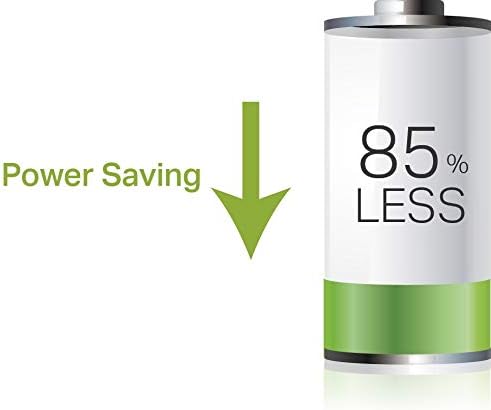
Image: A graphic illustrating the significant power saving capability of the powerline adapters, indicating up to 85% less power consumption.
6. Troubleshooting
If you encounter issues with your TP-Link AV600 Powerline Ethernet Adapter Kit, refer to the following common troubleshooting steps:
6.1. No Powerline Connection (Powerline LED Off/Blinking)
- Check Power: Ensure both adapters are securely plugged into live wall outlets.
- Direct Connection: Make sure adapters are plugged directly into wall outlets, not into surge protectors, power strips, or extension cords. These can filter out the powerline signal.
- Same Electrical Circuit: Verify that both adapters are on the same electrical circuit. Powerline communication cannot cross different electrical phases or circuits.
- Re-pair Adapters: If the Powerline LED is off or blinking, the adapters might have lost their pairing. Follow the pairing steps in Section 4.1 to re-establish the connection.
6.2. Slow or Unstable Connection
- Electrical Noise: High-power electrical appliances (e.g., washing machines, refrigerators, air conditioners) on the same circuit can cause interference. Try plugging adapters into outlets further away from such appliances.
- Wiring Quality and Distance: The quality and length of your home's electrical wiring can affect performance. Older wiring or very long distances between adapters may result in lower speeds.
- Network Congestion: Ensure your internet service plan supports the speeds you expect. Powerline speeds cannot exceed your internet plan's limit.
- Interference: Other powerline devices or certain electrical devices might cause interference.
6.3. No Ethernet Connection (Ethernet LED Off)
- Check Ethernet Cables: Ensure all Ethernet cables are securely connected to both the powerline adapters and your network devices (router, computer, etc.). Try swapping cables.
- Device Status: Verify that the connected device (computer, smart TV) is powered on and its network adapter is enabled.
7. Specifications
| Feature | Detail |
|---|---|
| Brand | TP-Link |
| Series | Powerline Adapter |
| Model Number | TL-PA4010KIT |
| Data Transfer Rate | Up to 600 Mbps (Powerline), 100 Mbps (Ethernet Port) |
| Data Link Protocol | Ethernet |
| Dimensions (L x W x H) | 2 x 2.6 x 1.1 inches (51 x 66 x 28.5 mm) |
| Item Weight | 11.7 ounces |
| Color | White |
| Operating System Compatibility | Windows 10/8.1/8/7/Vista/XP/2000, Mac, Linux |
| UPC | 845973032029 |
8. Maintenance
To ensure optimal performance and longevity of your powerline adapters, follow these general maintenance guidelines:
- Cleaning: Keep the adapters clean and free from dust. Use a soft, dry cloth for cleaning. Do not use liquid or aerosol cleaners.
- Ventilation: Ensure adequate ventilation around the adapters. Do not block the ventilation holes.
- Environment: Avoid placing adapters in direct sunlight, near heat sources, or in excessively humid environments.
- Handling: Handle the adapters with care. Avoid dropping them or subjecting them to strong impacts.
9. Warranty and Support
TP-Link products typically come with a standard manufacturer's warranty. For detailed warranty information, product registration, and technical support, please visit the official TP-Link website or refer to the warranty card included with your product.
TP-Link is committed to cybersecurity. As a signatory of the U.S. Cybersecurity and Infrastructure Security Agency’s (CISA) Secure-by-Design pledge, TP-Link ensures advanced security is a core requirement in the design, building, and maintenance of its products.
For further assistance, you can contact TP-Link customer support through their official channels.