
1. Introduction
This manual provides essential information for the proper installation, operation, and maintenance of your Toshiba DT01ACA100 1TB 7200 RPM 3.5-inch Internal Hard Drive. This hard drive is designed for use in power-friendly consumer and commercial desktop computers, gaming PCs, and external HDD enclosures. Please read this manual thoroughly before proceeding with installation or use.
2. Safety Information
Observe the following safety precautions to prevent damage to the hard drive or personal injury:
- Electrostatic Discharge (ESD) Protection: Always handle the hard drive by its edges. Wear an anti-static wrist strap or frequently touch a grounded metal object (e.g., the computer chassis) before and during installation to discharge static electricity. ESD can severely damage electronic components.
- Power Disconnection: Ensure your computer is completely powered off and unplugged from the electrical outlet before installing or removing the hard drive.
- Physical Handling: Hard drives are delicate. Avoid dropping, striking, or exposing the drive to excessive vibration or shock. Do not apply pressure to the drive's circuit board.
- Environmental Conditions: Operate the drive within specified temperature and humidity ranges. Avoid extreme temperatures or direct sunlight.
- No User Serviceable Parts: The hard drive enclosure should not be opened. Opening the drive will void the warranty and can expose sensitive internal components to dust and damage.
3. Setup and Installation
3.1 Pre-installation Checklist
- Compatibility: Ensure your computer's motherboard supports SATA 3.0 (SATA III) and has an available 3.5-inch drive bay.
- Tools: Phillips head screwdriver, anti-static wrist strap (recommended), SATA data cable, SATA power cable (usually from your power supply).
- Backup: If replacing an existing drive, ensure all important data is backed up.
3.2 Physical Installation
- Power Down: Turn off your computer and unplug the power cord from the wall outlet.
- Open Case: Remove the side panel(s) of your computer case to access the internal components.
- Locate Drive Bay: Identify an available 3.5-inch drive bay. Some cases may require a drive caddy or adapter.
- Mount Drive: Carefully slide the Toshiba DT01ACA100 hard drive into the drive bay. Secure it with screws on both sides of the drive bay to prevent vibration.
- Connect SATA Data Cable: Connect one end of the SATA data cable to the SATA port on the hard drive and the other end to an available SATA port on your motherboard.
- Connect SATA Power Cable: Connect a SATA power connector from your power supply unit to the power port on the hard drive.
- Close Case: Replace the computer's side panel(s) and secure them.
- Power On: Plug the power cord back into the wall outlet and power on your computer.

This image displays the internal components of the Toshiba DT01ACA100 hard drive, including the circular data platter and the read/write head mechanism. This view is for illustrative purposes only; the drive should not be opened by the user.
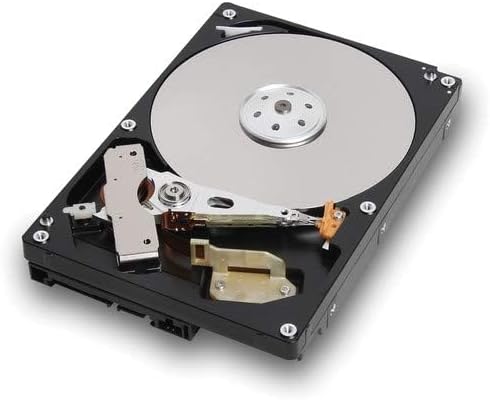
An angled perspective of the Toshiba DT01ACA100 internal hard drive, revealing the data platter, the read/write head, and a portion of the internal control board. This image illustrates the drive's internal design and is not a guide for user disassembly.
3.3 Software Setup (First Use)
After physical installation, the operating system needs to recognize and prepare the drive:
- BIOS/UEFI Check: Upon booting, enter your computer's BIOS/UEFI settings (usually by pressing DEL, F2, F10, or F12 during startup) to confirm the drive is detected. Save and exit.
- Initialize and Format:
- Windows: Right-click on the Start button, select 'Disk Management'. Locate the new drive (it will likely show as 'Unallocated Space'). Right-click on the drive, select 'Initialize Disk', choose GPT (GUID Partition Table) for drives larger than 2TB or MBR (Master Boot Record) for smaller drives and older systems, then create a 'New Simple Volume' and follow the wizard to format it.
- macOS: Open 'Disk Utility' (Applications > Utilities). Select the new drive, click 'Erase', choose a format (e.g., APFS or Mac OS Extended), and a scheme (e.g., GUID Partition Map).
- Linux: Use tools like GParted, fdisk, or parted to partition and format the drive (e.g., ext4 filesystem).
4. Operating the Hard Drive
Once installed and formatted, the Toshiba DT01ACA100 functions as a standard storage device. You can use it to store operating systems, applications, documents, media files, and other data. Its 7200 RPM rotational speed and SATA 3.0 interface provide efficient data transfer rates for various computing tasks, including gaming and multimedia editing.
- Data Transfer: Drag and drop files, copy/paste, or use software to manage data on the drive.
- Performance: For optimal performance, ensure your system's SATA controller drivers are up to date.
5. Maintenance
Proper maintenance helps ensure the longevity and reliability of your hard drive:
- Regular Data Backup: Regularly back up critical data to another storage device (e.g., external hard drive, cloud storage). Hard drives can fail, and backups are essential for data recovery.
- Disk Health Monitoring: Utilize S.M.A.R.T. (Self-Monitoring, Analysis and Reporting Technology) tools to monitor the drive's health status. Many operating systems and third-party utilities offer this feature.
- Defragmentation (for HDDs): For Windows operating systems, periodically defragmenting the drive can improve performance, though modern Windows versions often handle this automatically. SSDs do not require defragmentation.
- Physical Environment: Ensure adequate airflow within your computer case to prevent overheating. Keep the computer in a clean, dust-free environment.
6. Troubleshooting
If you encounter issues with your Toshiba DT01ACA100 hard drive, consider the following troubleshooting steps:
- Drive Not Detected:
- Check all SATA data and power cable connections. Ensure they are securely seated.
- Verify the drive is enabled in your computer's BIOS/UEFI settings.
- Try connecting the drive to a different SATA port on the motherboard or using different cables.
- Ensure your power supply unit (PSU) has sufficient wattage and available power connectors.
- Slow Performance:
- Check for high disk usage by other applications.
- Run a disk defragmentation (Windows) or check for bad sectors using disk utility software.
- Ensure your system's drivers (especially chipset and SATA controller drivers) are up to date.
- Monitor drive temperature; overheating can lead to performance throttling.
- Unusual Noises:
- Clicking, grinding, or loud whirring sounds can indicate a mechanical failure. Immediately back up any critical data if possible.
- Contact Toshiba support or a data recovery specialist if the drive is making unusual noises.
- Operating System Errors:
- Run a disk check (e.g.,
chkdskon Windows) to identify and repair file system errors. - If the OS is installed on the drive, consider reinstalling the operating system if errors persist after checking the drive's health.
- Run a disk check (e.g.,
7. Specifications
Key technical specifications for the Toshiba DT01ACA100 hard drive:
| Feature | Specification |
|---|---|
| Model Number | DT01ACA100 |
| Digital Storage Capacity | 1 TB (1024 GB) |
| Hard Disk Form Factor | 3.5 Inches |
| Hard Disk Interface | Serial ATA-300 (SATA III compatible) |
| Connectivity Technology | SATA |
| Hard Disk Rotational Speed | 7200 RPM |
| Cache Memory Installed Size | 32 MB |
| Installation Type | Internal Hard Drive |
| Compatible Devices | Desktop |
| Item Weight | 15.84 ounces |
| Manufacturer | Toshiba |
8. Warranty and Support
Your Toshiba DT01ACA100 hard drive is covered by a manufacturer's warranty. The duration and terms of the warranty may vary by region and retailer. Please retain your proof of purchase for warranty claims.
For technical support, warranty inquiries, or further assistance, please visit the official Toshiba support website or contact their customer service department. You may need to provide your product model number (DT01ACA100) and serial number (located on the drive's label).
Online Resources:
- Toshiba Storage Products Support (search for your region's specific support page)


