
1. Introduction
Thank you for purchasing the BigBen Interactive TW1 Home Audio System. This manual provides essential information for the safe and efficient operation of your new audio system. Please read these instructions carefully before use and retain them for future reference.
The TW1 is a versatile floor-standing speaker system featuring an Apple-dock, Bluetooth connectivity, USB, and auxiliary inputs, delivering 60 Watts of stereo audio with a subwoofer.
2. Important Safety Information
- Power Source: Only use the provided power adapter and connect to a power outlet with the correct voltage.
- Water and Moisture: Do not expose the unit to rain, moisture, or liquids. This product is not water-resistant.
- Ventilation: Ensure adequate ventilation around the unit. Do not block ventilation openings.
- Heat: Keep the unit away from heat sources such as radiators, heat registers, stoves, or other apparatus that produce heat.
- Cleaning: Unplug the unit from the power outlet before cleaning. Use a soft, dry cloth. Do not use liquid cleaners or aerosol cleaners.
- Servicing: Do not attempt to service this product yourself. Refer all servicing to qualified service personnel.
- Placement: Place the unit on a stable, flat surface to prevent it from falling.
3. Package Contents
Please check that all items listed below are included in your package:
- BigBen Interactive TW1 Home Audio System
- Remote Control
- Power Adapter (not explicitly listed but implied by "Elektrisch met snoer")
- User Manual (this document)
4. Product Overview
Familiarize yourself with the components of your TW1 Home Audio System.

Figure 4.1: Front view of the BigBen Interactive TW1 Home Audio System, showing the floor-standing design and an iPhone docked at the top. The display shows "iPod".
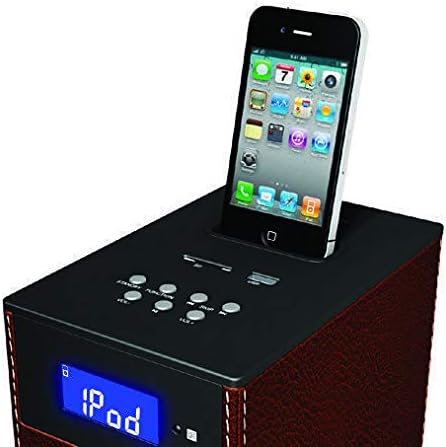
Figure 4.2: Close-up view of the top control panel of the TW1, featuring an Apple device docked. Control buttons are visible around the docking area.
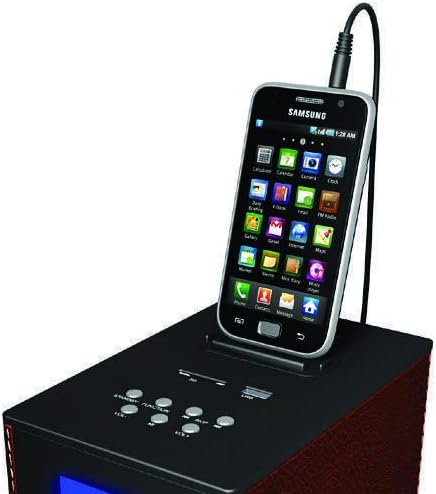
Figure 4.3: Close-up view of the top control panel of the TW1, showing a Samsung smartphone connected via the auxiliary input. This demonstrates compatibility with various smartphone brands.
Top Panel Controls:
- Docking Station: For Apple devices (iPod/iPhone).
- Display: Shows current mode and track information.
- Control Buttons: Power, Volume Up/Down, Mode, Play/Pause, Skip.
- USB Port: For connecting USB devices.
- Auxiliary Input (AUX): For connecting external audio devices via a 3.5mm cable.
Rear Panel Connections:
- Power Input: Connect the power adapter here.
- Audio Output: (If applicable, not explicitly mentioned but common for subwoofers or external speakers)
5. Setup
- Unpacking: Carefully remove the TW1 Home Audio System and all accessories from the packaging.
- Placement: Place the unit on a stable, level surface. Ensure there is enough space around the unit for proper ventilation.
- Power Connection: Connect the power adapter to the DC IN port on the rear of the TW1, then plug the adapter into a wall outlet.
- Initial Power On: Press the Power button on the top panel or the remote control to turn on the unit. The display will light up.
6. Operating Instructions
6.1 Power On/Off
- Press the Power button on the unit or remote control to turn the system ON or OFF.
6.2 Selecting Input Mode
- Press the Mode button on the unit or remote control to cycle through available input sources: iPod/iPhone Dock, Bluetooth, USB, Auxiliary (AUX).
6.3 Bluetooth Connection
- Turn on the TW1 and select Bluetooth mode using the Mode button. The display will show "BT" or a similar indicator, and the unit will enter pairing mode.
- On your mobile device (smartphone, tablet, laptop), enable Bluetooth and search for available devices.
- Select "TW1" or "BigBen TW1" from the list of devices.
- Once paired, the unit will confirm the connection, and you can play audio wirelessly from your device.
6.4 Docking Apple Devices (iPod/iPhone)
- Gently place your compatible Apple device onto the docking connector on the top panel.
- The TW1 will automatically switch to iPod/iPhone Dock mode.
- Use the device's controls or the TW1's remote control to play, pause, and skip tracks.
6.5 USB Playback
- Insert a USB flash drive containing audio files into the USB port on the top panel.
- Select USB mode using the Mode button.
- The system will automatically detect and begin playing audio files from the USB drive.
- Use the control buttons or remote for playback functions.
6.6 Auxiliary (AUX) Input
- Connect an external audio device (e.g., MP3 player, smartphone, TV) to the AUX IN port using a 3.5mm audio cable (not included).
- Select AUX mode using the Mode button.
- Play audio from your connected device. Volume can be controlled via the TW1 or the external device.
6.7 Remote Control Operation
The included remote control allows for convenient operation of all major functions from a distance. Ensure the remote control has working batteries and is pointed towards the front of the TW1 unit.
- Power: Turn the unit ON/OFF.
- Mode: Switch between input sources.
- Volume +/-: Adjust the master volume.
- Play/Pause: Start or pause playback.
- Skip Forward/Backward: Navigate between tracks.
- Mute: Mute or unmute the audio.
7. Maintenance
- Cleaning: Wipe the unit with a soft, dry, lint-free cloth. Do not use abrasive cleaners, waxes, or solvents.
- Dust: Regularly dust the speaker grilles and vents to prevent accumulation.
- Storage: If storing the unit for an extended period, unplug it from the power outlet and store it in a cool, dry place.
8. Troubleshooting
| Problem | Possible Cause | Solution |
|---|---|---|
| No power | Power cable not connected; Power outlet not active. | Ensure power cable is securely connected. Check the power outlet with another device. |
| No sound | Volume too low; Incorrect input mode; Device not connected properly. | Increase volume. Select the correct input mode. Reconnect the audio source device. |
| Bluetooth not pairing | Device too far; Bluetooth not enabled on source; Incorrect pairing procedure. | Move device closer. Ensure Bluetooth is enabled and in pairing mode. Follow pairing instructions (Section 6.3). |
| Remote control not working | Batteries depleted; Obstruction between remote and unit. | Replace remote control batteries. Ensure a clear line of sight to the unit's sensor. |
9. Specifications
- Model Name: TW1
- Model Number: TW1LTBBT
- Brand: BigBen Interactive
- Maximum Speaker Output Power: 60 Watts
- Audio Output Mode: Stereo with Subwoofer
- Connectivity Technology: Wired & Wireless (Bluetooth)
- Wireless Communication Technology: Bluetooth
- Connection Protocols: USB, Auxiliary, Bluetooth
- Subwoofer Connectivity: Wireless (Implied by "Draadloos" for subwoofer, but the main unit is wired for power)
- Compatible Devices: Laptop, MP3-player, Smartphone, Tablet, Television
- Control Method: Remote Control
- Total USB 2.0 Ports: 1
- Power Source: Electric with cord
- Product Dimensions: 24 x 11.3 x 30 cm
- Item Weight: 4 Grams (Note: This weight appears unusually low for a floor-standing speaker, as per source data.)
- Color: Brown
- Water Resistant: No
- Included Components: Remote Control
10. Warranty Information
This product comes with a Limited Warranty. For specific terms and conditions, please refer to the warranty card included in your product packaging or contact BigBen Interactive customer support. The warranty typically covers manufacturing defects under normal use.
Note: The guaranteed software updates are listed as "onbekend" (unknown) in the product specifications.
11. Customer Support
If you encounter any issues or have questions regarding your BigBen Interactive TW1 Home Audio System that are not covered in this manual, please contact your retailer or BigBen Interactive customer support for assistance.
For the latest support information, product registration, and FAQs, please visit the official BigBen Interactive website (website address not provided in source data).