
1. Introduction
This manual provides essential information for the safe and efficient use of your HP LA2306x WLED LCD Monitor. Please read these instructions thoroughly before operating the device and retain them for future reference. The HP LA2306x is a 23-inch Full HD (1920 x 1080) LED-backlit monitor designed for clear visual performance and ergonomic adjustability.
2. Safety Information
- Power Source: Use only the power cord and adapter supplied with the monitor or a compatible replacement. Ensure the power outlet is properly grounded.
- Ventilation: Do not block ventilation openings. Allow adequate space around the monitor for proper airflow to prevent overheating.
- Placement: Place the monitor on a stable, level surface. Avoid placing it near heat sources, direct sunlight, or in areas with excessive dust or moisture.
- Cleaning: Disconnect the power cord before cleaning. Use a soft, dry cloth for the screen and casing. Avoid liquid cleaners directly on the screen.
- Handling: Handle the monitor with care. Avoid dropping or subjecting it to strong impacts.
- Servicing: Do not attempt to service the monitor yourself. Refer all servicing to qualified service personnel.
3. Package Contents
Verify that your package contains the following items:
- HP LA2306x WLED LCD Monitor (23-inch)
- Power Cord
- VGA Cable
- Note: Additional cables such as DVI-D or DisplayPort, and USB cables, may be included depending on your specific purchase configuration.
4. Setup
4.1 Unpacking
Carefully remove the monitor and all accessories from the packaging. Retain the packaging materials for future transport or storage.
4.2 Stand Assembly
The HP LA2306x features an integrated slider stand. If the stand is not pre-attached, follow the instructions provided with the stand components to securely attach it to the monitor. Ensure all screws are tightened appropriately.
4.3 Connecting Cables
- Power Connection: Connect the power cord to the monitor's power input and then to a grounded electrical outlet.
- Video Connection: Connect one end of the appropriate video cable (VGA, DVI-D, or DisplayPort) to the corresponding port on the monitor and the other end to the video output port on your computer.
- USB Connection (Optional): To enable the monitor's built-in USB 2.0 hub, connect a USB Type-B cable (often blue, square-shaped) from the monitor's upstream USB port to an available USB port on your computer.
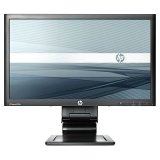
Front view of the HP LA2306x monitor, showcasing its display and adjustable stand.
5. Operating the Monitor
5.1 Power On/Off
Press the power button, usually located on the front or bottom bezel of the monitor, to turn the monitor on or off. The power indicator light will illuminate when the monitor is on.
5.2 On-Screen Display (OSD) Menu
The OSD menu allows you to adjust various monitor settings. Access the OSD menu by pressing the designated OSD button (refer to your monitor's bezel for button labels). Use the navigation buttons to browse through options and the select button to confirm choices.
5.3 Adjustments
- Brightness/Contrast: Adjust these settings for optimal image visibility.
- Input Selection: Manually select the active video input (VGA, DVI-D, DisplayPort) if the monitor does not auto-detect.
- Color Settings: Fine-tune color temperature, gamma, and other color parameters.
- Image Control: Adjust sharpness, aspect ratio, and other display characteristics.
5.4 Stand Adjustments
The HP LA2306x offers ergonomic adjustments:
- Height Adjustment: The slider stand allows for up to 130mm of height adjustment. Gently push or pull the monitor up or down.
- Tilt: Tilt the screen forward or backward (typically -5 to +35 degrees) to find a comfortable viewing angle.
- Swivel: Rotate the monitor horizontally on its base.
- Pivot (Portrait Rotation): The screen can rotate 90 degrees to a portrait orientation. Ensure sufficient clearance before rotating.
6. Maintenance
6.1 Cleaning the Screen
Gently wipe the screen with a soft, lint-free cloth. For stubborn marks, lightly dampen the cloth with water or a non-abrasive, ammonia-free screen cleaner. Do not spray liquid directly onto the screen.
6.2 Cleaning the Casing
Use a soft, dry cloth to wipe the monitor casing. If necessary, a slightly damp cloth can be used, followed by a dry cloth.
6.3 General Care
- Avoid exposing the monitor to extreme temperatures or humidity.
- Keep the monitor away from strong magnetic fields.
- Do not place heavy objects on the monitor or its cables.
7. Troubleshooting
If you encounter issues with your monitor, try the following basic troubleshooting steps:
- No Power: Ensure the power cord is securely connected to both the monitor and the electrical outlet. Check if the power outlet is functional.
- No Signal: Verify that the video cable is firmly connected to both the monitor and the computer. Ensure the correct input source is selected via the OSD menu. Try restarting your computer.
- Poor Image Quality: Adjust brightness, contrast, and color settings through the OSD menu. Ensure your computer's display resolution is set to the monitor's native resolution (1920 x 1080).
- Flickering Screen: Check cable connections. Ensure the refresh rate is set correctly in your computer's display settings.
- USB Ports Not Working: Ensure the USB Type-B upstream cable is connected from the monitor to your computer.
If the problem persists after attempting these steps, contact HP support or a qualified service technician.
8. Specifications
| Feature | Specification |
|---|---|
| Screen Size | 23 inches (diagonal) |
| Panel Type | TN with LED backlight |
| Native Resolution | 1920 x 1080 @ 60 Hz (Full HD) |
| Aspect Ratio | 16:9 |
| Brightness | 250 cd/m² (nits) |
| Contrast Ratio | 1000:1 (typical); 1,000,000:1 (dynamic) |
| Response Time | 5 ms (on/off) |
| Viewing Angle | 170° horizontal / 160° vertical (10:1 minimum contrast ratio) |
| Pixel Pitch | 0.265 mm |
| Connectivity | 1x DVI-D, 1x 15-pin VGA, 1x DisplayPort, 2x USB 2.0 Type A (downstream), 1x USB 2.0 Type B (upstream) |
| VESA Mounting | Standard 100mm 4-hole pattern |
| Dimensions (with stand) | Approx. 24.33 x 20.39 x 6.65 inches (W x H x D) |
| Weight (with stand) | Approx. 15.82 pounds |
9. Warranty and Support
For specific warranty information regarding your HP LA2306x monitor, please refer to the warranty documentation provided at the time of purchase. Warranty terms may vary based on region and purchase condition (e.g., new or refurbished).
For further technical assistance, driver downloads, or product support, please visit the official HP support website or contact HP customer service.