
click car mouse CCM660967
Click Car Products Range Rover Evoque Wireless Optical Gaming Mouse
User Manual
Brand: Click Car Mouse | Model: CCM660967
1. Introduction
The Click Car Mouse is a uniquely designed wireless optical mouse, meticulously modeled after the Range Rover Evoque. It combines the aesthetics of a luxury vehicle with the functionality of a high-performance computer peripheral. This manual provides essential information for setting up, operating, and maintaining your Click Car Mouse.
This device features 2.4 GHz wireless technology, adjustable DPI settings (800dpi or 1600dpi), and functional LED headlights and rear lights, offering an efficient user experience for your computer tasks.
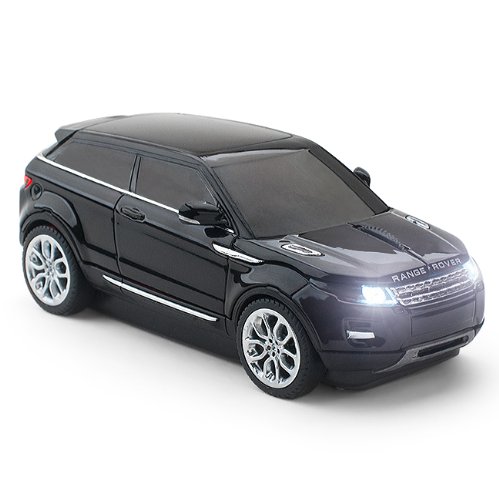
Image: Front view of the Click Car Range Rover Evoque mouse, showcasing its detailed design and illuminated headlights.
2. Product Features
- Original licensed car computer mouse with 2.4 GHz wireless technology.
- Plug & Play USB nano receiver for easy connectivity.
- Adjustable high-resolution optical sensor for 800dpi or 1600dpi scanning, allowing for precise cursor control.
- Functional LED headlights and rear lights with an independent On/Off switch.
- Compatible with various operating systems including Windows 7, 8, 8.1, Vista, XP, 2000, ME, and Mac OS X.
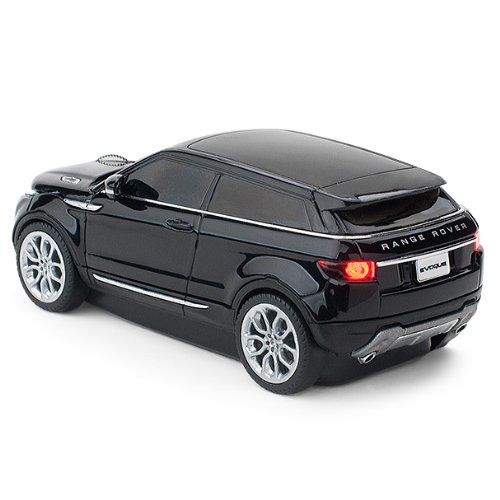
Image: Rear view of the Click Car Range Rover Evoque mouse, highlighting its detailed design and illuminated taillights.
3. Setup
3.1. System Requirements
Before setup, ensure your computer meets the following minimum requirements:
- Operating System: Windows 7, 8, 8.1, Vista, XP, 2000, ME, or Mac OS X.
- Available USB port.
3.2. Installing the Battery
The Click Car Mouse requires one (1) AA battery (not included). To install:
- Locate the battery compartment on the underside of the mouse.
- Open the battery compartment cover.
- Insert one (1) AA battery, ensuring correct polarity (+/-).
- Close the battery compartment cover securely.
3.3. Connecting the USB Nano Receiver
The mouse connects wirelessly via a compact USB nano receiver.
- Remove the USB nano receiver from its storage slot, usually located within the battery compartment or on the underside of the mouse.
- Plug the USB nano receiver into an available USB port on your computer.
- Your computer should automatically detect and install the necessary drivers (Plug & Play). This may take a few moments.

Image: A hand demonstrating the compact size of the USB nano receiver.

Image: The USB nano receiver inserted into a laptop's USB port, ready for use.
3.4. Powering On the Mouse
Once the battery is installed and the receiver is connected, the mouse should power on automatically. If not, check the power switch, usually located on the underside of the mouse.
4. Operating Instructions
4.1. Basic Mouse Functions
- Left Click: Primary button for selecting items, opening files, etc.
- Right Click: Secondary button for context menus and additional options.
- Scroll Wheel: Used for scrolling through documents and web pages.
4.2. DPI Adjustment
The mouse features an adjustable optical sensor, allowing you to switch between two sensitivity settings:
- 800dpi: Suitable for general use and precise tasks.
- 1600dpi: Ideal for faster cursor movement, often preferred in gaming or large screen setups.
To switch DPI, locate the DPI button (if present, typically near the scroll wheel) or refer to the product's specific instructions for DPI adjustment. If no dedicated button is mentioned, it might be automatic or fixed.
4.3. LED Headlights and Rear Lights
The mouse is equipped with functional LED headlights and rear lights. There is an On/Off switch for these lights, usually located on the underside of the mouse. Turning off the lights can help conserve battery life.
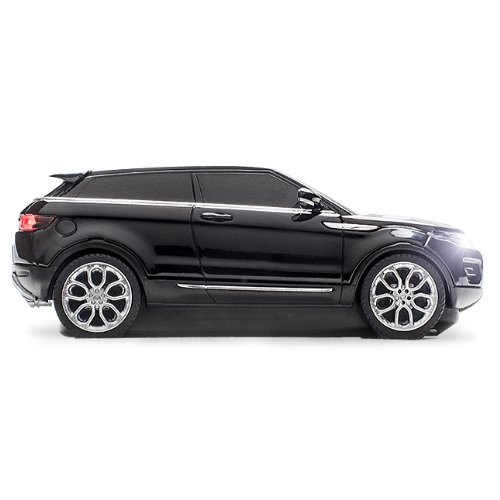
Image: Side profile of the Click Car Range Rover Evoque mouse, showing its sleek design.
5. Maintenance
5.1. Cleaning
To maintain optimal performance and appearance:
- Use a soft, dry cloth to wipe the exterior of the mouse.
- For stubborn dirt, slightly dampen the cloth with water. Avoid harsh chemicals or abrasive cleaners.
- Keep the optical sensor clean by gently wiping it with a cotton swab.
5.2. Battery Replacement
When the mouse performance degrades or it stops responding, it's likely time to replace the battery. Follow the steps in Section 3.2 to replace the AA battery.
6. Troubleshooting
| Problem | Possible Cause | Solution |
|---|---|---|
| Mouse not responding. | Low or dead battery. | Replace the AA battery. |
| Mouse not responding. | USB nano receiver not properly connected or loose. | Ensure the receiver is firmly plugged into a working USB port. Try a different USB port. |
| Mouse not responding. | Interference or out of range. | Move the mouse closer to the receiver. Remove any large metal objects between the mouse and receiver. |
| Lights (head/rear) not working. | Lights switch is off. | Locate the On/Off switch for the lights on the underside of the mouse and turn it on. |
| Lights (head/rear) not working. | Low battery. | Replace the AA battery. |
| Cursor movement is erratic or jumpy. | Dirty optical sensor or unsuitable surface. | Clean the optical sensor. Use the mouse on a clean, non-reflective, opaque surface or a mouse pad. |
7. Specifications
| Feature | Detail |
|---|---|
| Brand | Click Car Mouse |
| Model Number | CCM660967 |
| Colour | Black |
| Connectivity | 2.4 GHz Wireless (USB Nano Receiver) |
| DPI Resolution | 800dpi / 1600dpi (Adjustable) |
| Lights | LED Headlights and Rear Lights (with On/Off switch) |
| Battery Type | 1 x AA (not included) |
| Operating System Compatibility | Windows 7, 8, 8.1, Vista, XP, 2000, ME, Mac OS X |
| Item Weight | 249 g |
| Package Dimensions | 19.6 x 12.8 x 5.8 cm |
8. Warranty and Support
8.1. Warranty Information
Specific warranty terms and conditions for the Click Car Products Range Rover Evoque Wireless Optical Gaming Mouse are provided by the manufacturer, Click Car Products Ltd. Please refer to the documentation included with your purchase or contact the retailer for detailed warranty information.
8.2. Customer Support
For technical assistance, troubleshooting not covered in this manual, or other inquiries, please contact the retailer from whom you purchased the product or the manufacturer, Click Car Products Ltd. Contact details can typically be found on their official website or on the product packaging.
Ask a question about this manual
Ask about setup, troubleshooting, compatibility, parts, safety, or missing instructions. Manuals+ will review the question and use this page’s manual context to help answer it.