
Vivitek D519
Vivitek D519 3000 Lumen XGA HDMI Portable DLP Projector User Manual
Model: D519
1. Introduction
The Vivitek D519 is a versatile and portable digital projector designed to deliver high-quality presentations and media experiences. Featuring 3000 lumens of brightness, XGA (1024x768) native resolution, and a 15,000:1 contrast ratio, it ensures clear and vibrant images. This manual will guide you through the setup, operation, and maintenance of your D519 projector.
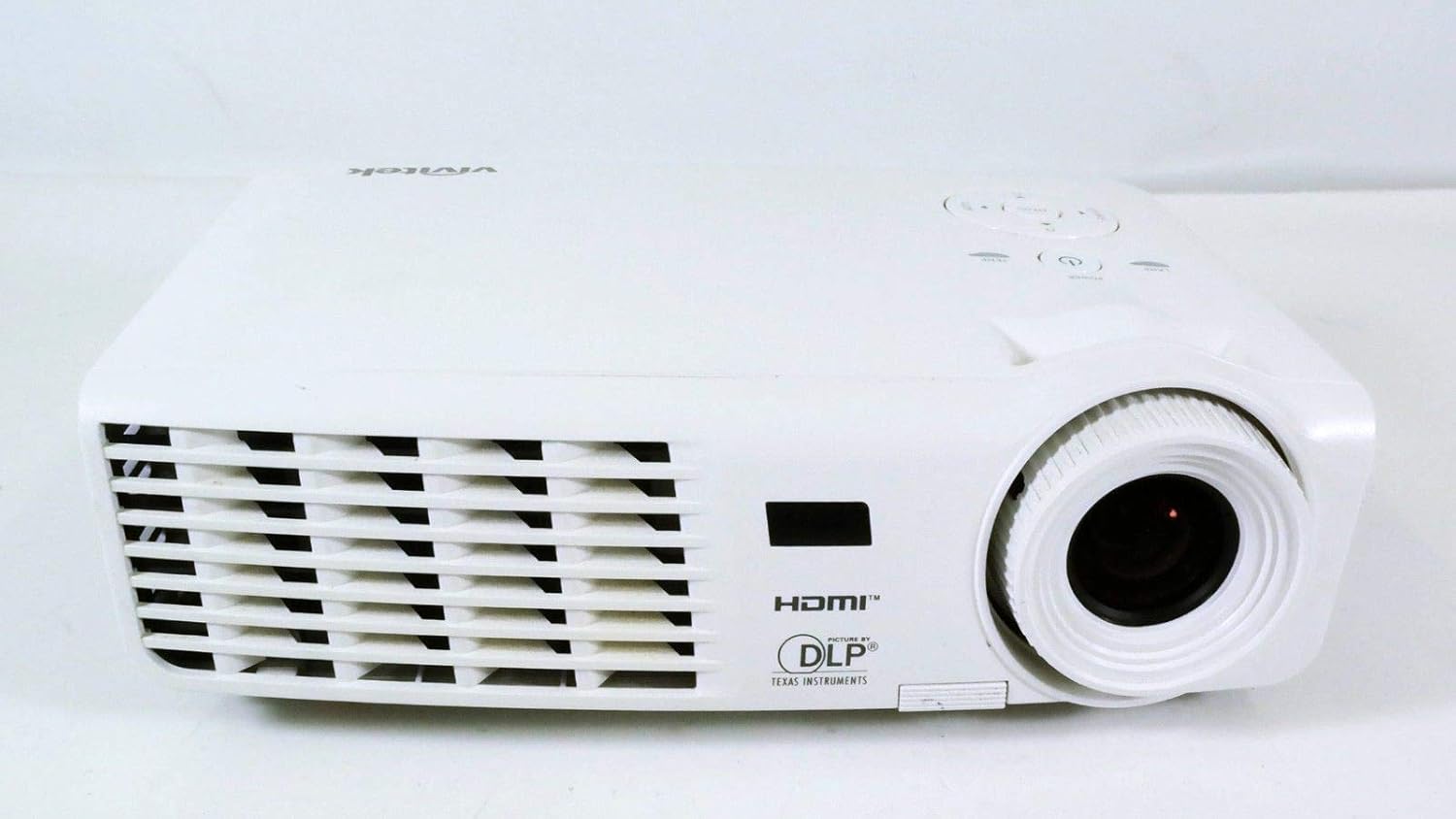
Figure 1.1: Front view of the Vivitek D519 Projector, showing the lens and ventilation.
2. Setup
2.1 Unpacking the Projector
Carefully remove all components from the packaging. Ensure all items listed below are present:
- Vivitek D519 Projector
- AC Power Cord
- VGA Cable
- Remote Control (with batteries)
- Carrying Case
- User's Manual (CD)
- Lens Cap
- Warranty Card
2.2 Physical Placement
Place the projector on a stable, flat surface or mount it securely. Ensure adequate ventilation around the projector to prevent overheating. Avoid placing it near heat sources or in direct sunlight.
2.3 Connecting Devices
The D519 offers various connectivity options. Connect your source device (e.g., laptop, DVD player) to the appropriate input port on the projector.

Figure 2.1: Rear view of the Vivitek D519 Projector, highlighting the HDMI, VGA, S-Video, and audio input ports.
- HDMI: For high-definition digital video and audio. Connect an HDMI cable from your source to the projector's HDMI port.
- VGA: For analog computer video. Connect a VGA cable from your computer to the projector's VGA port.
- Audio In: For analog audio input. Connect audio cables to the L-AUDIO-R or AUDIO IN ports as needed.
- S-Video: For standard definition video.
- RS-232: For projector control via a computer or control system.
2.4 Powering On
Connect the AC power cord to the projector's power inlet and then to a power outlet. Press the Power button on the projector's control panel or the remote control to turn on the projector. The power indicator light will illuminate.
3. Operating the Projector
3.1 Control Panel Overview
The control panel on top of the projector allows for basic operation without the remote control.

Figure 3.1: Top view of the Vivitek D519 Projector, showing the control panel with power, menu, source, and navigation buttons.
- Power Button: Turns the projector on or off.
- Source Button: Cycles through available input sources (HDMI, VGA, S-Video, etc.).
- Menu Button: Accesses the on-screen display (OSD) menu for advanced settings.
- Navigation Buttons (Up/Down/Left/Right): Used to navigate through menu options and adjust settings.
- Auto Button: Automatically adjusts the image for optimal display.
3.2 Adjusting the Image
Once the projector is powered on and an input source is selected, you may need to adjust the image for clarity and size.
- Focus Ring: Rotate the focus ring around the lens to sharpen the image.
- Zoom Ring: Rotate the zoom ring to adjust the image size without moving the projector. The D519 has a 1.1:1 zoom ratio.
- Keystone Correction: If the image appears trapezoidal, use the keystone correction feature (accessible via the OSD menu) to square the image.
3.3 Using the On-Screen Display (OSD) Menu
Press the Menu button on the projector or remote to access the OSD. Use the navigation buttons to browse categories such as Picture, Display, Setup, and Information. Press Enter (or the center button on the navigation pad) to select an option and adjust settings.
4. Maintenance
4.1 Lamp Life and Replacement
The projector lamp has a rated life of 4000 hours in Standard mode and up to 6000 hours in Economy mode. When the lamp reaches the end of its life, the lamp indicator light will illuminate, and a message may appear on screen. Refer to the detailed user manual (on CD) for lamp replacement instructions.
4.2 Cleaning the Projector
- Lens: Use a soft, lint-free cloth specifically designed for optical lenses. Do not use abrasive cleaners.
- Casing: Wipe the projector casing with a soft, damp cloth. Avoid using harsh chemicals or solvents.
- Air Vents: Regularly check and clean the air vents to ensure proper airflow and prevent dust buildup, which can lead to overheating. Use a soft brush or compressed air.
5. Troubleshooting
This section addresses common issues you might encounter with your Vivitek D519 projector.
| Problem | Possible Cause | Solution |
|---|---|---|
| No image on screen | Power cable disconnected; Incorrect input source; Source device off. | Check power connection; Press 'Source' button to select correct input; Ensure source device is on. |
| Image is blurry | Lens out of focus; Projector too close/far from screen. | Adjust the focus ring; Adjust projector distance or use zoom ring. |
| Image is trapezoidal | Projector not perpendicular to screen. | Adjust keystone correction via OSD menu. |
| Projector shuts down unexpectedly | Overheating; Lamp nearing end of life. | Ensure vents are clear; Allow projector to cool; Consider lamp replacement if indicator light is on. |
| Distorted image on startup | Software glitch; Connection issue. | Restart the projector; Check all cable connections; If persistent, consult Vivitek support. |
6. Specifications
Key technical specifications for the Vivitek D519 Projector:
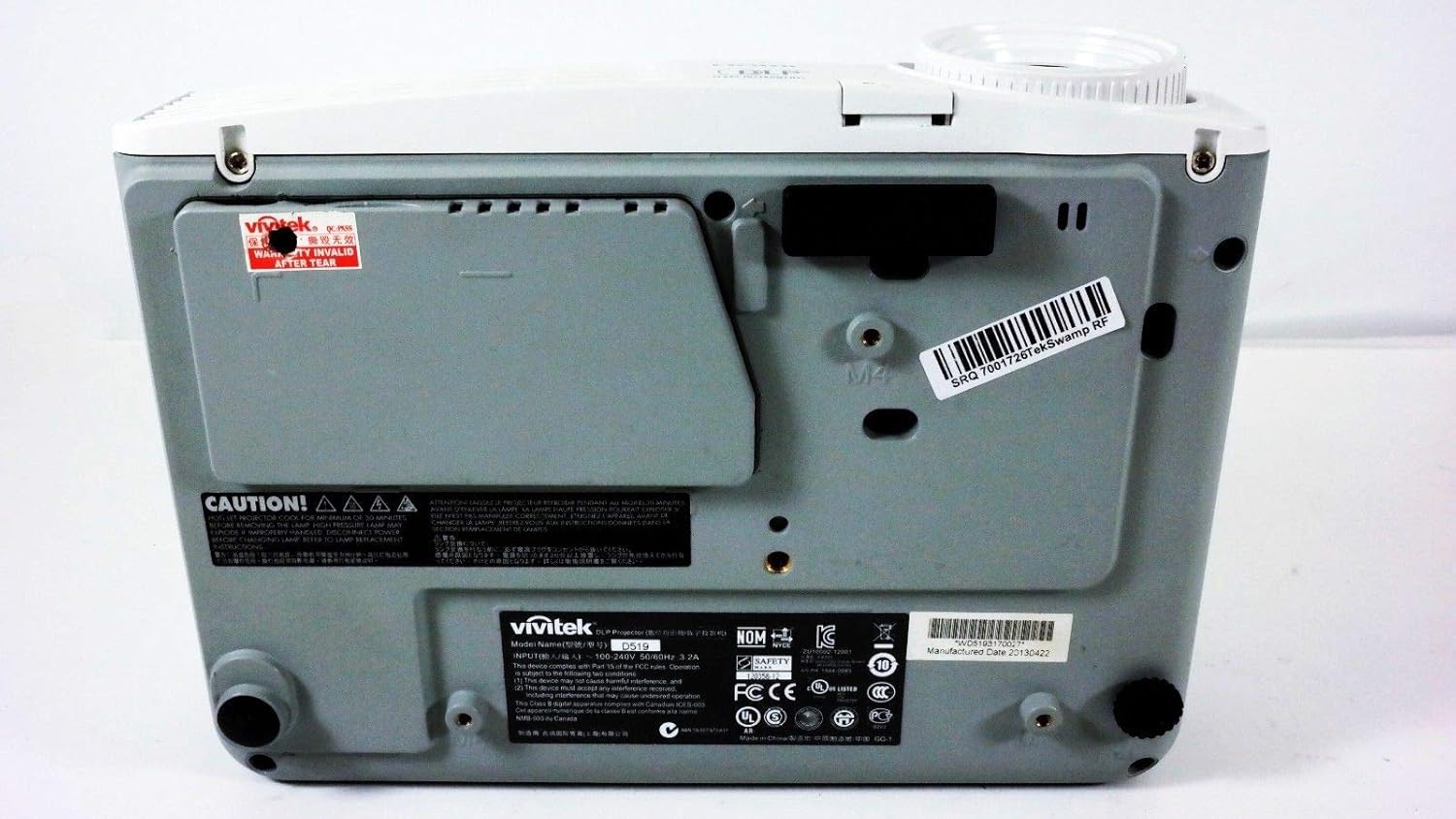
Figure 6.1: Bottom view of the Vivitek D519 Projector, showing the product label with model and serial information.
| Feature | Detail |
|---|---|
| Model Number | DPU35-262VVUA |
| Display Technology | Single 0.55” DLP Display Technology by Texas Instruments |
| Native Resolution | XGA (1024 x 768) |
| Brightness | 3000 Lumens |
| Contrast Ratio | 15,000:1 |
| Lamp Life | 4000 hours (Standard) / 6000 hours (Economy) |
| Zoom Ratio | 1.1:1 (Manual Zoom and Focus) |
| Connectivity | HDMI v1.3, VGA, S-Video, L-Audio-R, Audio In, RS-232 |
| Special Features | HD Compatible, 3D-Ready, Screen Size compatibility: 40 - 300 inches |
| Product Dimensions | 7.5 x 10.3 x 3.1 inches |
| Item Weight | 4.35 pounds |
7. Warranty and Support
Your Vivitek D519 projector comes with a limited warranty. Please refer to the Warranty Card included in your product packaging for detailed terms and conditions. For technical support, service, or warranty claims, please contact Vivitek customer service through their official website or the contact information provided in your warranty documentation.
It is recommended to register your product online to receive updates and support.
Related documentsD519


Ask a question about this manual
Ask about setup, troubleshooting, compatibility, parts, safety, or missing instructions. Manuals+ will review the question and use this page’s manual context to help answer it.