
1. Introduction
The SVP Drift HD Ghost is a digital video action camera designed for capturing high-quality footage in various environments. It features Wi-Fi connectivity, a waterproof design, and an integrated LCD screen, providing a comprehensive solution for recording action sports and other activities.

Image 1.1: The Drift HD Ghost camera with its two-way LED remote control.
2. Setup
2.1 Unboxing and Initial Inspection
Upon opening the package, verify that all components are present. The standard package includes the camera, battery, and various accessories.

Image 2.1: Contents of the Drift HD Ghost packaging, including the camera and various accessories.
2.2 Battery Installation and Charging
- Locate the battery compartment on the camera.
- Insert the provided battery into the compartment, ensuring correct orientation.
- Close the battery compartment securely.
- Connect the camera to a power source using the USB cable for initial charging.

Image 2.2: A hand inserting the battery into the Drift HD Ghost camera.
2.3 Micro SD Card Insertion
A Micro SD card (not included) is required for recording. Insert the card into the designated slot until it clicks into place. Ensure the card is formatted correctly for optimal performance.
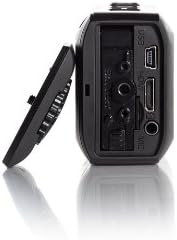
Image 2.3: Side view of the Drift HD Ghost camera, highlighting the USB port and Micro SD card slot.
2.4 Mounting the Camera
The Drift HD Ghost features a rotating lens, allowing for flexible mounting orientations while maintaining a level horizon. The camera is waterproof up to 3 meters without an additional housing, provided the correct rear cover is attached.
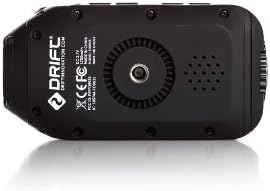
Image 2.4: Bottom view of the Drift HD Ghost camera, showing the universal mounting screw.
2.5 Remote Control and Wi-Fi Connectivity
The camera includes a two-way LED remote control for convenient operation. It also has built-in Wi-Fi for smartphone communication, allowing users to change settings and view footage via a dedicated app.

Image 2.5: The Drift HD Ghost camera with its remote control, illustrating how it can be used for operation.
3. Operating Instructions
3.1 Powering On/Off
Press and hold the power button located on the camera to turn it on or off. The integrated 2-inch LCD screen will display the current status.
3.2 Mode Selection
The camera supports various recording modes, including video, photo, time-lapse, and photo burst. These modes can be selected directly on the camera or via the remote control.
3.3 Recording and Capturing
To start recording video or capture a photo, press the appropriate button on the camera or remote. The remote's LED indicators will confirm the recording status.
3.4 Loop Recording and Car DVR
The camera features a continuous loop mode for video recording, which can be useful for specific applications. A car DVR mode is also available, allowing the camera to automatically start recording when powered by USB in a vehicle and turn off when the vehicle is shut down.
3.5 Viewing Footage
Footage can be reviewed directly on the camera's LCD screen or by connecting the camera to a computer. The Wi-Fi app also allows for viewing on a smartphone.
Video 3.1: Demonstration of the Drift HD Ghost camera in various action scenarios, showcasing its versatility and ease of use in different environments.
4. Maintenance
4.1 Waterproofing
Ensure the correct rear cover is securely attached for the camera to maintain its waterproof rating up to 3 meters. Regularly inspect seals for any damage before exposing the camera to water.
4.2 Cleaning
Clean the camera lens and body with a soft, lint-free cloth. For stubborn dirt, use a slightly damp cloth. Avoid abrasive materials or harsh chemicals.
4.3 Firmware Updates
Periodically check the manufacturer's website for available firmware updates. Updates can improve performance, add features, and resolve issues. Follow the provided instructions carefully when performing an update.
5. Troubleshooting
5.1 Battery Life
If experiencing shorter than expected battery life, ensure the battery is fully charged. Factors such as Wi-Fi usage, recording resolution, and temperature can affect battery performance. Consider carrying a spare battery for extended use.
5.2 Video File Splitting
Video files may automatically split into smaller segments (e.g., 30-minute increments) when recording to an SD card, particularly when files reach a certain size (e.g., 4GB). This is a common behavior for many cameras and SD card formats and does not indicate a malfunction.
5.3 Low Light Performance
The camera performs best in adequate lighting conditions. In low light environments, video quality may appear grainy or noisy. Ensure sufficient illumination for optimal results.
5.4 Mounting Issues
If standard mounts do not provide desired angles, consider using a GoPro Mount Adaptor for HD Cameras (sold separately) to expand compatibility with a wider range of mounting accessories.
5.5 USB Plug Cover
The rubber USB plug cover is designed to protect the ports. If it becomes loose or falls off, contact customer support for a replacement to maintain the camera's integrity.
6. Specifications
| Feature | Specification |
|---|---|
| Product Dimensions | 5.75 x 5.75 x 4.33 inches |
| Item Weight | 7.1 ounces |
| Item Model Number | DGT |
| Photo Sensor Technology | CMOS |
| Video Capture Resolution | 1080p, 720p |
| Maximum Aperture | 2 f |
| Flash Memory Type | Micro SD |
| Video Capture Format | MP4 |
| Supported Audio Format | AAC |
| Screen Size | 2 Inches |
| Connectivity Technology | Wi-Fi |
| Special Features | 170-degree wide-angle lens, 2-inch LCD screen with Corning Gorilla Glass, advanced Drift Pure Audio Technology, built-in Wi-Fi for smartphone communication, long battery life of 3 hours per charge, waterproof up to 3 meters without any housing |
7. Warranty and Support
For warranty information, technical support, or to purchase replacement parts, please refer to the official Drift Innovation website or contact their customer service department. Keep your proof of purchase for warranty claims.