Introduction
The Corsair Hydro Series H105 provides extreme CPU cooling performance. Featuring a 38mm thick 240mm top-mounted high-capacity radiator paired with high-RPM SP120L fans, it ensures fast heat dissipation for highly overclocked CPUs. PWM fan speed control allows precise cooling power adjustment through your motherboard BIOS. Installation is streamlined with a tool-free mounting bracket, and the cooler is completely self-contained, requiring no filling or maintenance.
What's in the Box
The Corsair Hydro Series H105 package includes all necessary components for installation and operation:
- Corsair Hydro Series H105 Liquid CPU Cooler (integrated pump and radiator)
- 2x SP120L PWM 120mm Fans
- Mounting Hardware for Intel and AMD sockets
- Fan Y-Cable
- 3x Swappable Accent Rings (Red, Grey, Blue)
- Installation Guide

Figure 1: Corsair Hydro Series H105 product box.

Figure 2: The Corsair Hydro Series H105 cooler unit, featuring the radiator, pump, and connecting tubes.

Figure 3: Included mounting hardware for various CPU sockets and accent rings for customization.
Installation
Follow these steps to properly install your Corsair Hydro Series H105 Liquid CPU Cooler.
1. Preparation: Swapping Accent Rings
The H105 includes three color accent rings (red, grey, blue) to match your system's aesthetic. The cooler comes with a silver ring pre-installed. To swap it:
- Gently pry off the pre-installed silver cap from the water block using a flat object like a flathead screwdriver or ruler.
- Select your desired accent ring.
- Align the chosen cap with the notches on the water block and snap it firmly into place.
2. Fan Installation: Attaching Fans to Radiator
Attach the two SP120L PWM fans to the radiator using the provided long screws:
- Position the fans on the radiator with the exhaust side (the side with four struts) facing the radiator.
- Use the eight long screws to secure the fans to the radiator. Tighten them one by one.
- Consider the radiator's mounting orientation in your case and align the fan cables to face the motherboard tray for cleaner cable management.

Figure 4: The radiator with both SP120L fans securely attached.
3. Backplate Installation
Install the universal backplate onto your motherboard. This guide focuses on Intel LGA 1150/1151/1155/1156 sockets, which share the same mounting hole spacing.
- Slide the posts on the backplate all the way inward to match the LGA 115x spacing.
- From the rear of the motherboard, align the mounting posts with the four holes around the processor socket and press them into place. Some gentle shimmying may be required.
- From the front of the motherboard, insert the four chrome-colored double-ended screws into the backplate posts. Install the first two screws on opposite corners to hold the backplate, then install the remaining two.
4. Water Block Installation
The H105 water block comes with thermal material pre-applied to the cold plate. No additional thermal paste is needed unless you are reinstalling the cooler after cleaning.
- Remove the protective cap from the cold plate.
- Carefully slide the water block down onto the four posts installed in the previous step.
- Attach the four screw caps (thumb nuts) included with the cooler. Tighten them in a cross pattern (one corner, then the opposite corner) to ensure even pressure on the CPU.
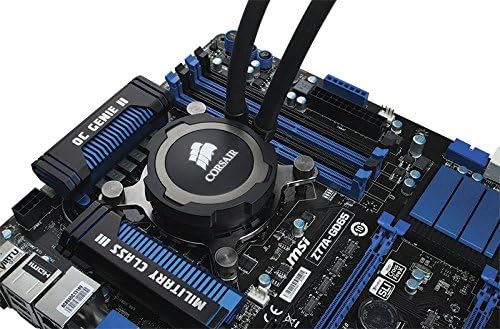
Figure 5: The water block securely mounted on the CPU socket.
5. Cable Connections
Ensure all necessary cables are connected for proper operation:
- Connect the water block's power cable to one of the system or chassis fan headers on your motherboard. The pump should always run at full power if possible.
- Connect the two radiator fans to the included Y-cable.
- Plug the Y-cable into the CPU fan header on your motherboard.
Video 1: Official Corsair installation guide for the Hydro Series H105 Liquid CPU Cooler. This video demonstrates the steps for mounting the cooler, fans, and connecting cables.
Compatibility
The Corsair Hydro Series H105 is designed for broad compatibility with various CPU sockets and PC cases.
CPU Socket Compatibility
- Intel: LGA 1150, 1151, 1155, 1156, 1366, 2011, 2011-3, 2066
- AMD: FM1, FM2, AM2, AM3, AM4
Note: An AM4 retention bracket is not included in the box. Please visit the Ryzen page on the Corsair website to order a free AM4 retention bracket if needed.
Case Compatibility
Due to its 38mm thick 240mm radiator, ensure your PC case has at least 63mm of clearance above the motherboard for proper installation. Compatible Corsair cases include:
- Obsidian Series: 900D, 800D, 750D, 650D
- Graphite Series: 760T, 730T, 600T
- Vengeance Series: C70
- Carbide Series: Air 540, 500R
Specifications
| Feature | Detail |
|---|---|
| Brand | Corsair |
| Model Number | CW-9060016-WW |
| Cooling Method | Liquid (Fan) |
| Radiator Dimensions | 240mm (38mm thick) |
| Fan Type | SP120L PWM 120mm Fans (x2) |
| Maximum Rotational Speed | 1150 RPM |
| Noise Level | 37.7 Decibels |
| Material | Aluminum Copper |
| Voltage | 12 Volts |
| Wattage | 3.6 watts |
| Power Connector Type | 3 and 4 pin Combo |
| Item Weight | 4.1 pounds |
| Product Dimensions | 10.73 x 1.5 x 4.72 inches |
Maintenance
The Corsair Hydro Series H105 is a self-contained liquid CPU cooler that requires minimal maintenance. No refilling of coolant is necessary. However, regular cleaning of the radiator fins and fans is recommended to ensure optimal performance and prevent dust buildup. Use compressed air to gently clear dust from the radiator and fan blades.
Troubleshooting
- High CPU Temperatures: Ensure fans are properly installed and spinning. Check that the water block is securely mounted to the CPU with even pressure. Verify that the pump power cable is connected to a motherboard header providing full power. Clean any dust buildup on the radiator fins.
- Excessive Fan Noise: Check fan connections and ensure no cables are obstructing fan blades. Adjust fan speeds via your motherboard BIOS settings if PWM control is enabled.
- Pump Not Operating: Confirm the pump's power cable is securely connected to a motherboard fan header that provides constant 12V power. Some motherboard headers may regulate voltage, which can prevent the pump from operating correctly.
Warranty & Support
The Corsair Hydro Series H105 Liquid CPU Cooler typically comes with a manufacturer's warranty. For specific warranty terms, technical support, or to order replacement parts (such as an AM4 retention bracket), please visit the official Corsair website or contact Corsair customer support.


