
Introduction
The Bowers & Wilkins A5 Wireless Music System offers purity, simplicity, and stunning sound. Designed to deliver high-quality audio and intuitive wireless streaming via Apple's AirPlay, this discreet system fits almost anywhere, providing an outstanding audio experience without dominating your environment.

Setup
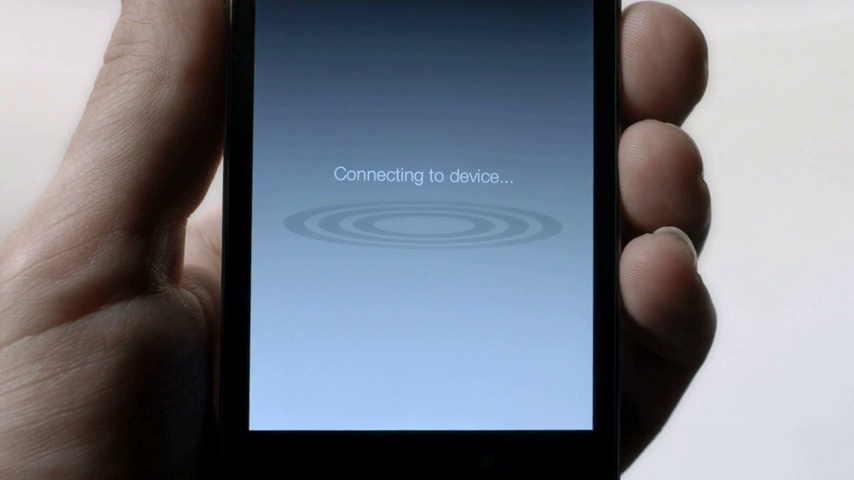
Setting up your new A5 is a straightforward process, primarily managed through the dedicated Bowers & Wilkins AirPlay App. This application guides you through connecting your A5 to your Wi-Fi network and managing its settings wirelessly.
- Prepare the Device: Before starting, ensure that any previously docked or connected devices are removed from the A5.
- Connect Power: Plug in the power cable to your Wireless Music System.
- Download the App: Download and launch the free Bowers & Wilkins AirPlay Setup App on your iOS device (iPhone, iPad).
- Follow In-App Instructions: The app will walk you through the steps to connect your A5 to your Wi-Fi network. This typically involves selecting your network and entering the password.
- Manage Settings: Once connected, the app allows you to manage your A5's settings and add more Bowers & Wilkins Wireless Music Systems for a multi-room audio experience.
Operating Instructions
The A5 is designed for seamless wireless music streaming. Once set up, you can stream audio from various Apple devices and computers running iTunes.
Wireless Music Streaming
- From iOS Devices: Stream music directly from your iPhone or iPad using AirPlay. Simply select the A5 as your audio output device from the AirPlay menu within your music application.
- From Computers: Stream music from computers running iTunes. Select the A5 from the AirPlay speaker selection menu in iTunes.
Multi-Room Audio
If you have multiple A5 units or a combination of A5 and A7 systems, you can enjoy wireless music throughout your home. The AirPlay app allows you to select which speaker to play music through, enabling you to move from room to room with your music.
Volume Control
Volume can be controlled directly from your streaming device (iPhone, iPad, computer) or using the physical volume buttons located on the A5 unit itself. The physical controls are subtly integrated into the design, typically found on the side or top panel.
Maintenance
To ensure the longevity and optimal performance of your Bowers & Wilkins A5 Wireless Music System, follow these general maintenance guidelines:
- Cleaning: Use a soft, dry cloth to gently wipe the surfaces of the A5. Avoid using abrasive cleaners, solvents, or spray cleaners directly on the unit, as these can damage the finish or internal components.
- Placement: Place the A5 on a stable, flat surface away from direct sunlight, heat sources, and excessive moisture. Ensure adequate ventilation around the unit to prevent overheating.
- Handling: Handle the unit with care. Avoid dropping or subjecting it to strong impacts.
- Power: Disconnect the power cable from the wall outlet if the unit will not be used for an extended period.
Troubleshooting
If you encounter issues with your Bowers & Wilkins A5, refer to the following common troubleshooting steps:
- No Sound/Intermittent Sound:
- Ensure the A5 is powered on and connected to your Wi-Fi network.
- Check the volume levels on both the A5 and your streaming device.
- Verify that the A5 is selected as the AirPlay output device on your iPhone, iPad, or iTunes.
- Restart your Wi-Fi router, the A5 unit, and your streaming device.
- Ensure your Wi-Fi signal is strong and stable. Interference from other wireless devices (like microwave ovens) can sometimes cause connection drops.
- Cannot Connect to Wi-Fi:
- Ensure you are using the correct Wi-Fi password.
- Move the A5 closer to your Wi-Fi router to improve signal strength during setup.
- Temporarily disable any firewall settings on your router that might be blocking the connection.
- Perform a factory reset on the A5 (refer to the AirPlay App or online resources for specific instructions) and attempt setup again.
- App Not Recognizing A5:
- Ensure both your iOS device and the A5 are on the same Wi-Fi network.
- Close and reopen the Bowers & Wilkins AirPlay App.
- Restart your iOS device.
For persistent issues, consult the official Bowers & Wilkins support website or contact their customer service.
Specifications
| Feature | Detail |
|---|---|
| Model Name | A5 |
| Speaker Type | Multi Room |
| Special Feature | Wireless |
| Recommended Uses | Music |
| Compatible Devices | Smartphone, Tablet, Laptop |
| Controller Type | App Control |
| Connectivity Technology | Wi-Fi |
| Wireless Communication Technology | Airplay |
| Audio Output Mode | Stereo |
| Color | Black/Brushed Aluminum |
| Product Dimensions | 13.6 x 10.8 x 12.4 inches |
| Item Weight | 10.25 pounds |
| UPC | 714346314959 |
Warranty and Support
The Bowers & Wilkins A5 Wireless Music System comes with a Limited Warranty. For specific details regarding the warranty period and coverage, please refer to the documentation included with your product or visit the official Bowers & Wilkins website.
For technical support, troubleshooting assistance, or further inquiries, you can utilize the Bowers & Wilkins AirPlay App for setup and management, which may also provide access to support resources. Additionally, visit the official Bowers & Wilkins support page for comprehensive guides, FAQs, and contact information.
Included components: App for setup and management.
Official Brand Store: Bowers & Wilkins Store on Amazon


