
Introduction
The Nolan MIC Bluetooth Wireless Microphone BTMIC2 is designed to capture and transmit audio wirelessly. It features dual modes for compatibility with various Bluetooth-enabled devices, offering clear sound and an extended operating range. This manual provides instructions for proper setup, operation, and maintenance of your BTMIC2 microphone.
Product Overview
Key Features
- Dual modes (A/B) for broad compatibility with Bluetooth speakers, headphones, audio receivers, smartphones, tablets, PCs, and Macs.
- Omnidirectional microphone for comprehensive sound capture.
- Low latency audio transmission.
- Operating range of up to 20 meters (65 feet).
- Integrated rechargeable battery providing up to 6 hours of talk time.
- Lightweight design with a built-in clip for convenient wearing.
- LED indicator for operational status.
Package Contents
- Nolan BTMIC2 Wireless Microphone
- USB Charging Cable
- User Manual
Component Identification

Figure 1: Front view of the Nolan BTMIC2 microphone, showing the Alead branding and Bluetooth microphone logo.

Figure 2: Side view of the BTMIC2, illustrating the USB charging port, ON/OFF switch, and integrated clip. The slide switch for A/B mode selection is also visible.
Setup
Charging the Microphone
- Connect the supplied USB charging cable to the BTMIC2 microphone's charging port.
- Connect the other end of the USB cable to a standard USB power source (e.g., computer USB port, USB wall adapter).
- The LED indicator will show charging status. A full charge provides up to 6 hours of operation.
Pairing with Devices
The BTMIC2 features two operating modes, A and B, for different device types.
Mode A: For Audio Receivers, Speakers, PA Systems, and Headphones

Figure 3: Mode A compatibility with various audio output devices.
- Slide the mode switch on the BTMIC2 to position A.
- Turn on the BTMIC2 microphone. The LED indicator will flash, indicating it is in pairing mode.
- Put your Bluetooth speaker, headphones, or audio receiver into pairing mode (refer to your device's manual for specific instructions).
- Once paired, the LED indicator on the BTMIC2 will show a steady light.
Mode B: For iPhones, iPads, Tablets, Smartphones, PCs, and Laptops

Figure 4: Mode B compatibility with various smart devices and computers.
- Slide the mode switch on the BTMIC2 to position B.
- Turn on the BTMIC2 microphone. The LED indicator will flash, indicating it is in pairing mode.
- On your smartphone, tablet, PC, or laptop, go to the Bluetooth settings menu.
- Search for available devices and select "BTMIC2" (or similar name) from the list.
- Once paired, the LED indicator on the BTMIC2 will show a steady light.
Important Note for Mode B:
- Default voice or video recording applications on iPhone, iPad, and Android devices typically do not support external Bluetooth microphones. Users must utilize third-party recording applications that explicitly support Bluetooth microphone input (e.g., "Voice Recorder HD", "Audio Memos", "Easy Voice Recorder Pro", "ReadyMIC", "Captures").
- For PC or laptop use, ensure your device has compatible Bluetooth functionality or a USB Bluetooth adapter that supports the headset or hands-free profile for microphone operation.
Operating Instructions
Using the Microphone for Voice Transmission (Mode A)
In Mode A, the BTMIC2 captures your voice and transmits it wirelessly to a paired Bluetooth audio receiver, speaker, or PA system. This is suitable for presentations, lectures, or public speaking where your voice needs to be amplified.

Figure 5: Example of using the BTMIC2 in Mode A for a presentation, transmitting voice to a speaker.
- Ensure the BTMIC2 is in Mode A and successfully paired with your desired audio output device.
- Clip the microphone to your clothing, ensuring it is positioned to capture your voice clearly.
- Speak normally. Your voice will be transmitted to the paired device.
Using the Microphone for Voice Recording (Mode B)
In Mode B, the BTMIC2 captures your voice for recording on a paired smartphone, tablet, PC, or laptop using compatible applications. This is ideal for podcasts, interviews, vlogging, or distance education.
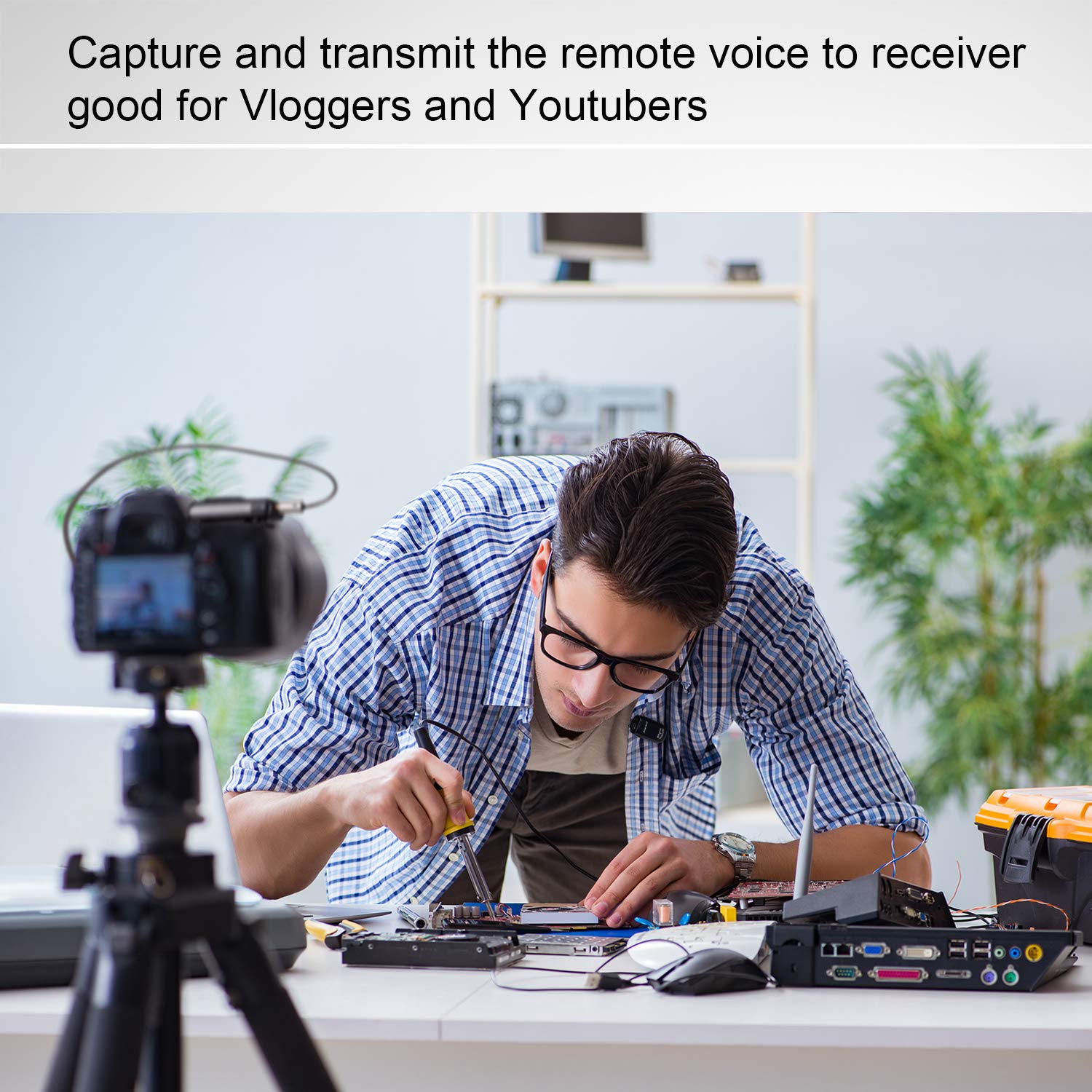
Figure 6: Example of using the BTMIC2 in Mode B for capturing remote voice during a meeting for recording purposes.
- Ensure the BTMIC2 is in Mode B and successfully paired with your recording device.
- Open a compatible recording application on your device.
- Select the BTMIC2 as the audio input source within the application's settings, if necessary.
- Begin recording.
- Clip the microphone to your clothing for optimal voice capture.
Maintenance
- Cleaning: Use a soft, dry cloth to clean the exterior of the microphone. Do not use liquid cleaners or solvents.
- Storage: Store the microphone in a cool, dry place away from direct sunlight and extreme temperatures.
- Battery Care: To prolong battery life, avoid fully discharging the battery frequently. Charge the device regularly, even if not in use for extended periods.
- Avoid Moisture: Do not expose the microphone to water or high humidity.
Troubleshooting
| Problem | Possible Cause | Solution |
|---|---|---|
| Microphone does not turn on. | Battery is discharged. | Charge the microphone using the supplied USB cable. |
| Cannot pair with a device. | Incorrect mode selected (A/B). Device not in pairing mode. Out of range. | Ensure the correct mode (A or B) is selected for your device type. Put both the BTMIC2 and the target device into pairing mode. Move the devices closer to each other (within 20m/65ft). |
| No audio output/recording. | Incorrect mode selected. Not selected as input device. Incompatible recording app (Mode B). Bluetooth profile issue (PC/Laptop). | Verify the BTMIC2 is in the correct mode (A for output, B for recording). Ensure BTMIC2 is selected as the audio input/output device in your device's settings or application. For Mode B, use a recording app that supports external Bluetooth microphones. For PC/Laptop, ensure your Bluetooth adapter supports headset/hands-free profiles. |
| Audio delay or echo. | Bluetooth speaker/receiver latency. | Some Bluetooth speakers may introduce audio delay. Consider using a receiver designed for low-latency audio or adjust settings on your receiving device if available. |
| Interference during operation. | Other wireless devices. Operating environment. | The BTMIC2 operates at low power and may be susceptible to interference from other devices. Try moving away from other wireless equipment or sources of electromagnetic interference. |
Specifications
| Brand | Nolan |
| Model Name | MIC |
| Model Number | BTMIC2 |
| Connectivity Technology | Bluetooth |
| Connector Type | Wireless |
| Special Feature | Integrated Clip |
| Compatible Devices | Bluetooth Speakers, Headphones, PCs, Smartphones, Tablets, Camcorders |
| Color | Satin Black |
| Polar Pattern | Omnidirectional |
| Product Weight | 15 grams (0.53 ounces) |
| Microphone Form Factor | Microphone Only |
| Power Source | Rechargeable Battery |
| Battery Type | 1 Lithium Polymer |
| Signal-to-Noise Ratio | 76 dB |
| Hardware Platform | PC, Laptop, Smartphone, Tablet |
| Number of Channels | 1 |
| Item Dimensions (L x W x H) | 5.2 x 1.3 x 2.5 cm |
| Operating Range | Up to 20 meters (65 feet) |
| Talk Time | Up to 6 hours |
Consumer Information
Most users do not require a license to operate this wireless microphone system. However, operation without a license is subject to certain restrictions:
- The system must not cause harmful interference.
- It must operate at a low power level (not exceeding 50 milliwatts).
- It has no protection against interference received from any other device.
Users are advised to consult their national telecommunications authority for specific regulations regarding wireless microphone operation in their region.
