1. Introduction
This manual provides detailed instructions for the installation, operation, and maintenance of your Syba 2 External USB 3.0 Port and 19 Pin Internal Header PCIe 2.0 x1 expansion card. This card is designed to add two external USB 3.0 ports and one internal 19-pin USB 3.0 header to your computer system, utilizing a PCI-Express x1 slot. It is ideal for expanding connectivity and supporting modern USB 3.0 devices.
2. Key Features
- Based on Renesas USB 3.0 Host Controller IC.
- PCI-Express 2.0 1-Lane (x1) Interface.
- Adds two external USB 3.0 ports.
- Includes one internal 19-pin USB 3.0 header for front panel connectivity.
- Internal Molex Power Connector for supplying +5V power to the USB ports.
- Compliant with PCI Express base Specification 2.0.
- Backward compatible to PCI-Express 1.0A with data transfer rate up to 2.5Gbps.
- Full support of real-time dynamic Insertion and Removal of USB devices.
3. What's in the Box
Upon opening the package, please verify that all components are present and undamaged:
- 1 x Syba 4 Port USB 3.0 PCI-Express x1 Card
- 1 x Software Driver CD
- 1 x User's Manual (this document)
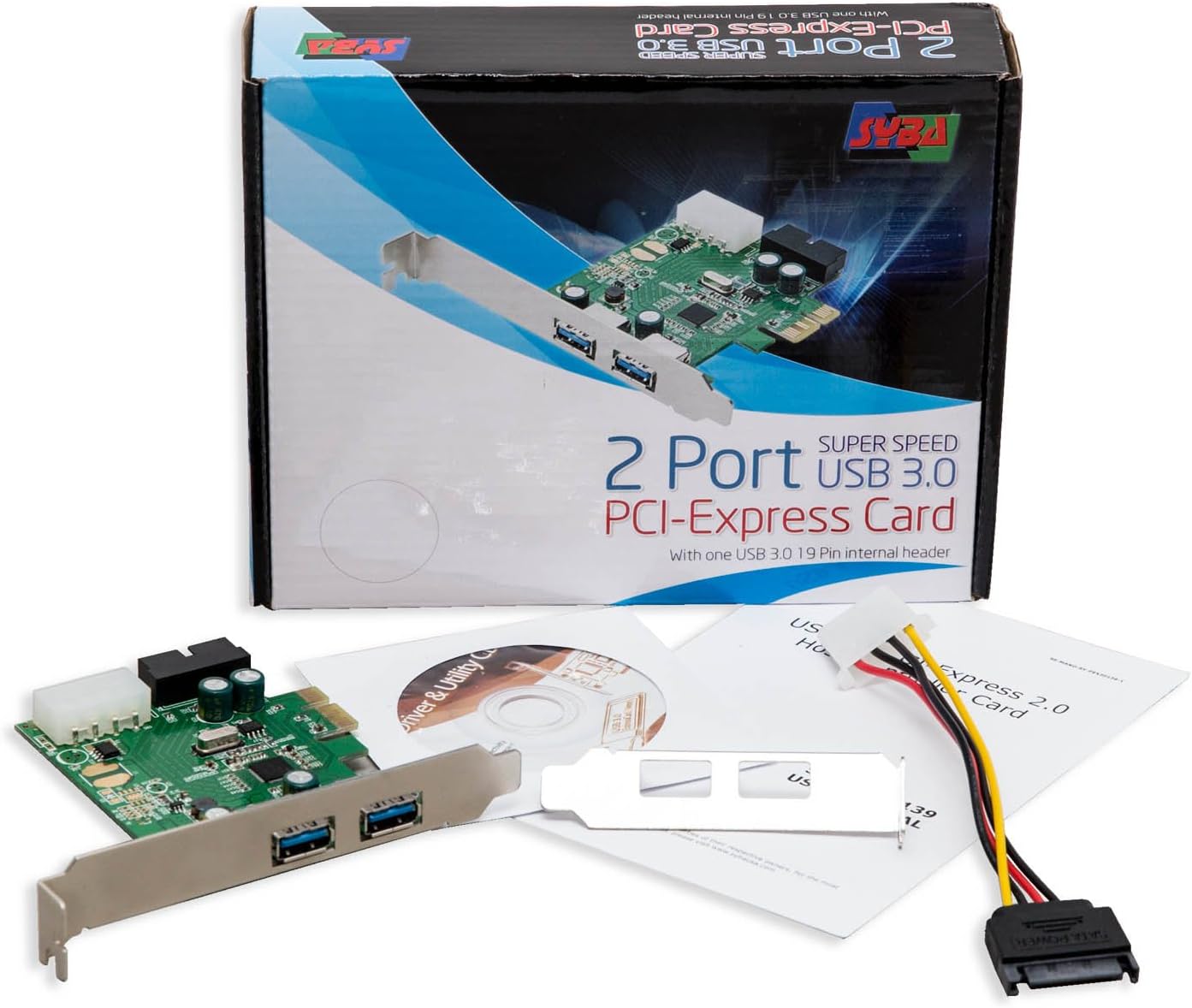
Figure 3.1: Package Contents. The image displays the Syba USB 3.0 PCIe card, a driver CD, and the user manual, alongside the product packaging.
4. Technical Specifications
| Attribute | Detail |
|---|---|
| Model Number | SD-PEX20139 |
| Interface | PCI-Express 2.0 x1 |
| USB Ports | 2 External USB 3.0, 1 Internal 19-pin USB 3.0 Header |
| Chipset | Renesas D720201 |
| Power Input | Molex Power Connector |
| Operating System Compatibility | Windows, macOS, Linux |
| Dimensions (LxWxH) | 5.6 x 4.8 x 1.2 inches |
| Item Weight | 1.92 ounces (0.12 Pounds) |
| Color | Metallic Green |
5. Setup & Installation
5.1. Pre-installation Checklist
- Ensure your computer has an available PCI-Express x1 slot or higher (x4, x8, x16 slots are compatible).
- Verify your power supply has an available Molex power connector.
- Gather a Phillips head screwdriver.
- It is recommended to back up important data before performing hardware installations.
- Power off your computer and unplug it from the wall outlet.
- Discharge any static electricity by touching a grounded metal object before handling components.
5.2. Hardware Installation
- Open your computer case. Refer to your computer's manual for instructions on how to safely open the case.
- Locate an available PCI-Express x1 slot on your motherboard. These slots are typically shorter than graphics card slots.
- Remove the metal bracket cover from the corresponding expansion slot on the back of your computer case.
- Carefully align the Syba USB 3.0 PCIe card with the chosen PCI-Express slot. Apply even, firm pressure to seat the card fully into the slot until it clicks into place.

Figure 5.1: Syba USB 3.0 PCIe Card. This image shows the overall design of the expansion card, highlighting the PCIe connector and external USB 3.0 ports.
- Secure the card to the computer case using the screw removed earlier or a new one provided with your case.
- Connect a Molex power connector from your power supply to the Molex power input on the Syba card. This connection is crucial for stable operation and sufficient power delivery to the USB 3.0 ports.
- If your computer case has front panel USB 3.0 ports, connect the 19-pin USB 3.0 header cable from your case to the 19-pin header on the Syba card. Ensure correct orientation to avoid damage.
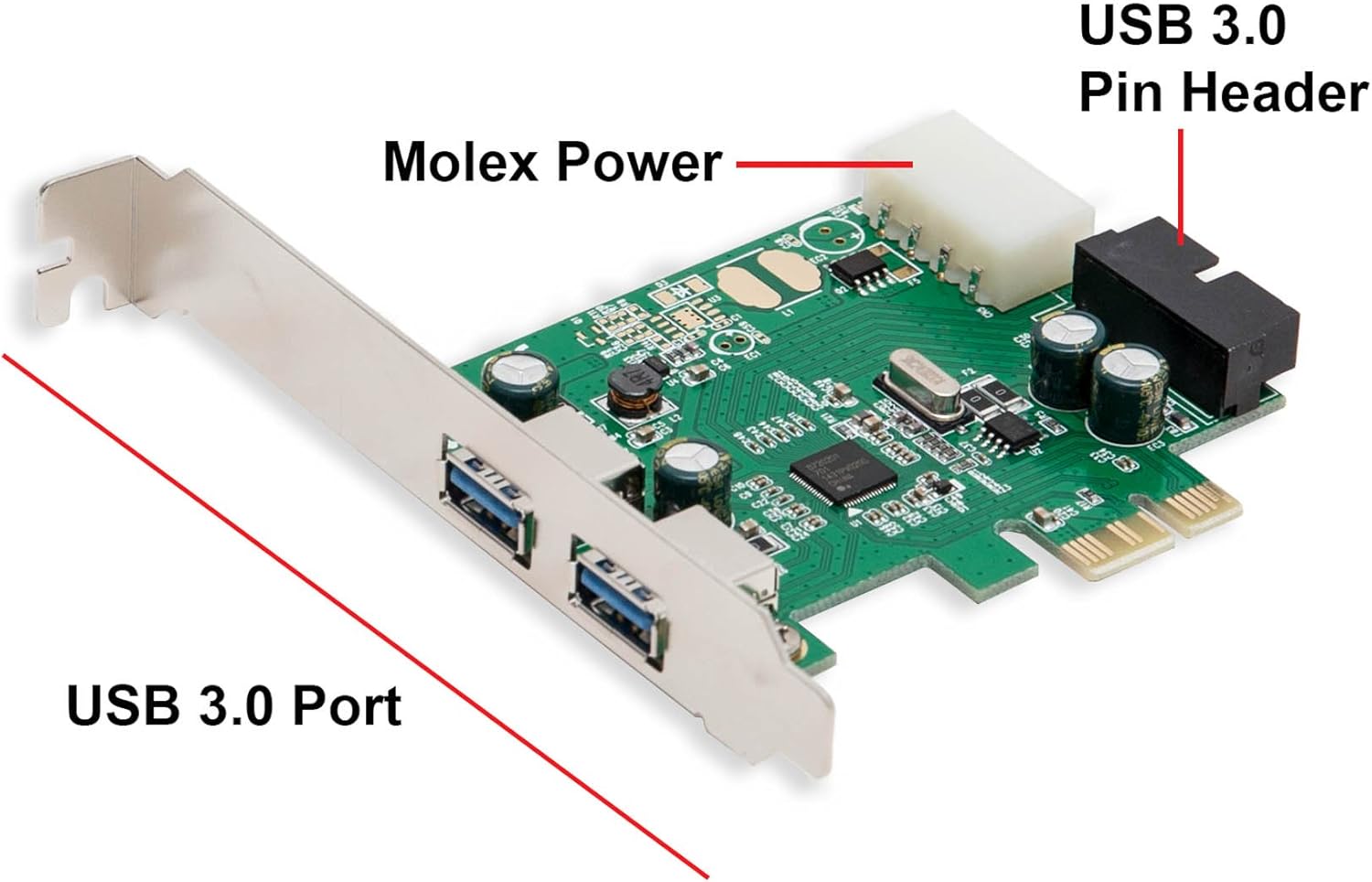
Figure 5.2: Card Components. This image clearly labels the Molex power connector, the 19-pin USB 3.0 header, and the external USB 3.0 ports on the card.
- Close your computer case and reconnect all peripherals and the power cable.
5.3. Driver Installation
While many modern operating systems (Windows 8/10/11, recent Linux distributions) may automatically install generic USB 3.0 drivers, it is highly recommended to install the specific drivers provided by Syba for optimal performance and compatibility.
- Power on your computer.
- Insert the provided Software Driver CD into your computer's optical drive.
- Navigate to the CD drive in "My Computer" or "This PC" and locate the driver setup file (e.g., setup.exe or install.exe).
- Run the setup file and follow the on-screen instructions to complete the driver installation.
- If you do not have an optical drive, you may need to download the latest drivers from the official Syba website. Visit www.sybausa.com and search for model SD-PEX20139.
- After installation, it is advisable to restart your computer to ensure all changes take effect.
6. Operating Instructions
Once the card is installed and drivers are in place, the USB 3.0 ports will function like any other USB port on your system.
- Connecting Devices: Plug your USB 3.0 (or backward compatible USB 2.0/1.1) devices into the external USB 3.0 ports on the back of your computer or the front panel ports connected via the 19-pin header.

Figure 6.1: External USB 3.0 Ports. This image provides a clear view of the two external USB 3.0 ports available on the card's bracket.
- USB 3.0 Speed: For optimal USB 3.0 speeds (up to 5Gbps), ensure you are using USB 3.0 compatible cables and devices. USB 3.0 ports are typically identified by their blue internal plastic.
- Power Delivery: The Molex power connection ensures sufficient power for high-power USB devices. Avoid connecting devices that exceed the card's power capabilities without external power.
- Hot-Swapping: The card supports hot-swapping, meaning you can connect and disconnect USB devices while the computer is running.
7. Maintenance
The Syba USB 3.0 PCIe card requires minimal maintenance. Follow these guidelines to ensure longevity:
- Keep Clean: Periodically open your computer case and gently clean any dust accumulation on the card using compressed air. Ensure the computer is powered off and unplugged before cleaning.
- Driver Updates: Check the Syba website periodically for updated drivers. Keeping drivers current can improve performance and resolve compatibility issues.
- Physical Inspection: Occasionally inspect the card for any loose connections or visible damage.
8. Troubleshooting
| Problem | Possible Cause | Solution |
|---|---|---|
| Card not detected by OS. | Card not seated properly; driver not installed; faulty PCIe slot. | Reseat the card firmly. Install/reinstall drivers. Try a different PCIe slot. Check Device Manager for unrecognized devices. |
| USB devices not working or unstable. | No Molex power connected; insufficient power; driver issue; faulty USB device/cable. | Ensure Molex power cable is securely connected. Try a different USB device/cable. Reinstall drivers. Check power supply capacity. |
| USB 3.0 devices operating at USB 2.0 speeds. | Incorrect drivers; USB 2.0 cable/device; BIOS settings. | Ensure correct USB 3.0 drivers are installed. Use a certified USB 3.0 cable and device. Check BIOS settings for USB 3.0 enablement. |
| Front panel USB 3.0 ports not working. | 19-pin header cable not connected or incorrectly connected. | Verify the 19-pin header cable from the case is securely and correctly connected to the card's 19-pin header. |
9. Support & Warranty
For technical assistance or warranty inquiries, please contact Syba customer support. Refer to the official Syba website for the most up-to-date contact information and warranty policies.
Syba Official Website: www.sybausa.com
Please have your product model number (SD-PEX20139) and purchase information ready when contacting support.