Introduction
The Corsair CX Series CX600 is a 600 Watt, 80+ Bronze Certified, Non-Modular Power Supply designed for maximum compatibility and reliability. It provides continuous power output and is an efficient solution for various PC builds, offering a balance of performance and value.
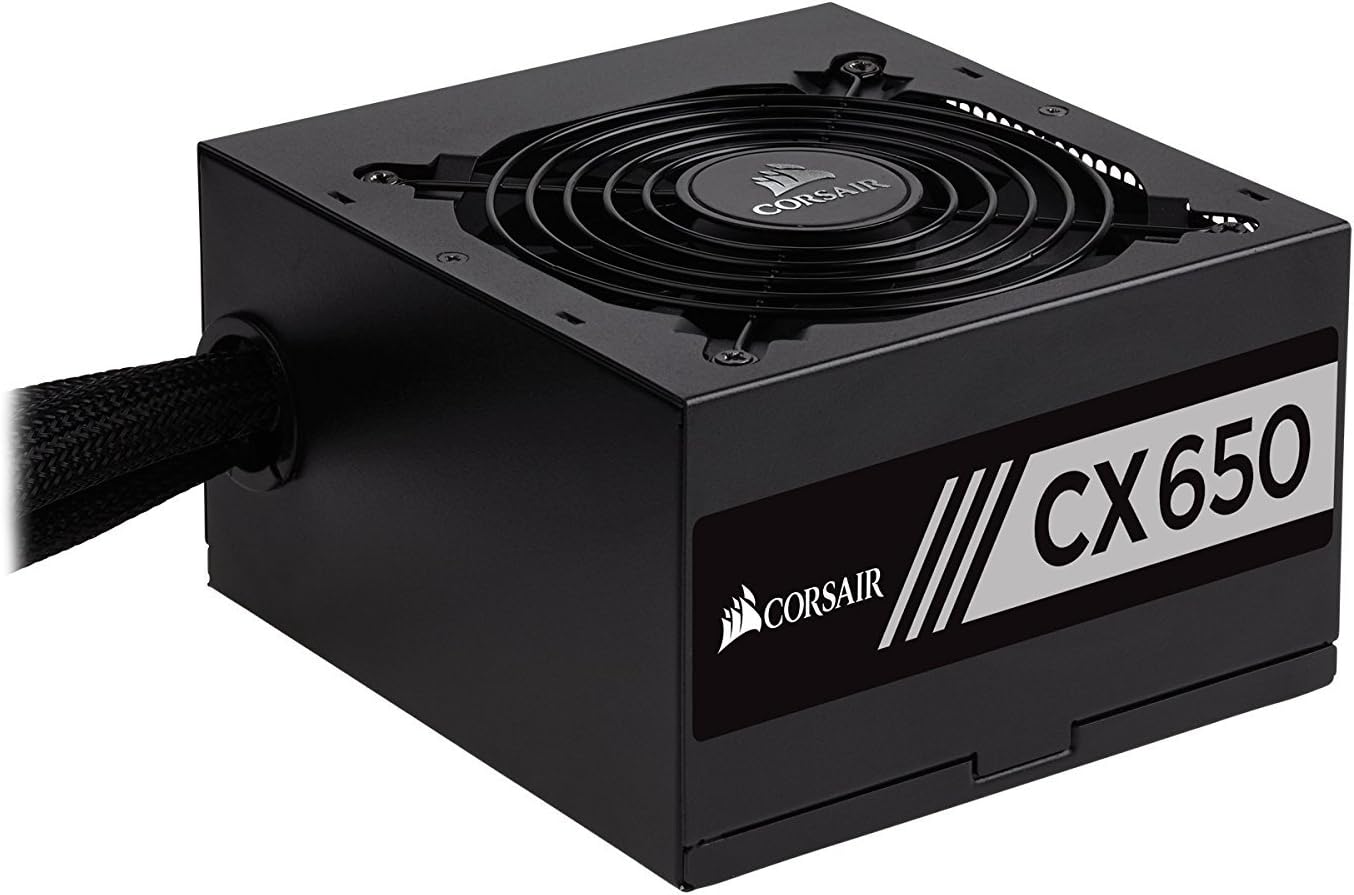
Figure 1: Front view of the Corsair CX600 Power Supply, showcasing its compact design and fan grille.
Safety Information
Please read and understand all safety precautions before installing or operating your power supply. Failure to do so may result in personal injury or damage to your equipment.
- Do not open the power supply unit (PSU) casing. High voltages are present inside, even when disconnected from power.
- Ensure the power supply is disconnected from the AC outlet before installation, removal, or any maintenance.
- Install the PSU in a well-ventilated area, away from heat sources and direct sunlight.
- Use only the cables provided with the power supply.
- Ensure proper grounding of your computer system.
- Avoid spilling liquids on the power supply.
- This product is designed for use in personal computer systems only.
Package Contents
Verify that all items are present in your package:
- Corsair CX600 Power Supply Unit
- AC Power Cord
- Mounting Screws
- Cable Ties
Installation and Setup
Before You Begin
- Turn off and unplug your computer from the wall outlet.
- Open your computer case.
- If replacing an existing power supply, disconnect all cables from the old PSU and remove it from the case.
Physical Installation
- Carefully place the CX600 power supply into the designated PSU bay in your computer case. Ensure the fan is facing the correct direction for optimal airflow (typically facing down if your case has a bottom vent, or up if it's a top-mounted PSU).
- Secure the power supply to the case using the provided mounting screws.
- Connect the 24-pin ATX motherboard power cable to the corresponding port on your motherboard. Ensure it clicks into place.
- Connect the 4+4 pin EPS/ATX 12V CPU power cable to the CPU power connector on your motherboard.
- Connect the 6+2 pin PCIe power cables to your graphics card(s) if applicable. The CX600 provides two such connectors.
- Connect SATA power cables to your storage drives (SSDs, HDDs) and optical drives.
- Connect Molex power cables to any peripherals that require them (e.g., case fans, older drives).
- Use the included cable ties to manage and organize the cables for better airflow and aesthetics.
- Close your computer case.
- Connect the AC power cord to the power supply and then to a wall outlet.

Figure 2: The Corsair CX600 Power Supply displaying its full array of non-modular cables, including ATX, CPU, PCIe, SATA, and Molex connectors.

Figure 3: Rear view of the Corsair CX600 Power Supply, showing the AC power input and the main power switch.
Operation
After successful installation, ensure the power switch on the back of the power supply is in the 'ON' (I) position. You can then power on your computer using the case's power button. The CX600 features an ultra-quiet 120mm fan that adjusts its speed based on temperature, providing efficient cooling with minimal noise. Its 80 Plus Bronze certification ensures high power efficiency, reducing heat generation and operating costs.
Maintenance
The Corsair CX600 is designed for reliable, long-term operation with minimal maintenance. However, periodic cleaning can help maintain optimal performance and longevity.
- Dust Removal: Periodically clean dust from the power supply's fan grille and vents using compressed air. Ensure the computer is powered off and unplugged before cleaning.
- Cable Management: Ensure cables are not obstructing airflow within the case. Re-organize if necessary.
- Environmental Conditions: Operate the power supply within recommended temperature and humidity ranges to prevent damage.

Figure 4: Top-down view of the Corsair CX600 Power Supply's 120mm cooling fan, which helps maintain optimal operating temperatures.
Troubleshooting
If you encounter issues with your Corsair CX600 power supply, refer to the table below for common problems and solutions.
| Problem | Possible Cause | Solution |
|---|---|---|
| Computer does not power on. | Power cable not connected, PSU switch off, faulty component, or insufficient power. | Ensure AC power cord is securely connected. Check PSU power switch is ON (I). Verify all internal power cables (24-pin, CPU, PCIe) are properly seated. Test with minimal components. |
| System shuts down unexpectedly. | Overload, overheating, or power fluctuations. | Ensure adequate ventilation. Check for dust buildup. The CX600 has over-voltage, over-power, under-voltage, and short circuit protection; if these trigger, the PSU will shut down to protect components. Reduce system load if consistently tripping. |
| Fan is noisy or not spinning. | Dust buildup, fan obstruction, or fan malfunction. | Clean the fan grille and blades with compressed air. Ensure no cables are obstructing the fan. If the fan is not spinning at low loads, this is normal as it adjusts speed based on temperature. If it's consistently noisy or not spinning at high loads, contact support. |
| Peripherals not receiving power. | Loose cable connection or faulty peripheral. | Check the connections of the SATA or Molex cables to the peripheral and the PSU. Test the peripheral with another power source if possible. |
Technical Specifications
Detailed specifications for the Corsair CX600 Power Supply:
| Feature | Detail |
|---|---|
| Model Name | CX Series (CX600) |
| Model Number | CP-9020048-US |
| Brand | Corsair |
| Output Wattage | 600 Watts |
| Efficiency Certification | 80 PLUS Bronze |
| Form Factor | ATX12V / EPS12V |
| Cooling Method | Air (120mm fan) |
| Dimensions (LxWxH) | 5.5 x 5.9 x 3.4 inches (140 x 150 x 86 mm) |
| Item Weight | 4.5 pounds (2.04 kg) |
| PFC | Active Power Factor Correction (0.99) |
| Input Voltage | 90~264V (Universal AC input) |
| Protection Features | Over-voltage, Over-power, Under-voltage, Short circuit protection |

Figure 5: Side view of the Corsair CX600 Power Supply, showing the product label with model information and electrical ratings.
Warranty Information
The Corsair CX Series CX600 Power Supply comes with a three-year warranty from the date of purchase. This warranty covers defects in materials and workmanship under normal use. For warranty claims, please retain your proof of purchase.
Customer Support
For technical assistance, troubleshooting beyond this manual, or warranty inquiries, please visit the official Corsair support website or contact their customer service. Lifetime access to Corsair's technical support and customer service is included with your purchase.
An official User Manual (PDF) is also available for download from the Corsair website or via this link: Corsair CX Series User Manual PDF