
Imada ZP-4
Imada ZP-4 Programmable Digital Force Gauge User Manual
Model: ZP-4
Introduction
This manual provides essential information for the safe and effective operation, maintenance, and troubleshooting of the Imada ZP-4 Programmable Digital Force Gauge. Please read this manual thoroughly before using the device to ensure proper functionality and to prevent damage or injury.
The Imada ZP-4 is a high-precision digital force gauge designed for accurate measurement of tension and compression forces. It features advanced capabilities such as programmable setpoints, high-speed data acquisition, and versatile data output options including USB, RS-232C, and analog outputs.
Safety Information
Always observe the following safety precautions to prevent personal injury or damage to the instrument:
- Do not exceed the rated capacity of the force gauge. Overloading can cause permanent damage to the sensor. The device has an overload capacity of 200% of F.S. with an alarm, but continuous overloading should be avoided.
- Use only the specified AC adapter/charger provided with the kit.
- Keep the device away from water, excessive dust, and extreme temperatures.
- Do not attempt to disassemble or modify the device. Refer all servicing to qualified personnel.
- Ensure the test setup is stable and secure to prevent the device or test object from falling.
Package Contents
Upon opening the package, verify that all the following items are included:
- Imada ZP-4 Digital Force Gauge
- AC Adapter/Charger
- USB Cable
- ZP Logger Software (on CD or download link)
- USB Driver (on CD or download link)
- Carrying Case
- Set of Accessories (e.g., various attachments for force measurement)
- User Manual (this document)
Setup
1. Powering the Device
Connect the provided AC adapter/charger to the power input port on the force gauge and plug it into a suitable power outlet. The device can also operate on its internal rechargeable battery.
2. Initial Inspection
Before first use, inspect the force gauge for any visible damage. Ensure the measuring shaft is clean and moves freely.
3. Software and Driver Installation (for USB Output)
To utilize the USB data output feature, install the ZP Logger software and the necessary USB driver on your computer. Refer to the software's installation guide for detailed instructions. The USB cable connects the gauge to your computer.
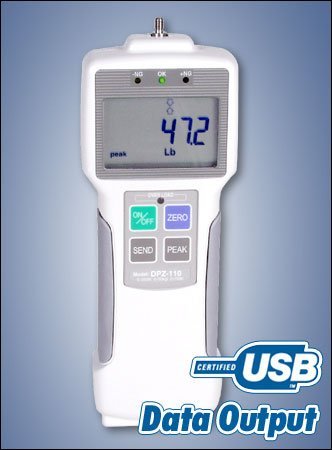
Figure 1: Representative image of an Imada Digital Force Gauge (Model DPZ-110 shown) highlighting its display, control buttons, and USB data output capability. The display shows a reading of 47.2 Lb, and buttons for ON/OFF, ZERO, SEND, and PEAK are visible.
Operating Instructions
1. Power On/Off
Press the ON/OFF button to turn the device on or off. The display will illuminate and show the current measurement mode.
2. Zeroing the Gauge
Before taking a measurement, ensure the gauge is at zero. With no load applied, press the ZERO button to reset the display to zero. This compensates for any tare weight or initial offset.
3. Selecting Measurement Units
The ZP-4 supports multiple units of measurement: lbf (pounds-force), kgf (kilograms-force), and N (Newtons). Refer to the specific button or menu sequence in your device's quick start guide or on-screen prompts to cycle through and select the desired unit.
4. Measurement Modes (Peak and Real-time)
- Real-time Mode: The display shows the current force being applied.
- Peak Mode: Press the PEAK button to capture and hold the maximum force detected during a test. The display will show "peak" indicator. Press PEAK again to return to real-time mode.
5. Setting High/Low Setpoints
The ZP-4 allows for programmable high and low setpoints, useful for go/no-go testing. When a measurement falls within the set range, an "OK" indicator (green LED) illuminates. If it exceeds the high setpoint or falls below the low setpoint, corresponding "-NG" or "+NG" indicators (red LEDs) will light up, along with an audible alarm and output signal. Consult the detailed programming instructions in the ZP Logger software manual for setting these values.
6. Data Output
- USB Output: Connect the gauge to a PC using the USB cable. Use the ZP Logger software to capture and analyze data at a rate of 1,000 data/second. Press the SEND button to transmit the current reading to the connected software.
- RS-232C Output: For older systems or specific industrial applications, the gauge also provides an RS-232C serial output.
- Analog Output: An analog output signal is available for integration with external data acquisition systems or PLCs.
7. Reversible Display
The display can be reversed for easier viewing depending on the orientation of the gauge during testing. This feature is typically activated via a dedicated button or menu option.
Maintenance
1. Cleaning
Wipe the exterior of the force gauge with a soft, dry cloth. For stubborn dirt, a slightly damp cloth with mild detergent can be used, ensuring no liquid enters the device. Do not use abrasive cleaners or solvents.
2. Storage
When not in use, store the force gauge in its carrying case in a cool, dry place, away from direct sunlight and extreme temperatures. Ensure the battery is charged periodically if stored for long durations to maintain battery health.
3. Calibration
For optimal accuracy, it is recommended to have the Imada ZP-4 force gauge calibrated annually by an authorized service center. Regular calibration ensures the device maintains its specified accuracy over time.
Troubleshooting
| Problem | Possible Cause | Solution |
|---|---|---|
| Device does not power on. | Low battery or power adapter issue. | Connect the AC adapter/charger and ensure it's plugged into a live outlet. Allow battery to charge. |
| Inaccurate readings. | Not zeroed, overloaded, or needs calibration. | Press the ZERO button. Ensure load is within capacity. Consider professional calibration. |
| "OVERLOAD" alarm. | Applied force exceeds 200% of full scale. | Immediately remove the load. Do not exceed the gauge's capacity. |
| No data output via USB. | Driver not installed, incorrect software settings, or faulty cable. | Install USB driver and ZP Logger software. Check software communication settings. Try a different USB cable. |
Specifications
| Parameter | Value |
|---|---|
| Model | ZP-4 |
| Capacity | 4.4 lbf / 2 Kg / 20 N |
| Resolution | 0.001 lbf (for 4.4 lbf capacity) |
| Accuracy | ±0.2% F.S. ±1 LSD |
| Selectable Units | lbf, kgf, N |
| Data Output | USB, RS-232C, Analog |
| Data Acquisition Rate | 1,000 data/second (via USB) |
| Overload Capacity | 200% of F.S. (with alarm and output signal) |
| Display | Reversible Digital Display |
| Setpoints | Programmable High/Low with LED indicators |
| Manufacturer | Imada |
| Item Part Number | s106 |
Warranty and Support
Imada products are manufactured to high standards of quality and reliability. For specific warranty terms and conditions, please refer to the warranty card included with your product or visit the official Imada website. For technical support, service, or calibration inquiries, please contact Imada customer service or your authorized distributor.
Please retain your purchase receipt as proof of purchase for warranty claims.
Related documentsZP-4


Ask a question about this manual
Ask about setup, troubleshooting, compatibility, parts, safety, or missing instructions. Manuals+ will review the question and use this page’s manual context to help answer it.