
1. Introduction
This manual provides instructions for the setup, operation, and maintenance of your ViewSonic VX2770SMH-LED 27-inch IPS 1080p Frameless LED Monitor. This monitor features a sleek design, Full HD 1920x1080 resolution, and an IPS panel for wide viewing angles and accurate color reproduction. It includes HDMI, DVI, and VGA inputs, along with integrated speakers.
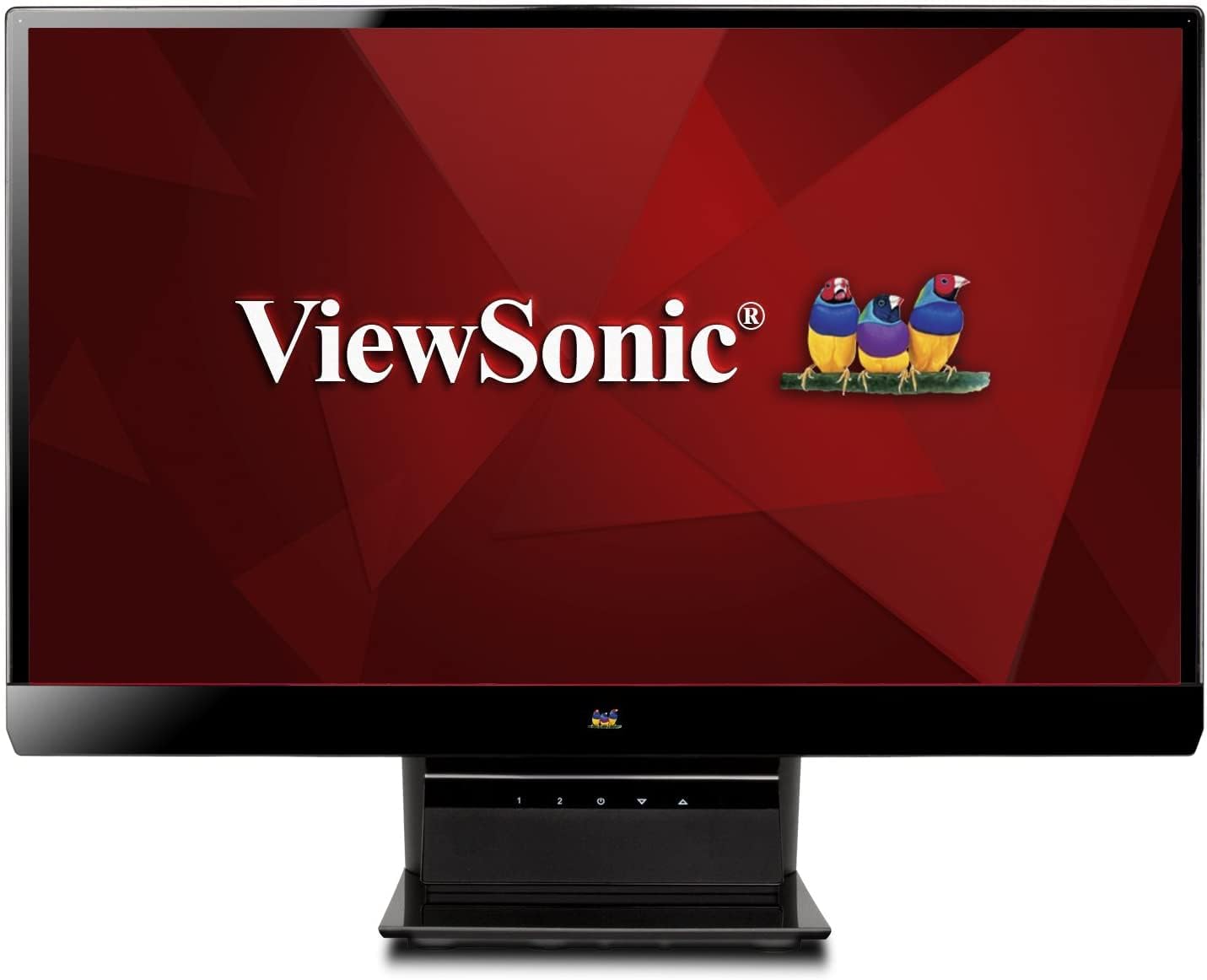
Figure 1: ViewSonic VX2770SMH-LED 27-inch monitor displaying a tropical beach scene.
2. Package Contents
Verify that all items are present in your product package:
- VX2770Smh-LED display
- Power cable
- AC/DC adapter
- VGA cable
- HDMI cable
- Quick Start Guide
- ViewSonic Wizard CD
3. Setup
Follow these steps to set up your monitor:
- Assemble the Stand: Carefully attach the monitor panel to the stand base according to the Quick Start Guide. Ensure it is securely fastened.
- Connect Power: Connect the AC/DC adapter to the monitor's power input, then plug the power cable into the adapter and a power outlet.
- Connect Video Cable: Connect one end of the appropriate video cable (HDMI, DVI, or VGA) to the corresponding port on the back of the monitor and the other end to your computer's video output port.
- Power On: Press the power button on the monitor to turn it on.

Figure 2: Rear view of the monitor, illustrating the stand attachment area and overall design.
4. Operating the Monitor
The monitor features capacitive control buttons located on the stand for easy access to settings and power functions.

Figure 3: Front view of the monitor, showing the control buttons on the stand.
Power On/Off
Press the power button (usually indicated by a power symbol) to turn the monitor on or off.
On-Screen Display (OSD) Menu
Use the control buttons to navigate the OSD menu. This menu allows you to adjust various display settings such as brightness, contrast, color temperature, input source, and more. Refer to the digital manual on the ViewSonic Wizard CD for detailed OSD navigation.
5. Connectivity
The ViewSonic VX2770SMH-LED monitor offers multiple input options for versatile connectivity:
- HDMI: For high-definition digital video and audio.
- DVI-D: For digital video input.
- VGA: For analog video input.
The monitor also features integrated speakers with SRS Premium Sound for audio output.

Figure 4: Close-up view of the HDMI, DVI, and VGA input ports on the monitor's rear panel.
Video 1: Official product video demonstrating the features and design of the ViewSonic VX2770SMH-LED monitor, including its frameless design, IPS panel technology, connectivity options, and energy efficiency.
6. Display Features
- IPS Panel Technology: Provides consistent and accurate colors with wide 178/178-degree viewing angles, ensuring clear images from nearly any perspective.
- Full HD 1080p Resolution: Delivers sharp and detailed images (1920x1080) for an enhanced viewing experience.
- Frameless Design: The ultra-thin bezel creates a seamless visual experience, ideal for multi-monitor setups.
- MEGA Dynamic Contrast Ratio: A 30,000,000:1 dynamic contrast ratio enhances image depth and detail.
- LED Backlight: Energy-efficient LED backlighting contributes to lower power consumption.
- Eco-mode: Further reduces power consumption and extends the monitor's lifespan.
- sRGB Color Correction: Ensures accurate color reproduction for various applications.
7. Maintenance
To ensure the longevity and optimal performance of your monitor, follow these maintenance guidelines:
- Cleaning the Screen: Gently wipe the screen with a soft, lint-free cloth. For stubborn marks, lightly dampen the cloth with water or a mild, non-abrasive screen cleaner. Avoid spraying liquid directly onto the screen.
- Cleaning the Casing: Use a soft, dry cloth to clean the monitor's casing.
- Ventilation: Ensure the monitor's ventilation openings are not blocked to prevent overheating.
- Power Off When Not in Use: Turn off the monitor when not in use to save energy and prolong its life.
8. Troubleshooting
If you encounter issues with your monitor, refer to the following common troubleshooting steps:
- No Power: Check if the power cable and AC/DC adapter are securely connected to the monitor and a working power outlet.
- No Signal: Verify that the video cable is correctly connected to both the monitor and your computer. Ensure the correct input source is selected via the OSD menu.
- Image Issues (Blurry, Distorted, Incorrect Colors): Adjust the display settings through the OSD menu. Ensure your computer's display resolution is set to the monitor's native resolution (1920x1080).
- No Sound: Check the audio cable connection (if using VGA) or ensure HDMI audio is selected. Adjust the volume settings on both the monitor and your computer.
For more detailed troubleshooting, consult the digital manual on the ViewSonic Wizard CD.
9. Specifications
| Feature | Specification |
|---|---|
| Standing screen display size | 27 Inches |
| Screen Resolution | 1920x1080 |
| Max Screen Resolution | 1920 x 1080 |
| Series | Viewsonic VX2770SMH-LED |
| Item model number | VX2770SMH-LED |
| Item Weight | 11 pounds |
| Product Dimensions | 7.6 x 24.5 x 18.1 inches |
| Color | Black |
| Screen Size | 27 Inches |
| Resolution | FHD 1080p |
| Aspect Ratio | 1.78:1 |
| Screen Surface Description | Glossy |

Figure 5: Monitor dimensions for planning your workspace.
10. Warranty and Support
This ViewSonic monitor is covered by a 3-year Limited Warranty. For warranty claims or technical support, please refer to the contact information provided in your Quick Start Guide or visit the official ViewSonic support website.


