
1. Introduction
The D-Link GO-SW-5G is a 5-Port Unmanaged Gigabit Desktop Switch designed for home and small office environments. This device provides a simple and cost-effective solution to expand your network connectivity, offering high-speed Gigabit Ethernet ports for reliable data transfer. It incorporates D-Link's Green Technology for energy efficiency, reduced heat generation, and extended product lifespan.
This switch is a plug-and-play device, requiring no complex configuration or software installation, making it easy to integrate into an existing network.
2. Package Contents
Please verify that all items listed below are included in your package:
- D-Link GO-SW-5G 5-Port Gigabit Desktop Switch
- Power Adapter
- Quick Install Guide
If any items are missing or damaged, please contact your retailer for assistance.
3. Setup Instructions
The D-Link GO-SW-5G switch is designed for easy plug-and-play installation. Follow these steps to set up your device:
3.1. Connect the Power Adapter
- Locate the power input port on the side of the D-Link GO-SW-5G switch.
- Connect the provided power adapter to this port.
- Plug the other end of the power adapter into a standard electrical outlet.
- The power LED on the front of the switch will illuminate, indicating that the device is receiving power.

Figure 1: Side view of the D-Link GO-SW-5G switch with the power input port.
3.2. Connect to Your Network
- Using a standard Ethernet cable (RJ45), connect one end to an available LAN port on your router (not your modem).
- Connect the other end of this Ethernet cable to any of the five available ports on the back of the D-Link GO-SW-5G switch.
- The corresponding LED on the front of the switch will light up, indicating an active connection.
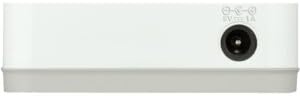
Figure 2: Rear view of the D-Link GO-SW-5G switch with five Ethernet ports.
3.3. Connect Network Devices
- Connect your network devices (e.g., computers, gaming consoles, network printers, smart TVs) to the remaining available Ethernet ports on the D-Link GO-SW-5G switch using Ethernet cables.
- Each connected device will have its corresponding LED on the front of the switch illuminate, confirming a successful connection.

Figure 3: Front view of the D-Link GO-SW-5G switch showing active port LEDs.
4. Operating Instructions
The D-Link GO-SW-5G is an unmanaged switch, meaning it operates automatically without requiring user configuration. Once connected as described in the Setup section, it will begin forwarding network traffic between connected devices.
- Automatic Negotiation: The switch automatically detects the network speed (10/100/1000 Mbps) and duplex mode (half/full) of connected devices and adjusts accordingly.
- Auto MDI/MDIX: All ports support automatic MDI/MDIX crossover, eliminating the need for crossover cables when connecting to other switches or hubs.
- LED Indicators: Each port has an LED indicator on the front panel. A lit LED indicates an active link, and blinking indicates network activity.
5. Maintenance
To ensure optimal performance and longevity of your D-Link GO-SW-5G switch, consider the following maintenance guidelines:
- Placement: Place the switch in a cool, dry location away from direct sunlight, heat sources, and excessive moisture. Ensure adequate ventilation around the device.
- Cleaning: Use a soft, dry cloth to clean the exterior of the switch. Avoid using liquid or aerosol cleaners, as they may damage the device.
- Cable Management: Keep Ethernet cables neatly organized to prevent tangles and accidental disconnections.
- Power Cycle: If you experience network issues, a simple power cycle (unplugging the power adapter for 10 seconds and then plugging it back in) can often resolve minor problems.
6. Troubleshooting
If you encounter issues with your D-Link GO-SW-5G switch, refer to the following common troubleshooting steps:
- No Power LED:
- Ensure the power adapter is securely connected to both the switch and a working electrical outlet.
- Verify the electrical outlet is functional by plugging in another device.
- No Link/Activity LED for a Connected Device:
- Check that the Ethernet cable is securely plugged into both the switch port and the network device.
- Try a different Ethernet cable to rule out a faulty cable.
- Ensure the connected device is powered on and its network adapter is functioning correctly.
- Try connecting the device to a different port on the switch.
- Slow Network Speed:
- Verify that all connected devices and cables support Gigabit Ethernet (1000 Mbps) for optimal performance. The switch will operate at the lowest common speed.
- Ensure your router and internet service provider (ISP) plan support the desired speeds.
- Perform a power cycle on the switch and your router.
- Intermittent Connectivity:
- Check for loose cable connections.
- Ensure the switch is not overheating; provide adequate ventilation.
- Test with different Ethernet cables.
7. Specifications
| Brand | D-Link |
| Model Number | GO-SW-5G/B |
| Number of Ports | 5 |
| Switch Type | Unmanaged |
| Data Transfer Rate | 1 Gigabits Per Second (10/100/1000 Mbps) |
| Interface | RJ45 |
| Color | White |
| Item Weight | 0.22 Pounds |
| Voltage | 100-240 Volts |
| Compatible Devices | PC, Mac, and other Ethernet-enabled devices |
| Switching Fabric | 10 Gbps |
| UPC | 790069365669 |
8. Warranty and Support
Limited Warranty: The D-Link GO-SW-5G switch comes with a 3-year limited warranty. For detailed terms and conditions, please refer to the warranty information included in your package or visit the official D-Link website.
Technical Support: For technical assistance, product registration, or to download the latest firmware and documentation, please visit the D-Link Support Website or contact D-Link customer service.


