
ATI 100-505746
ATI AMD FirePro W600 Graphics Card User Manual
Model: 100-505746
1. Introduction
This user manual provides comprehensive instructions for the installation, operation, and maintenance of your ATI AMD FirePro W600 2GB GDDR5 6Mini DisplayPort PCI-Express Video Card. The FirePro W600 is designed for professional graphics applications, offering high performance and multi-display capabilities. Please read this manual thoroughly before installing and operating the graphics card to ensure proper functionality and safety.
2. Safety Information
Always observe the following safety precautions to prevent damage to the product or injury to yourself.
- Ensure your computer system is powered off and unplugged from the wall outlet before installation.
- Discharge any static electricity from your body by touching a grounded metal object (e.g., the computer chassis) before handling the graphics card.
- Handle the graphics card by its edges; avoid touching the components or gold-plated connectors.
- Do not expose the graphics card to moisture or extreme temperatures.
- Only use the card in a well-ventilated computer case to prevent overheating.
3. Package Contents
Verify that all items are present in your package:
- ATI AMD FirePro W600 Graphics Card
- Quick Start Guide (if included)
- Driver CD (if included, otherwise download from manufacturer's website)
- Mini DisplayPort to DVI adapters (quantity may vary, often sold separately)
4. Setup and Installation
4.1 System Requirements
- PCI-Express x16 slot available on motherboard.
- Sufficient power supply (consult your system's power supply specifications).
- Compatible operating system (e.g., Windows 7/8/10, Linux).
- Minimum 2GB system memory.
4.2 Hardware Installation
- Prepare your computer: Power off your computer and unplug the power cord. Open the computer case.
- Locate an available PCI-Express x16 slot: Identify an empty PCI-Express x16 slot on your motherboard. Remove the corresponding expansion slot cover from the computer case.
- Install the graphics card: Carefully align the graphics card with the PCI-Express x16 slot. Press down firmly and evenly until the card is securely seated in the slot. Secure the card with the screw or latch mechanism of your computer case.
- Connect power (if applicable): The FirePro W600 typically does not require additional power connectors beyond the PCIe slot, but always verify your specific model's requirements.
- Close the computer case: Once the card is securely installed, close your computer case and reconnect all cables.
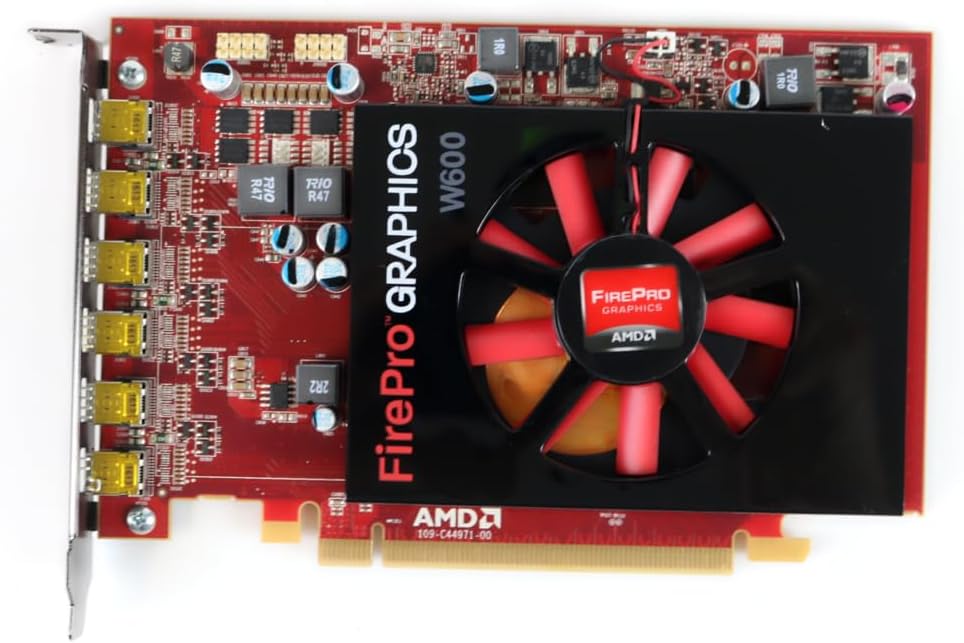
Figure 1: Front view of the ATI AMD FirePro W600 graphics card, showing the cooling fan and the FirePro Graphics branding.

Figure 2: Rear view of the ATI AMD FirePro W600 graphics card, displaying the intricate circuitry and components on the back of the PCB.
4.3 Driver Installation
- Power on your computer: Boot your computer. The operating system may automatically detect the new hardware and install a basic driver.
- Download the latest drivers: For optimal performance and stability, it is highly recommended to download the latest professional drivers directly from the AMD official website. Navigate to the support section and search for "FirePro W600" drivers.
- Install the drivers: Run the downloaded driver installer and follow the on-screen prompts. You may need to restart your computer after installation.
5. Operating the Graphics Card
5.1 Connecting Displays
The ATI AMD FirePro W600 features six Mini DisplayPort outputs. You will need Mini DisplayPort cables or Mini DisplayPort to DVI/HDMI/VGA adapters (active adapters are recommended for multi-monitor setups, especially for AMD Eyefinity features) to connect your monitors.
- Connect your Mini DisplayPort cables or adapters to the Mini DisplayPort outputs on the graphics card.
- Connect the other end of the cables to your monitors.
- Power on your monitors.

Figure 3: Detail of the six Mini DisplayPort outputs on the FirePro W600, indicating its multi-display capability.
5.2 Configuring Multi-Monitor Setups (AMD Eyefinity)
The FirePro W600 supports AMD Eyefinity technology, allowing you to combine multiple displays into a single large desktop or create independent display groups.
- After driver installation, right-click on your desktop and select "AMD Radeon Settings" or "AMD Catalyst Control Center" (depending on driver version).
- Navigate to the "Display" or "Eyefinity" section.
- Follow the on-screen instructions to detect and configure your connected displays. You can arrange displays, set resolutions, and create Eyefinity display groups for a panoramic viewing experience.
- For optimal performance with Eyefinity, ensure you are using active Mini DisplayPort adapters for any non-DisplayPort monitors.
6. Maintenance
Regular maintenance helps ensure the longevity and optimal performance of your graphics card.
- Dust Removal: Periodically clean dust from the graphics card's fan and heatsink using compressed air. Ensure the computer is powered off and unplugged before cleaning. Hold the fan blades gently to prevent over-spinning during cleaning.
- Driver Updates: Keep your graphics drivers updated by regularly checking the AMD official website for the latest versions.
- System Ventilation: Ensure your computer case has adequate airflow to prevent the graphics card from overheating.
7. Troubleshooting
If you encounter issues with your graphics card, refer to the following common problems and solutions:
| Problem | Possible Cause / Solution |
|---|---|
| No display output after installation. |
|
| Driver installation failure. |
|
| Only some monitors are detected in a multi-monitor setup. |
|
| System crashes or freezes during graphics-intensive tasks. |
|
8. Specifications
| Feature | Detail |
|---|---|
| Chipset | AMD FirePro W600 |
| Engine Clock | 600 MHz |
| Memory | 2GB GDDR5 |
| Memory Interface | 128-bit |
| Max. Resolution | 4096 x 2304 |
| Connectors | 6x Mini DisplayPorts |
| Interface | PCI-Express x16 |
| Item Weight | 7 ounces |
| Product Dimensions (LxWxH) | 1.57 x 4.21 x 6.45 inches |
9. Warranty Information
For detailed warranty information regarding your ATI AMD FirePro W600 graphics card, please refer to the warranty card included with your product or visit the official ATI/AMD support website. Warranty terms and conditions may vary by region and retailer. Keep your proof of purchase for warranty claims.
10. Support
For technical support, driver downloads, and frequently asked questions, please visit the official AMD support website:www.amd.com/en/support
You may also contact your retailer or point of purchase for assistance.
Related documents100-505746


Ask a question about this manual
Ask about setup, troubleshooting, compatibility, parts, safety, or missing instructions. Manuals+ will review the question and use this page’s manual context to help answer it.